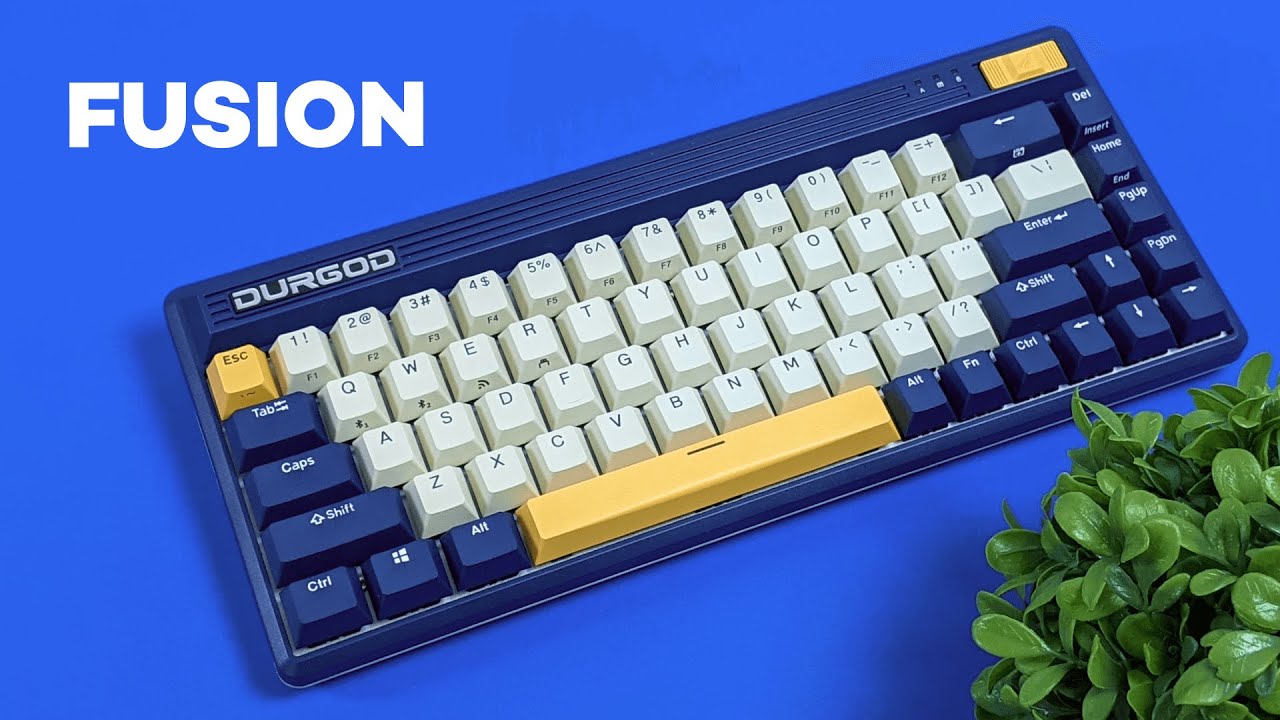
The Durgod Fusion 65 is one of those keyboards that instantly stands out. Before you even get into the switches, battery life, or connection options, the design grabs you. It has this retro look that feels straight out of the Nintendo era, especially with the ridges across the top and the bold colorways. If you like tech that feels a little nostalgic without giving up modern features, this keyboard is a really interesting one.
It also came in with a lot of momentum. Durgod originally launched the Fusion through Kickstarter and raised $2.1 million to get it into production. That is not something you see every day in the keyboard world, and it says a lot about how much interest there was in the combination of retro styling, wireless flexibility, and premium mechanical keyboard features.
What comes in the box
Durgod includes a pretty complete package here. You are not just getting the keyboard and a basic cable tossed in the box. There are a few thoughtful extras that make the setup feel more premium.
- The Durgod Fusion 65 keyboard
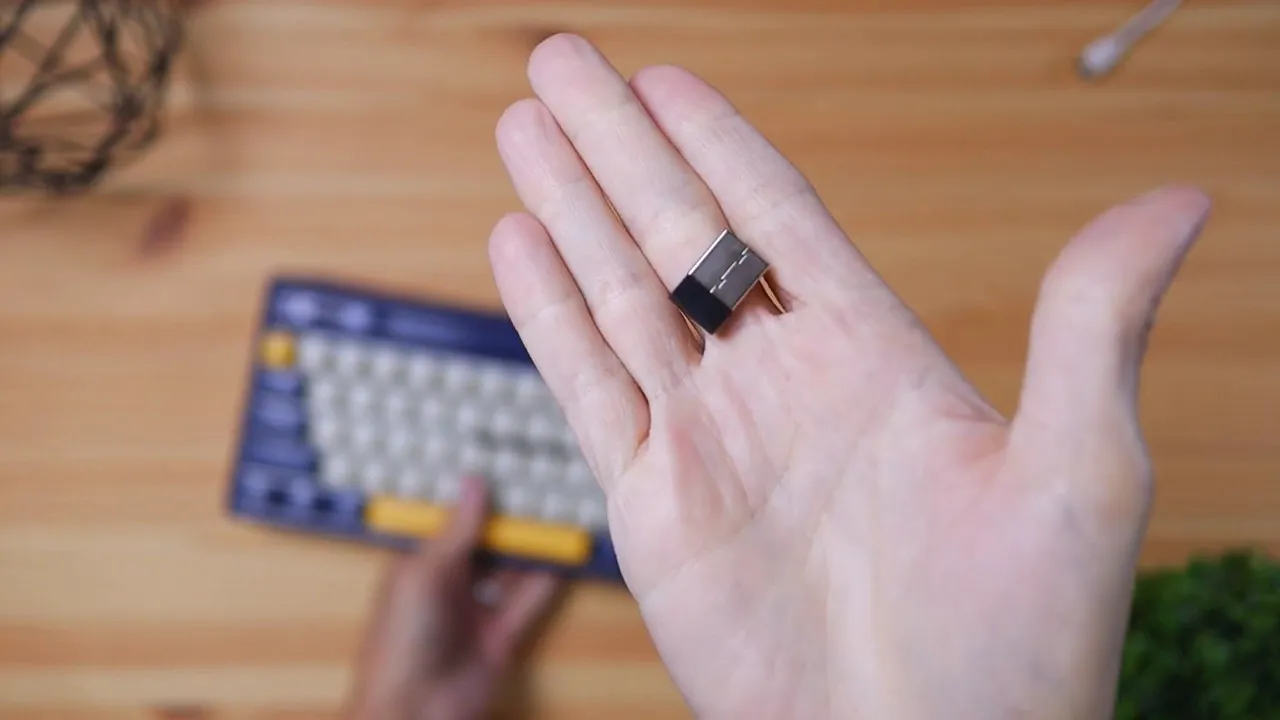
- A USB wireless dongle hidden inside the keyboard
- A USB-C to USB-C cable
- A USB-C to USB-A cable
- A keycap puller
- A white Velcro cable tie
- A stitched coaster
- A Durgod sticker
- A quick start guide
The hidden dongle is one of the cooler details. It is stored under the logo piece at the top of the keyboard, and that logo pops out magnetically. It is a small touch, but it keeps the dongle easy to access and a lot harder to lose.
Color options and retro design
The Fusion comes in three color options, and each one leans into that classic aesthetic in a slightly different way:
- Navigator which is the blue and yellow version
- Steam which has more of that Nintendo-inspired color palette
- Original which is orange and white
The Navigator version is easily my favorite of the three. The blue and yellow combo just works, and it gives the keyboard a fun personality without looking gimmicky.
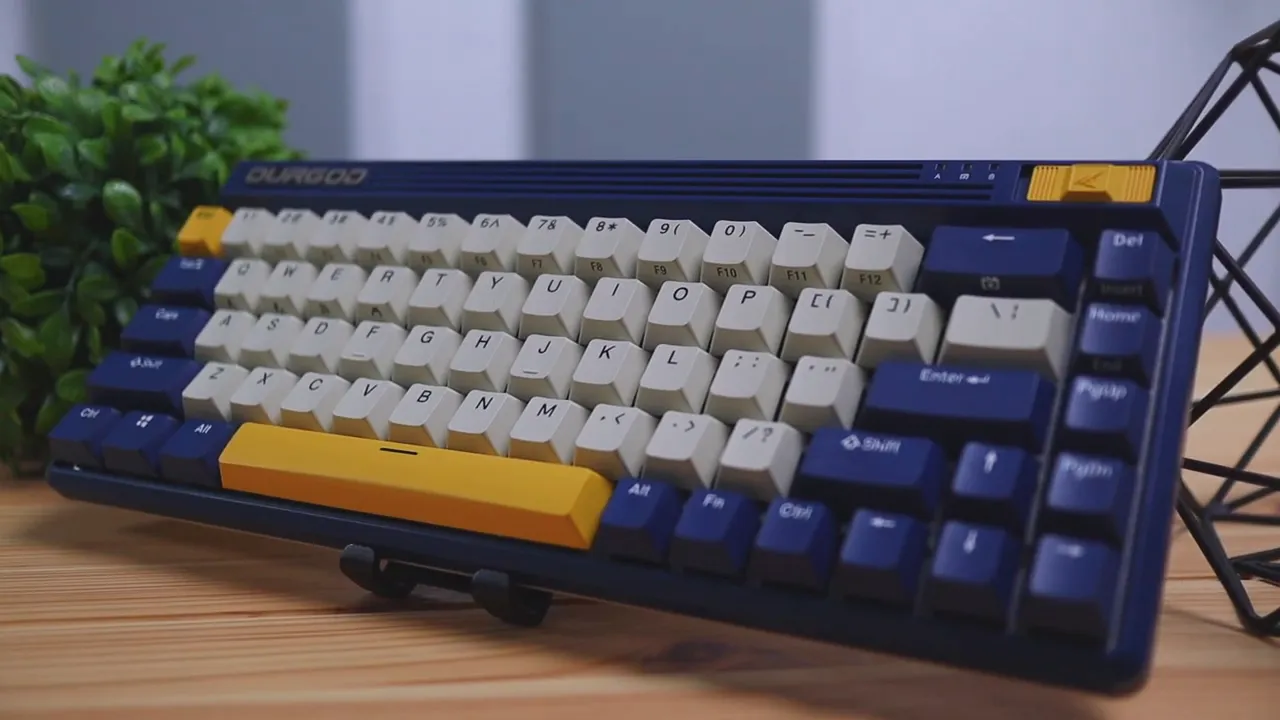
The overall shell is made from thick plastic, and that is actually part of the appeal. This is not trying to be an ultra-thin, low-profile board. It has more of a mid-height presence on the desk, which fits the retro theme really well. According to the product listing, it also uses double-shot PBT keycaps in a Cherry profile, which is a nice bonus for durability since legends on quality PBT keycaps hold up much better over time.
If you like reading about other keyboard styles and layouts, the broader keyboard reviews collection is worth checking out too.
Build quality and layout
The Durgod Fusion uses a 65% layout, which is a sweet spot for a lot of people. You get a more compact footprint than a full-size keyboard, but you still keep more functionality than a stripped-down 60% board. That makes it a solid choice for both everyday typing and cleaner desk setups.
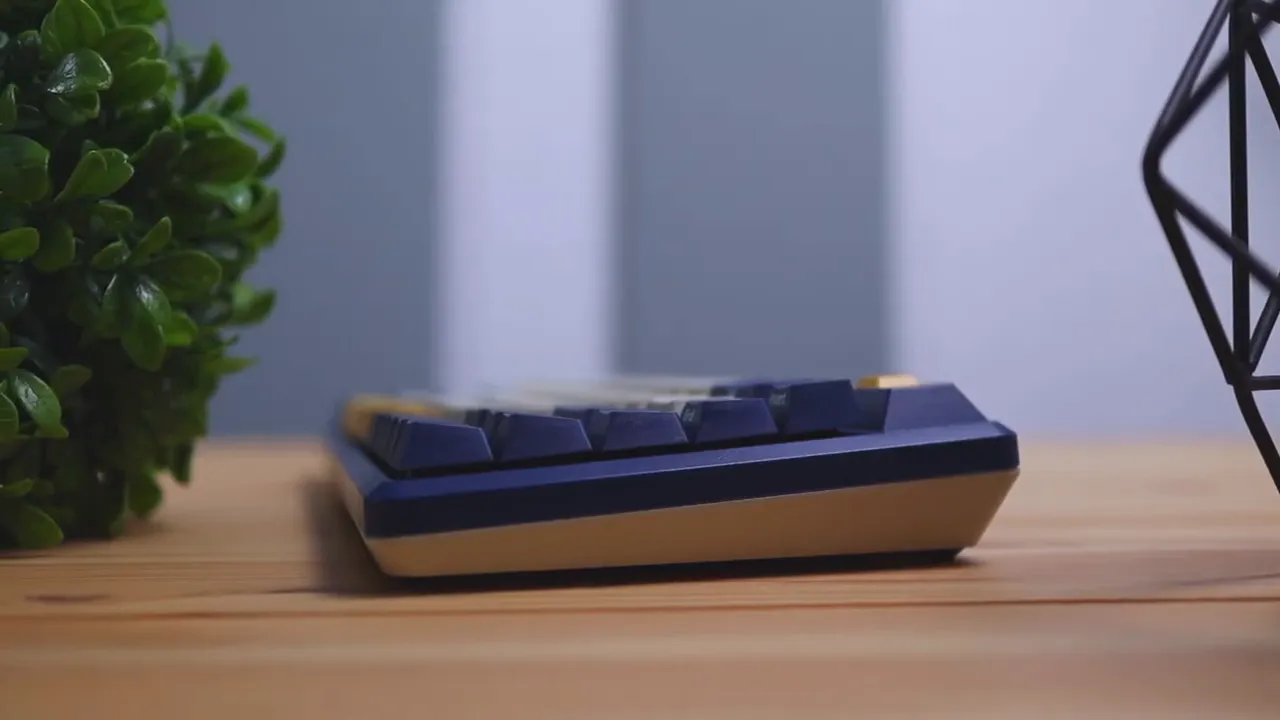
In actual use, the keyboard height feels well judged. It is not so tall that your wrists feel overextended, and the keycaps themselves are not overly tall either. That matters more than people think. A board can look good on paper, but if the typing angle or key height feels awkward, you notice it fast. Here, the proportions help create a more comfortable typing experience.
The body is covered in durable plastic across the front, sides, and back. It does not try to mimic an aluminum enthusiast board, but it does feel sturdy and well put together for what it is.
Connection options: wired, Bluetooth, and 2.4GHz
One of the biggest strengths of the Durgod Fusion is flexibility. You can use it in three different ways:
- 2.4GHz wireless with the included USB dongle
- Bluetooth
- Wired over USB-C
That makes it easy to fit into different setups. If you want low-latency wireless at a desktop, use the dongle. If you are connecting to multiple mobile devices or want to avoid using a USB receiver, Bluetooth is there. And if you just want a simple wired setup or need to charge while using it, the USB-C connection handles that too.
On the side of the keyboard, there is a USB-C port for charging and wired mode. Durgod includes both USB-C to USB-C and USB-C to USB-A cables, which is genuinely useful. One works well for newer laptops, and the other covers desktops or older systems that still use USB-A.
The metadata for the product also notes compatibility across Windows, iOS, and Android in wireless modes, which adds to the Fusion's versatility for multi-device setups.
Battery life
Battery life is rated at 20 to 40 days on a full charge, depending on usage. That is a healthy range for a wireless mechanical keyboard. Realistically, for most people, that means charging it about once a month and not thinking about it much in between.
That kind of battery life makes the Fusion a lot more practical as a daily wireless board. You are not constantly babysitting the battery or keeping a cable nearby just in case.
Desk stability and ergonomics
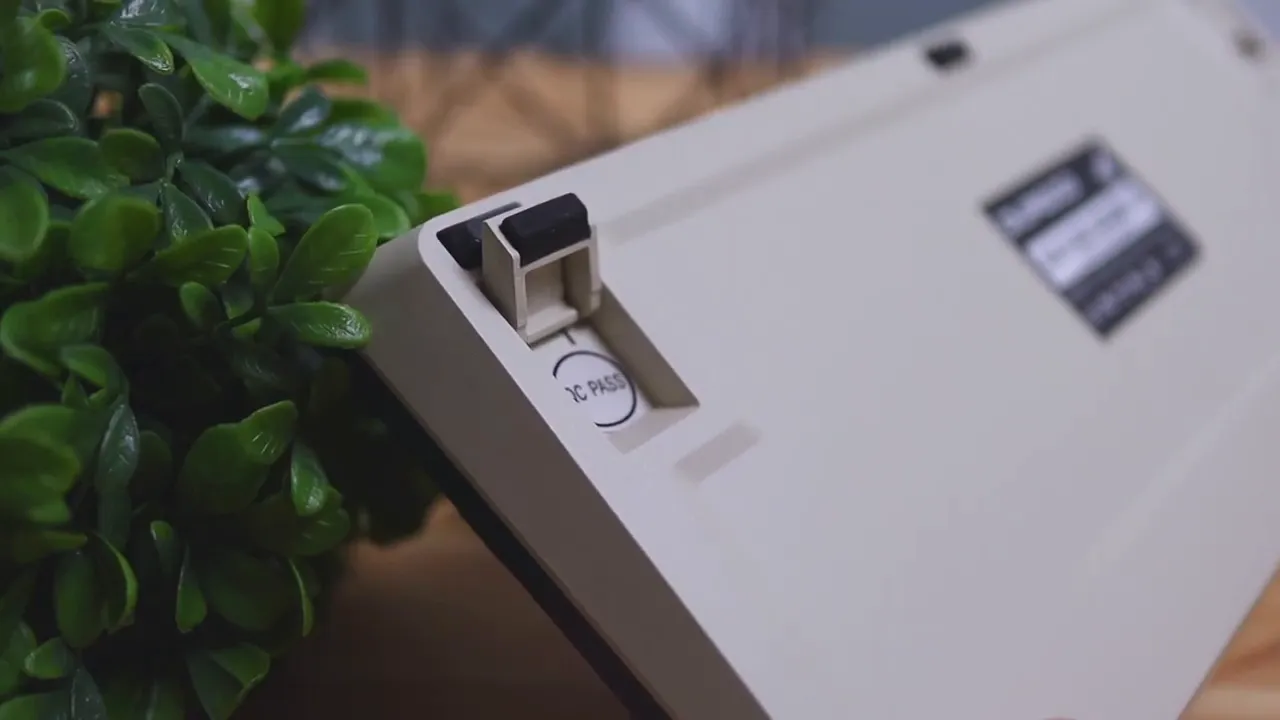
Flip the keyboard over and there are some nice practical touches. You get rubber grips on the corners and midpoints of the underside, which helps keep it from sliding around while typing.
There are also two adjustable rear feet, and those feet include rubber grips too. That means even when you raise the typing angle, the board still stays planted.
As for comfort, the best setup really depends on your hands and your preferences. With medium-sized hands, I found the keyboard more comfortable with the legs folded down. If you have larger or smaller hands, it is worth trying both positions to see what feels more natural.
Typing experience and switch options
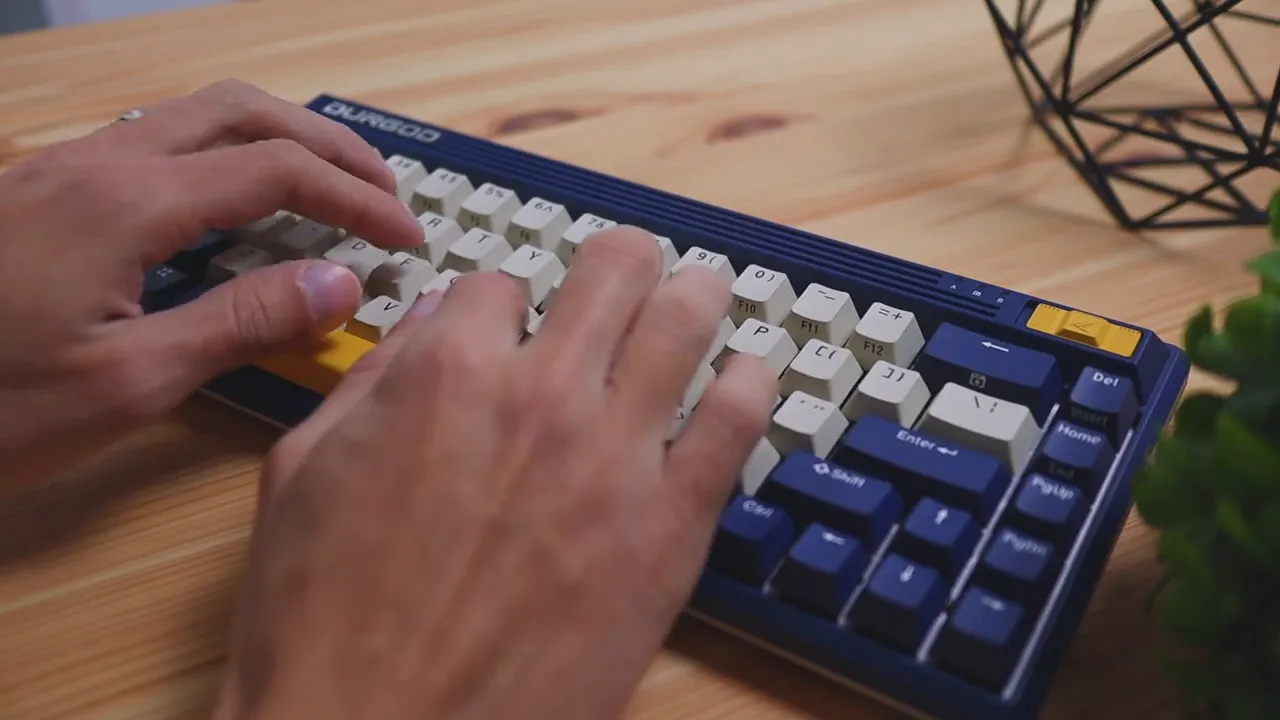
This is where the Durgod Fusion starts to justify its premium pricing. The typing experience is really good.
Durgod offers the keyboard with seven different switch options, and the switches are factory lubricated. That factory lube helps the keys feel smoother and more refined right out of the box. A lot of cheaper mechanical keyboards can feel scratchy or inconsistent unless you mod them yourself. The Fusion does a better job of delivering that polished feel from day one.
The unit here uses silent red switches, and the sound profile is impressively quiet for a mechanical keyboard. If you want something that still gives you the feel of a mechanical board without producing a loud clacky sound, that is a strong switch choice.
Another thing that stood out is the stabilizers. They are solid. Good stabilizers make a big difference on larger keys like the spacebar and Enter, and on the Fusion they help cut down on wobble. There is still a little movement on the bigger keys, but it is noticeably better than a lot of other mechanical keyboards in this range.
Overall, the typing feel comes across as:
- Smooth
- Controlled
- Relatively quiet with the right switch option
- Comfortable for longer typing sessions
- More premium than many off-the-shelf mechanical boards
If typing feel is the main reason you are shopping for a mechanical keyboard, the Fusion absolutely holds up.
Software and customization
If you like to tweak your setup, the Durgod Fusion supports Durgod's Zeus Engine software on Windows. Through the software, you can do the usual keyboard customization tasks, including:
- Setting up macros
- Creating profiles
- Rebinding keys
- Changing what individual keys do
That adds a lot of flexibility if you want the keyboard to fit a specific workflow. Whether you use custom shortcuts for productivity or just want to remap a few functions, the software gives you room to personalize the board beyond its default layout.
If software customization matters to you, it is worth noting that support here is Windows-only. That is not unusual, but it is something Mac users should keep in mind.
What I liked
The Durgod Fusion has a lot going for it, and the best parts are not just cosmetic.
- Distinct retro design: It has a personality that most keyboards do not.
- Great typing experience: Smooth factory-lubed switches and solid stabilizers make a real difference.
- Three connection modes: Wired, Bluetooth, and 2.4GHz wireless give it a lot of flexibility.
- Good battery life: 20 to 40 days is strong for a wireless mechanical keyboard.
- Thoughtful accessories: Hidden dongle storage, dual cables, and even the little extras make it feel complete.
- Windows software support: Macros, profiles, and remapping are all there if you want them.
The biggest downside: price
The one thing that is hard to ignore is the price. At around $170, the Durgod Fusion is not a budget keyboard.
That puts it well above the many decent mechanical keyboards floating around the $100 mark. So if all you want is a competent compact mechanical keyboard, there are definitely cheaper options out there.
At the same time, this is one of those cases where the price does line up with what you are getting. The design is unique, the typing experience is excellent, and the wireless options plus customization software help round out the package. It does not feel overpriced so much as premium.
If you want something with a more budget-friendly angle but still like versatile connectivity, a board like the Epomaker Shadow X might be worth comparing alongside it.
Who the Durgod Fusion 65 is for
This keyboard makes the most sense for a few specific types of users:
- People who love retro tech design and want something that stands out on the desk
- Anyone who wants a compact mechanical keyboard without dropping to a 60% layout
- Users who need flexible connectivity across desktop, laptop, and mobile devices
- Typists who care about switch feel, stabilizers, and overall refinement
- Buyers who are okay paying more for better design and build execution
If your main priority is simply getting the cheapest decent keyboard possible, this probably is not the move. But if you want something that feels special every time you sit down to type, the Fusion earns its place.
Final thoughts
The Durgod Fusion 65% mechanical keyboard does a really good job blending style and substance. The retro Nintendo-like design gives it an identity right away, but it is not just relying on looks. The typing experience is smooth, the stabilizers are well done, the battery life is practical, and the triple-mode connectivity makes it easy to use in just about any setup.
Yes, it is expensive. That is the main hurdle. But this is also one of those keyboards where the quality, features, and design make the higher price easier to justify.
If you want to check current pricing or available switch options, you can find the Durgod Fusion here.


