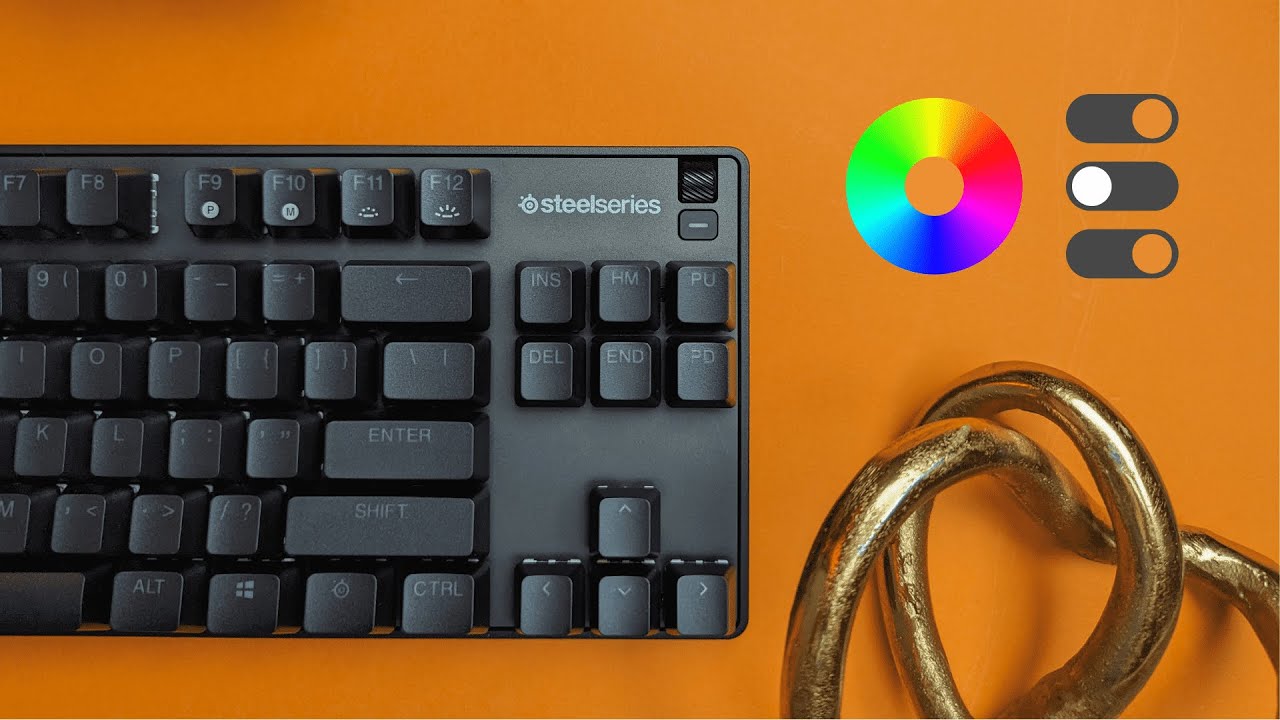
The SteelSeries Apex 9 TKL is powerful on its own, but the real magic shows up when you pair it with SteelSeries GG and the Engine module. The software puts full control of RGB lighting, key remaps, macros, and profiles at your fingertips. This guide walks through the most useful features, practical tips, and a few quirks so you can get the most from your keyboard.
Table of Contents
- Overview: SteelSeries GG and Engine
- RGB Lighting with Prism
- Profiles and Configurations
- Key Remapping: Everything You Need
- Launch Actions and Engine Apps
- Recording and Editing Macros
- Practical Tips and Limitations
- Wrapping Up
- Frequently Asked Questions
Overview: SteelSeries GG and Engine
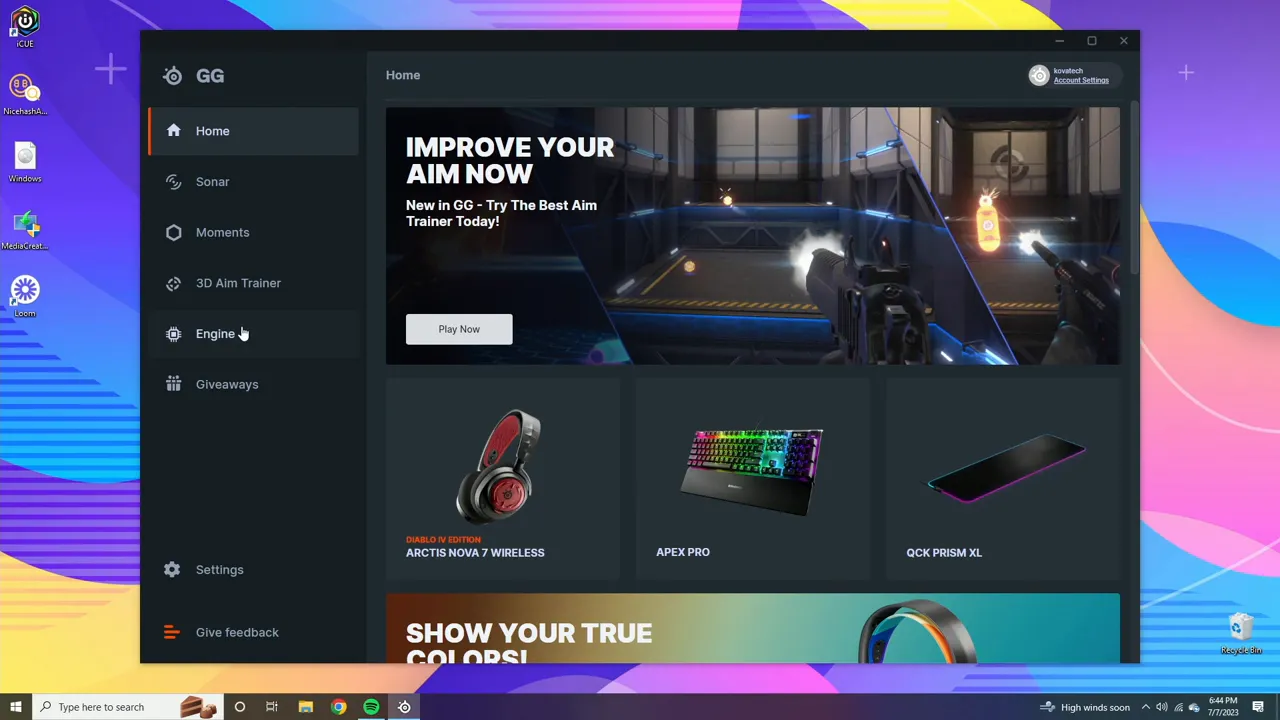
After installing SteelSeries GG, the first screen is an overview that includes news, giveaways, and quick links. To configure the keyboard you need to open the Engine. From there you select the Apex 9 TKL to access two main workspaces: lighting (Prism) and shortcuts/macros.
RGB Lighting with Prism
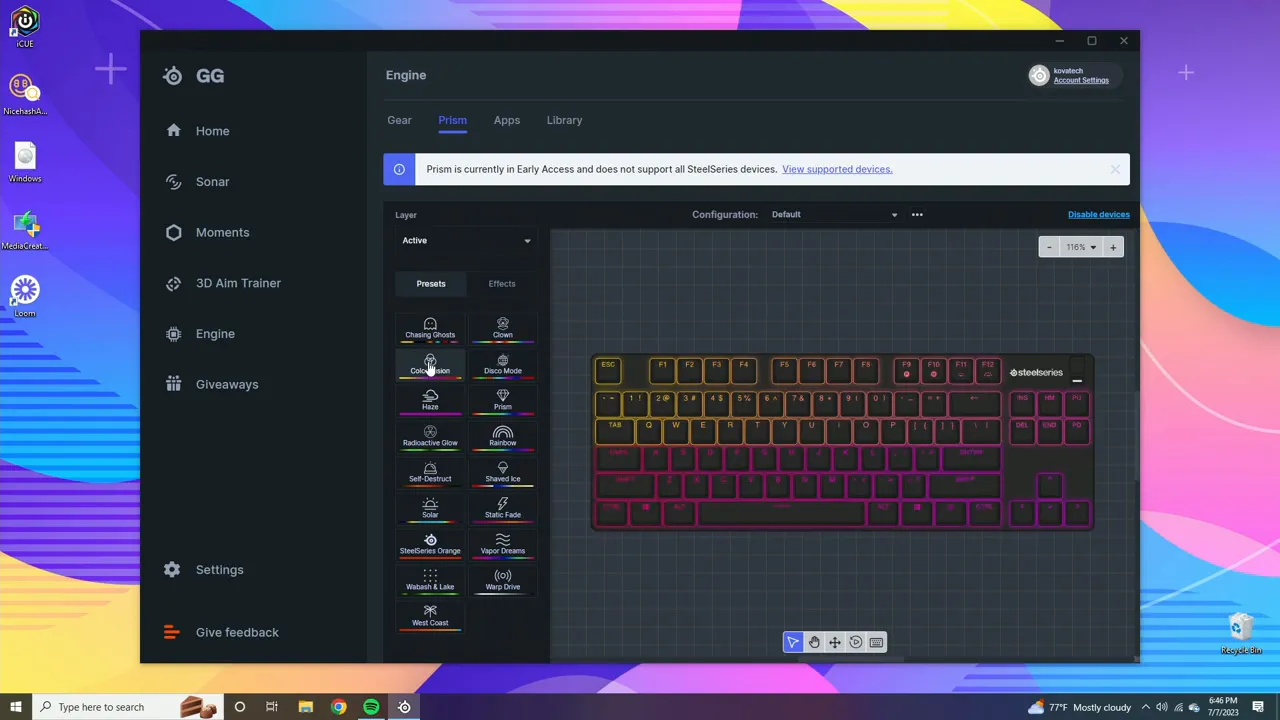
The Prism lighting interface is straightforward. SteelSeries provides a range of presets like disco and color shift, which are useful if you want instant effects with no setup. Those presets update the keyboard in real time so you can see changes immediately.
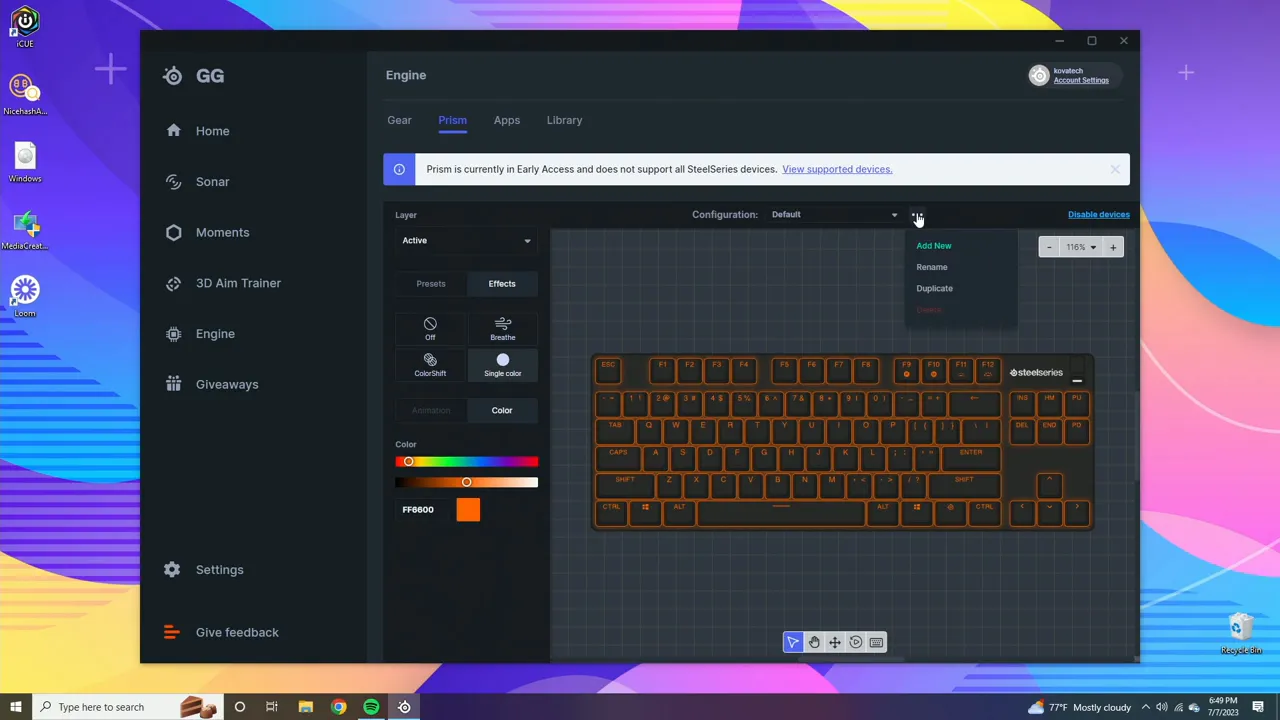
For deeper customization switch from Presets to Effects. There you can layer, tweak, and combine effects to craft exactly the look you want. Once a configuration matches your aesthetic, save it as a profile. Naming profiles helps switch quickly between moods or games. For example, you can have a default blue profile and an orange “CovaTech” profile for a different setup.
Profiles and Configurations
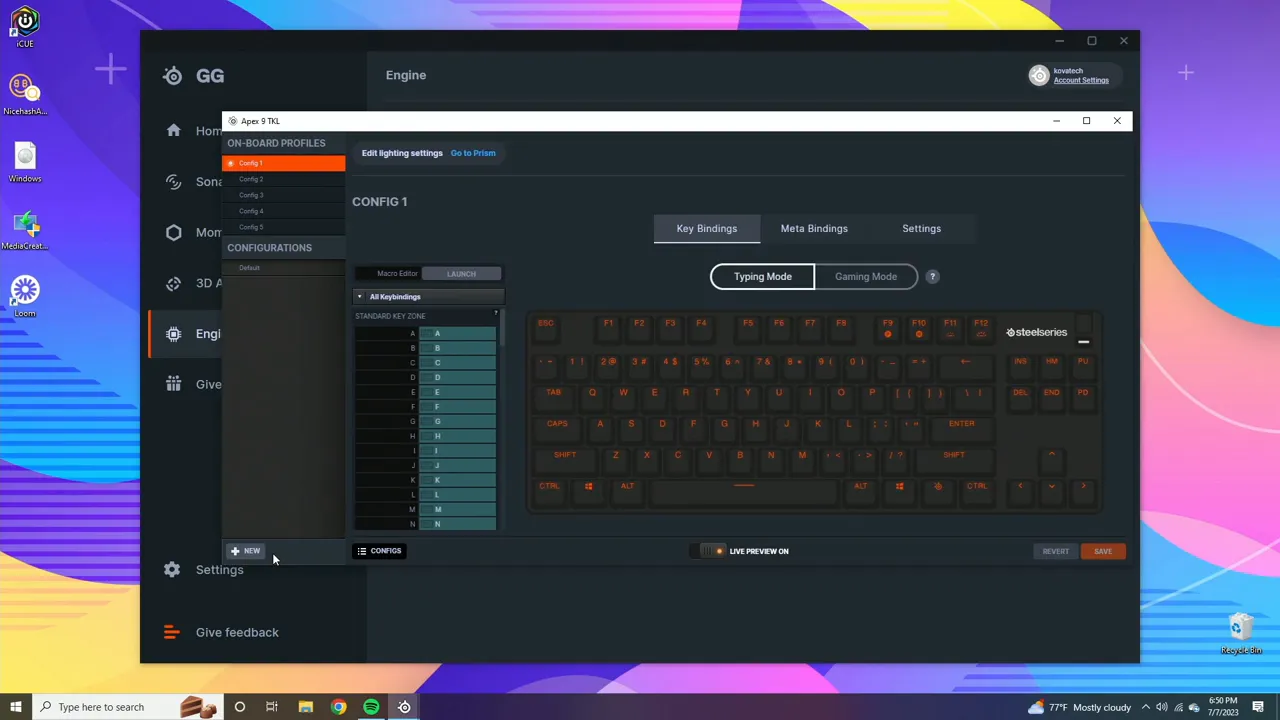
Profiles (called Configs) let you link key bindings and lighting to specific applications or games. Use separate profiles for games, productivity apps, or streaming software. The configs panel is where you can create, rename, and reorder profiles so your keyboard behaves differently in each program.
Key Remapping: Everything You Need
Key bindings are flexible. You can remap standard letters, function keys, navigation keys, and more. For example, you can make the S key register as C instead. The remap options include:
- Standard keys like letters and numbers
- Editing keys such as Enter, Escape, Backspace
- Function layers including F1 through F24 and Print Screen
- Navigation and numpad keys
- Media controls like play, pause, mute
- Device functions such as brightness up/down
- Mouse buttons and other peripheral actions
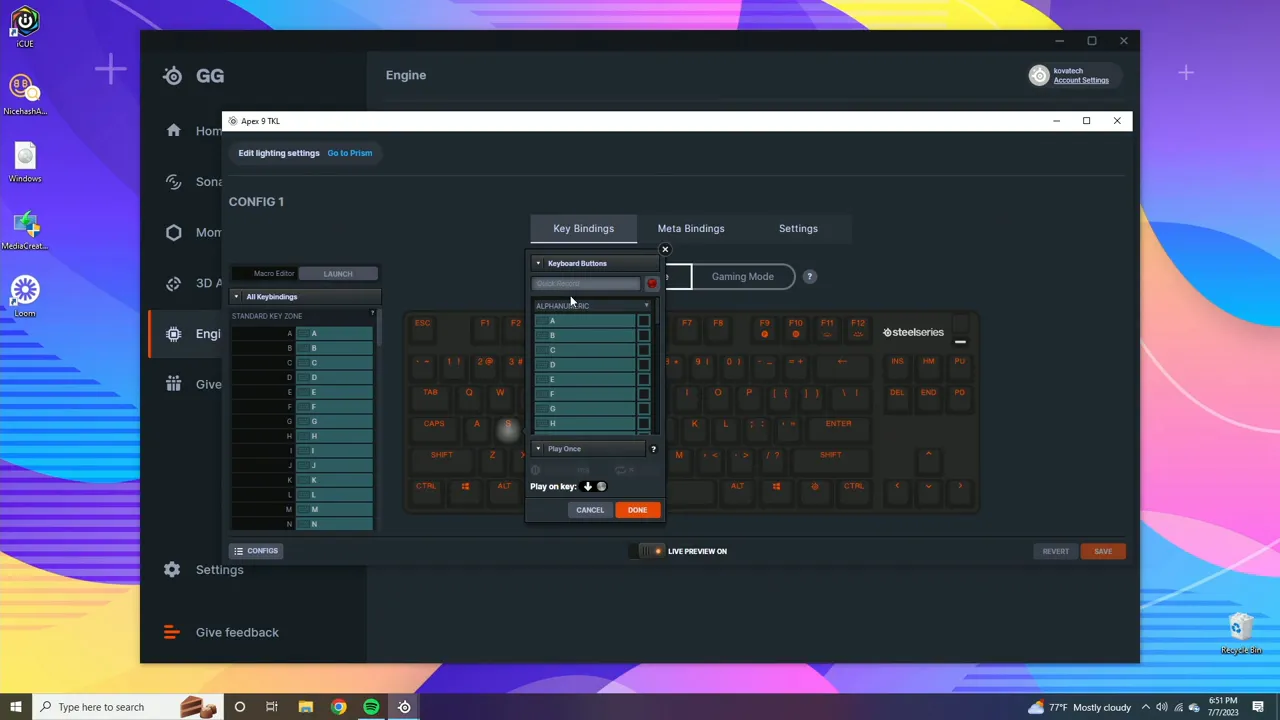
There is also an Activate/Deactivate option which disables a key entirely. This is handy to prevent accidental presses—disabling the Windows key while gaming is a common use case.
Launch Actions and Engine Apps
The software supports binding keys to launch applications or switch configurations. Add a launch application action to open a browser, a game, or a calculator with one press. You can also create launch configuration actions to switch profiles without leaving your current app.
Engine Apps is a helpful list of supported integrations. Titles like Dota and CS:GO plus utilities such as Discord appear here for quick linking. The software also includes ready-made OS shortcuts for copy, paste, undo, and more, and it supports both Windows and Mac shortcuts.
Recording and Editing Macros
Macros are one of the biggest strengths. The record macro tool captures exact key sequences, including the timing between presses. Start recording, perform the series of keys, then stop. The timeline shows key down and key up events and the delays between them.
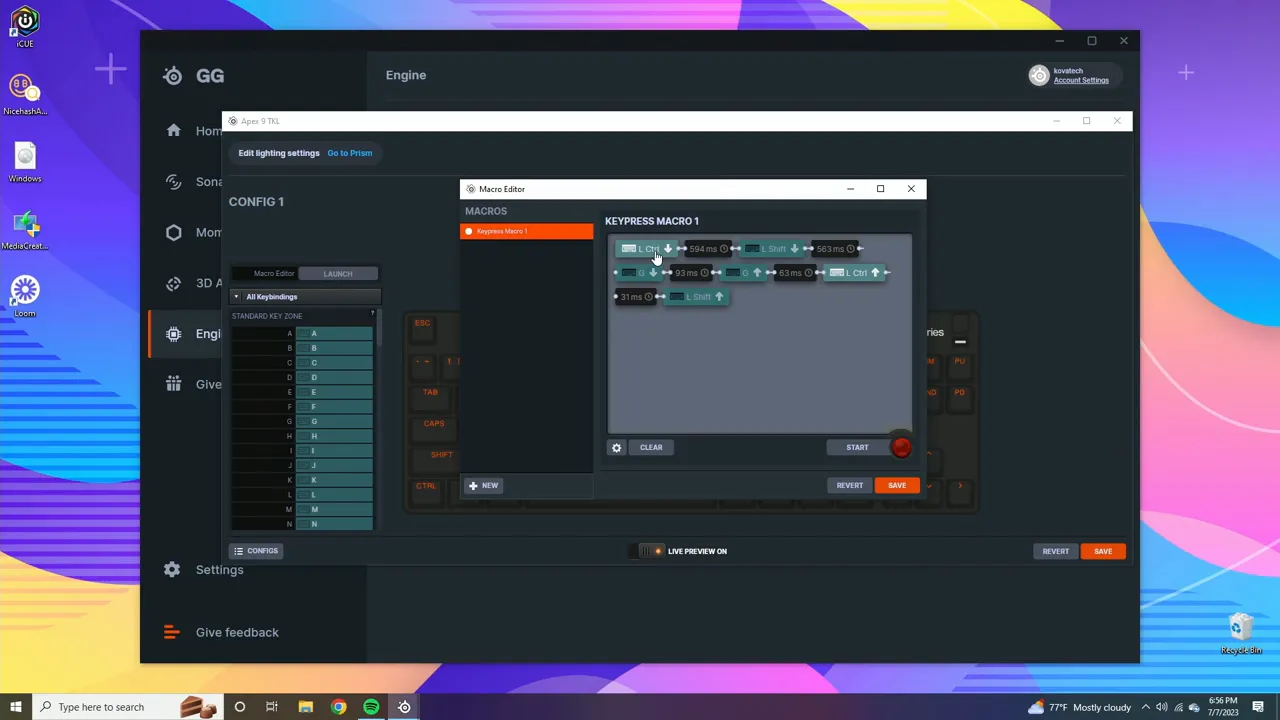
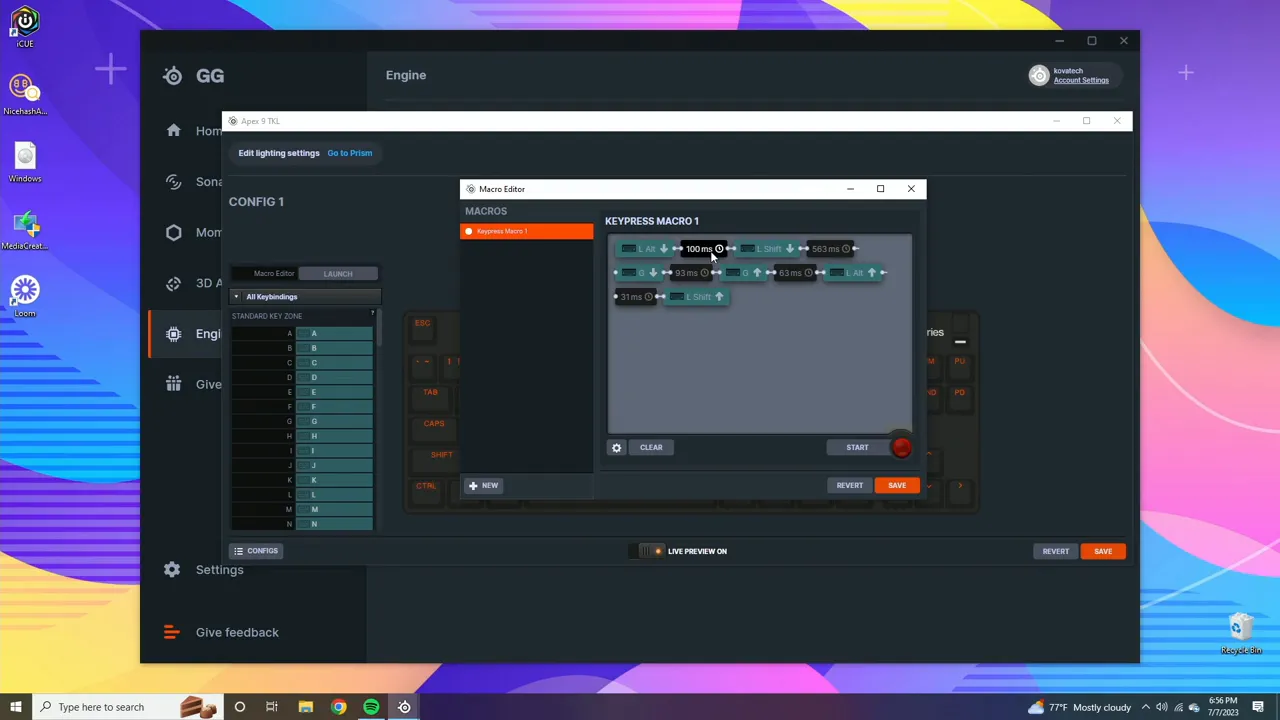
After recording, right-click an event to edit the key or timing. You can change a left Control to Alt+Tab, or shrink delays to make a sequence execute faster. Timing can be adjusted down to a few milliseconds; setting delays to 100 milliseconds can transform a slow macro into a near-instant sequence.
Practical Tips and Limitations
- If you use profiles per game, make sure to link them to the executable so switching is automatic.
- Use Deactivate to disable disruptive keys when gaming.
- Macros can include mouse actions when the mouse is supported by the software.
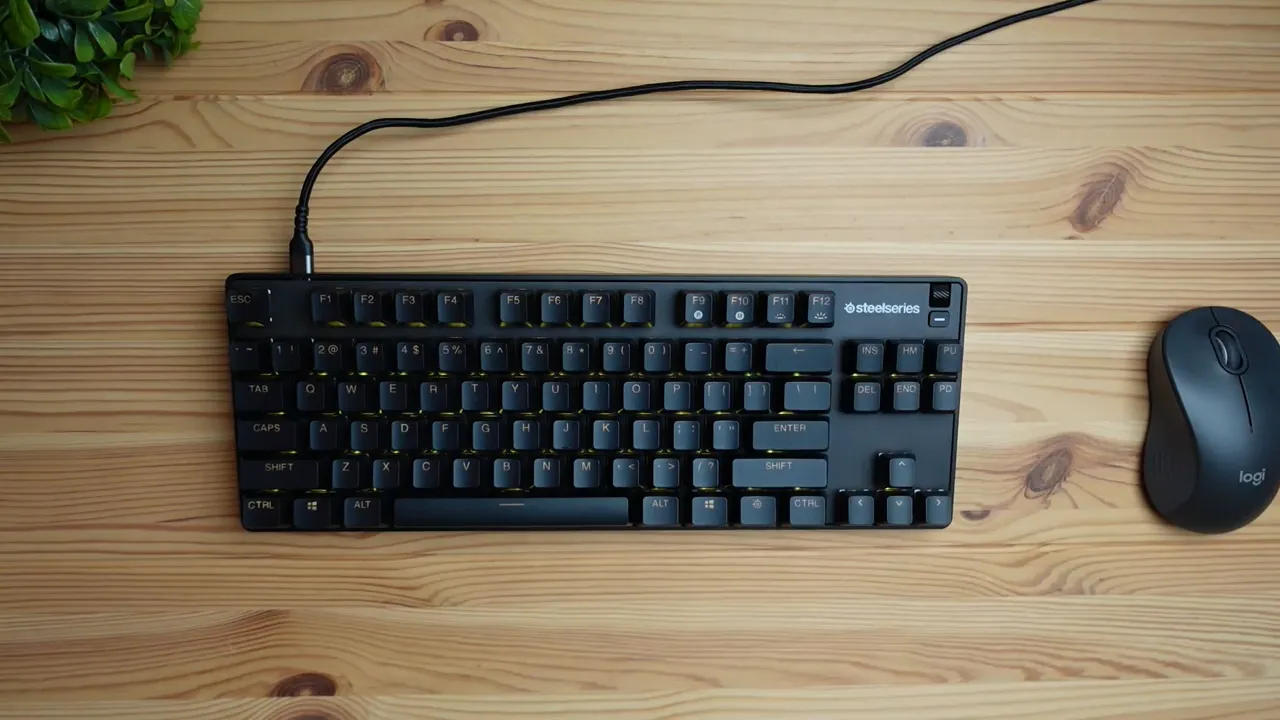
- Two hardware controls are fixed: the top-right media button (pause/play) and the volume dial are not remappable through the software.
Wrapping Up
The SteelSeries GG Engine for the Apex 9 TKL makes a highly customizable keyboard even more powerful. Lighting presets and deep effect controls let you craft a unique look. Profiles and key remaps make the keyboard adapt to tasks and games. Robust macro recording and precise timing adjustments let you automate complex actions. The few limitations, like non-remappable media controls, are easy to live with compared to the breadth of customization the software offers.
Spend time exploring lighting layers and test macros in a safe environment before relying on them in competition. The more profiles and macros you build, the more the keyboard feels like an extension of your workflow or playstyle.
Frequently Asked Questions
Can I remap any key on the Apex 9 TKL?
Most keys can be remapped, including letters, function keys, navigation, media controls, and mouse buttons. Some hardware-specific controls like the top-right pause/play button and the volume dial are not remappable through the software.
Are lighting profiles stored on the keyboard or in the software?
Lighting profiles are saved within SteelSeries GG. You can create multiple profiles and assign them to applications. Some keyboards support storing profiles in onboard memory, but confirm if a particular model exposes that option.
Can I create macros that include precise timing?
Yes. Recorded macros include key down and key up events along with delays. You can edit each event and adjust timings down to a few milliseconds for highly precise sequences.
Is SteelSeries GG compatible with Mac?
Yes. SteelSeries GG includes Mac OS shortcuts and supports configuration on macOS as well as Windows, although exact feature parity may vary by platform.
How do I prevent accidental Windows key presses while gaming?
Use the Deactivate action to disable the Windows key in a profile. This prevents the key from opening the Start menu mid-game and lets you play without interruptions.


