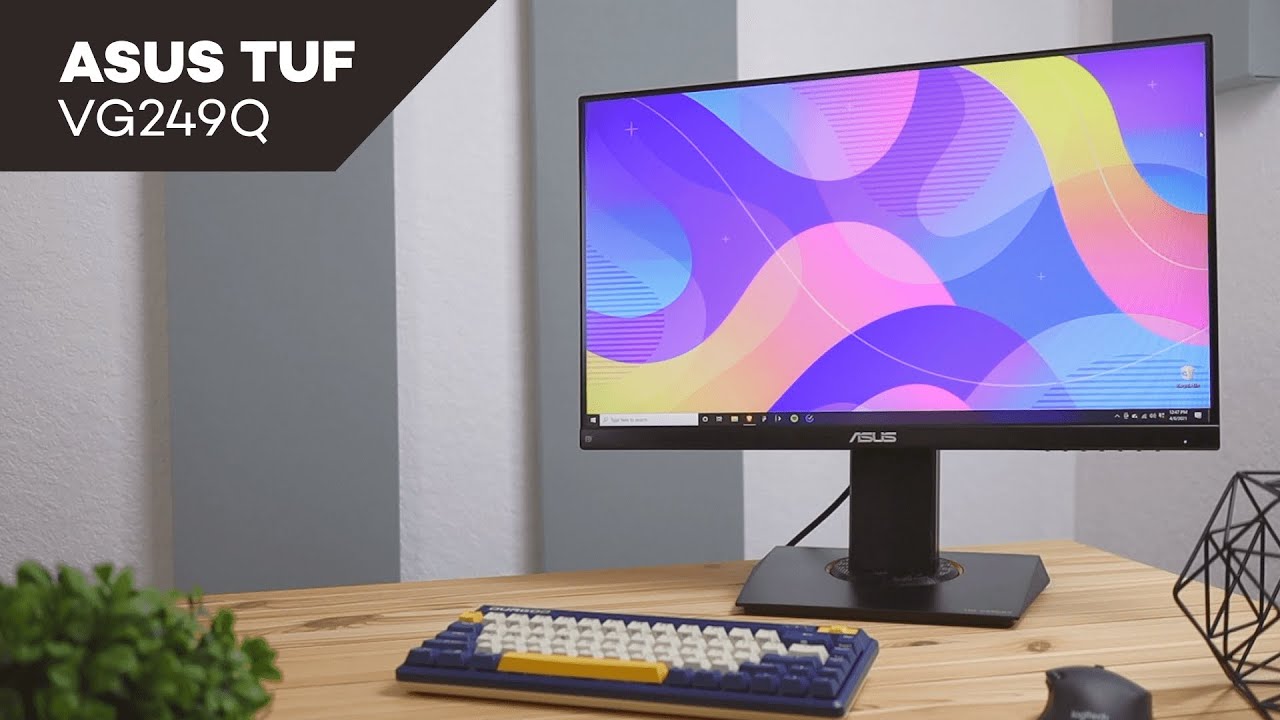
If you want to prioritize performance over pixel count, this review covers a solid contender: the ASUS TUF VG249Q. It is a 23.8-inch, 1080p IPS panel that pushes a 144Hz refresh rate, and it’s built to give competitive-feeling smoothness without forcing you to upgrade to an expensive graphics card. Below I break down what you get, how it performs, and whether this monitor should be on your shortlist.
Table of Contents
- Quick overview — what makes this review-worthy
- What’s in the box and assembly
- Design and build quality
- Panel specs and the core selling point
- Motion, responsiveness, and 144Hz in practice
- Color, presets, and eye comfort
- Extra on-screen features you’ll actually use
- Who should buy this monitor? Use-case guidance
- Pros and cons — concise review summary
- Price context and value
- Final verdict — should you buy it?
- FAQ
- Closing thoughts
Quick overview — what makes this review-worthy
The VG249Q targets gamers who want responsiveness and fluid motion more than ultra-high resolution. In this review I focus on real-world usability: assembly, design, performance at 144Hz, color modes, useful on-screen features, and who benefits most from this monitor.
What’s in the box and assembly
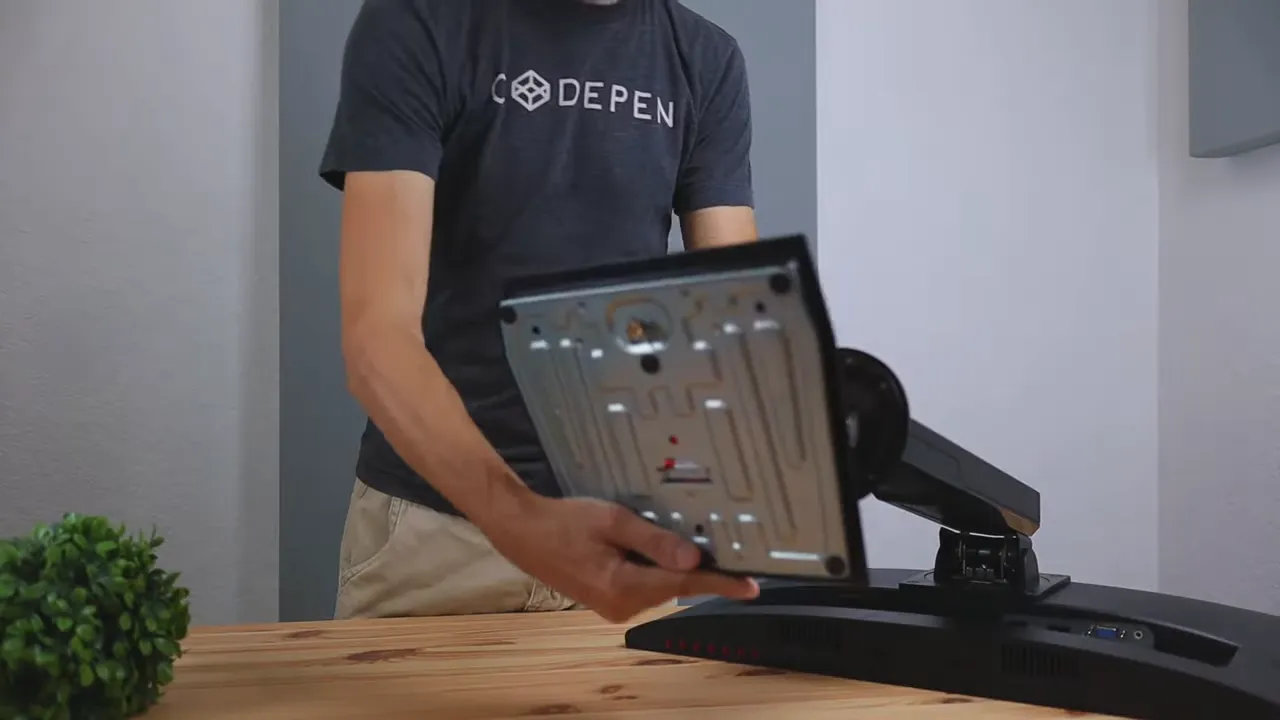
The package is straightforward: the monitor panel, a clip-style stand, and a small screw to secure the base. Assembly is uncomplicated and takes only a minute or two — the stand clips in and one screw locks it. The stand supports landscape and portrait orientation, which is handy for multitasking or coding.
Design and build quality
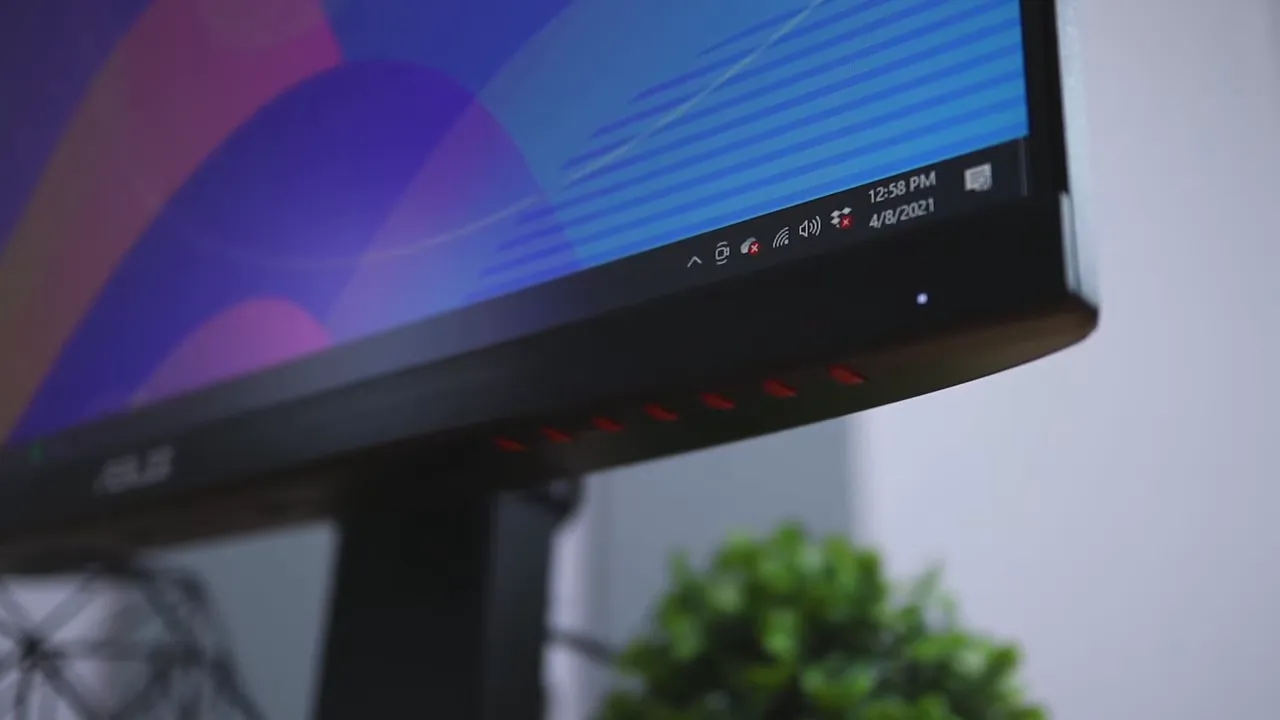
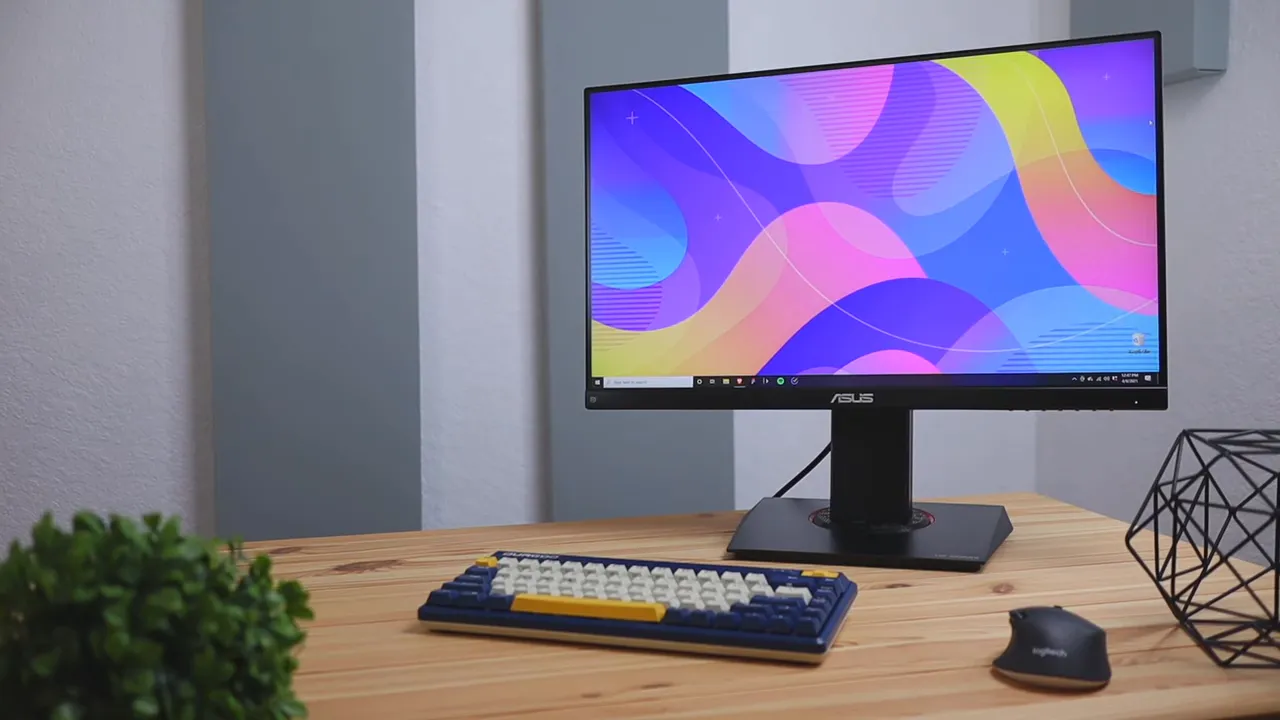
The VG249Q leans into a gamer aesthetic with sharp angles, a slim-bezel look, and red accent rings on the stand and control buttons. The thin bezels give a sleek, modern appearance that cleans up your desk visually. Build materials are mostly plastic: durable and not cheap feeling, but not premium metal either.
Overall, the balance here is sensible — you get a visually aggressive style without adding cost where it doesn't affect performance. For this review’s criteria — value and playability — the design supports the monitor’s purpose well.
Panel specs and the core selling point
Key specs that come up in every useful review:
- Size: 23.8 inches (often marketed as 24-inch class)
- Resolution: 1920 x 1080 (Full HD)
- Panel type: IPS (good viewing angles and color consistency)
- Refresh rate: 144Hz (native)
- Response time: 1ms MPRT with ELMB technology
- Adaptive sync: FreeSync (works with compatible hardware)
- Ergonomics: tilt, swivel, pivot, height adjustment
That combination—1080p + 144Hz on an IPS panel—is exactly what many competitive and fast-paced gamers want: clear, vibrant colors and very smooth motion without forcing high-end GPU upgrades that 144Hz at 1440p or 4K would demand.
Motion, responsiveness, and 144Hz in practice
This is the place to be picky in a review. A 144Hz panel delivers roughly 2.4x the frame updates of 60Hz, which makes motion feel much smoother and reduces perceived lag. You’ll notice less motion blur, fewer jagged edges during fast panning, and a cleaner response when tracking targets in shooters.
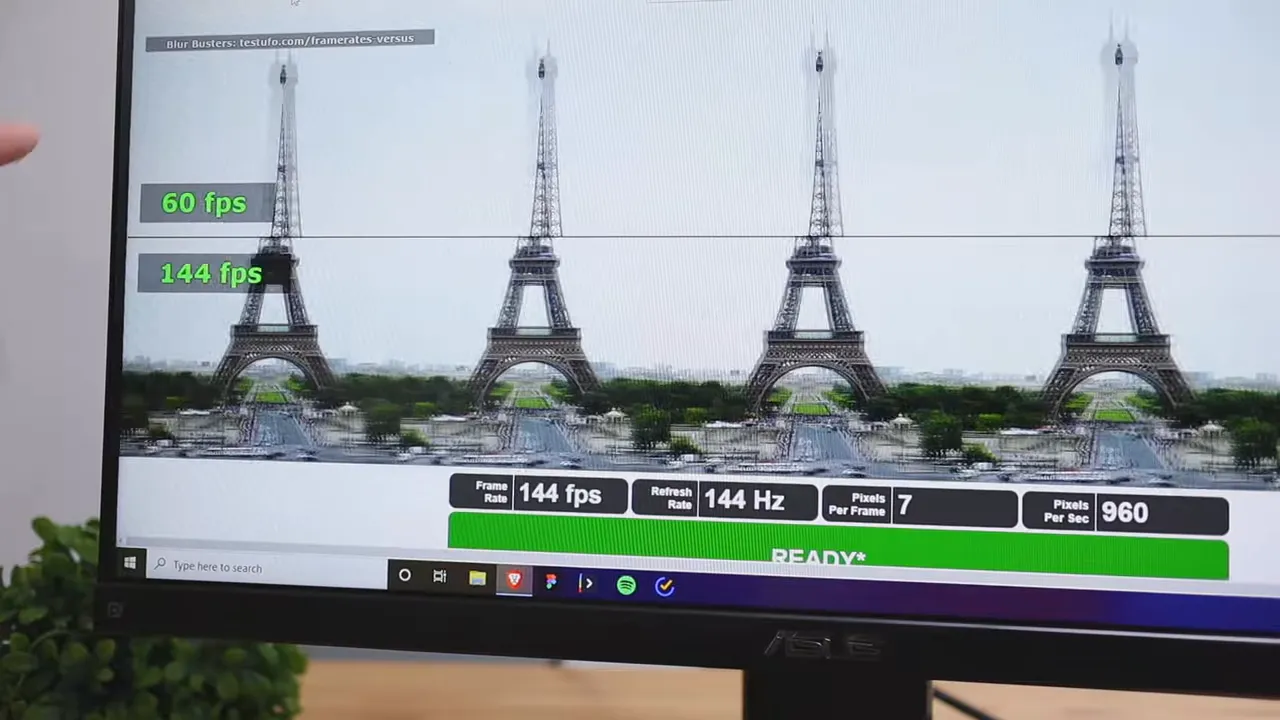
If you’re used to 60Hz, moving to a 144Hz monitor is instantly noticeable. In fact, after using 144Hz regularly, 60Hz can feel sluggish in comparison. For competitive gaming or tight, frame-sensitive work, that smoothness changes gameplay and comfort.
Enabling 144Hz — quick setup tips
Sometimes the OS or GPU drivers default to 60Hz. To get the full 144Hz:
- On Nvidia: open the Nvidia Control Panel, go to Display > Change resolution, and select 1920x1080 at 144Hz.
- On AMD: open Radeon Settings, find the Display/Refresh options, and set the refresh rate to 144Hz.
- Make sure your cable is capable: DisplayPort is the safest choice for 144Hz at 1080p; some HDMI versions also work.
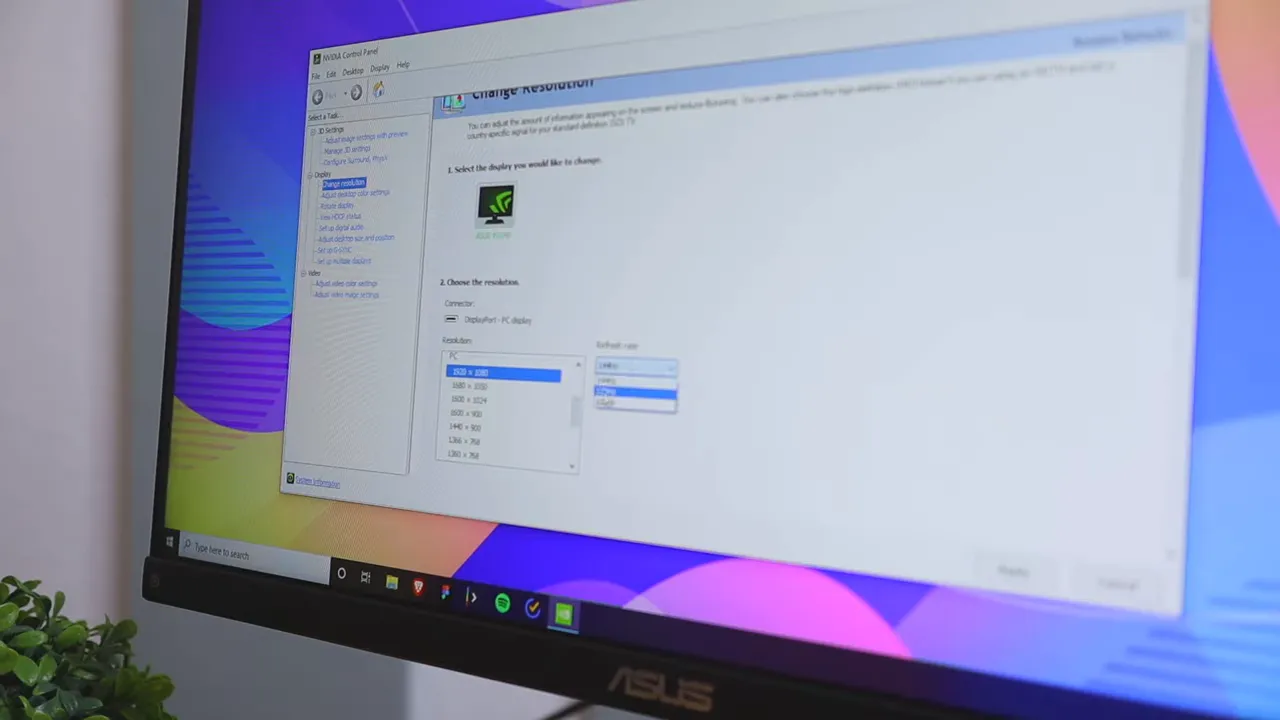
After switching to 144Hz, check in-game settings and make sure V-Sync/G-Sync or FreeSync are configured the way you prefer. The monitor supports FreeSync, and many G-Sync compatible cards will also benefit from the adaptive sync range.
Color, presets, and eye comfort
The IPS panel gives vibrant, punchy colors out of the box. The monitor includes multiple color presets — I personally prefer the Scenery preset because it boosts saturation and makes colors pop for gaming and media. If you want a neutral look, try Standard or sRGB profiles to dial back the saturation.
There’s also a blue light filter option. Lowering blue light is useful for long sessions to reduce eye fatigue and improve comfort. In this review I recommend dialing blue light down during evening hours or for long editing sessions.
Extra on-screen features you’ll actually use
ASUS includes several software-free features accessible via the monitor OSD:
- Crosshair overlay: A fixed crosshair in the center, with different styles — useful for games missing reliable HUDs.
- Timer presets: Handy countdown timers for practice drills or productivity breaks.
- FPS counter: Displays real-time framerate so you can test performance without launching extra overlays.
These tools are small, but practical, and add to the monitor’s value without requiring extra software.
Who should buy this monitor? Use-case guidance
This review narrows down the VG249Q’s sweet spots:
- Competitive FPS players: You want high refresh and low motion blur to track targets reliably.
- Casual to serious gamers on a budget: Prioritize framerate over resolution; your GPU can push high FPS at 1080p much easier than at 1440p or 4K.
- Streamers and eSports enthusiasts: The combination of IPS colors and 144Hz makes for good-looking streams with snappy gameplay.
- Content creators doing light 3D or editing: The monitor is fine for general editing but falls short of the higher pixel density pros expect for precise color-critical work.
Pros and cons — concise review summary
For clarity, here are the high points and compromises that matter in this review.
- Pros: Smooth 144Hz performance, vibrant IPS colors, practical OSD features (crosshair, timer, FPS), ergonomics with pivot, and good price-to-performance.
- Cons: 1080p resolution limits pixel sharpness for large monitors; mostly plastic build (durable but not premium); to hit 144Hz at higher resolutions you will need a very powerful GPU.
Price context and value
At around the $300 mark this monitor represents a strong value if your priority is frame-rate and responsiveness. A 4K monitor with comparable refresh behavior is significantly more expensive and will require a much more powerful GPU to run modern games smoothly. So for most people who want competitive fluidity without the GPU upgrade frenzy, this model hits the sweet spot and gives a lot of performance per dollar.
Final verdict — should you buy it?
This review’s verdict is straightforward: if your goal is to maximize gaming performance while keeping costs reasonable, the ASUS TUF VG249Q is highly recommendable. It gives you 144Hz smoothness on an IPS panel with solid color and a useful feature set. It is not a 4K display, nor does it pretend to be. Instead it focuses on the one thing that most gamers and fast-paced content creators care about: motion clarity.
Choose this monitor if you want fluid gameplay, crisp colors for general content, and a set of practical built-in tools. Skip it if you need high pixel density for photo editing or working with fine text at large sizes.
FAQ
Is the ASUS TUF VG249Q worth the money in this review?
Yes, in this review the monitor is considered a good value for gamers who prioritize refresh rate and responsiveness over resolution. For roughly $300 you get 144Hz on a 24-inch IPS which is hard to beat in the same price bracket.
Can I run 144Hz on this monitor with my current GPU?
Most modern mid-tier GPUs can output 144Hz at 1080p. If you currently run games at 60fps, you may need to lower some in-game settings to reach higher frame rates. Use DisplayPort to ensure you get the full 144Hz bandwidth. Check your graphics driver settings to switch the refresh rate from 60Hz to 144Hz.
Does this monitor support G-Sync?
It natively supports FreeSync. Some NVIDIA cards are G-Sync compatible and will work with FreeSync monitors. Check your GPU vendor’s compatibility list and enable adaptive sync in the control panel.
Is 1080p on a 23.8-inch IPS panel good for productivity?
Yes. 1080p at 23.8 inches gives comfortable text size and good screen real estate for many workflows. If you need extremely high pixel density for detailed graphics work, you might prefer a 1440p or 4K monitor instead.
What are the most useful on-screen features highlighted in this review?
The built-in crosshair, preset timers, and FPS counter are the standout extras. They provide convenience for gaming drills, practice sessions, and quick performance checks without third-party apps.
How does the color accuracy compare in this review?
The IPS panel offers good colors and viewing angles out of the box. The Scenery preset enhances saturation for a punchy look, while Standard or sRGB modes provide a more neutral presentation. For mission-critical color work, calibration may still be necessary.
Closing thoughts
This review places emphasis on practical playability over headline specs. The ASUS TUF VG249Q gives you that coveted 144Hz smoothness with the pleasing colors of an IPS panel, plus ergonomic adjustments and handy OSD tools. If your priority is competitive or fast-paced play without the cost of higher resolution panels, this monitor is an excellent pick.
For many gamers and creators on a budget, it’s a clear value proposition: high refresh rate, good color, and features that matter. If that aligns with what you need, the VG249Q deserves a spot on your shortlist.


