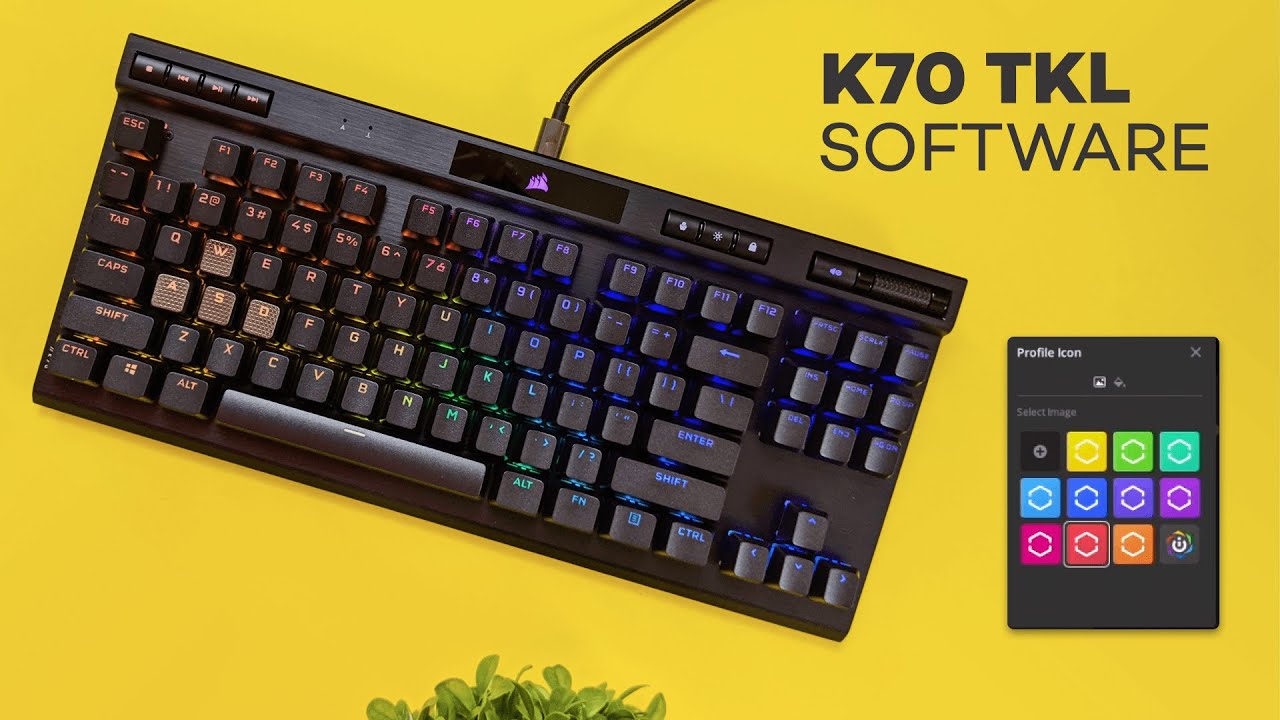
This review walks through setting up and using CORSAIR iCUE with the K70 Champion Series keyboard. If you want a practical, hands-on review that covers installation, profiles, key assignments, lighting, performance settings, and useful tips — this is the one to read. The goal is to get your K70 dialed in so it behaves exactly the way you work and play.
Table of Contents
- Why this review matters
- Getting started: download and install iCUE
- Profiles: organize work and play
- Key assignments: make the keyboard work for you
- Lighting effects: from simple to elaborate
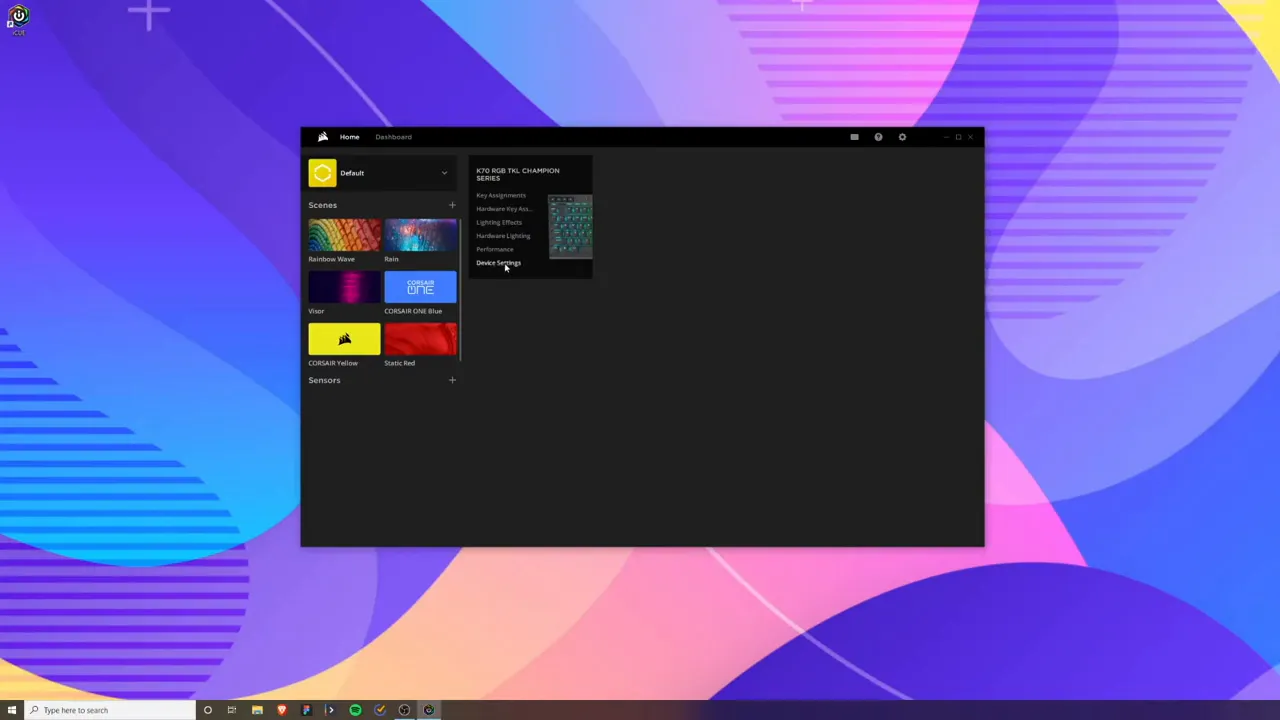
- Performance settings and device options
- Sensors and extras
- Practical examples and workflows
- Troubleshooting common issues
- Why iCUE stands out in this review
- Best practices from this review
- Final thoughts and short review verdict
- Frequently asked questions
Why this review matters
The Corsair K70 Champion Series is built for competitive play and heavy customization. The hardware is only half the story: iCUE is where the keyboard becomes personal. This review focuses on the software experience — how easy it is to install, how intuitive the interface feels, and what you can realistically automate with profiles and macros.
Getting started: download and install iCUE
Begin at corsair.com under the Software section and download iCUE. It’s available for Windows and macOS. Installation is straightforward — run the installer, restart if prompted, and plug your K70 in. If iCUE does not detect the keyboard at first, unplug and re-plug the USB Type-C cable; that usually forces detection.
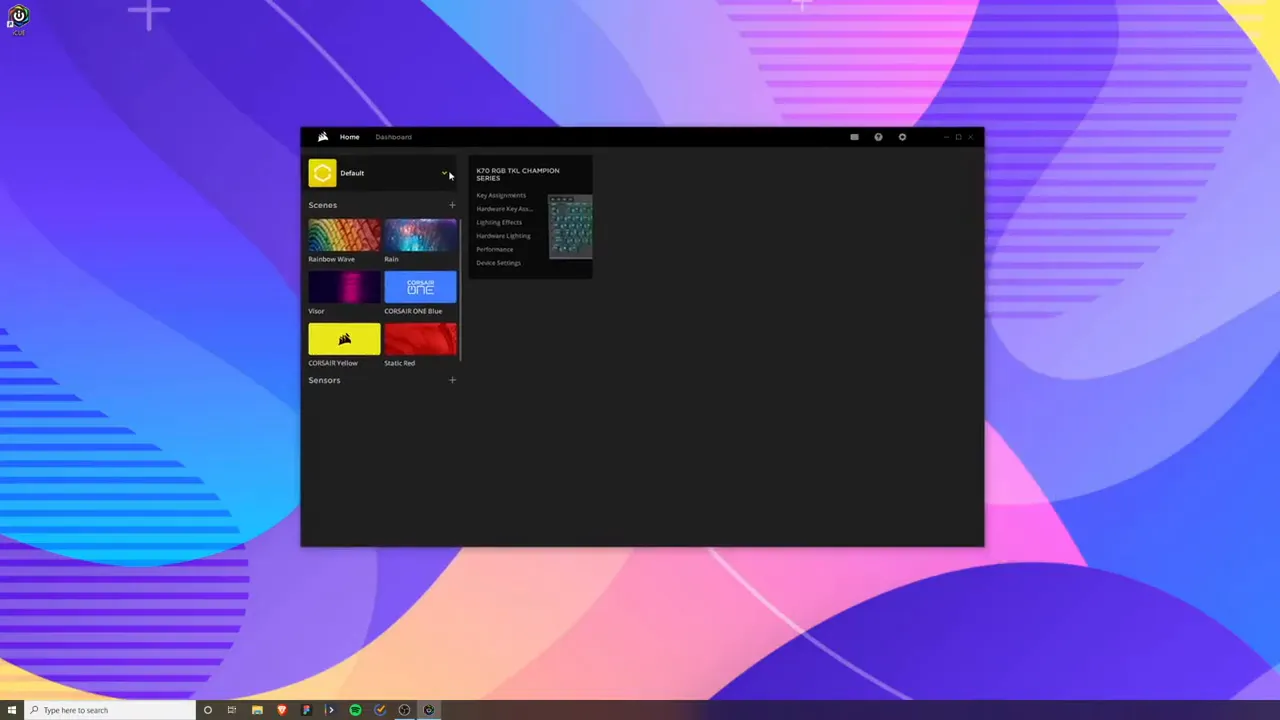
Once iCUE is running you’ll see a dashboard that lists your profiles in the top-left and the connected device in the main area. The layout is simple: profiles, device settings, sensors, and lighting options are all grouped so you can move between them quickly.
Profiles: organize work and play
Profiles are the backbone of a customized keyboard experience. Use them to switch between work and gaming configurations instantly. In this review, the example setup creates two profiles:
- Work: minimal lighting, productivity-focused key assignments
- Gaming: aggressive lighting and game-specific macros
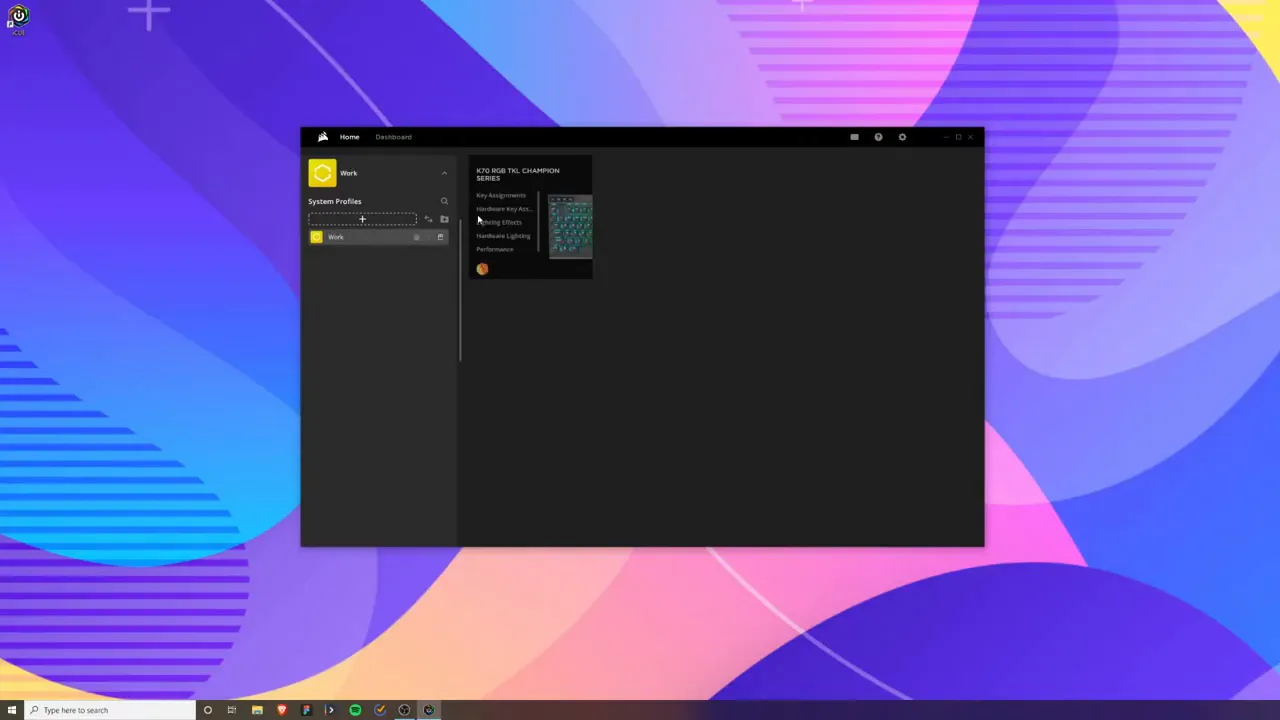
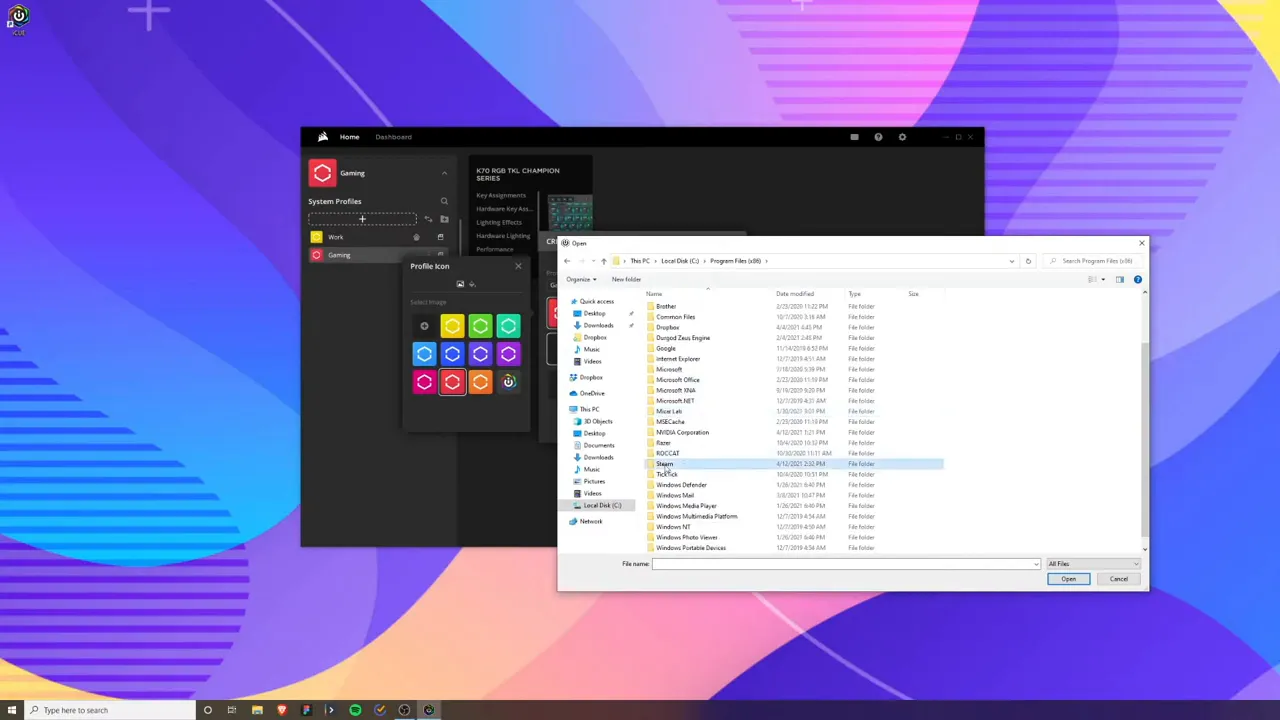
You can link profiles to applications. That means iCUE will automatically switch profiles when an app opens. For example, link Steam or a specific game executable to your Gaming profile. Navigate to the app’s .exe on your system, select it, then choose the trigger option to create an automatic switch. This feature is a major time-saver and central to this review’s recommended workflow.
Key assignments: make the keyboard work for you
iCUE lets you change what any key on the K70 does. Assignments can launch applications, type phrases, run macros, control media, switch profiles, and more. This is where the keyboard becomes a productivity tool as much as a gaming peripheral.
Example assignments used in this review:
- Launch browser: assign the up-arrow key to open your preferred browser
- Text shortcut: assign the right-arrow key to type a commonly used phrase
- Media and mouse shortcuts: volume, playback, DPI adjustments for attached devices
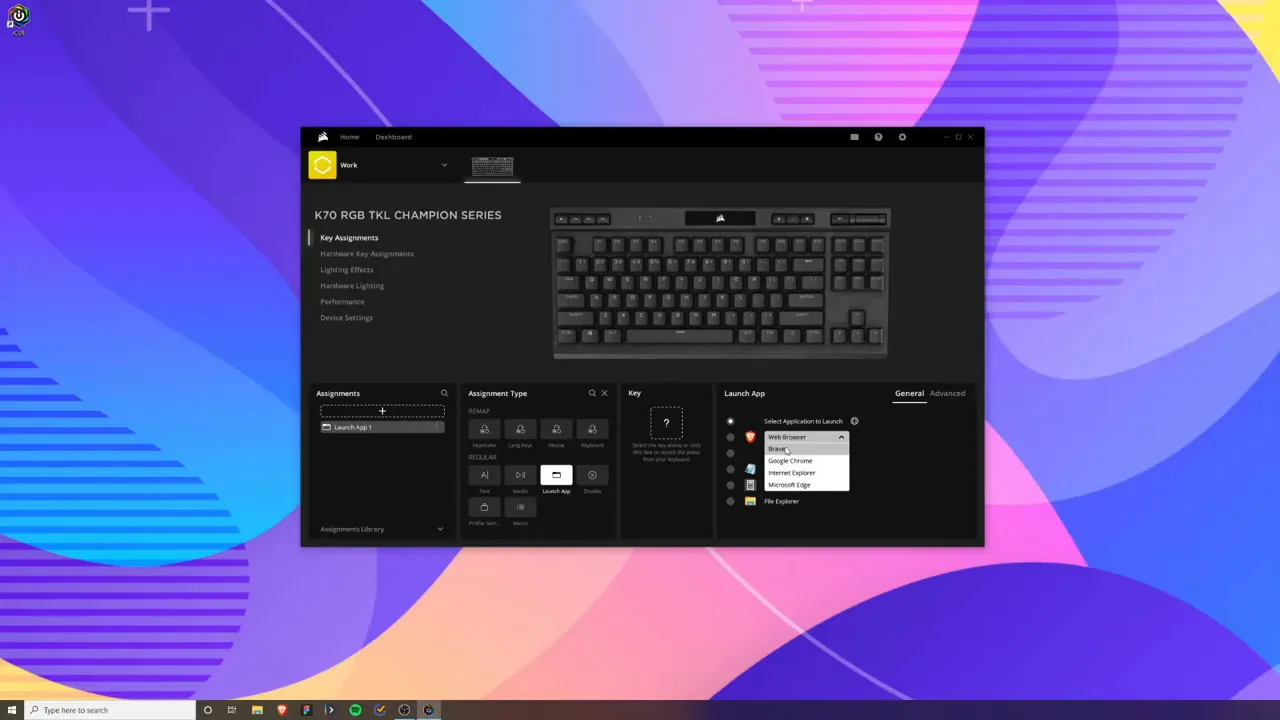
To create an assignment, click the plus button in the key assignments panel, choose the action type (Launch App, Text, Macro, Media, etc.), configure the details, and then press the physical key you want to bind. In this review example, assigning a browser to the up-arrow took less than a minute and worked instantly.
Macros can record sequences of keypresses and delays. They are useful for in-game combos, repetitive workflow steps, or multi-step text entries. Keep in mind that macros carry the same responsibility as any automation — avoid using them in situations that violate any terms of service or fair-play rules.
Lighting effects: from simple to elaborate
Lighting is a big part of the K70’s appeal. iCUE provides both quick presets and deep customization. You can pick ready-made effects like static color, rainbow wave, color shift, and breathing, or create completely custom per-key lighting profiles.
Highlights for lighting from this review:
- Use simple static colors for work to minimize distractions
- Reserve complex, animated effects for gaming profiles where style and feedback matter
- Per-key lighting enables highlighting the keys you actually use in a particular game or application
Custom mode opens a canvas where you can paint lighting states, layer effects, and assign triggers. Combine a pulsing effect for notification keys and a static backlight for the main typing area for a clear balance between function and aesthetics.
Performance settings and device options
iCUE exposes several device-level settings that affect how the keyboard behaves:
- Polling rate: sets how often the keyboard reports inputs to your PC. Higher rates reduce input latency but use more system resources.
- Debounce settings: adjust how the keyboard filters accidental double presses. Lower debounce values speed up responsiveness; higher values reduce accidental input.
- Tournament mode: locks the keyboard into a simple backlight and disables macros. The K70 has a physical tournament switch on the back so you can flip it for distraction-free competition.
This review recommends leaving polling rate at a high setting if you want the absolute fastest response in competitive play, and tuning debounce only if you notice double-press issues. Tournament mode is great for events where you need predictable, consistent behavior.
Sensors and extras
iCUE can display sensor data for system stats, like GPU temperature and fan speed. Add those widgets to your dashboard if you want live telemetry visible on your desktop or to trigger lighting changes based on system conditions.
These features turn the keyboard into a hub for small, useful notifications — for example, blink a section of keys when CPU or GPU temperature exceeds a threshold. The sensors are optional but can be useful for monitoring while gaming or doing heavy rendering.
Practical examples and workflows
Here are practical workflows tested in this review that illustrate how the K70 and iCUE fit into daily use:
- Developer workflow: Use a Work profile with muted blue static lighting, assign keys to open terminals, IDEs, and snippets of commonly used code. Create macros for multi-line boilerplate text.
- Content creator: Assign macros for scene switching, mute/unmute, and insert commonly used phrases or hashtags. Link streaming software to automatically switch to Streaming profile.
- Competitive gamer: Gaming profile linked to your game’s executable, per-key lighting highlighting important keys, low debounce, and high polling rate. Use Tournament mode switch for events.
Each workflow in this review demonstrates how the keyboard can be adapted to very different daily needs while using the same hardware.
Troubleshooting common issues
Problems are rare, but here are quick fixes that solved most issues in this review:
- If the keyboard is not detected: unplug and re-plug the USB cable, try a different USB port, or restart iCUE.
- If lighting won’t update: check that you’re editing the correct profile and that the profile is active. Apply changes and select the device before saving.
- If macros are inconsistent: re-record with consistent timing, or adjust debounce settings to avoid missed or double inputs.
Why iCUE stands out in this review
The software balances power and usability. It exposes deep customization, but most basic tasks—creating a profile, assigning a key, or changing a color—are accessible without a steep learning curve. That makes the combination of the K70 and iCUE a strong choice for users who want both competitive-grade hardware and flexible software.
Strengths highlighted in this review:
- App-linked profiles that switch automatically
- Per-key lighting with presets and full custom mode
- Versatile key assignments including app launchers, text macros, and media controls
- Device-level performance tuning such as polling rate and debounce
Best practices from this review
- Create at least two profiles: Work and Gaming. Keep work lighting subdued to reduce distraction.
- Use application-linked profiles to avoid manual switching.
- Reserve animated lighting effects for gaming profiles to preserve focus while working.
- Test macros before relying on them in important workflows or competitive matches.
- Keep a backup of your profiles by exporting them from iCUE; that saves time if you need to reinstall.
Final thoughts and short review verdict
The K70 Champion Series paired with iCUE delivers a highly customizable experience. This review finds that iCUE is intuitive for beginners while deep enough for advanced users. If you want a keyboard that can double as a productivity hub and a competitive peripheral, this combination is hard to beat.
From profiles and per-key lighting to macros and tournament mode, the K70 and iCUE let you tailor behavior and feedback down to the key level. That degree of control is the main reason this review recommends the K70 for users who care about both feel and function.
Frequently asked questions
How do I download and install iCUE for the K70?
Go to corsair.com, navigate to Software, and download iCUE for your operating system. Run the installer and restart if prompted. If the keyboard is not detected immediately, unplug and re-plug the USB cable.
Can I link a profile to a specific game or app?
Yes. You can link profiles to executables so iCUE automatically switches profiles when a specified app opens. This review recommends linking your game executables to gaming profiles for seamless switching.
Will macros work in competitive play?
Macros will work technically, but using them in online competitive play can violate game rules. Tournament mode disables macros and simplifies lighting to prevent accidental activations. Use macros responsibly and check the rules for your game or event.
What’s the difference between key assignments and hardware key assignments?
Key assignments are software-level functions assigned by iCUE and are tied to profiles. Hardware key assignments store functions on the keyboard itself, which can be useful if you use the keyboard on systems without iCUE installed.
How do I back up my profiles and settings?
Export profiles from iCUE’s profile menu to create backups. Store the exported files in a safe location so you can import them later if needed. This review always recommends exporting after you finalize a setup.
Is the iCUE software easy to learn?
Yes. The interface is user-friendly for basic tasks and progressively reveals advanced options. This review highlights its accessibility for both beginners and power users.
Thanks for reading this review-style guide. Use the examples here to set up profiles that fit your routine and take full advantage of the K70’s powerful features.


