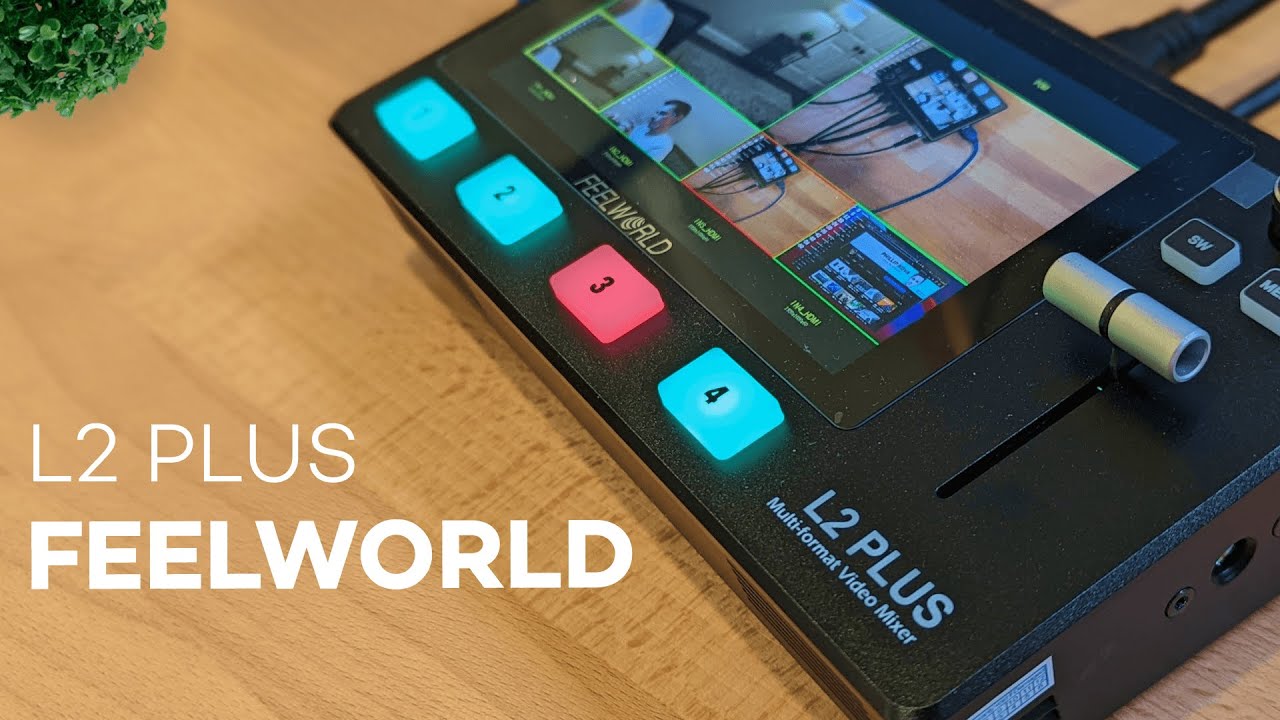
The Feelworld L2 Plus is a compact 4-input HDMI switcher designed to bring a multi-camera setup to life without a heavy software stack. It’s aimed at podcasters, streamers, interviewers, and creators who want instant camera switching, picture-in-picture layouts, and basic broadcast-style transitions — all in a single hardware box.
Quick specs at a glance
- Inputs: Four HDMI inputs (1–4)
- Output: HDMI program output plus USB webcam-style output to computer
- Resolution: Up to 1080p (no native 4K)
- Frame rates: 24, 30, 50, 60 fps (popular options included)
- Controls: Physical buttons, T-bar, effects and PIP menu
- Extras: Ethernet for optional software control, audio in/out, fan speed settings
- Price range: Roughly $540 (varies by retailer)
Physical layout and ports
The chassis is straightforward. On the back you’ll find the main power input and an HDMI program output so you can feed a monitor in addition to the built-in display.
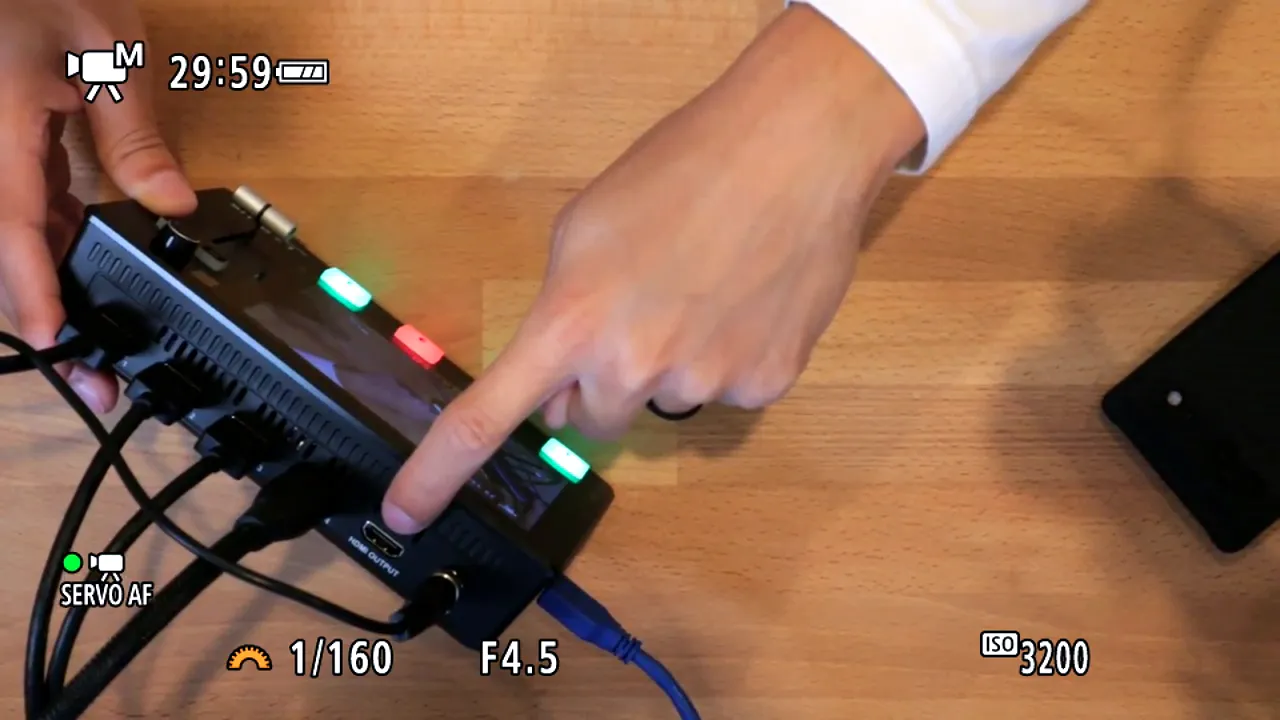
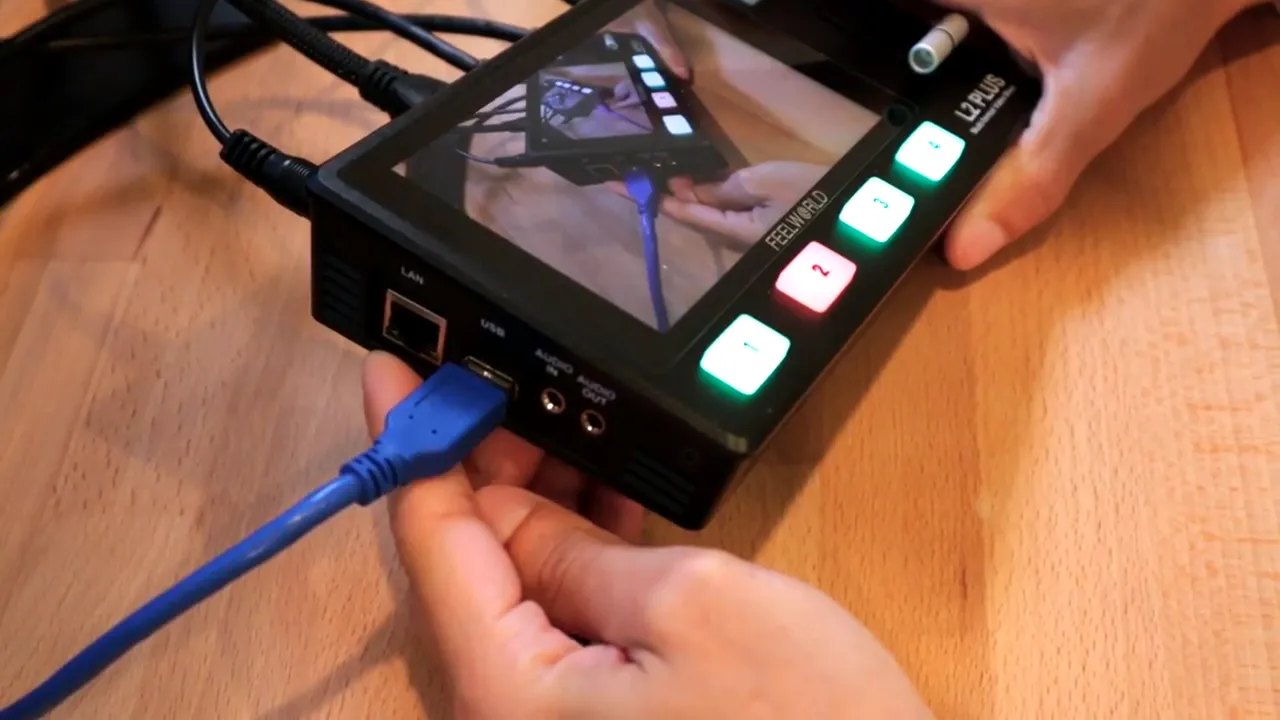
The front/back layout includes four HDMI inputs mapped to the physical 1–4 buttons on the surface. On the side there’s an Ethernet jack (for software control), a USB connection which presents the program feed to your computer like a high-quality webcam, and dedicated audio in/out jacks for AUX sources and monitoring.
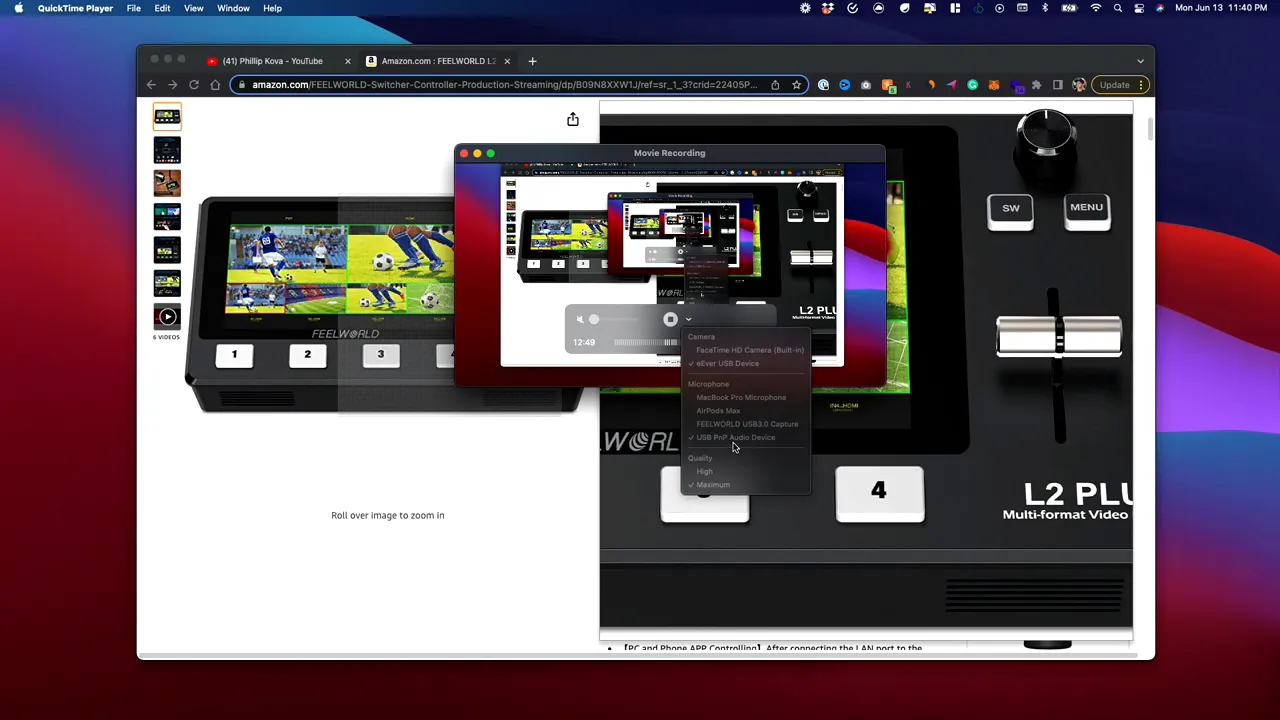
If you’re using a basic screen recorder, the L2 Plus will appear as a USB camera source on your machine, letting you capture the live program feed without extra capture cards.
Core controls: T-bar, cuts, and transitions
The tactile controls are the L2 Plus’s strongest selling point. The numeric buttons let you instantly cut between inputs, while the T-bar enables smooth manual fades and mixes. The effects menu includes multiple transition styles such as mix/fade and left-right swipe.
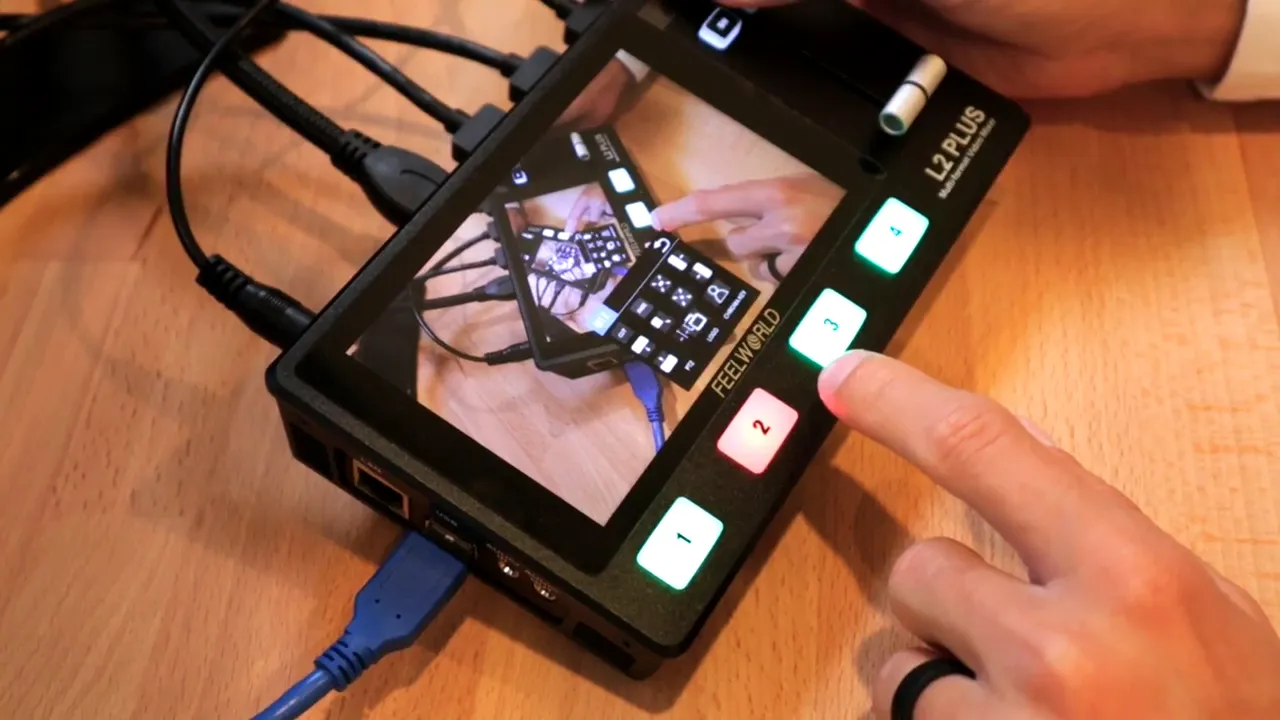
Two useful workflow notes:
- Instant cuts: Quick jump cuts are perfect for modern videos and minimal production overhead.
- Fades and T-bar: Enable fade in the effects menu if you want smooth transitions. You can assign the T-bar to control fades; when a source is queued it will blink and the program source turns red when live.
Picture-in-picture and layout options
PIP mode is flexible: choose a main source and place a secondary camera in any corner. Preset layouts include top-down, reverse top-down, split screen, and opposite split. PIP is handy for tutorials, game streams, or multi-angle interviews without needing OBS or other software.
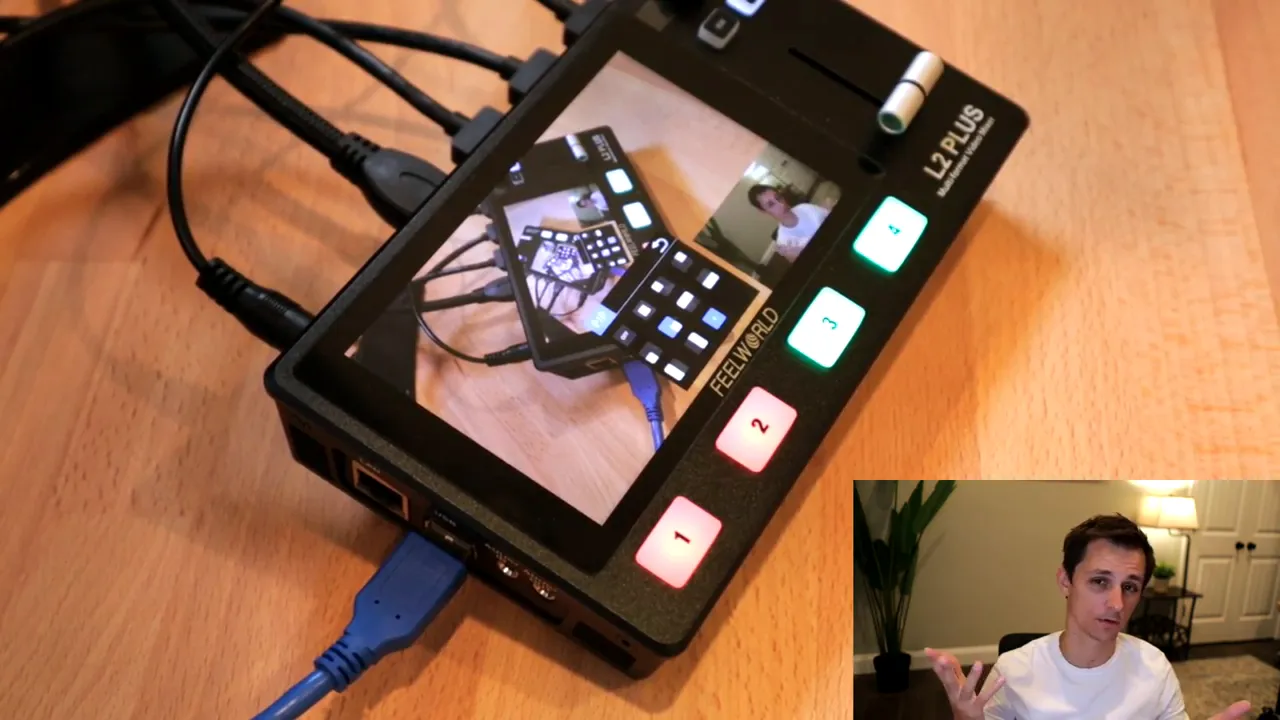
If you prefer more advanced compositing, you can still do PIP in software, but the hardware PIP is convenient for lightweight setups or when you only want to record the program feed.
Audio routing and fan noise
Audio can be routed via the USB output or through the dedicated AUX input. Use the audio in jack for external sources and the audio out jack for monitoring. The menu lets you select which audio sources are passed to the output.
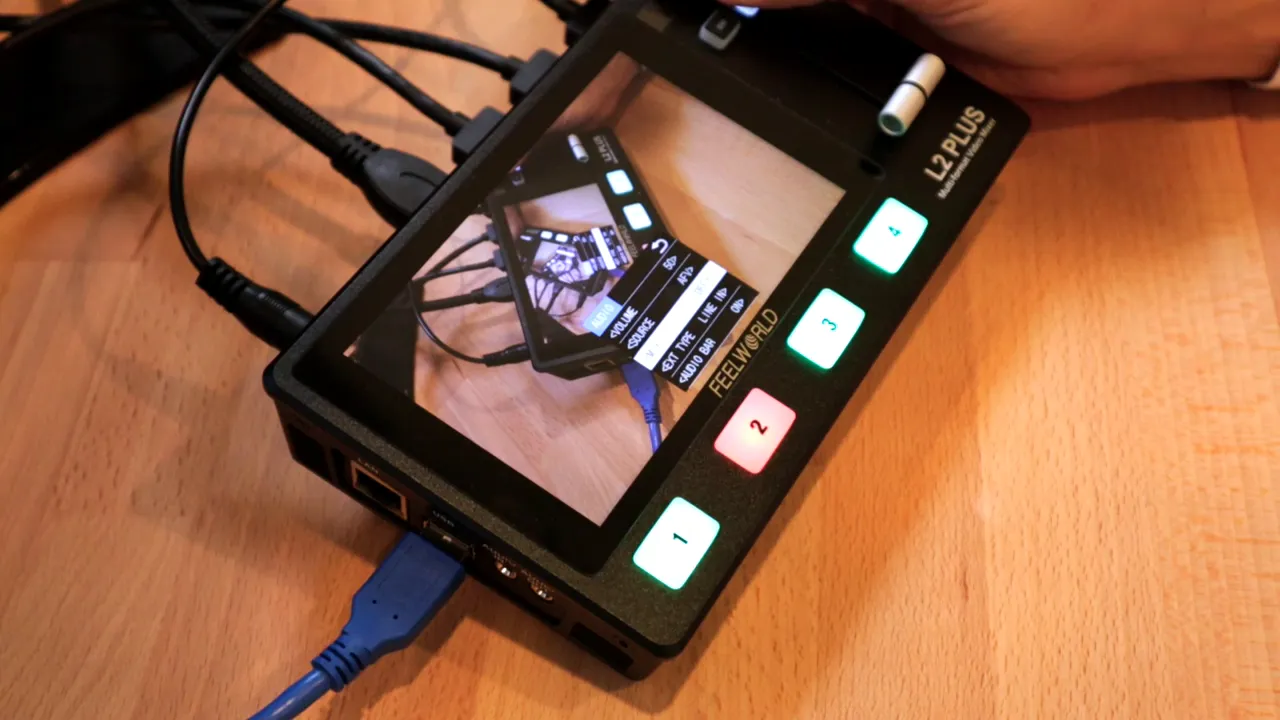
The unit has three fan speed settings. Each higher setting increases noise, so if you need a very quiet environment test the lowest fan setting — for most desktop use it won’t be disruptive.
Who this is for — and the main limitation
The L2 Plus is a great fit for:
- Podcasters and interview setups with multiple camera angles
- Live streamers who need simple switching and PIP without a PC scene stack
- Creators doing offline multi-camera recordings where only the program output needs archiving
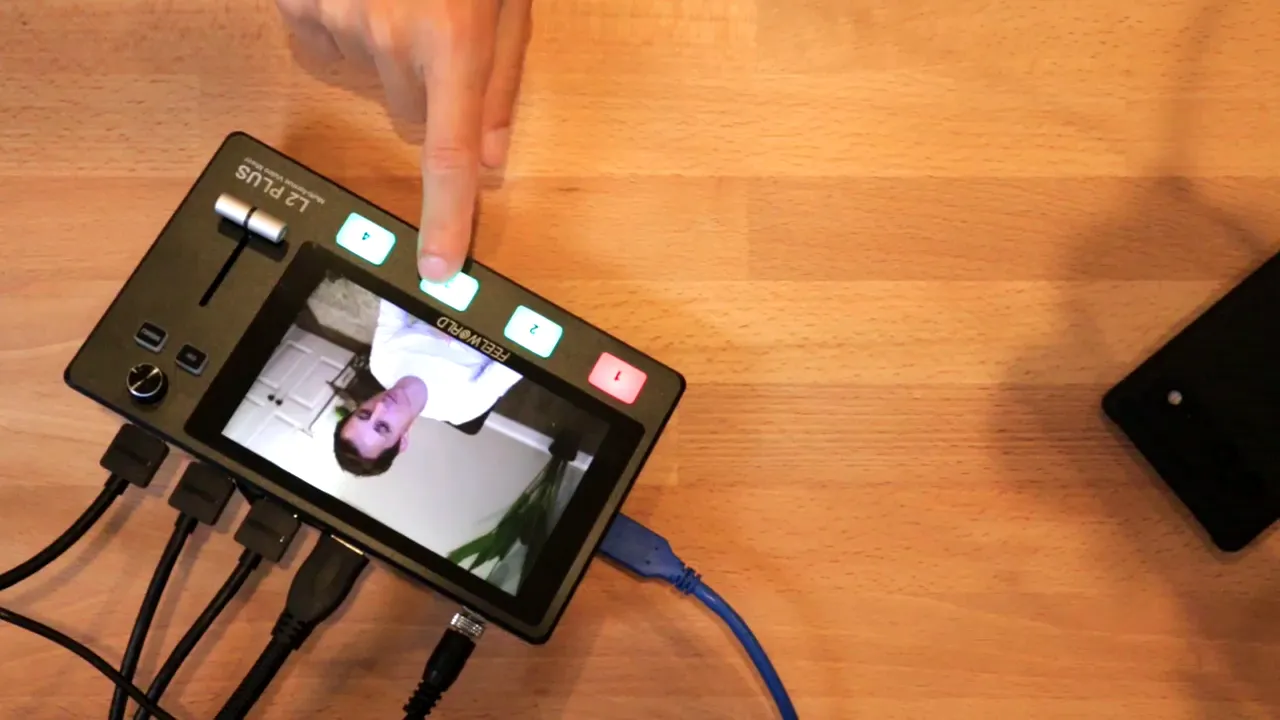
The one major limitation to be aware of is no simultaneous multi-track recording of all inputs. The device records only the program feed (the camera that is live). If you need ISO recording — separate recordings of every camera regardless of which one is live — consider a switcher with ISO capabilities such as the ATEM Mini Pro ISO, which records multiple inputs independently.
Setup checklist
- Connect power to the L2 Plus and power it on.
- Plug HDMI sources into inputs 1–4 and confirm each source shows in the preview.
- Connect HDMI program out to an external monitor if needed.
- Connect the USB output to your computer. The switcher should appear as a webcam-like device for capture software.
- If using external audio, plug into audio in and set monitoring on audio out.
- Adjust fan speed and transition settings to taste. Enable fade if you want smooth T-bar transitions.
Final thoughts
The Feelworld L2 Plus offers a compact, hardware-first approach to multi-camera switching with practical features like PIP, a T-bar, and simple USB capture. It’s best for creators who want a straightforward switching workflow and who don’t need per-camera ISO recording. For anyone building a small studio, it’s a solid piece of gear to simplify production and deliver cleaner, more dynamic videos.


