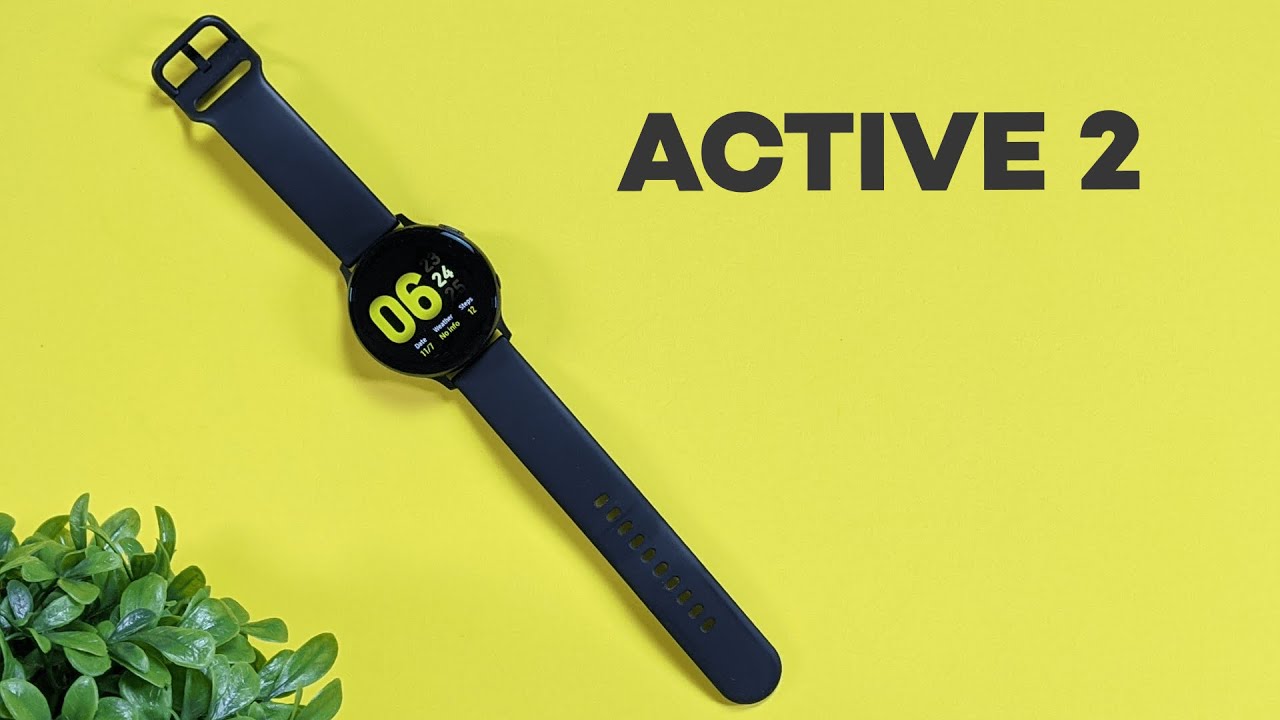
The Samsung Galaxy Watch Active 2 makes a strong first impression right out of the box. This is not meant to be a full long-term review. It is more of a hands-on overview covering the unboxing experience, the fit and feel, the basic setup process, and the key software features that stand out immediately.
If you are considering a sleek fitness-focused smartwatch that does not feel oversized on the wrist, this one has a lot going for it. Samsung positions the Watch Active 2 as a premium wearable with fitness tracking, heart rate monitoring, customizable watch faces, and a design that is easy to wear every day. You can also check the current Galaxy Watch Active 2 listing if you want to compare versions and pricing.
Clean packaging and a simple unboxing experience
Samsung keeps the packaging minimal. The box has a clean white presentation that immediately gives the product a polished feel.
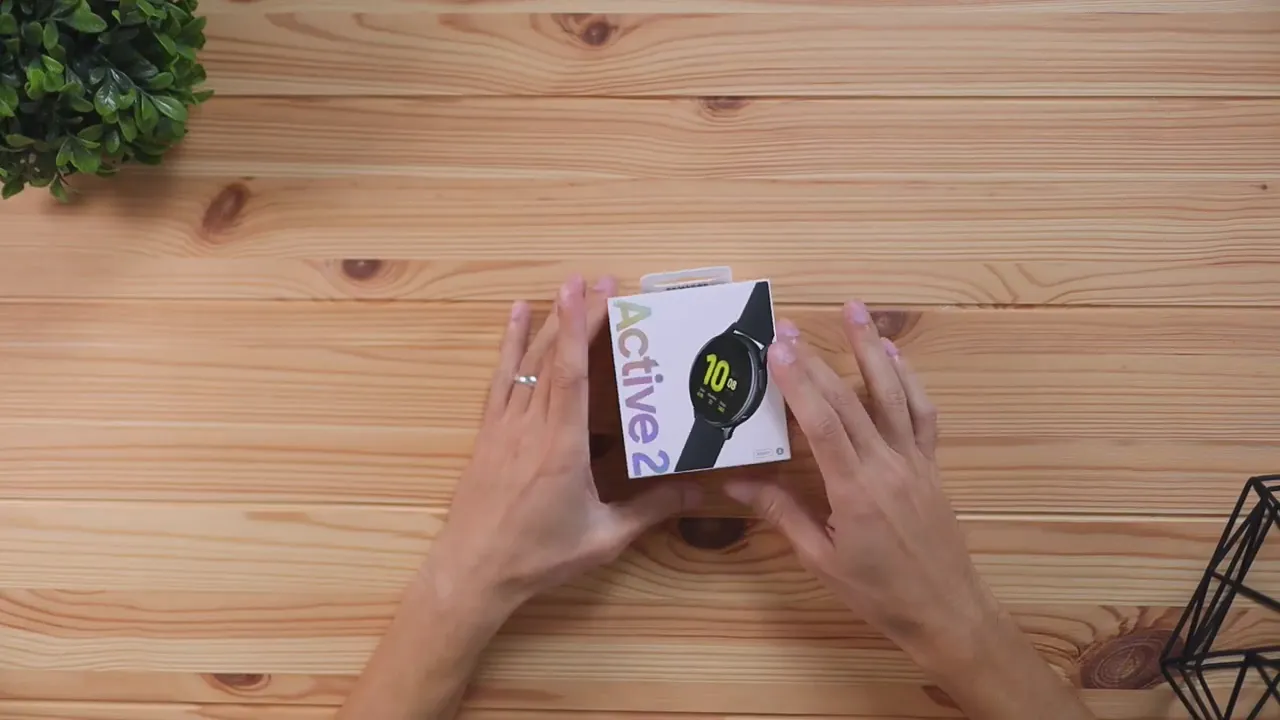
Inside, the setup is straightforward. You get:
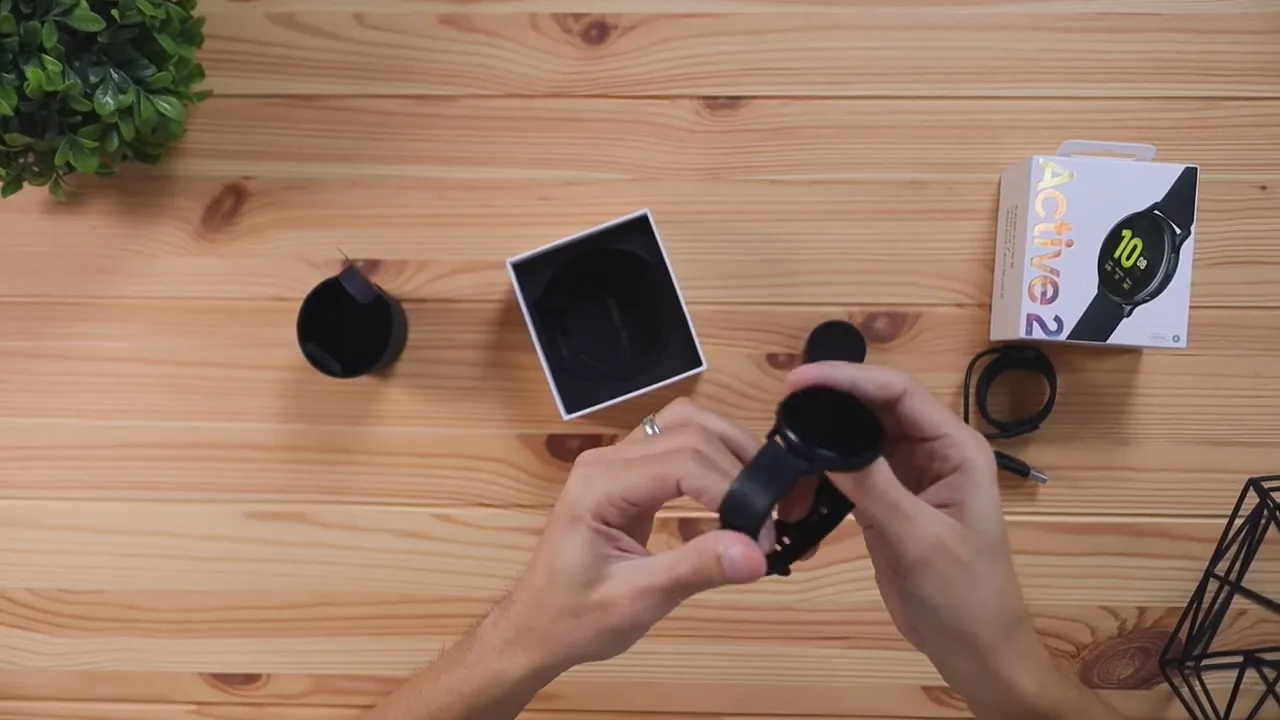
- The Galaxy Watch Active 2 itself
- A charging cable with USB connection
- A magnetic charging base
- Basic accessories and inserts
Nothing here feels overcomplicated. It is the kind of unboxing experience that gets you from sealed box to using the watch quickly, which is exactly what most people want from a smartwatch.
First impressions of the build quality
The very first thing that stands out is the body of the watch. It has a metal or aluminum-style frame that gives it a quality feel without making it feel heavy or clunky.
That matters, because a smartwatch can be packed with features, but if it feels cheap on the wrist, the whole experience falls apart. Here, the construction immediately feels like it belongs in the higher-end smartwatch category.
The included band is a rubberized silicone strap. It feels balanced, which is exactly what you want from a default band. It is not too slippery, and it is not so grippy that it starts irritating your skin.
That is actually a bigger deal than it sounds. Some silicone bands constantly tug at the wrist and become annoying after a while. This one seems to hit a nice middle ground, at least from a first-impressions standpoint.
Fit, sizing, and comfort on the wrist
One of the nicest things about the Galaxy Watch Active 2 is its size. On a medium to smaller wrist, it does not look oversized or bulky. At the same time, it also does not look too tiny.
That balance is important. Some smartwatches cross into oversized territory and end up feeling more like a mini gadget strapped to your arm than an actual watch. This one feels more natural.
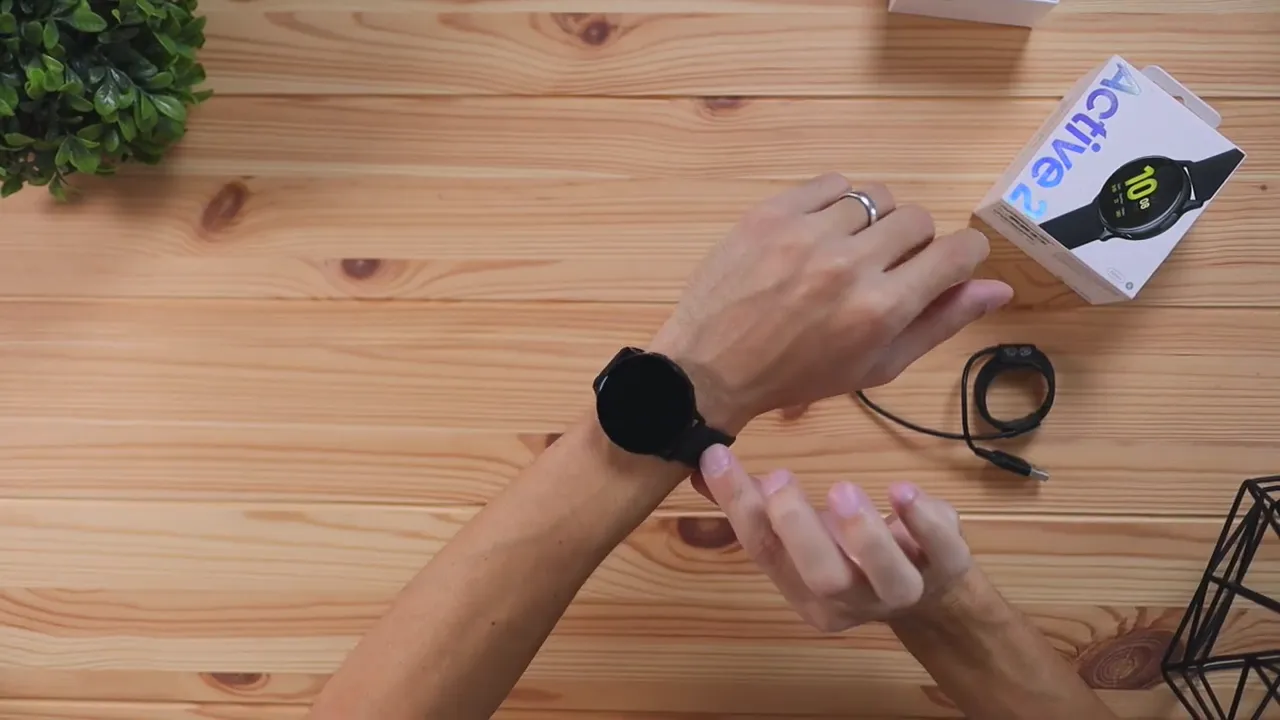
The strap design is also clean. After fastening it like a standard watch, the extra slack tucks into a slot underneath the band. That helps it maintain a minimal look instead of leaving a loose strap end sticking out.
As for comfort, the short-term impression is positive. The band has enough give and smoothness to move around a bit without constantly rubbing the skin. If you are not a fan of the included strap, replacement bands are widely available through places like Amazon and local retailers.
Powering it on and pairing it with your phone
Getting started is simple. The watch has two side buttons, one larger and one smaller. Holding the smaller button powers it on.
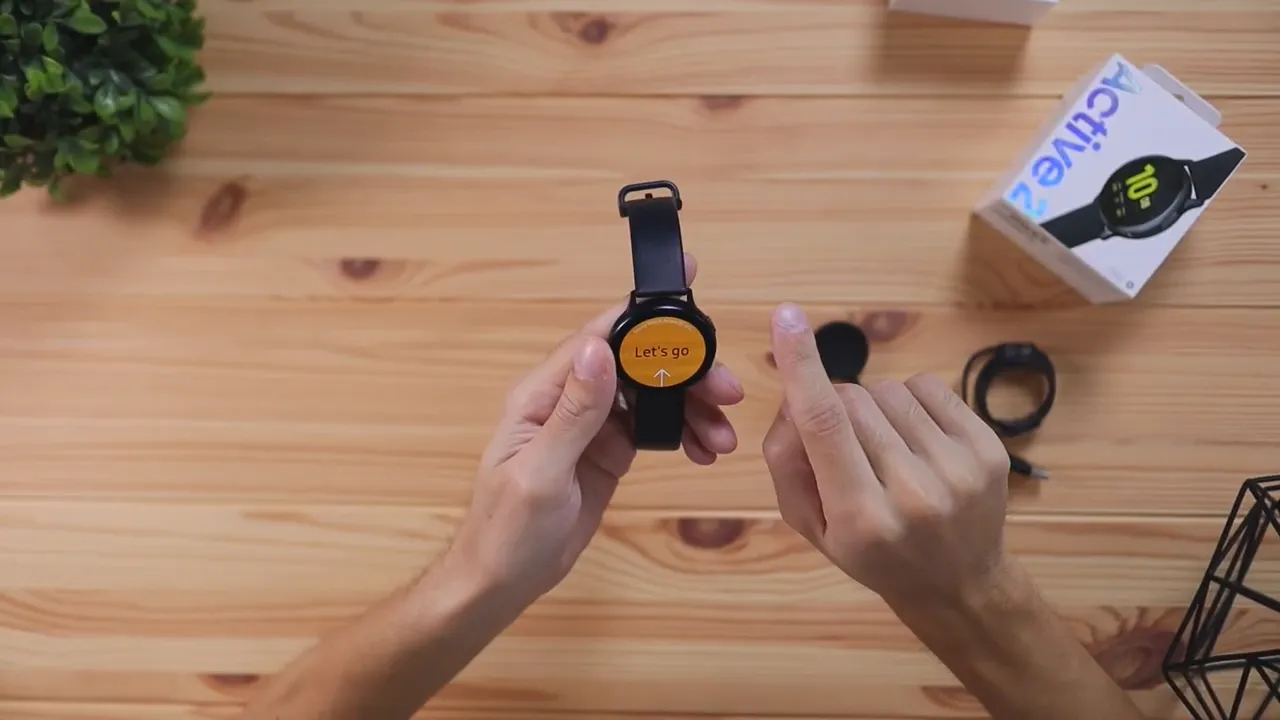
Once it boots, you are greeted with a start screen and prompted to continue setup through the Galaxy Wearable app on your phone. After installing the app, Samsung also asks for a couple of companion plugins that run in the background. These are part of the pairing process and help the watch communicate properly with the phone.
After that, the watch is ready to use and the main software experience opens up.
If you are interested in more device walkthroughs and tech breakdowns like this, there are plenty of related guides over at Kova Tech.
How navigation works on the Galaxy Watch Active 2
The software layout is easy to understand once you start swiping around.
- Swipe left to see notifications mirrored from your phone
- Swipe right to access widgets such as daily activity, exercise shortcuts, heart rate, weather, and calendar
- Swipe down from the top to open quick settings like brightness, sound, and other controls
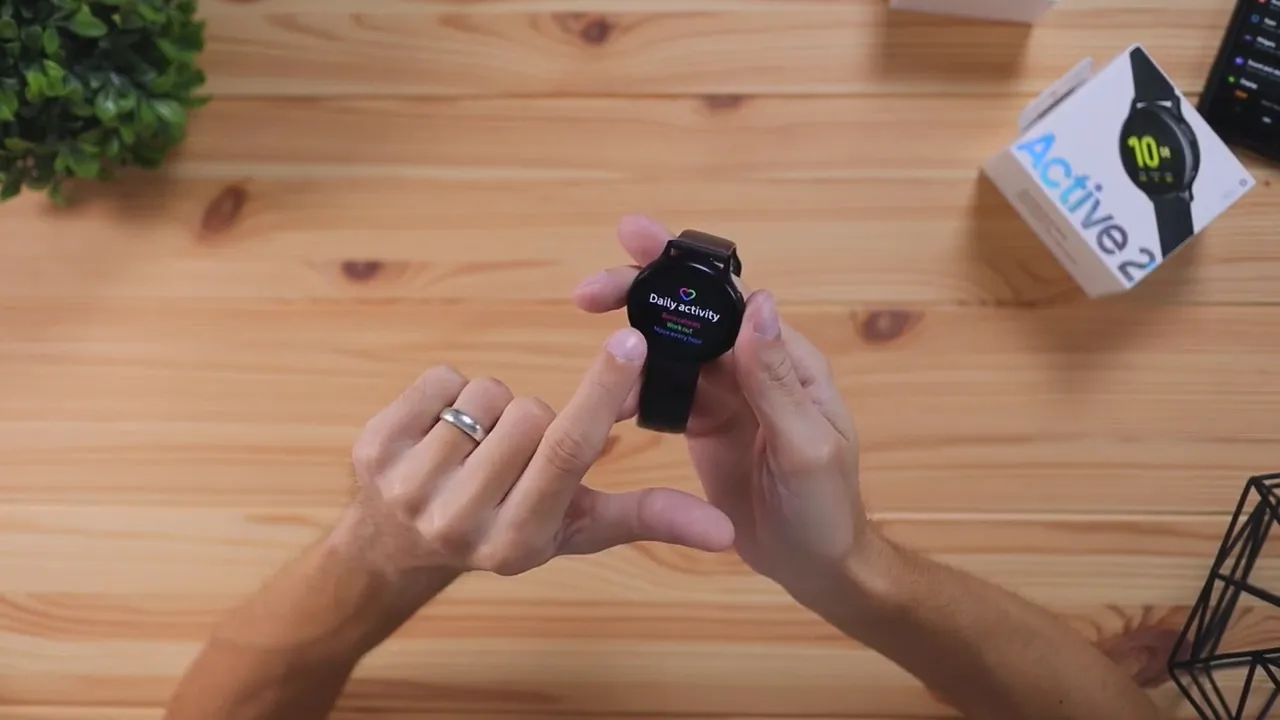
This layout feels familiar because it mirrors the same kind of interaction pattern people already know from smartphones. Notifications on one side, widgets on the other, and quick settings from the top makes the watch easy to understand without much of a learning curve.
Changing watch faces and customizing the look
Customization is one of the more enjoyable parts of using the Watch Active 2.
You can change the watch face directly on the watch by pressing and holding the main watch screen for a couple of seconds. From there, you can swipe through different face styles and choose one that matches your taste.
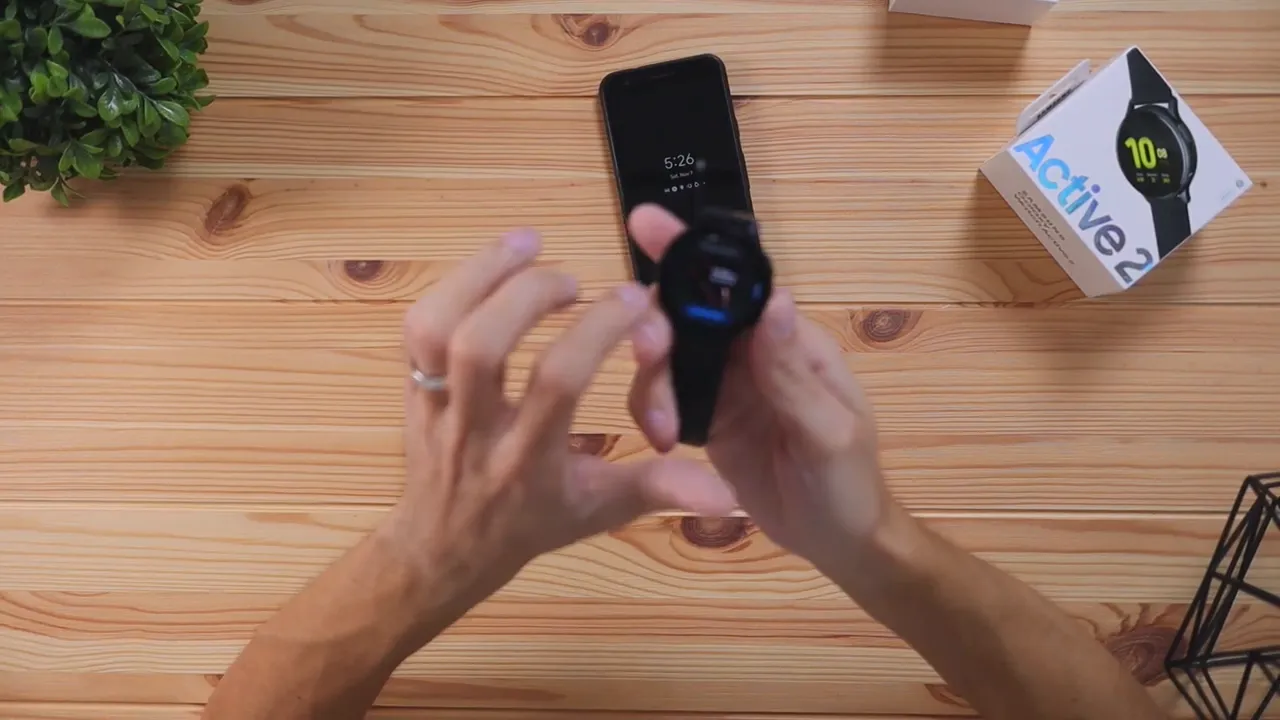
Some faces can be customized even further. For example, the default face allows color changes. You can select the section you want to edit and scroll through options like blue, green, and red. A simple color change is enough to make the watch feel more personal without needing a totally different face design.
Additional watch face options are also available through the Galaxy Wearable app. Samsung includes a healthy variety out of the box, and many of them support further customization.
If you want broader context on wearable software ecosystems and smartwatch customization, Samsung's Galaxy Wearable support page is useful for reference.
What you can customize in the Galaxy Wearable app
The companion app is where a lot of the fine-tuning happens. Once connected, you can adjust several parts of the watch experience without digging through everything on the watch itself.
Notification controls
The app lets you choose how notifications behave. You can set options such as:
- Only show notifications while wearing the watch
- Hide notifications while actively using the phone
- Manage alerts for newly installed apps
- Customize notification behavior app by app
This is useful because not every app deserves a buzz on your wrist. A smartwatch gets much better once you trim notifications down to what actually matters.
App screen layout
Samsung gives you some flexibility in how the app menu appears. You can switch between:
- List view
- Rotary or circular view
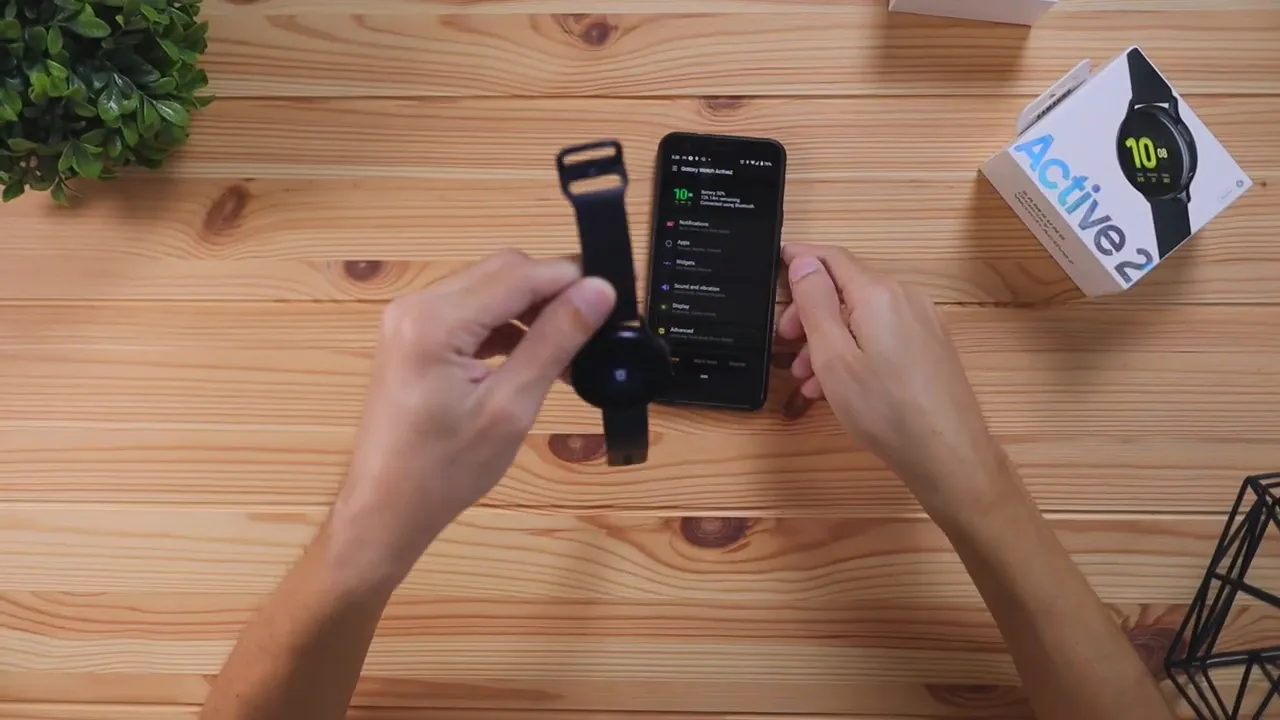
If you like a cleaner, more traditional menu, the list layout works well. If you prefer something that feels more watch-like and visually distinct, the circular layout is a nice option.
You can also reorder apps and choose which apps appear at all, which helps keep the interface from getting cluttered.
Widget customization
Widgets are the quick-access cards you see when swiping on the watch. Through the app, you can decide which ones to keep and which ones to remove.
That includes things like:
- Weather
- Alarms
- Fitness shortcuts
- Calendar
- Health-related functions
Customizing widgets is one of the easiest ways to make the watch feel efficient instead of busy.
Adding music and pictures directly to the watch
One of the more useful features in the app is the option to add content directly to the watch. Samsung lets you transfer music and pictures so the watch can hold some media independently.
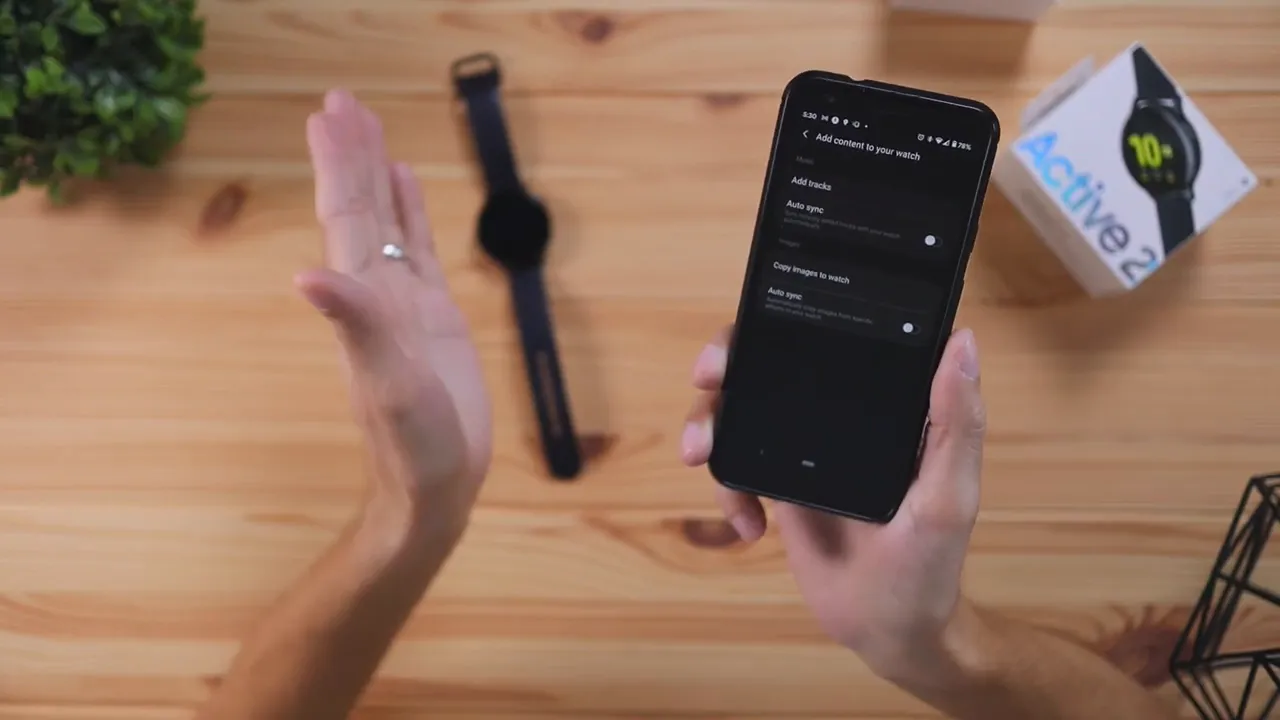
That can be especially handy if you want to go on a jog or work out without carrying your phone around. Having music on the watch itself is a practical touch for anyone using the Active 2 as a fitness companion.
This lines up with Samsung's broader fitness push for the device, which also includes features mentioned in the product details like pace coaching, activity tracking, and built-in health sensors.
Voice assistance and accessibility settings
The watch also supports voice-related features, and those settings can be adjusted through the accessibility section in the phone app.
That gives you another way to interact with the watch without relying only on taps and swipes. For anyone who prefers hands-free control or simply wants more flexible usability, it is a useful option to have built in.
Charging the Galaxy Watch Active 2
Charging is very simple. The included charger connects through USB, and the watch sits on the charging puck with the back resting against it.
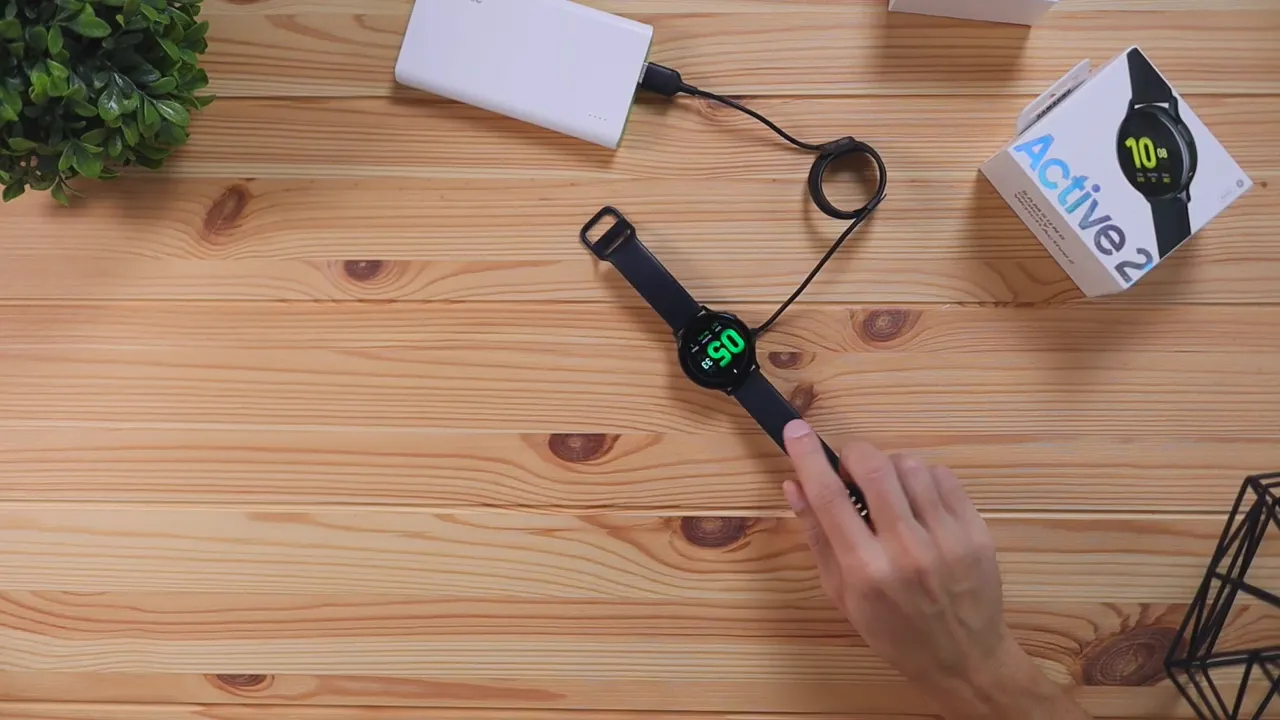
Once it is aligned properly, the watch shows a charging icon and the current battery percentage. In the hands-on example, the watch was sitting at 29% battery when placed on the charger.
One practical note is that charging speed depends on the power source. A wall adapter will charge it faster than a low-output battery bank. If you use a portable backup battery, expect a slower charge.
Samsung also promotes long battery life in the product listing, with claims of more than five days on a single charge in some use cases, though real-world battery life will vary depending on how heavily features are used.
Display quality and overall first impression
One of the biggest positive takeaways is the display. The screen looks sharp, vivid, and clean up close. It does not have that older pixelated smartwatch look that can make a device feel dated.
That sharper display helps the whole experience feel more premium. It is one of those things you notice right away, especially if you are coming from an older smartwatch.
Overall, the Galaxy Watch Active 2 feels like a high-quality smartwatch that sits on the more premium end of the category. The strengths from this first look are pretty clear:
- Solid build quality with a sleek metal feel
- Comfortable size that does not feel oversized
- Easy setup with the Galaxy Wearable app
- Good customization for faces, widgets, apps, and notifications
- Useful standalone features like onboard music storage
- Sharp, modern display that looks great up close
If you are upgrading from an older wearable, this looks like the kind of smartwatch that would feel like a noticeable step forward. It is especially appealing if you want something fitness-friendly, comfortable for daily wear, and polished enough to work as both a gadget and an accessory.
For more background on the site and the kind of tech coverage behind posts like this, you can also read more about KovaTech.


