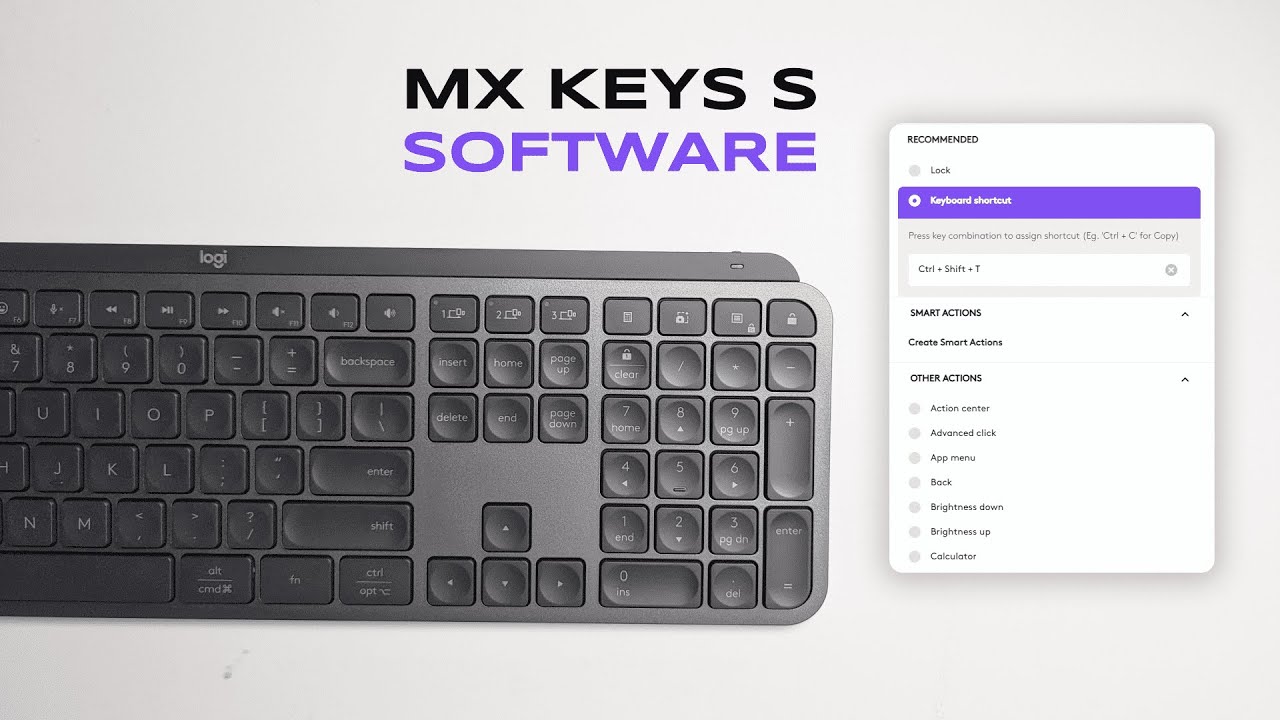
If you own the Logitech MX Keys S (or are thinking about it), getting the most out of the keyboard really comes down to software. In this guide I walk you through Logi Options+—the app that unlocks customization, lighting control, multi-device pairing, and productivity shortcuts. This post is based on a detailed walkthrough I created for my channel (Kova Tech), and it expands on the practical settings and workflows I use daily.
Table of Contents
- Quick overview: What Logi Options+ gives you
- Getting started: the Logi Options+ main screen
- Make shortcuts that actually save you time
- Backlighting: balance looks with battery life
- Easy-Switch: one keyboard, multiple devices
- Settings tab: small toggles, big effects
- Practical workflows: how to use customization effectively
- Tips and recommended defaults
- FAQ
- Final thoughts
Quick overview: What Logi Options+ gives you
Logi Options+ turns the MX Keys S from a great keyboard into a personalized productivity hub. You can:
- Customize what specific keys do (including assigning keyboard shortcuts).
- Create app-specific actions so a key behaves differently in Chrome than in Photoshop.
- Control backlighting—duration, automatic brightness, and battery-saving behavior.
- Pair and switch between up to three devices using Easy-Switch.
- Tweak function key behavior, disable keys, and back up your device configuration.
Getting started: the Logi Options+ main screen
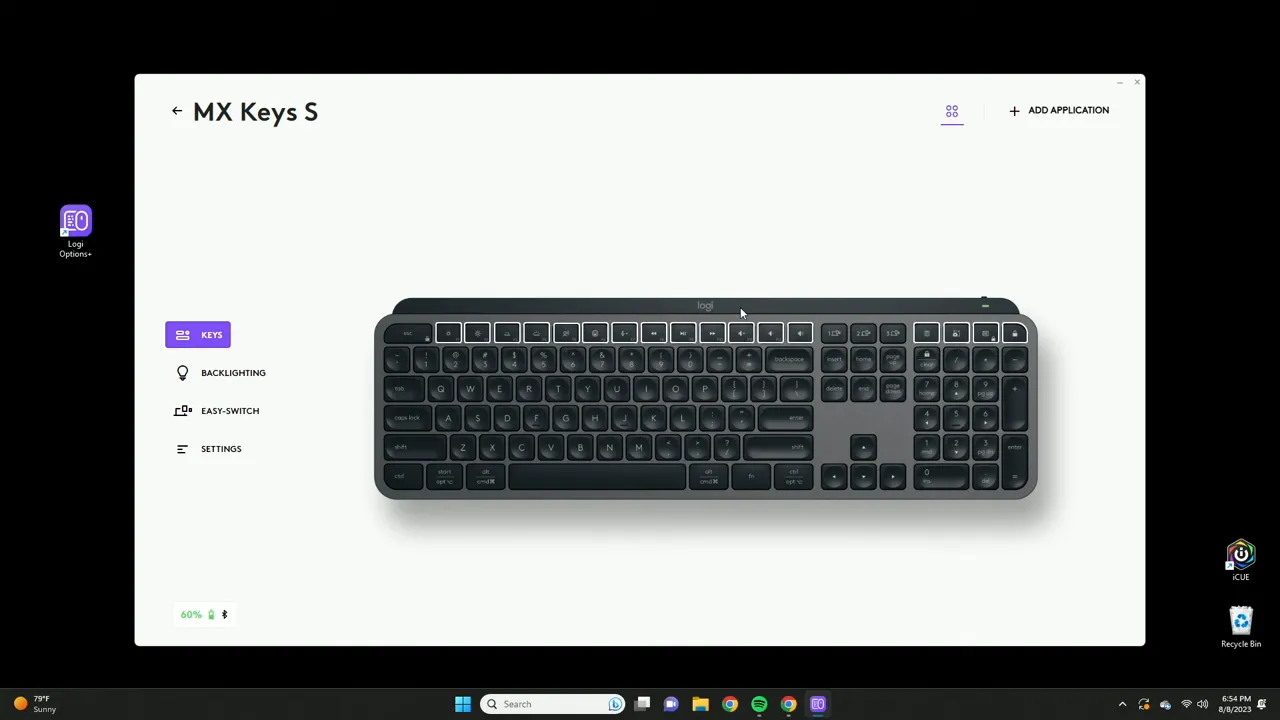
When you install Logi Options+ and connect your MX Keys S, the app presents a straightforward main screen. The area inside the white border represents the keys you can customize. Click any of those keys to assign an action: a preset OS action, a recommended shortcut, or a custom keyboard shortcut.
“Everything here in the white border can be customized to do pretty much whatever you want.”
That simple sentence sums up the flexibility. Rather than memorizing complicated macros, you can map frequently used actions to physical keys and even make them context-aware so they only trigger in certain apps.
Make shortcuts that actually save you time
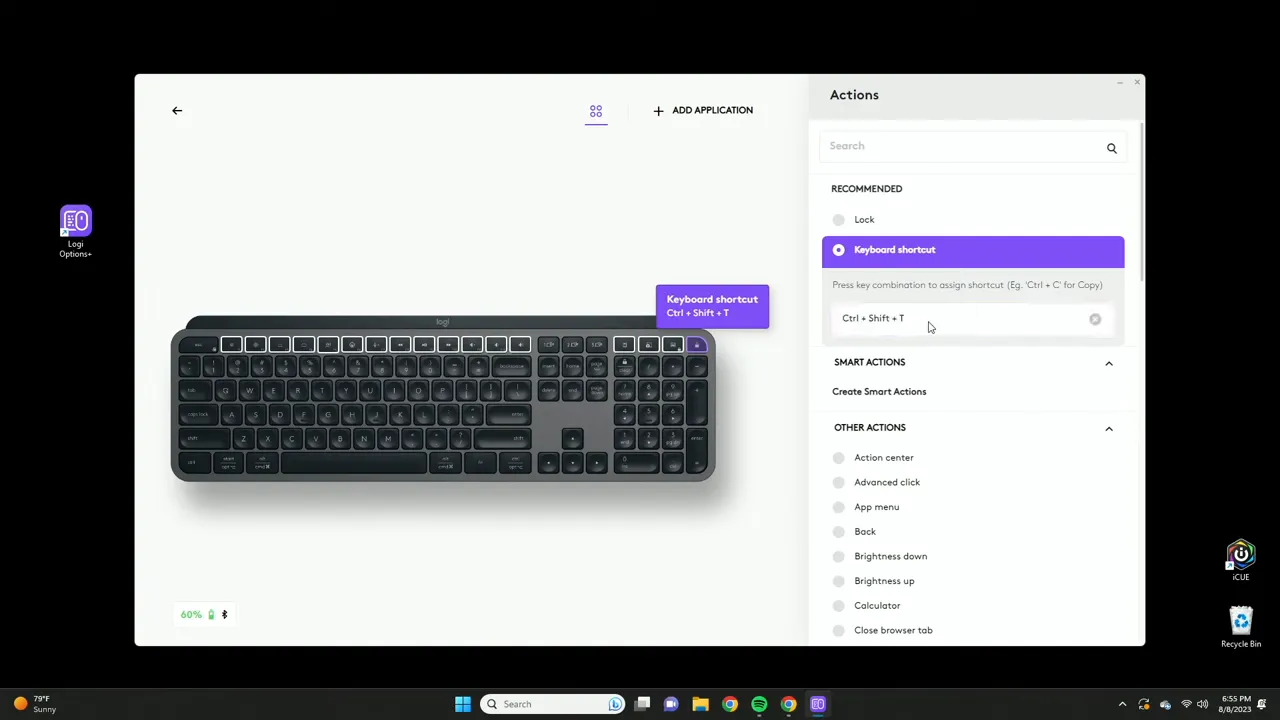
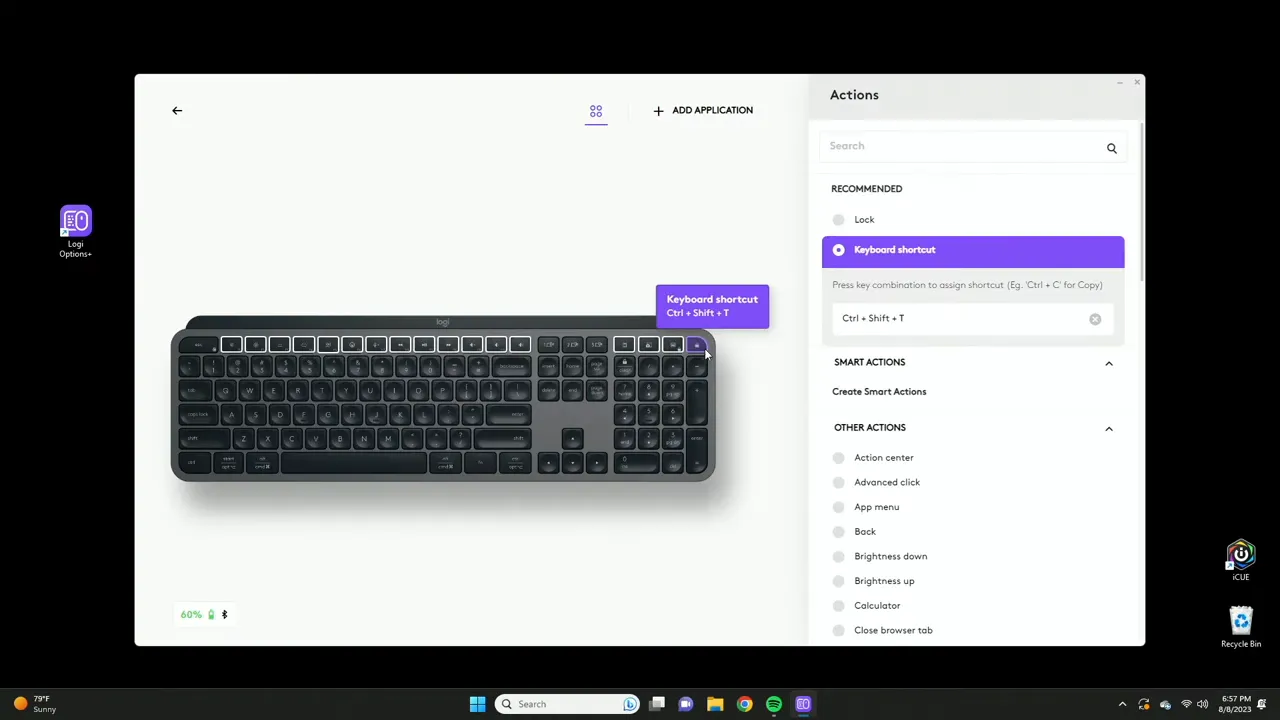
One of my favorite quick wins is assigning browser shortcuts. For example, I set a key to Ctrl+Shift+T so a single press reopens the last closed tab. Instead of opening a new tab, digging through history, or using the mouse, one keystroke puts me back where I was.
Two tips when creating shortcuts:
- Use app-specific mappings: Logi Options+ can detect which application is active. If Ctrl+Shift+T isn’t useful everywhere, restrict it to Google Chrome (or your preferred browser) so the same key does something else in Photoshop or Excel.
- Think in workflows: Video editors might map play/pause, split, or export commands; spreadsheet users can map insert-row, copy formulas, or jump to named ranges.
Backlighting: balance looks with battery life
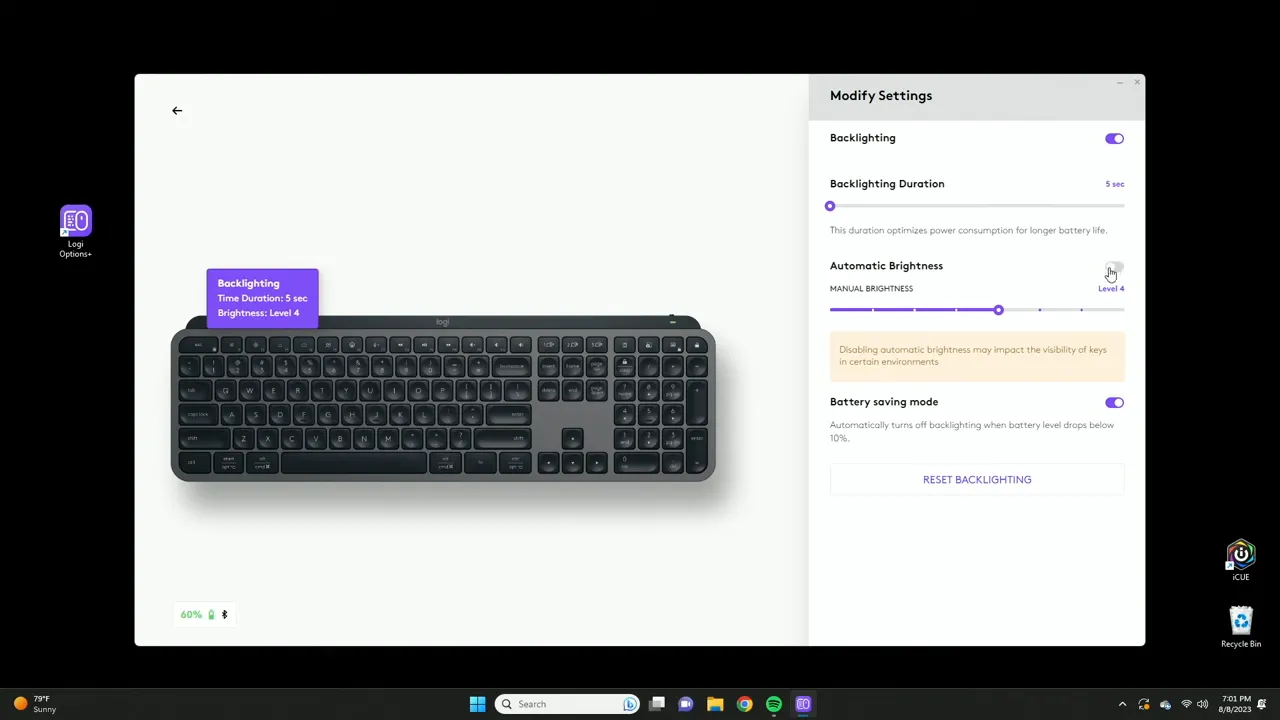
The MX Keys S backlight is attractive, but lighting is a major battery consideration. Logi Options+ gives you precise control:
- Turn backlighting completely off.
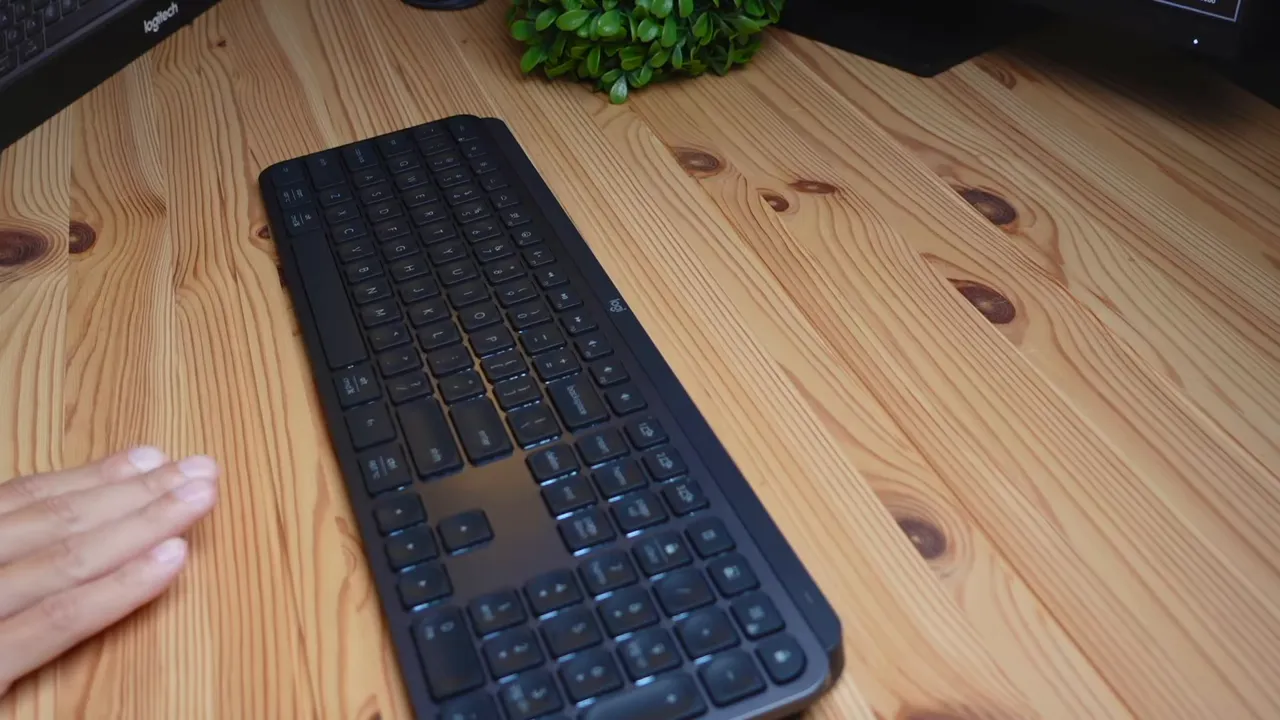
- Set lighting duration—the time lights stay on after your hand is detected, from a few seconds up to 30 minutes.
- Enable automatic brightness so the keyboard adapts to ambient light.
- Turn on battery-saving mode to automatically switch lights off when battery dips below 10%.
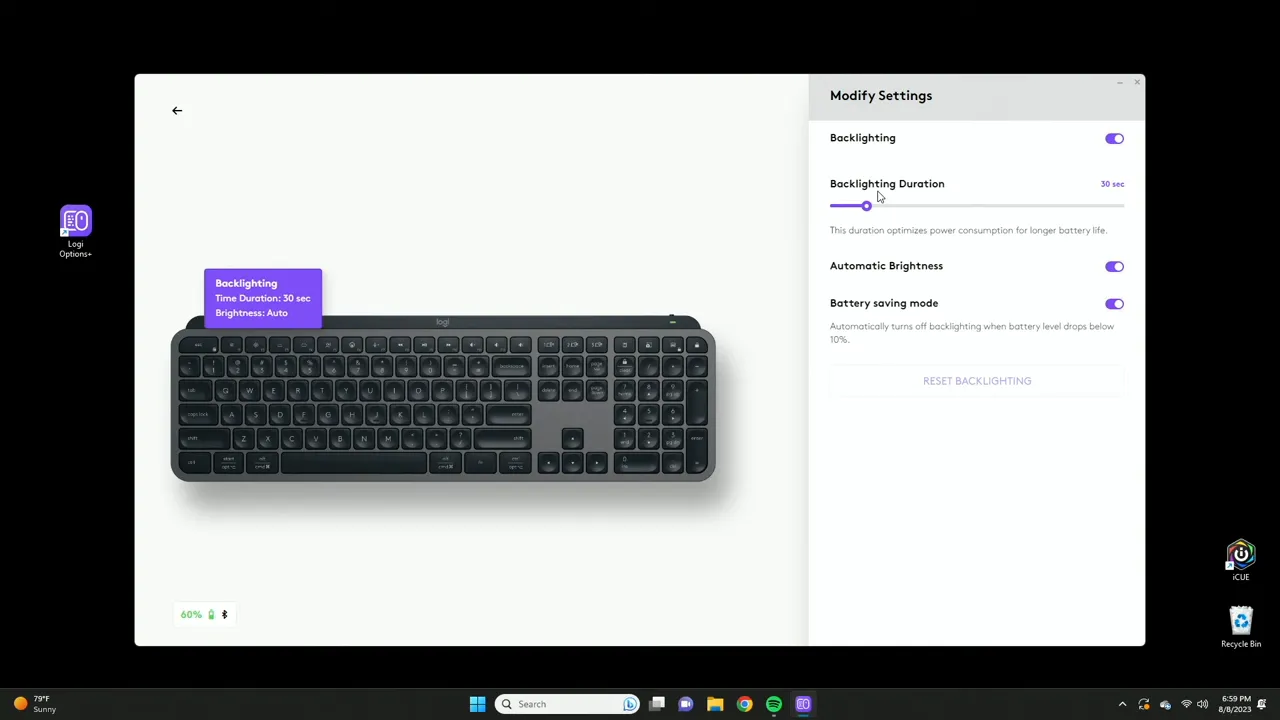
I personally set lighting duration to 5 seconds. It’s long enough to find keys and short enough to preserve battery. Automatic brightness is also helpful: in dim conditions the brightness ramps up for visibility, and in bright rooms it dims or turns off. Combine automatic brightness with the short lighting duration and you’ll get noticeably better battery life without sacrificing usability.
Easy-Switch: one keyboard, multiple devices
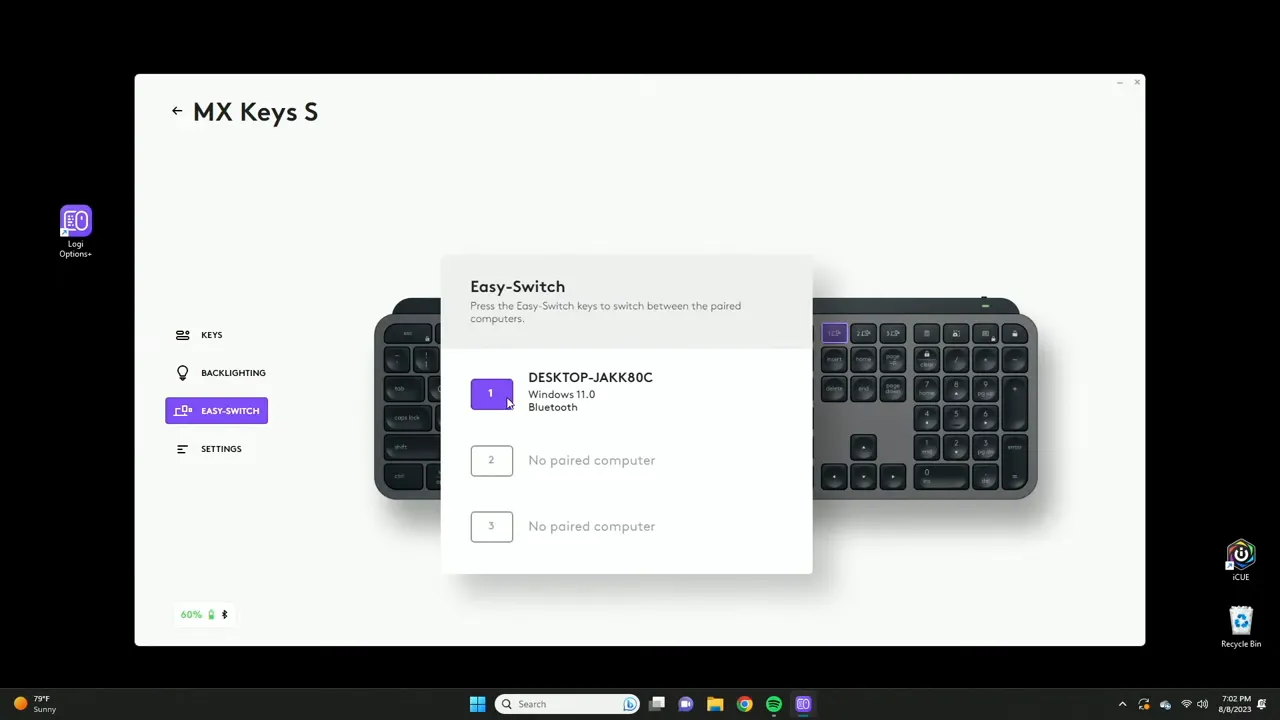
One of the MX Keys S’s strongest features is Easy-Switch. You can pair the keyboard with up to three computers and toggle between them either by pressing the three dedicated Easy-Switch keys on the keyboard or by switching through the Logi Options+ software.
This is useful if you maintain a desktop, a laptop, and a tablet/secondary machine. I typically pair two laptops and a home desktop—switching is instant and the software shows which device is active.
Settings tab: small toggles, big effects
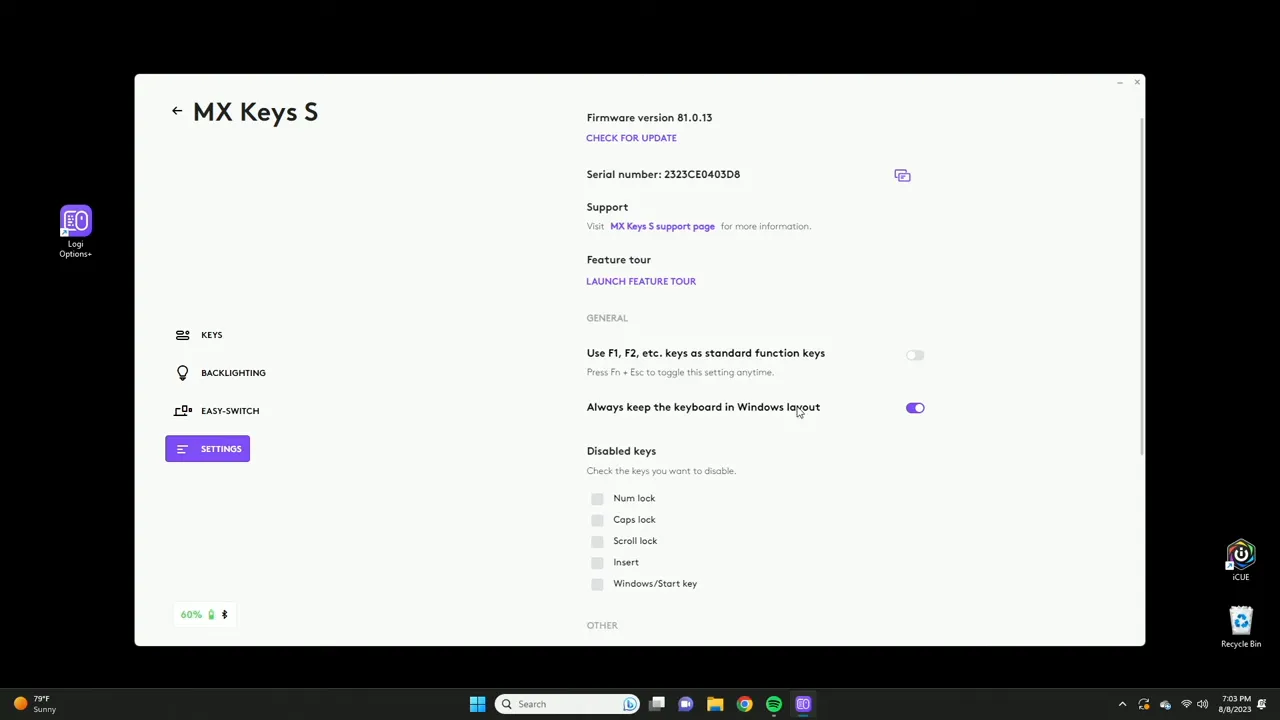
The Settings tab in Logi Options+ includes a handful of options that change how the keyboard behaves:
- Function keys mode: Choose whether you need to hold Fn to use F1–F12 or have them act as standard function keys by default.
- Windows vs Mac layout: Toggle between Windows and macOS layouts. Unchecking Windows puts the keyboard into Mac mode with the correct key assignments.
- Disable keys: Lock out keys you never use to prevent accidental presses.
- Device backup: Create a Logitech account and back up your configuration so switching devices restores your settings automatically.
- Remove device: Disconnect the keyboard from the software or computer.
Device backup is underrated. If you set up a complex mapping across multiple apps, backing up saves hours of reconfiguration if you switch machines or need to reset the device.
Practical workflows: how to use customization effectively
Let’s talk about real-world use cases beyond the basics.
- Video editing: Map Play/Pause, Ripple Delete, Add Edit, and Export shortcuts to the keys inside the editable white border. Use app-specific mappings so those keys only affect Premiere Pro or DaVinci Resolve.
- Spreadsheets: Assign Insert Row, Insert Column, Jump to Top/Bottom, or custom macros for repetitive formula tasks.
- Developer tasks: Map Git commands, build-and-run scripts, or open a terminal in the current project directory.
- Content creators: One-press transitions, insert timestamps, or toggle recording—especially useful when you’re managing camera/software simultaneously.
Think about the actions you perform most often and where a single press could replace a three-step mouse and menu sequence. That’s where the biggest time savings come from.
Tips and recommended defaults
- Set lighting duration to 5–10 seconds for a balance of eye comfort and battery life.
- Enable automatic brightness unless you want fixed levels for aesthetic reasons.
- Turn on battery-saving mode to avoid surprise power loss during work sessions.
- Use app-specific shortcut mappings for context-aware productivity—you’ll avoid accidental triggers in the wrong app.
- Back up your device settings to the cloud so they follow you between systems.
FAQ
Can I create shortcuts that only work in one app?
Yes. Logi Options+ detects which application is active and lets you restrict a custom key mapping to a specific app (for example, Google Chrome). This prevents shortcuts from firing in other programs and lets you assign context-specific actions.
How does lighting duration affect battery life?
Lighting duration controls how long the keys stay lit after the keyboard detects your hand. Shorter durations (5–10 seconds) significantly conserve battery because lights aren’t on during idle time. Combine this with automatic brightness and battery-saving mode for optimal endurance.
Is Easy-Switch reliable across different operating systems?
Yes. Easy-Switch works with Windows, macOS, and most Bluetooth-enabled devices. You can pair up to three devices and switch instantly either with the keyboard’s dedicated buttons or via Logi Options+.
What happens if I change computers—do my settings transfer?
If you enable Device Backup and link your Logitech account, your mappings and settings are saved to the cloud. When you log into the software on another computer, the app restores your configuration automatically.
Should I turn off automatic brightness?
Automatic brightness is helpful for most users because it adapts to ambient light conditions. Turn it off only if you want consistent brightness levels regardless of environment or if you prefer to set a manual brightness for aesthetic reasons.
Final thoughts
The MX Keys S is an excellent keyboard on hardware alone—but Logi Options+ is what turns it into a productivity powerhouse. Between context-aware shortcuts, granular lighting controls, and device backup, the software makes the keyboard far more useful day-to-day. Whether you’re editing video, juggling spreadsheets, or switching between multiple machines, a few minutes in Options+ can save you hours long-term.
If you want a more visual, step-by-step walkthrough of the controls and real-time demos of shortcuts in action, check out the full video I put together on the topic. The video shows all the options in the app and demonstrates quick examples like reopening a closed browser tab with a single key press.
Try the settings above as a starting point: 5-second lighting duration, automatic brightness on, battery-saving mode enabled, and app-specific shortcuts for your top three productivity apps. Once you build a few bespoke mappings, you’ll wonder how you ever worked without them.


