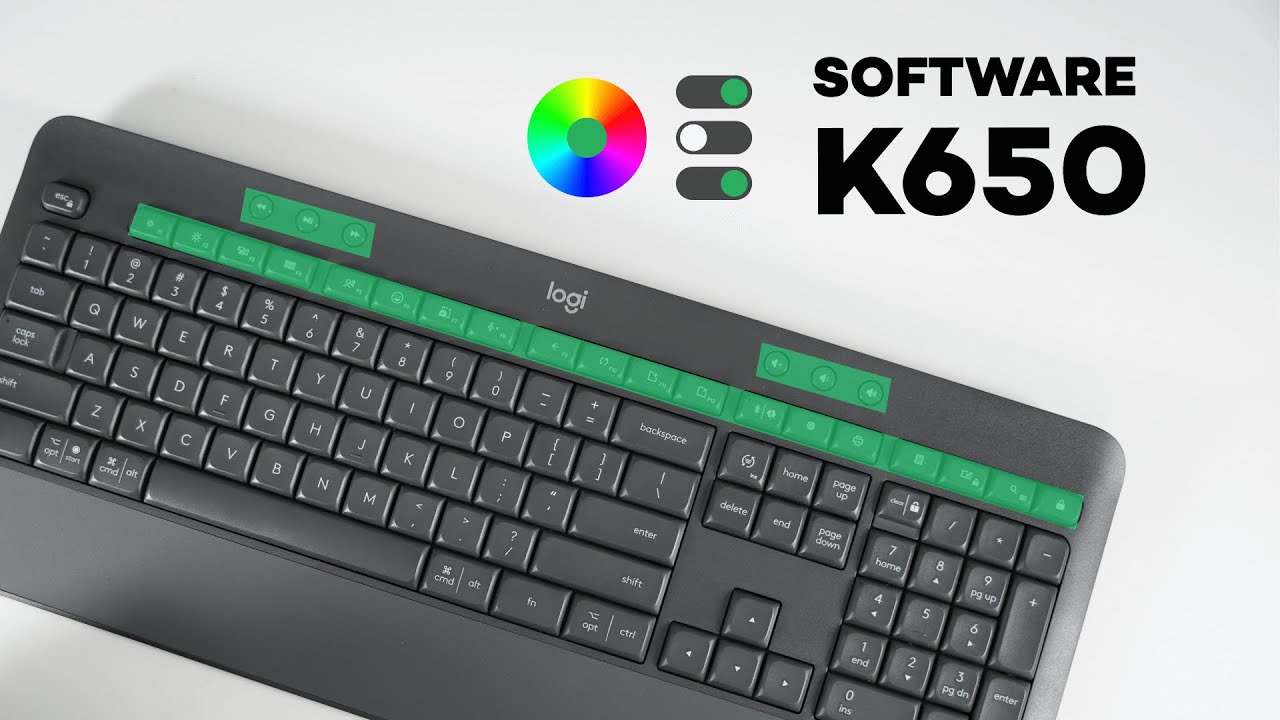
The Logitech Signature K650 is more than a comfortable wireless keyboard — paired with Logi Options+ (Logitech Options) it becomes a productivity toolbox. The software lets you remap keys, create app-specific shortcuts, and save your setup to the cloud so your favorite shortcuts follow you between machines.
Install Logi Options+
Getting started is simple:
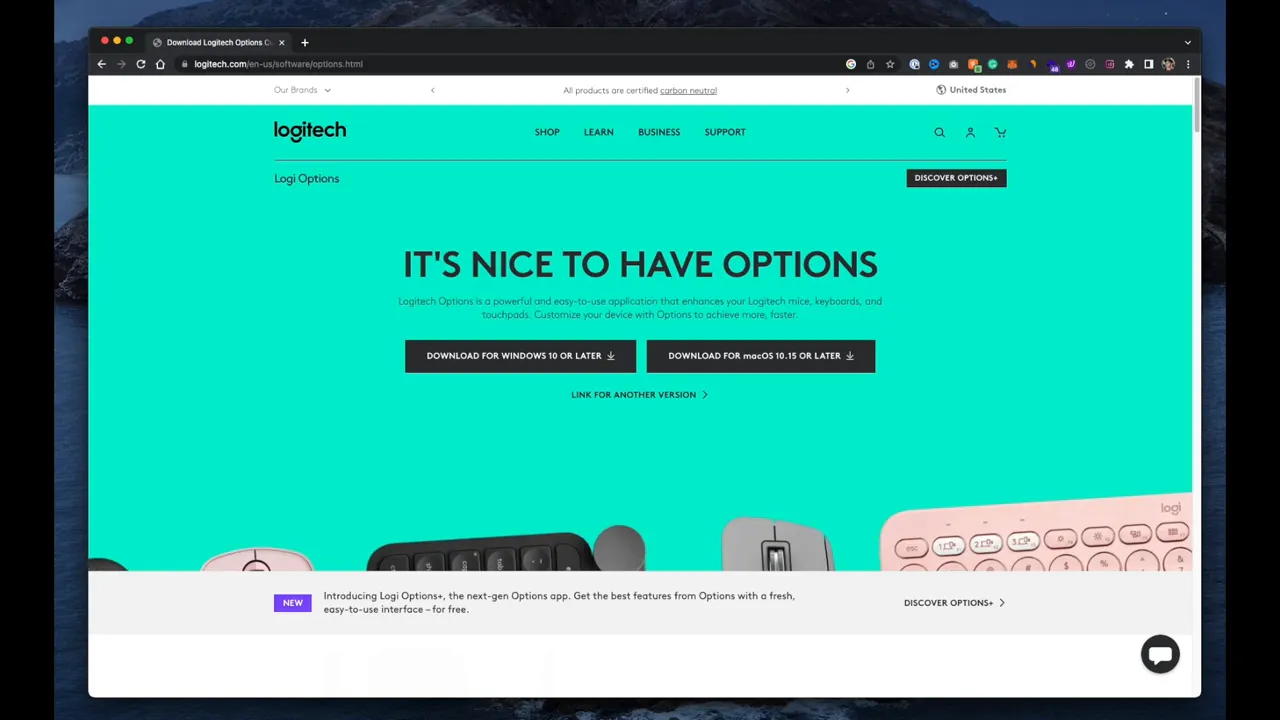
- Search for Logi Options or go to Logitech’s site and download Logi Options+ for Windows or Mac.
- Install and open the app. It will list all connected Logitech devices.
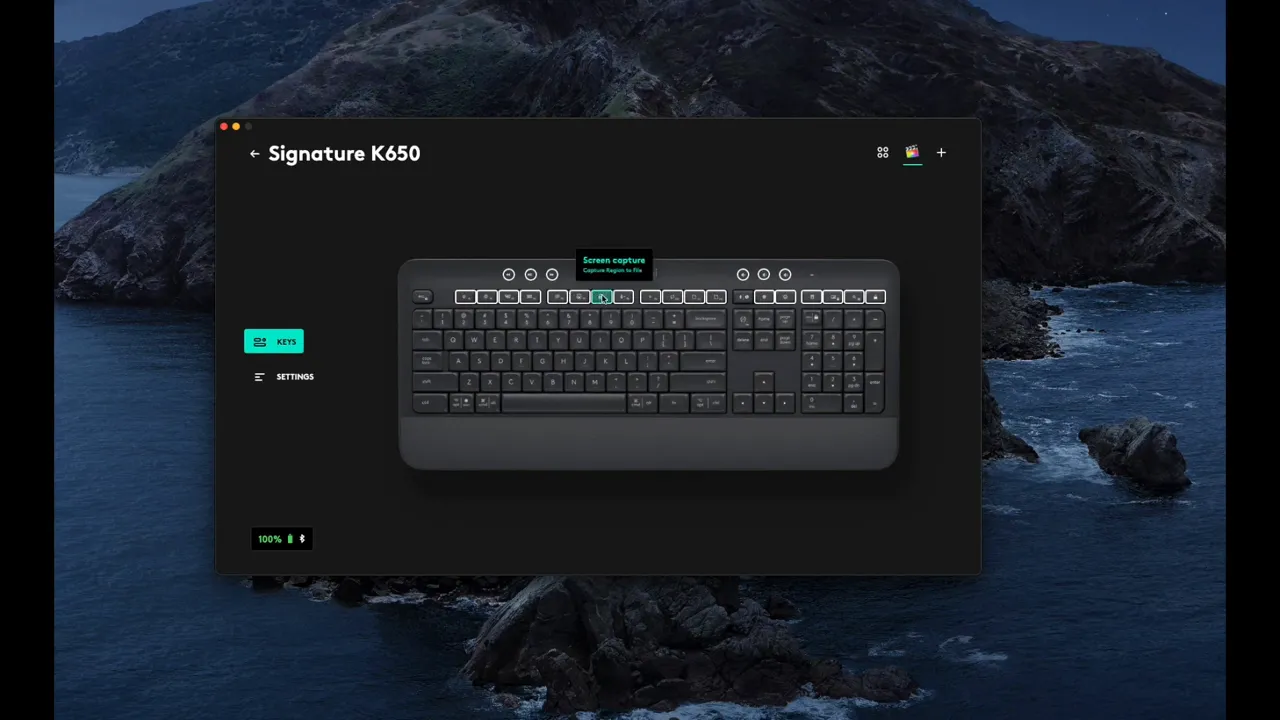
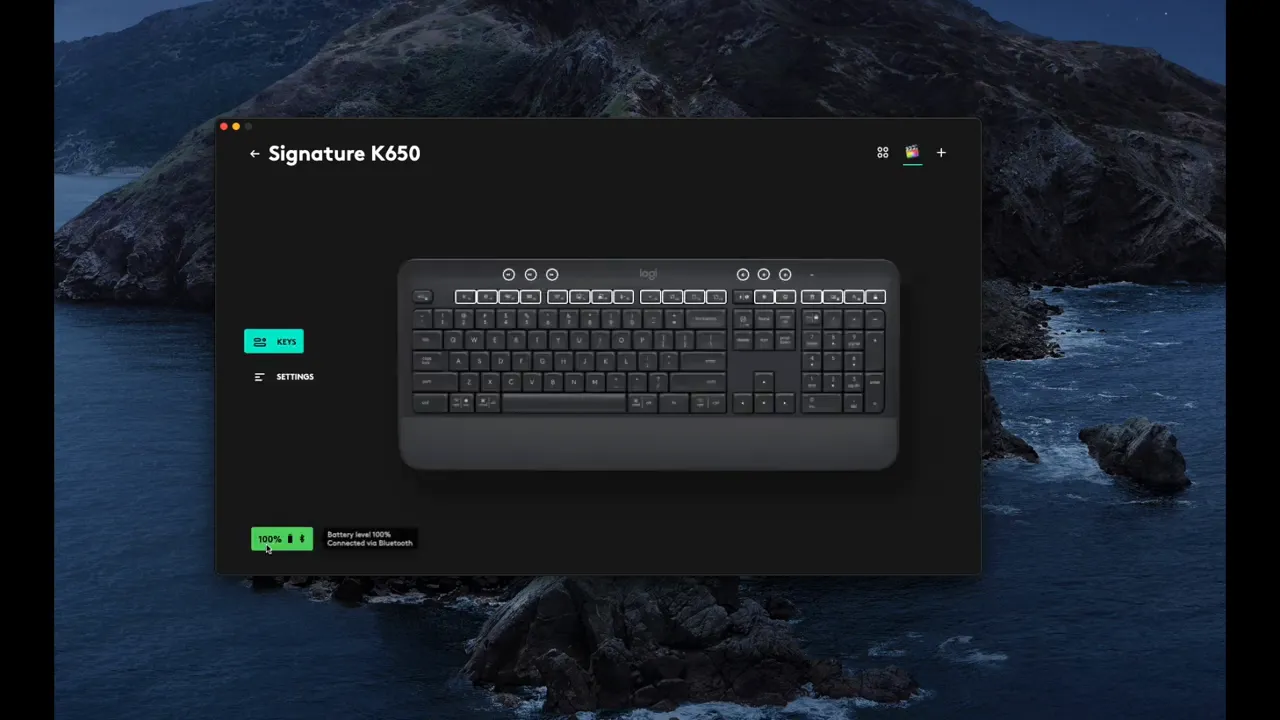
- Select the Signature K650 from the device list to view and edit key assignments.
What’s customizable on the K650
The K650 ships with useful defaults, but everything is adjustable:
- Top media row — previous, play/pause, next.
- Upper-right keys — mute/unmute and volume controls (speaker volume).
- Bottom row and function layer — brightness, Mission Control (Mac), Launchpad, dictation, emoji menu, screen capture, microphone mute (this mutes the mic, not the speaker), browser back/forward, refresh, new tab, close tab, and a Settings/menu key.
These defaults are convenient, but the real power is assigning custom actions per application.
Make app-specific shortcuts work for you
Logi Options+ lets you tie key actions to the active application. That means the same physical key can do different things when you're in your browser, email, or video editor.
For example, if you edit in Final Cut Pro, you can map a corner key or the Settings key to a common shortcut like Command+B (Blade) so you can cut clips with a single press.
How to add an app-specific shortcut
- Open Logi Options+ and click the K650.
- Click Add application and choose the app (Final Cut Pro, Photoshop, Chrome, etc.).
- Select a key, choose Keyboard Shortcut, then type the shortcut (for example Command+B).
- With the target app active, press the mapped key to trigger the shortcut.
This is especially handy for repetitive actions that save you a few seconds each time — over a workday those seconds add up.
Which keys should you customize first?
Start with the keys closest to your mouse. They’re the quickest to reach and minimize context switching.
- Corner keys — extremely convenient for frequent actions. I map one to cut/snippet tools in editors.
- Settings/Menu key — a useful one to repurpose when you need a dedicated command key for an app.
- Upper row media/volume keys — keep them if you frequently control media or quickly mute the speaker.
Settings and useful toggles
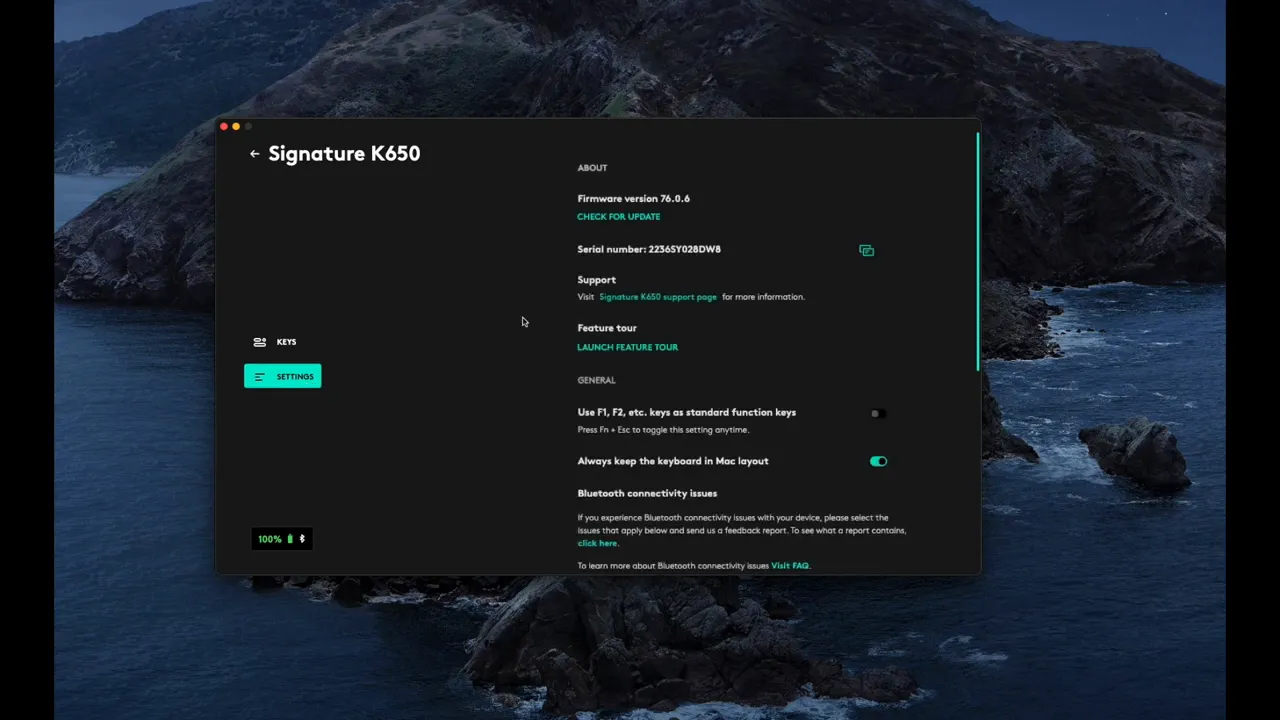
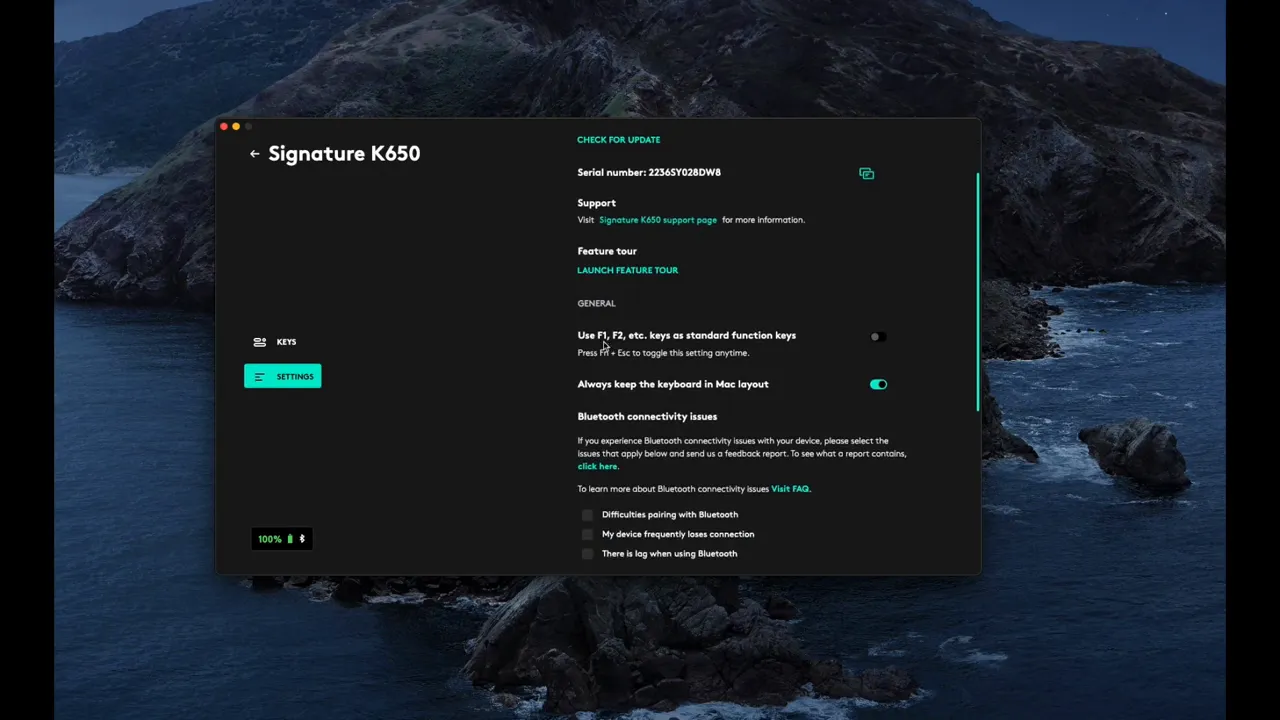
Open the software’s Settings panel to configure general behavior:
- F1/F2 mode — choose whether the top row acts as standard function keys (F1, F2) or as the listed shortcut keys. I prefer leaving the shortcut behavior enabled.
- Mac vs Windows layout — toggle the layout to match your OS so shortcuts and modifier keys behave correctly.
- Cloud sync — sign in to save your profile to the app. Your settings will load on other computers when you sign in there.
- Factory reset / Remove device — options to restore defaults or unpair the keyboard if needed.
Battery, presets, and small tips
Logi Options+ also displays the keyboard’s battery level so you can avoid surprises.
Other helpful notes:
- Use the pre-made shortcuts when they match your workflow — the app includes many built-in macOS and Windows actions (search, home, input language, etc.).
- For productivity tools like Final Cut Pro, Photoshop, or Excel, set 2–4 app-specific keys for actions you perform dozens of times.
- Keep the defaults for keys you use casually, and only remap the ones you’ll press frequently.
Final thoughts
The Logi Options+ software turns the Signature K650 into a context-aware keyboard that adapts to your apps. Spend a few minutes mapping the most-used shortcuts to easy-to-reach keys, enable cloud sync, and you’ll shave time off repetitive tasks every day. If you want suggestions for specific app mappings, mention which apps you use and what actions you perform most often.


