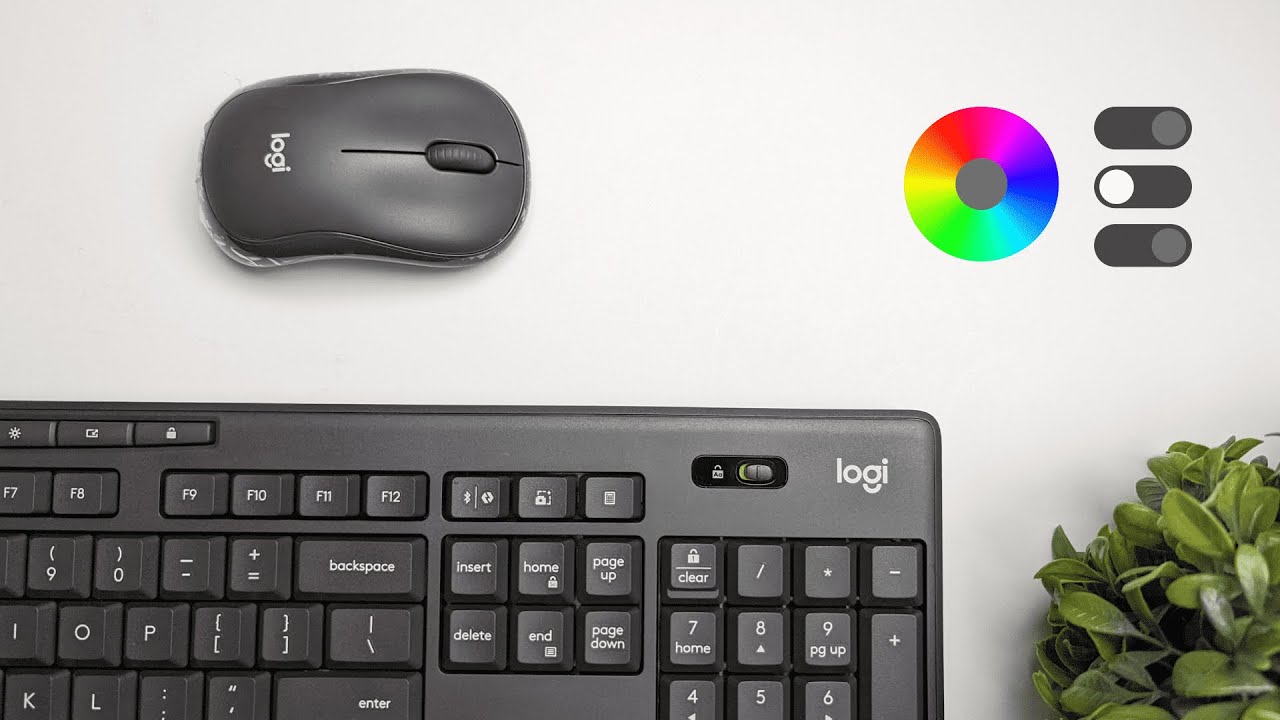
The Logitech MK370 is built to be a reliable, no-nonsense keyboard and mouse combo for offices, shared desks, and anyone who needs dependable wireless peripherals on a budget. The hardware is solid, but where this kit really earns its keep is the Logi Options Plus software. That app turns the MK370 into a flexible productivity tool you can tune to the way you work.
Table of Contents
- Quick setup and the main dashboard
- Smart Actions: automate common routines
- Mouse customization: small changes, big productivity gains
- Point and scroll: feel and speed
- Keyboard customization: useful hotkeys, simplified management
- Settings, backups, and cross-platform support
- Battery and deployment details
- Who should buy the MK370 combo?
- Conclusion
- FAQ
Quick setup and the main dashboard
Start by installing Logi Options Plus. Once the app is installed, the main dashboard shows connected devices right up front: the keyboard and mouse. From here you can add a device, check battery levels, and jump into specific customizations.
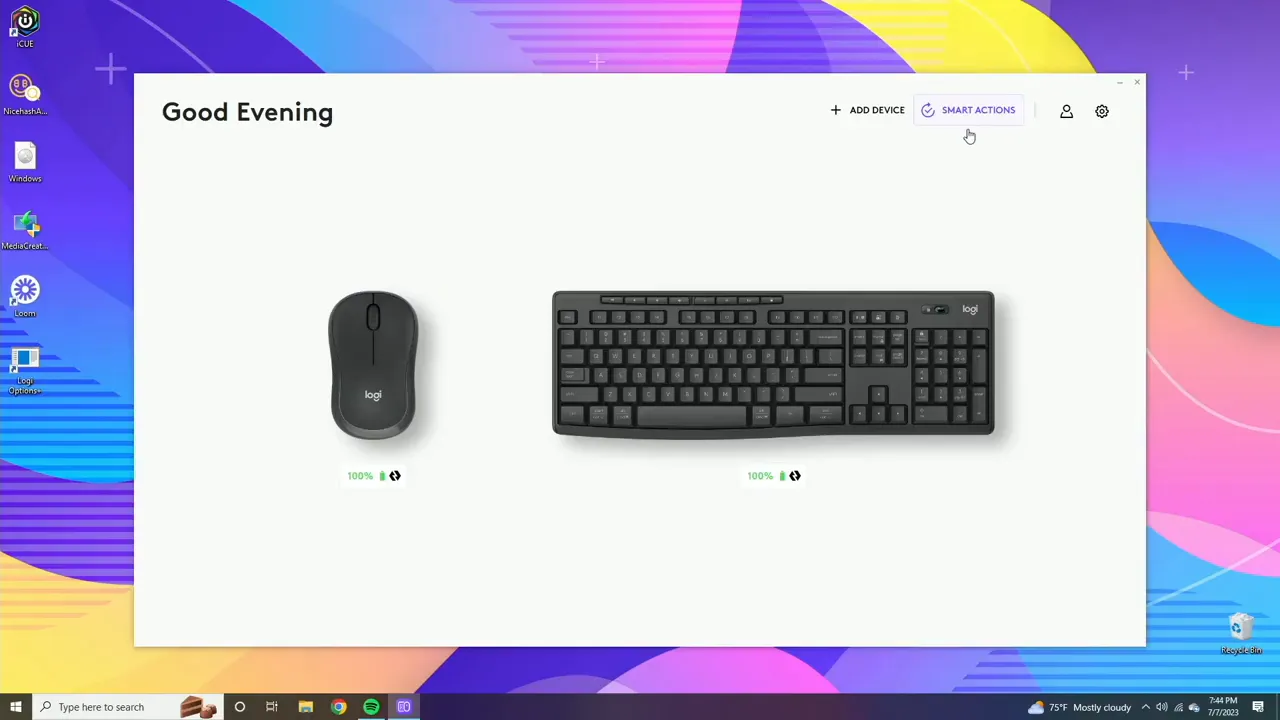
The app recognizes the MK370 instantly if you’re using the included unifying receiver. That means zero pairing headaches for most users and a straightforward place to begin customizing buttons and shortcuts.
Smart Actions: automate common routines
Smart Actions are a simple, underused feature that can save time if your day has recurring tasks. Create an action to open an app at a set time or to trigger a workflow when a calendar event starts. For example, if you have a daily 10:00 meeting you can have the meeting app open automatically so nothing slips through the cracks.
Smart Actions require creating the action inside the Logitech ecosystem, and can be enhanced by importing calendar data so the software knows exactly when to act.
Mouse customization: small changes, big productivity gains
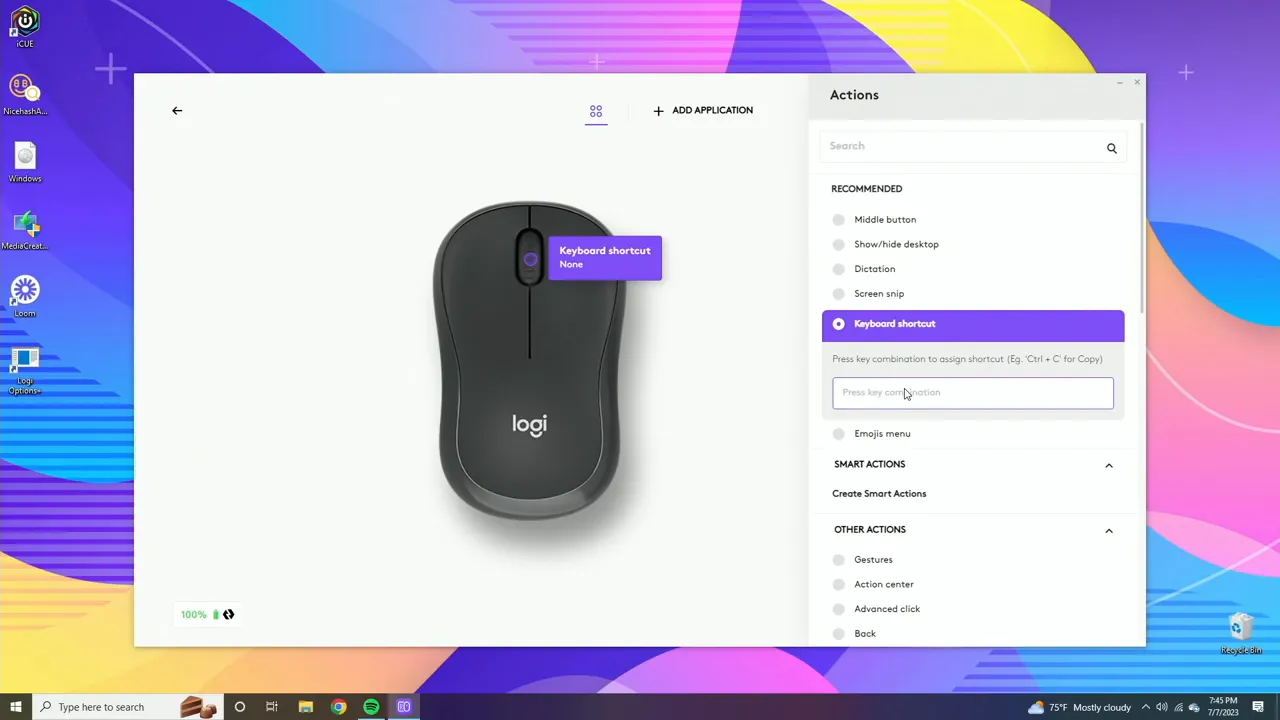
The MK370 mouse is intentionally simple, but Logi Options Plus lets you squeeze more value from it. Primary customizations include the middle mouse button and the main click action. By default these follow system behavior, but you can reassign the middle button to:
- Dictation
- Screen snip
- Emoji menu
- A custom keyboard shortcut (for example, map the middle click to Ctrl+G)
A particularly useful option is the open application action. Assign a button to launch an app you use all the time and you’ll shave seconds off repetitive tasks every day.

Logi Options Plus also supports app-specific profiles. That means you can set the mouse to behave differently depending on which app is active. For instance, keep the global middle-click set to normal, but make it open the emoji menu when Chrome is the active window.
Point and scroll: feel and speed
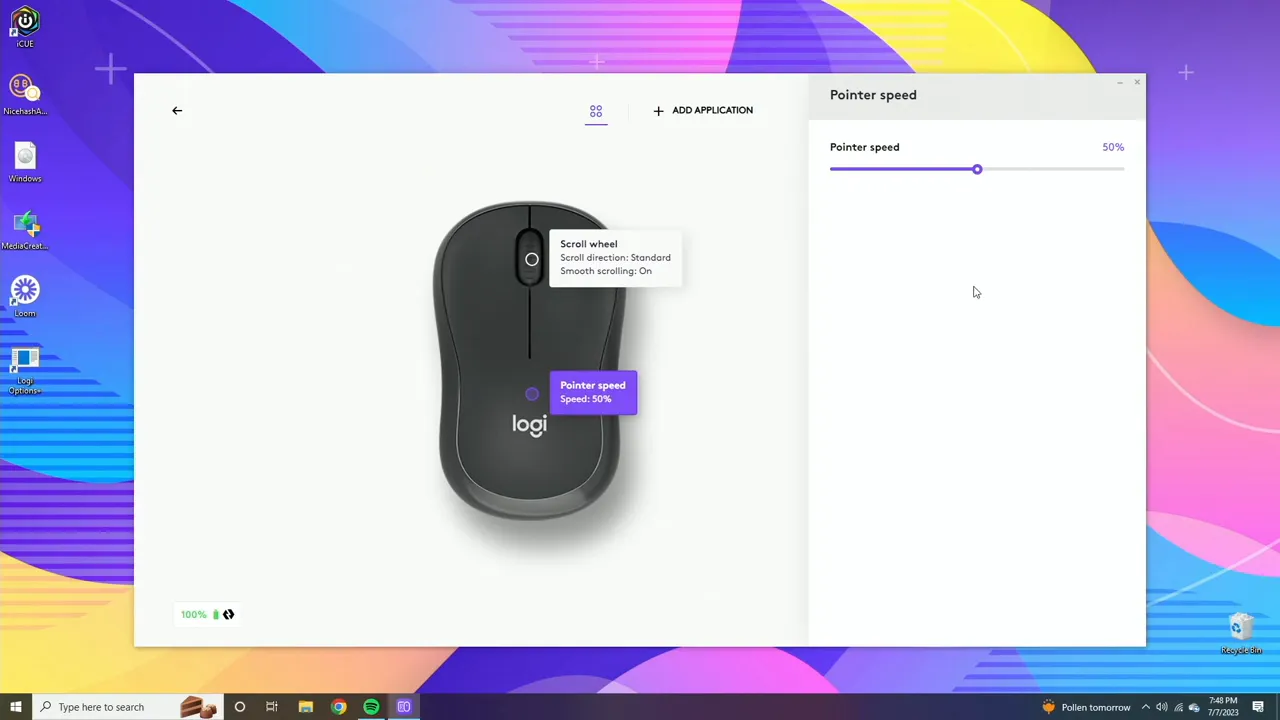
Point and scroll settings let you tune the physical feel of the mouse. Available options include:
- Inverted or standard scrolling
- Smooth or rugged scroll feel
- Pointer speed adjustment
Pointer speed is handy when switching between different monitors or when you prefer a higher on-screen cursor speed than the default OS setting. If you need left-handed operation, the general settings include a swap left/right button option so the mouse feels natural.
Keyboard customization: useful hotkeys, simplified management
The MK370 keyboard exposes a number of keys that are customizable through the app. Only keys highlighted in the software can be reassigned, but that still leaves plenty of options. Default multimedia keys remain functional, yet you can repurpose them without the keyboard physically changing its legends.
Practical examples:
- Replace brightness up/down with zoom in/out if you use presentation or document editing more than screen brightness control.
- Map a key to start a search, print, mute, or open an emoji menu.
- Create custom keyboard shortcuts for repetitive sequences you use in your workflow.
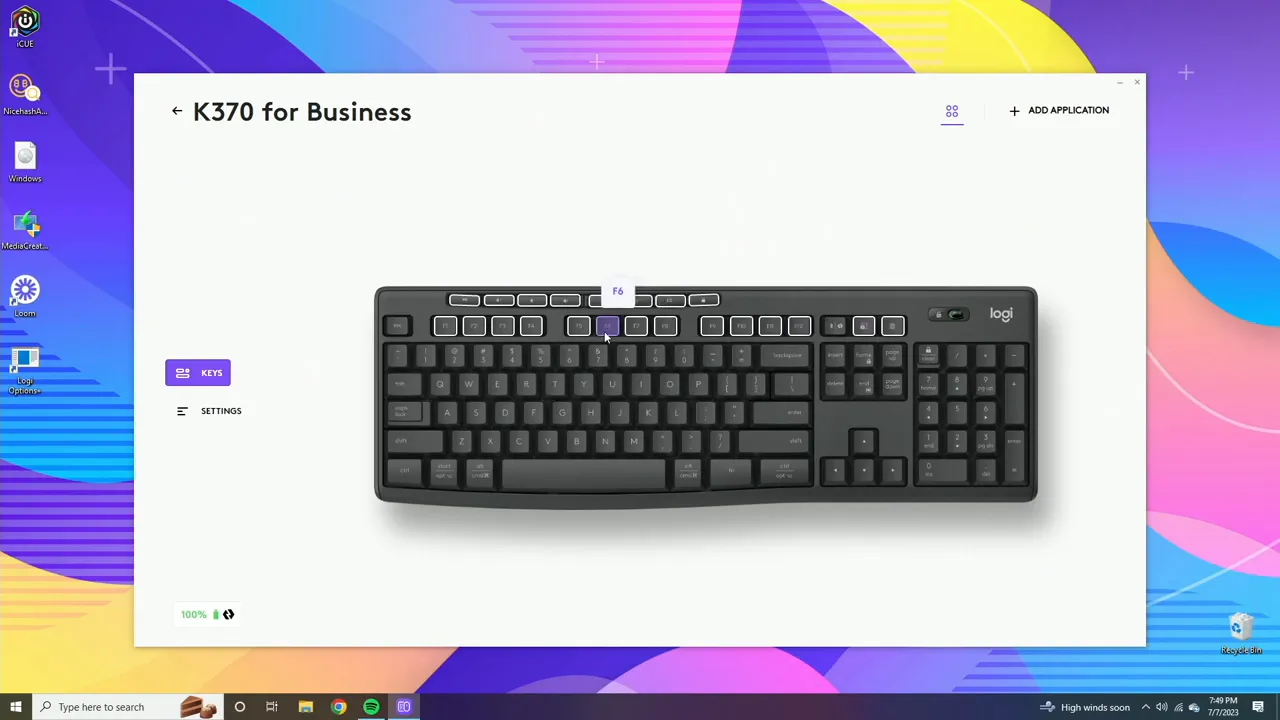
App-specific profiles also work for the keyboard. Create a Chrome profile with shortcuts tuned for browsing and a global profile for general use. The software will automatically switch to the matching profile when the app becomes active.
Settings, backups, and cross-platform support
Logi Options Plus supports both Windows and Mac layouts and works across many operating systems including Linux, ChromeOS, iPadOS, and Android. Important settings to note:
- Language and theme — choose dark, light, or follow system settings.
- Low battery notifications — get popup alerts for keyboard and mouse battery levels.
- Caps lock and mic mute notifications — optional on-screen indicators when these states change.
- Disable keys — permanently disable keys like Num Lock or Caps Lock if they become a nuisance.
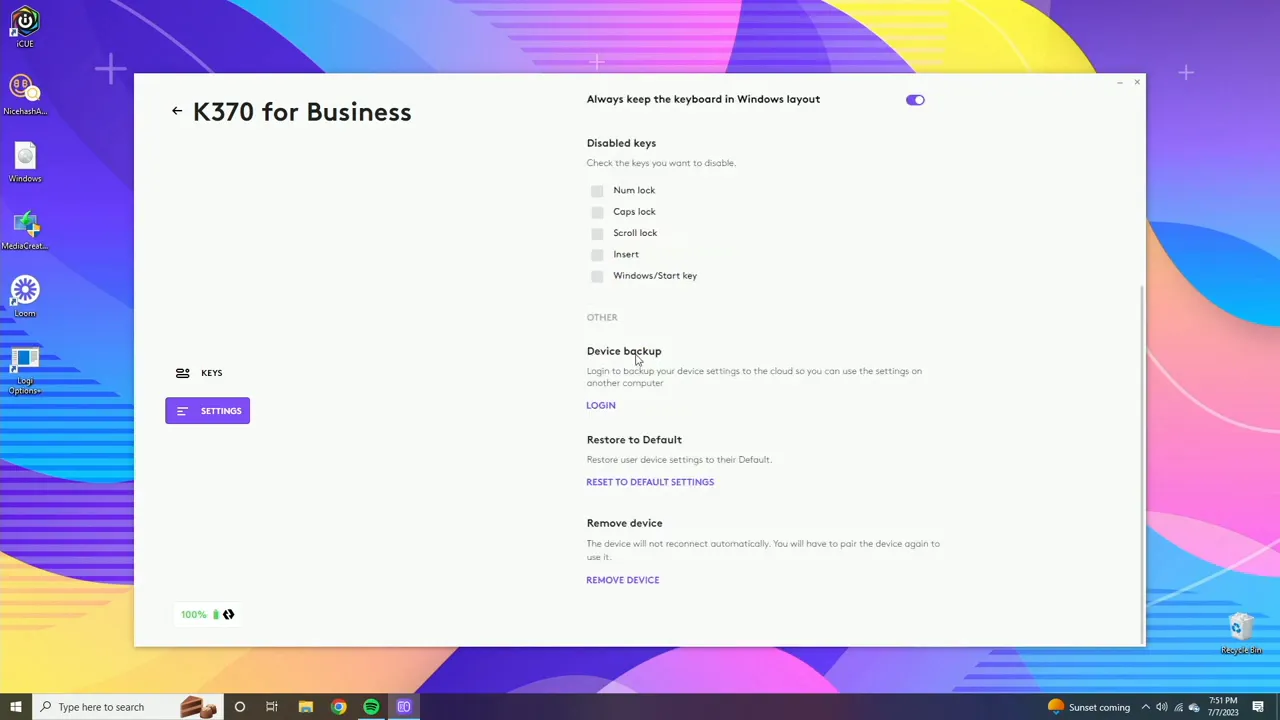
Sign in to save your device settings to your Logitech account. That makes it easy to restore customizations when you move between machines or need to reconfigure after a system restore. You can also restore all settings to default or remove the device from the app when needed.
Battery and deployment details
The dashboard displays battery life for each device in the bottom-left corner of the app. Hovering over the battery icon shows the connection type and the remaining percentage, which is particularly useful in enterprise deployments or shared setups.
For IT admins, the MK370 supports centralized management, Logi Bolt security, and compatibility guarantees across more than 100 countries. That makes it a sensible option for rollouts where security and manageability matter.
Who should buy the MK370 combo?
Consider the MK370 if you need a dependable, affordable wireless keyboard and mouse for business or home offices. The hardware is durable with spill resistance and quiet mouse clicks, while the software adds enough flexibility to tailor the pair to your workflows without complicating things.
It is especially suitable for:
- Corporate environments that need easy deployment and secure wireless connections
- Home offices where quiet operation matters
- Anyone who wants simple but meaningful software-driven customization
Conclusion
Logi Options Plus transforms the MK370 from a basic peripheral set into a customized productivity tool. You can assign app-specific shortcuts, automate daily routines with Smart Actions, monitor battery life, and back up profiles to your Logitech account. For the price and the intended audience, this combo hits a useful balance of simplicity, durability, and flexibility.
FAQ
What is required to use the MK370 with Logi Options Plus?
Install Logi Options Plus on your computer and connect the MK370 using the included unifying receiver or Bluetooth where supported. The app detects the devices and exposes customization options for both keyboard and mouse.
Can I create app-specific shortcuts?
Yes. Add an application profile inside Logi Options Plus and assign shortcuts that only apply when that app is active. This works for both mouse buttons and keyboard keys.
Does the MK370 support left-handed mouse configuration?
Yes. The software includes a general setting to swap left and right mouse buttons to accommodate left-handed users.
How do I back up my keyboard and mouse settings?
Sign in to your Logitech account within Logi Options Plus to save and sync your device settings. This ensures your customizations are available across devices when you log into the app.
Is the MK370 suitable for enterprise deployment?
Yes. The combo supports Logi Bolt security, centralized management, and is certified in many countries, making it appropriate for business and IT-managed environments.


