The Logitech MX Anywhere 3 is one of those products that tells you exactly what it wants to be right in the name. This is a small, portable productivity mouse built to travel, built to switch between devices, and built to stay out of your way.
After spending time with it, that idea holds up pretty well. The MX Anywhere 3 feels premium, works reliably, and nails the portability side of the equation. At the same time, its compact size is both its biggest strength and its biggest compromise.
If you want a mouse that can disappear into a backpack, purse, or even a pocket, this one makes a strong case. If comfort over long work sessions is your top priority, there are better options.
Table of Contents
- What comes in the box
- Color options and first impressions
- Build quality feels surprisingly premium
- Size, portability, and why the name makes sense
- The comfort tradeoff is real
- Clicks and scroll wheel behavior
- Buttons and software customization
- Connection options are flexible and reliable
- Multi-device support is one of the best practical features
- Battery life and charging
- What I liked most
- Where it falls short
- Who should buy the Logitech MX Anywhere 3
- Final verdict
- FAQ
What comes in the box
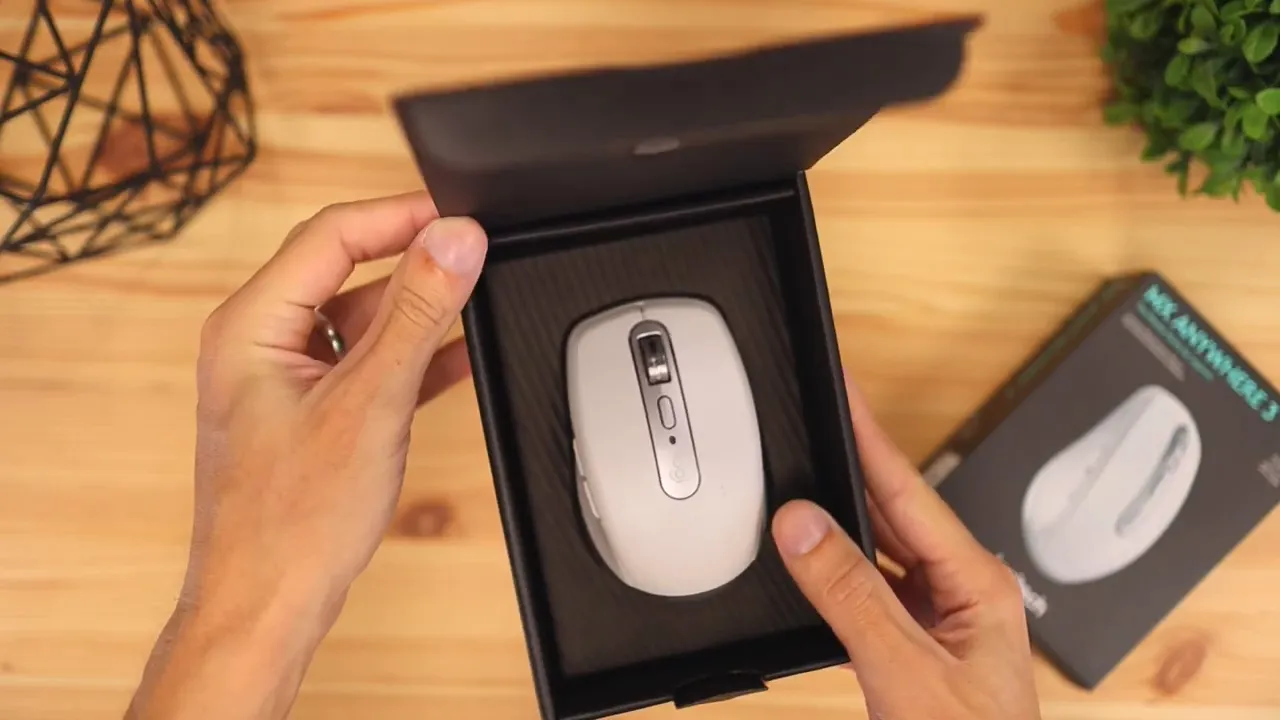
Logitech keeps it simple here. Inside the box, you get:
- The MX Anywhere 3 mouse
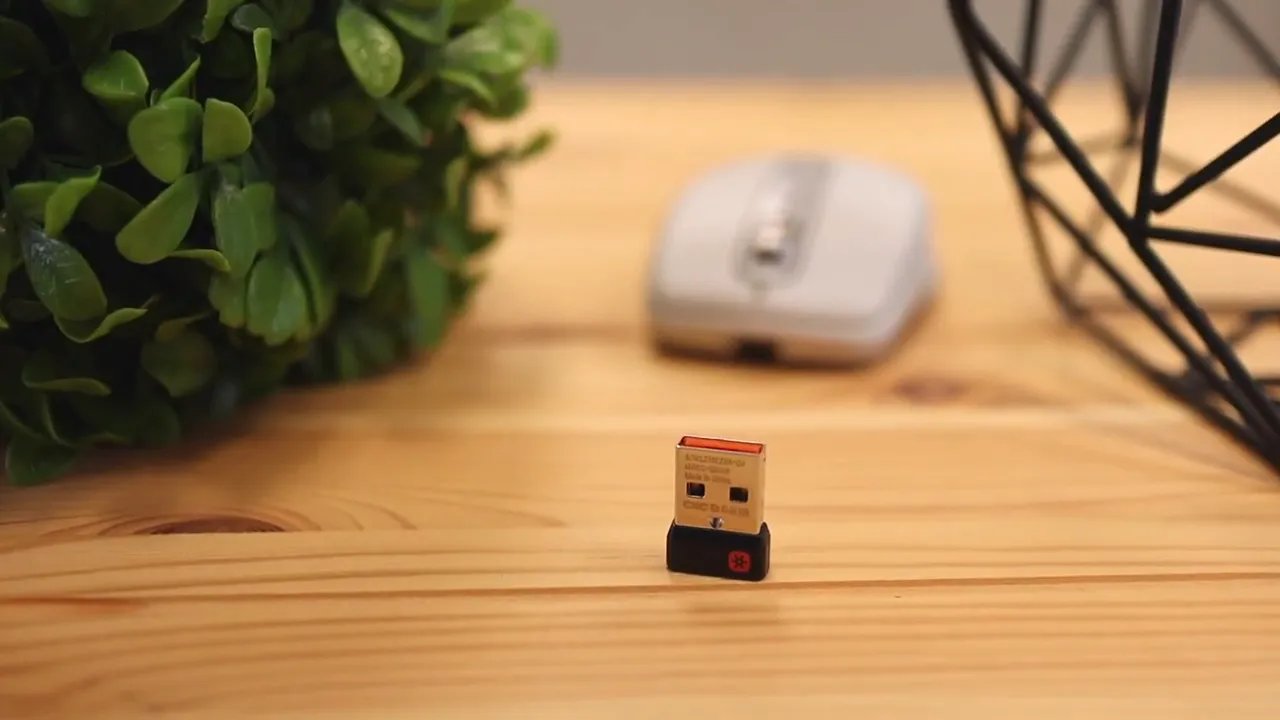
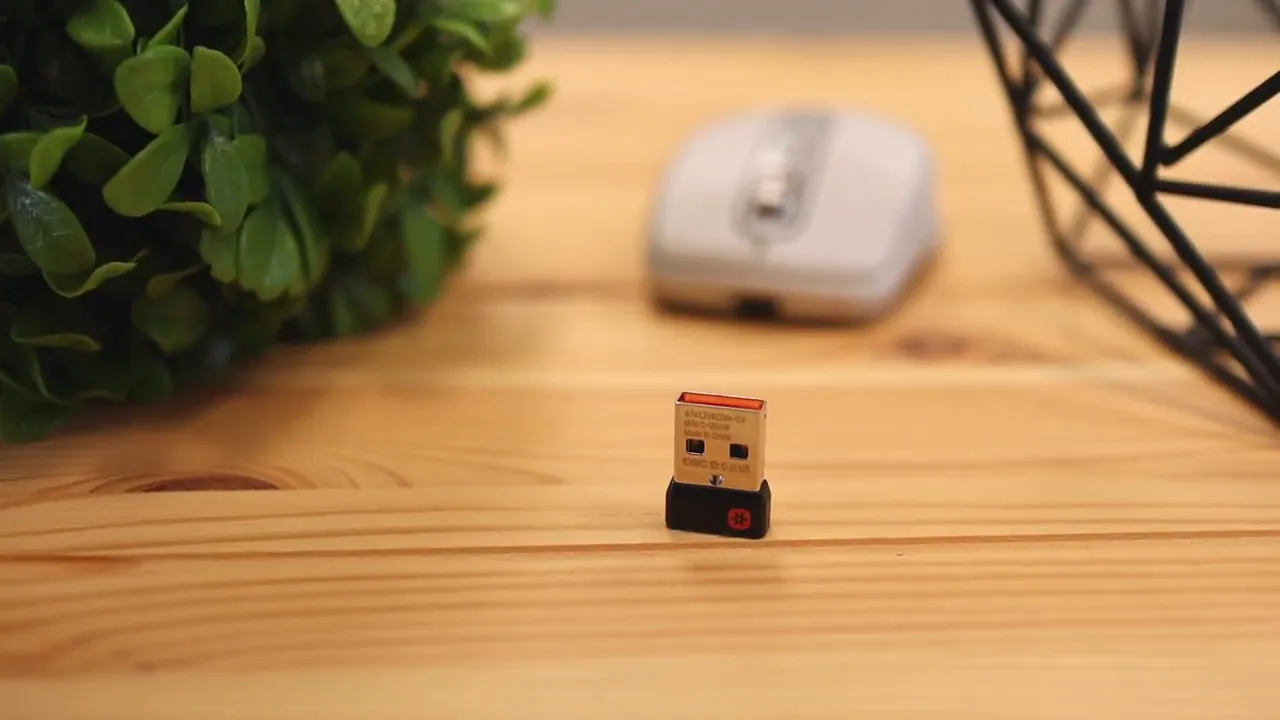
- A USB wireless receiver
- A USB-C to USB-A charging cable
- Quick start documentation
That included receiver matters more than some people think. Bluetooth is great when it works, but having a dedicated dongle is still useful for desktops, older machines, or anyone who just wants a quick, no-fuss connection.
Color options and first impressions
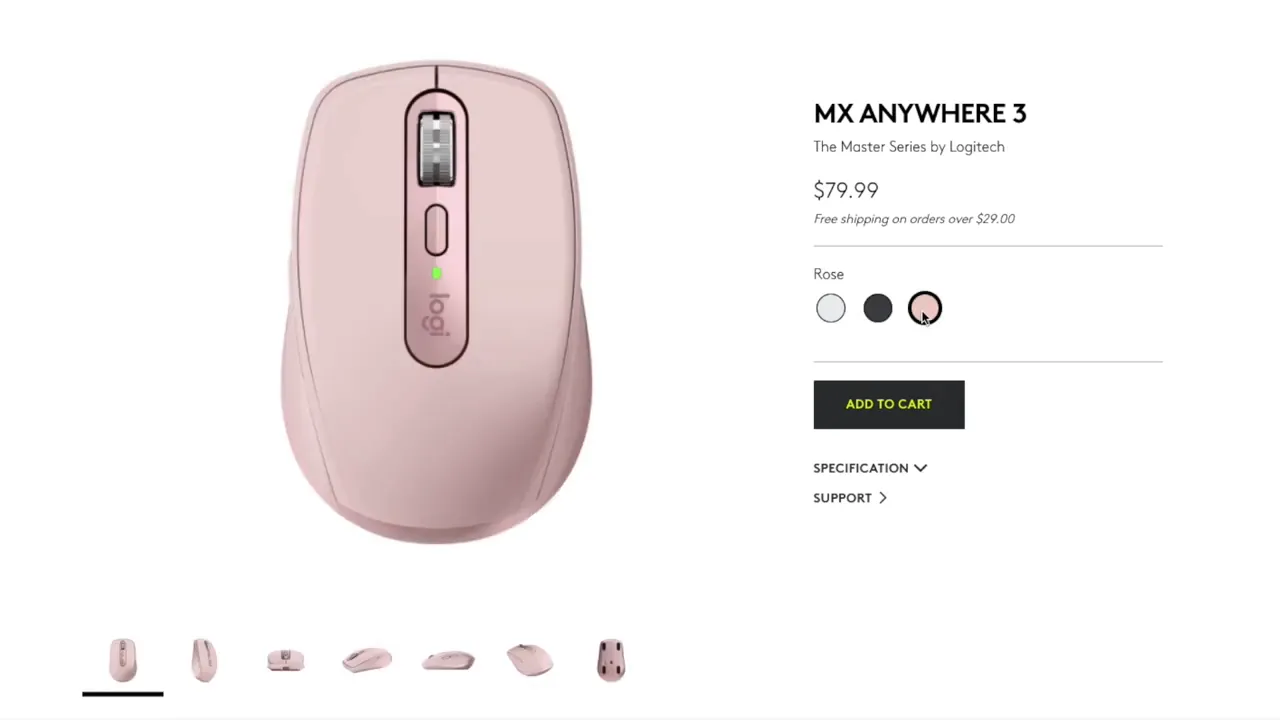
The MX Anywhere 3 comes in a few different finishes, including Pale Gray, Graphite, and Rose. The unit here is the lighter pale gray version, which looks clean and modern on a desk without trying too hard.
There is also a Mac-branded version. Functionally, these mice are very similar and broadly compatible across platforms, but the packaging and included connectivity options can differ depending on the model.
Build quality feels surprisingly premium
This is probably the standout strength of the MX Anywhere 3.
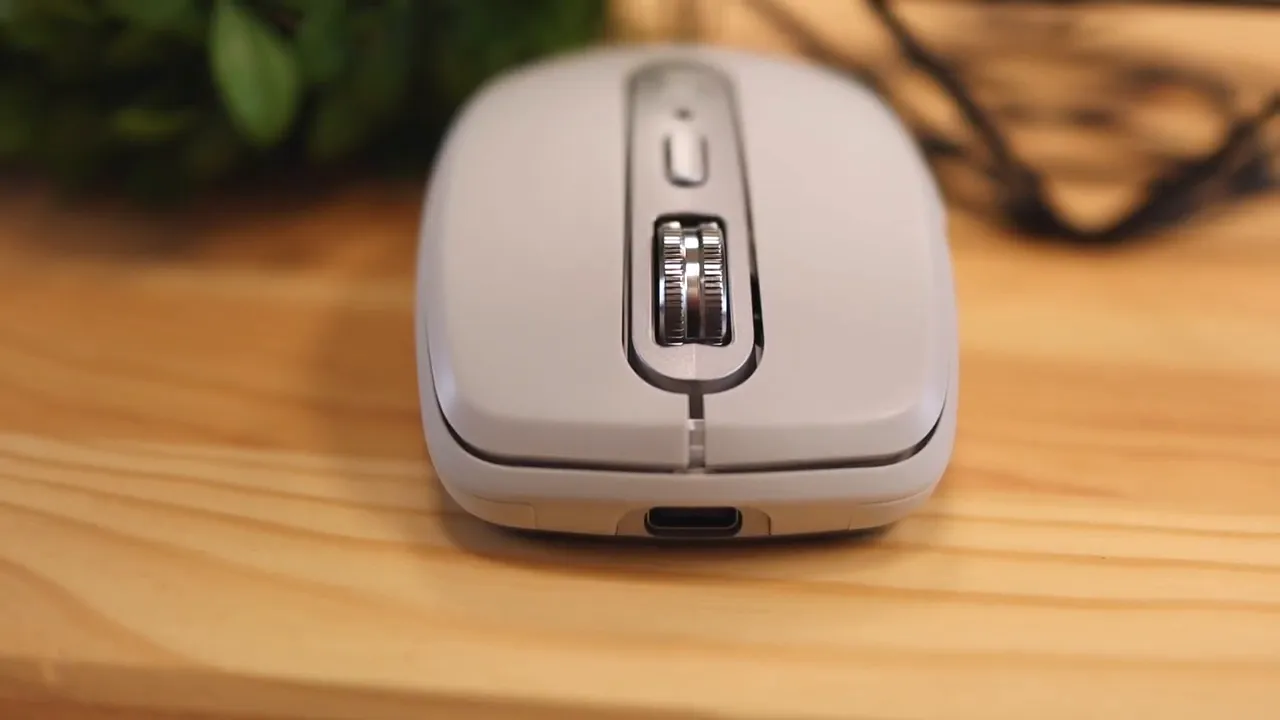
The top shell is plastic with a smooth finish, while the back section has a metallic-looking silver treatment with a textured feel. The side buttons and primary buttons are also plastic, but the scroll wheel is the part that immediately stands out. It is metal, cold to the touch, and gives the mouse a more premium feel than its size might suggest.
More importantly, the whole mouse feels tight. No weird rattles. No creaks. No cheap flex. It feels polished.
That matters with a travel mouse, because smaller accessories often end up feeling disposable. This one does not. It feels like a real part of a serious work setup, just shrunk down.
One nice improvement over the previous generation is the scroll wheel stability. Earlier versions had more wobble. On the MX Anywhere 3, the wheel feels much more controlled and better put together.
Size, portability, and why the name makes sense
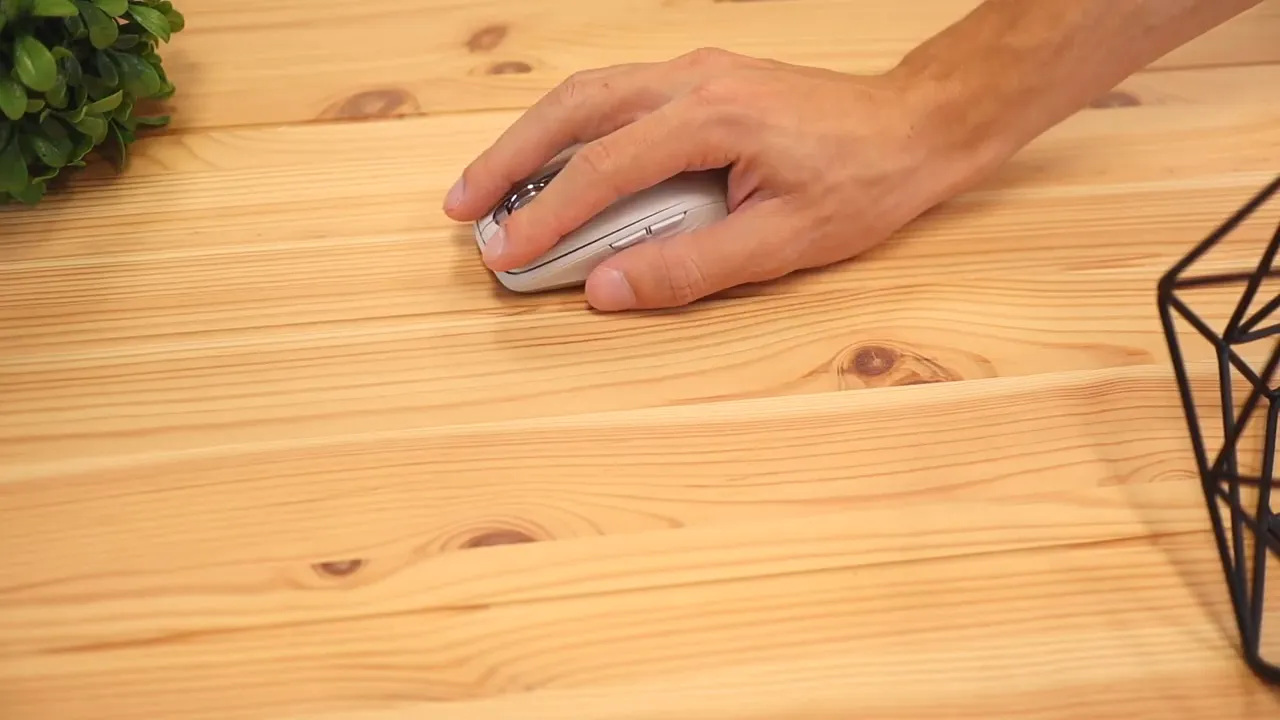
The MX Anywhere 3 is small. Really small.
Compared to a larger office mouse like the Logitech M720, it is noticeably shorter, lower, and lighter. That smaller footprint is exactly why it works so well as a mobile mouse. You can toss it into basically any bag compartment and forget it is there until you need it.
This is where the product totally earns its name. It is built for people who bounce between workstations, coffee shops, classrooms, and home offices.
If you are looking for a compact work mouse category in general, the articles in this mouse roundup can help compare where this style fits against other options.
The comfort tradeoff is real
Now for the big catch.
Because the MX Anywhere 3 is so compact, comfort depends heavily on how you hold a mouse.
Most people use one of three common grip styles:
- Palm grip, where the hand rests fully on the mouse
- Claw grip, where the palm stays higher and the fingers arch downward
- Fingertip grip, where the mouse is controlled mostly with the fingertips and the palm floats more
For a lot of hands, palm grip just is not realistic here. The body is too short for your hand to settle naturally while still reaching the buttons comfortably.
Claw grip is possible, but I did not find it especially comfortable either.
The best fit for this mouse is fingertip grip. That is where it felt the most natural. The downside is that fingertip grip keeps more of your hand elevated, which can create extra strain over long stretches.
So if you are buying this for marathon editing sessions, all-day spreadsheet work, or eight-hour office use, you need to be honest with yourself. Portability is great, but ergonomics still matter.
If long-term comfort is more important than travel size, the Logitech MX Master 3S and its software setup make a better case for a full-size productivity mouse.
Clicks and scroll wheel behavior
The click experience is solid and pretty average in a good way. The main buttons feel direct and dependable, without wobble or annoying looseness.
The real personality comes from the scroll wheel.
By default, the button behind the wheel toggles between ratcheted scrolling and free-spin scrolling. That means you can switch between precise, clicky movement and a much faster scroll for long pages or documents.
This ties into Logitech's MagSpeed approach. The wheel can move fast when you need speed and still feel controlled when you need accuracy. It is one of those features that sounds minor until you use it regularly.
For people who skim huge documents, browse long websites, or jump around timelines and spreadsheets, this wheel is one of the mouse's best features.
Buttons and software customization
Out of the box, the side buttons are set to forward and back in browsers or apps that support those commands. The top button handles the scroll mode toggle.
That basic setup is already useful, but the MX Anywhere 3 becomes a lot more interesting once you start customizing it with Logitech software.
Button remapping, scroll behavior, app-specific profiles, and workflow shortcuts can make a big difference if you spend most of your day at a computer. Logitech also supports predefined profiles for apps like Chrome, Safari, Word, Excel, PowerPoint, Photoshop, Premiere Pro, and Final Cut Pro.
If you want the mouse to do more than simple clicking and scrolling, the software is where it starts to become a productivity tool instead of just a pointer.
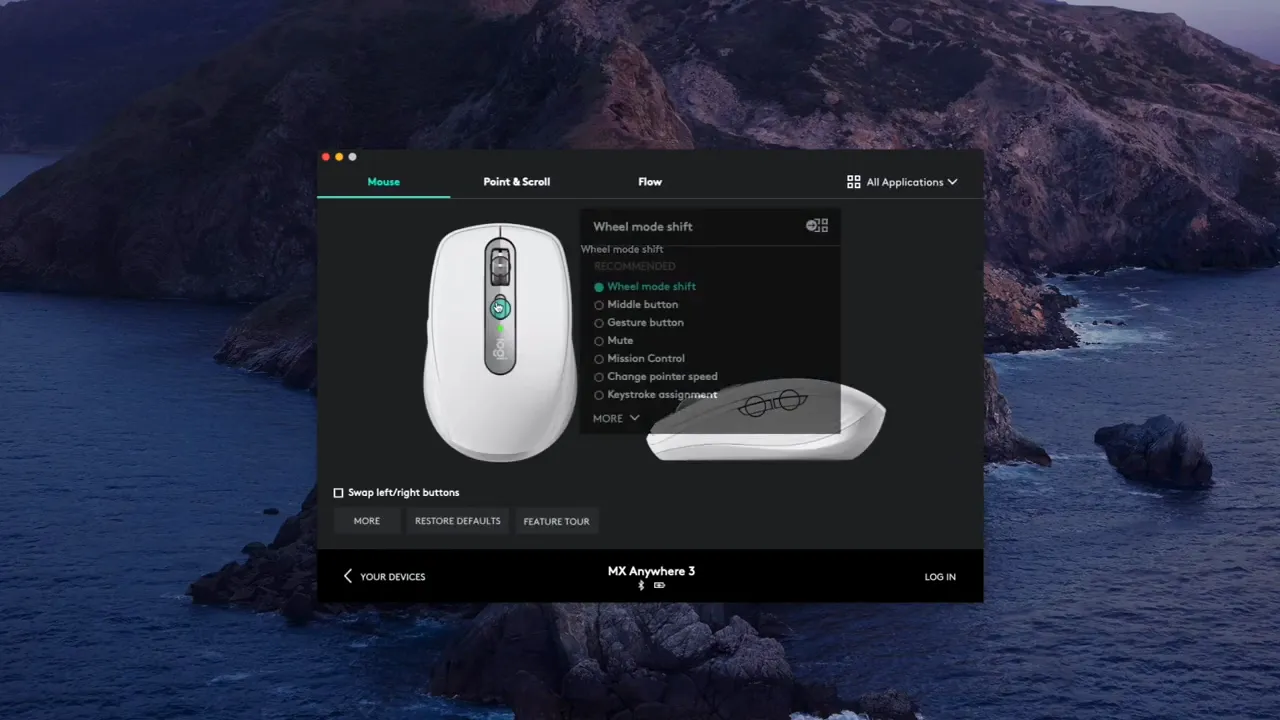
That software side is one of the biggest reasons Logitech's MX lineup stays popular. A small mouse can still punch above its weight when every button does exactly what you need.
Connection options are flexible and reliable
You have two ways to connect the MX Anywhere 3:
- Bluetooth
- Included USB receiver
In practice, both worked well. Latency felt basically nonexistent either way, so there was no obvious penalty for using Bluetooth instead of the receiver.
That is great news for laptops and tablets where keeping ports free matters.
One important note, though: this mouse is wireless only. Plugging in the cable does not turn it into a wired mouse in the traditional sense. The cable is there for charging while you continue using the mouse wirelessly.
Multi-device support is one of the best practical features
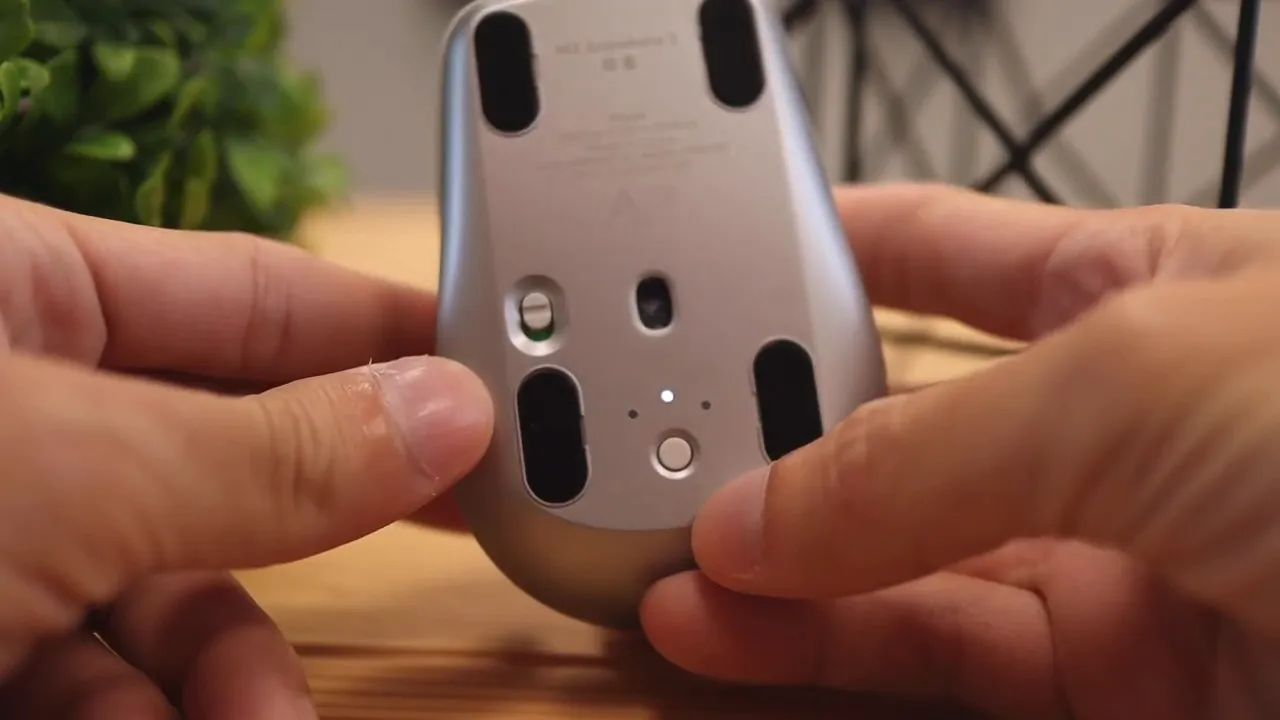
On the underside of the mouse, Logitech includes device switching controls that let you pair up to three devices and jump between them.
This is a genuinely useful feature, not a spec-sheet throwaway.
If you work across a desktop and laptop, switch between personal and work machines, or test across multiple systems, being able to keep one mouse paired to everything is a big quality-of-life upgrade.
It is especially handy for IT work, development, or anyone running a multi-device setup on a single desk.
The MX Anywhere 3 also supports Logitech Flow, which is designed to let you move across computers and transfer text, files, and images between compatible systems. For people already invested in the Logitech ecosystem, that can be a nice bonus.
Battery life and charging
Logitech rates the MX Anywhere 3 for up to 70 days on a full charge, with quick charging over USB-C. A short charge can give you enough battery to get through several hours of use.
That combination makes sense for a portable mouse. You do not want another accessory that constantly needs babysitting. USB-C also means one less aging standard to deal with if the rest of your gear has already moved on.
And because the mouse can be used while charging, running low is not really a productivity emergency.
What I liked most
The two biggest wins here are easy to sum up.
- Build quality: It feels polished, premium, and well engineered.
- Portability: It is incredibly easy to carry anywhere.
That is the core identity of this mouse. It is not trying to be the biggest, most ergonomic, or most feature-packed desktop mouse Logitech makes. It is trying to be the premium mobile option, and on that front it delivers.
Where it falls short
The weak spot is comfort.
Not because the shape is bad, but because the size forces a certain style of use. If your hand prefers to relax fully onto a mouse, this one may never feel ideal. Over shorter sessions, that is no big deal. Over longer sessions, it can become the reason you reach for something larger.
That is why a full-size MX model may be the better fit for some people. If you are deciding between the compact travel route and something more substantial, it is worth comparing your priorities first.
For a closer look at how Logitech handles compact MX mice across generations, this MX Anywhere 3 vs 3S comparison is a helpful next step.
Who should buy the Logitech MX Anywhere 3
This mouse makes the most sense for:
- People who travel often with a laptop
- Anyone who wants a compact premium productivity mouse
- Users switching between multiple computers or devices
- People who value build quality and portability over all-day ergonomics
It makes less sense for:
- Anyone with large hands who prefers palm grip
- People prioritizing comfort for long sessions
- Users who want a true wired-use option
Final verdict
The Logitech MX Anywhere 3 is a very good mouse with a very specific job.
It is compact, polished, and thoughtfully built. The scroll wheel is excellent, the wireless options are flexible, and the multi-device support is genuinely useful. It feels like a premium tool rather than a cheap travel accessory.
But the small size is not a free win. You pay for that portability with comfort, especially if you work long hours and prefer a fuller hand position.
If you want a mouse that can go anywhere and still feel premium, this is easy to recommend. If your mouse basically lives on a desk and comfort is king, a larger option in Logitech's MX lineup will probably serve you better.
If you want to check current pricing or product details, the MX Anywhere 3 product listing is the most direct place to start. For broader background on Logitech's productivity ecosystem, Logitech's official MX series page is also worth browsing.
FAQ
Is the Logitech MX Anywhere 3 good for large hands?
It can work, but it is not ideal for large hands if you prefer a palm grip. The compact shape is better suited to fingertip-style control.
Can the MX Anywhere 3 connect to more than one device?
Yes. It can pair with up to three devices and switch between them using the button on the bottom.
Does the MX Anywhere 3 work over Bluetooth and with a USB dongle?
Yes. You can connect with Bluetooth or with the included USB receiver.
Can you use the MX Anywhere 3 while charging?
Yes, but it still operates as a wireless mouse. The cable charges it while you continue using it.
Is the MX Anywhere 3 comfortable for long work sessions?
That depends on your grip style. For shorter sessions and travel use, it is great. For extended workdays, a larger mouse like the MX Master line is usually more comfortable.


