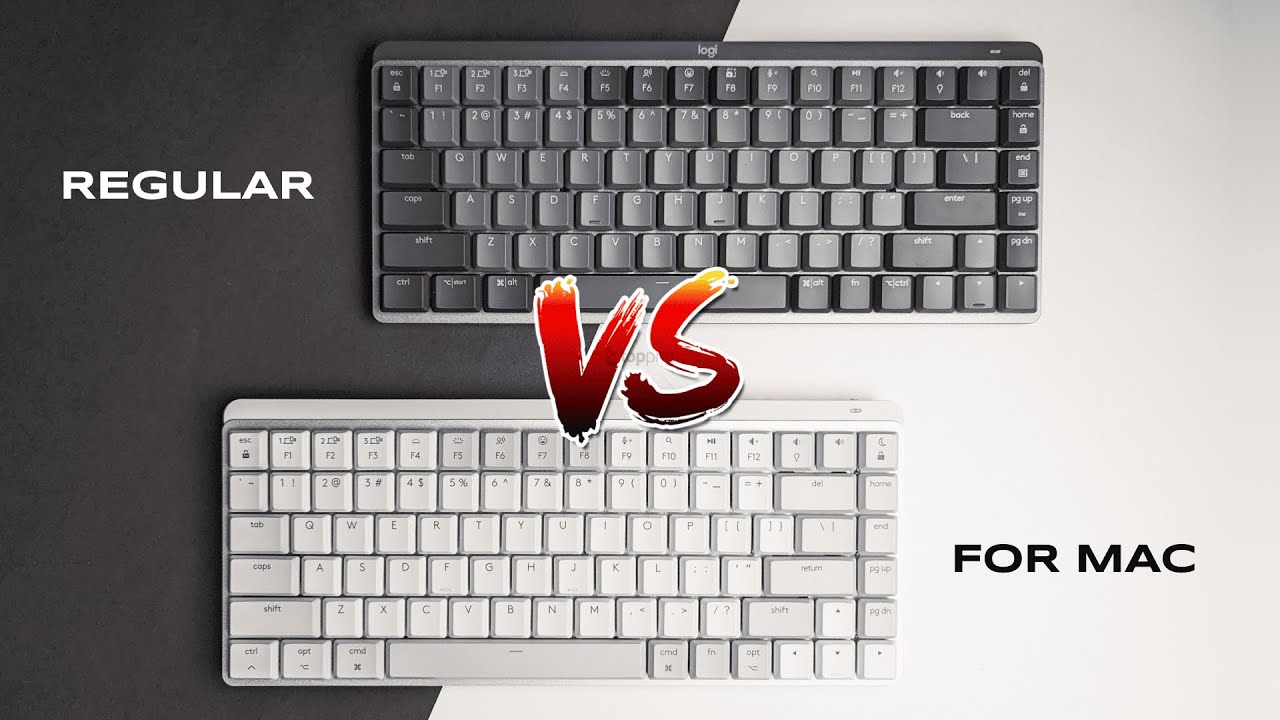
I’m Kova Tech, and today I’m breaking down the differences between two very similar keyboards: the Logitech MX Mechanical MINI (regular) and the MX Mechanical MINI for Mac. If you’re trying to decide which one to buy, this guide walks through the seven practical differences that might push you toward one model or the other — from switches and connectivity to color, packaging, and physical layout. I’ll keep this straightforward and practical so you can make an informed decision quickly.
Table of Contents
- Quick overview: same core keyboard, different audience
- 1) Switch options — choice vs simplicity
- 2) Wireless dongle — included or omitted
- 3) Cable differences — USB-A-to-C vs USB-C-to-C (charging only)
- 4) Key layout & special keys — small but meaningful differences
- 5) Color options — one vs two choices
- 6) Size and SKU choices — mini-only vs mini + full-size option
- 7) Packaging & marketing — built for the Apple shelf
- Compatibility — cross-platform and software support
- Which one should you buy?
- Final thoughts
- FAQ
Quick overview: same core keyboard, different audience
At their core both keyboards are built on the same platform: Logitech’s MX Mechanical MINI chassis, premium build, low-profile mechanical switches, and the same battery and software support. Where they differ is how Logitech has tailored each SKU for slightly different users. The regular MX Mechanical MINI targets the general market (Windows-first vibe) while the “for Mac” model is cosmetically and ergonomically tuned for macOS users. These changes are mostly cosmetic and connector-focused, but they matter depending on your setup and preferences.
1) Switch options — choice vs simplicity
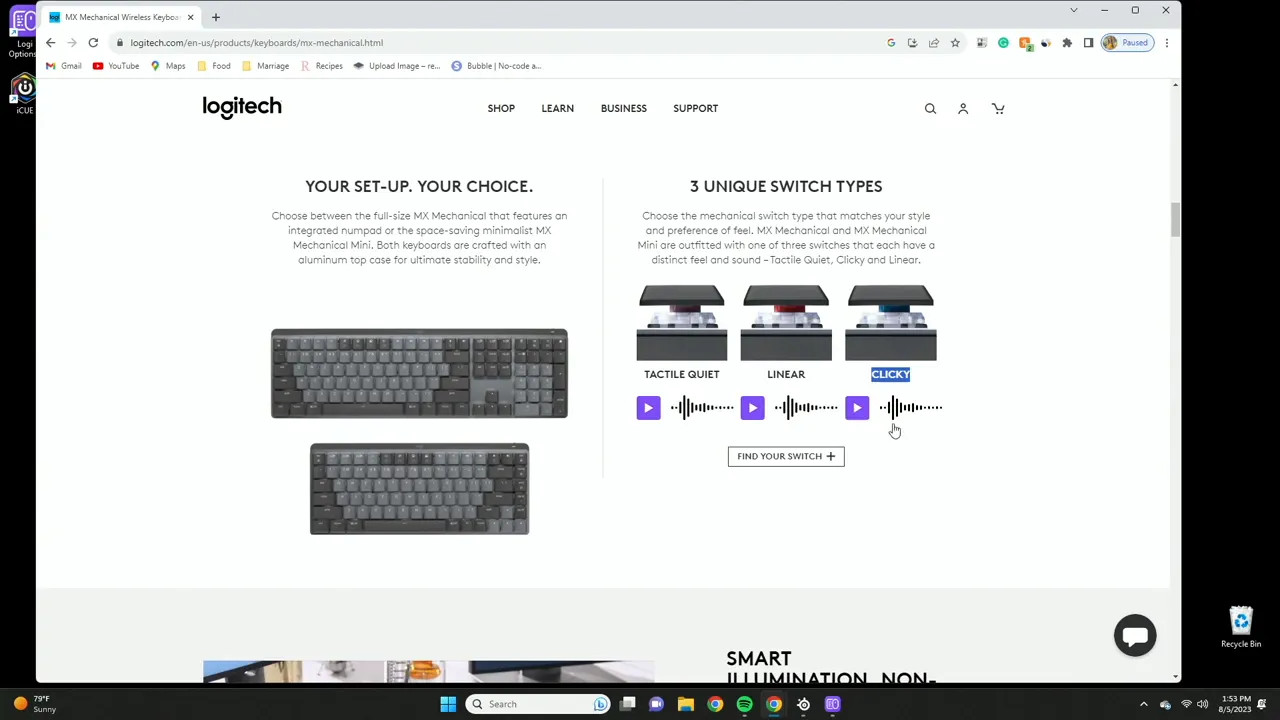
One of the most important practical differences is switches. The regular MX Mechanical MINI gives you three switch choices:
- Tactile — similar to classic brown switches, gives a subtle bump and a balanced feel.
- Linear — a smooth, quiet travel without tactile feedback (think red switches).
- Clicky — an audible click and tactile bump (like blue switches).
By contrast, the MX Mechanical MINI for Mac ships with a single option: the tactile quiet switch. This is effectively the brown-style switch tuned to be slightly quieter — a safe, versatile choice for Mac users who may prefer a quieter typing experience.
If you like options and want to pick your exact feel and sound profile, the regular version offers more variety. If you want a ready-to-go Mac-optimized experience and prefer a quieter tactile switch, the for Mac model simplifies the decision.
2) Wireless dongle — included or omitted
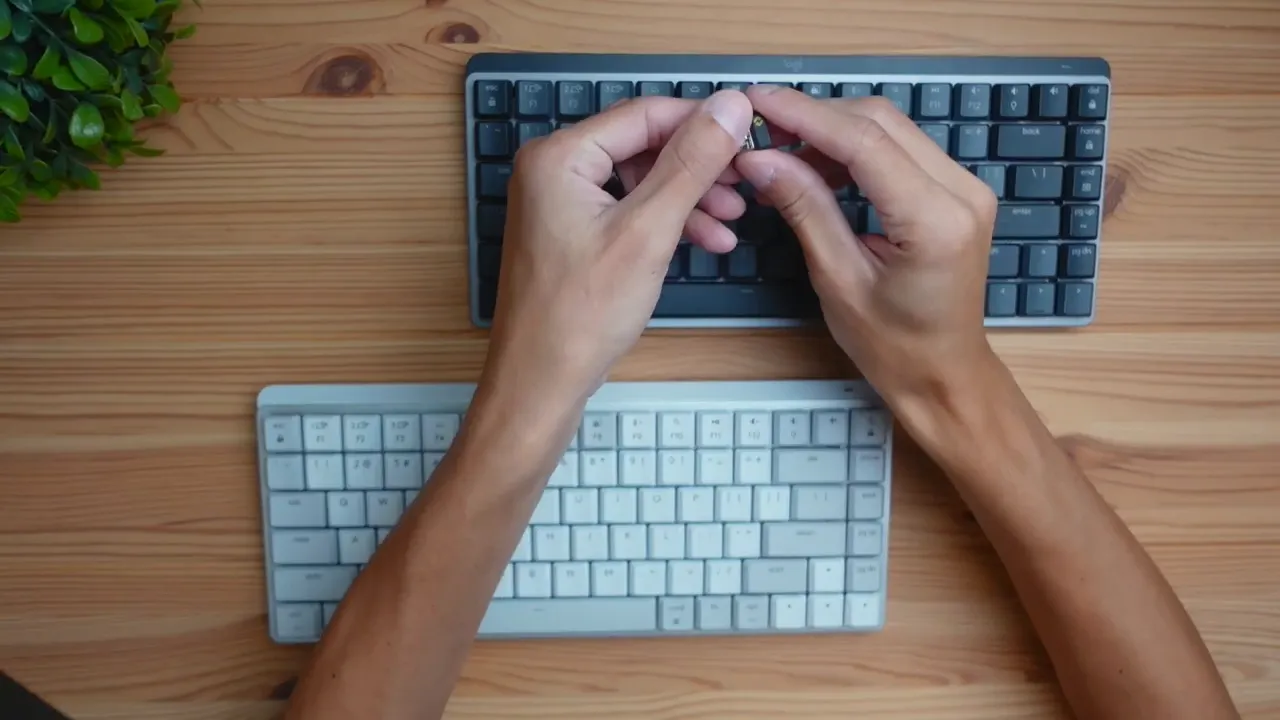
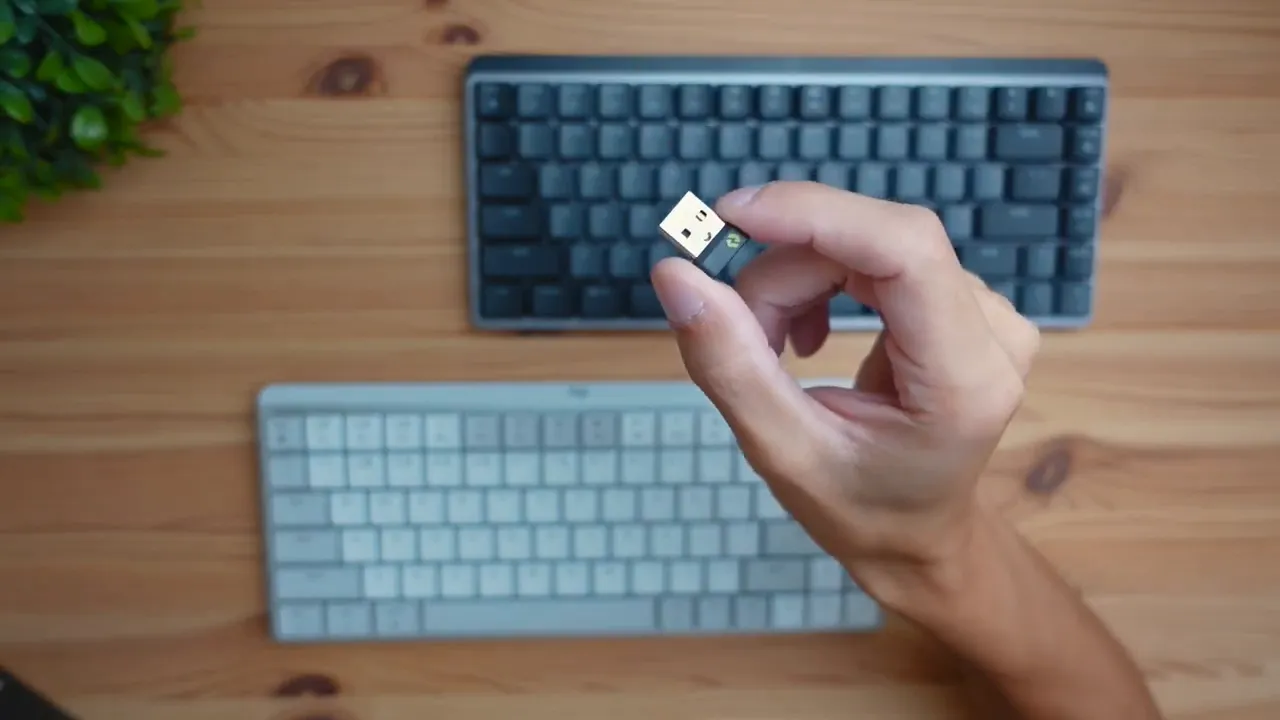
Connectivity is another key difference. The regular MX Mechanical MINI includes Logitech’s USB receiver dongle (Logi Bolt / Unifying depending on region) which gives you a plug-and-play wireless option. That means:
- Lower latency and stable connection via the dongle.
- An alternative to Bluetooth when your computer is busy or you prefer a dedicated receiver.
The for Mac model does not include the USB dongle and is Bluetooth-only. That’s more aligned with Apple users who expect wireless Bluetooth pairing and often have fewer USB-A ports available. But if you like the reliability and convenience of a dongle, the regular model is the pick.
3) Cable differences — USB-A-to-C vs USB-C-to-C (charging only)
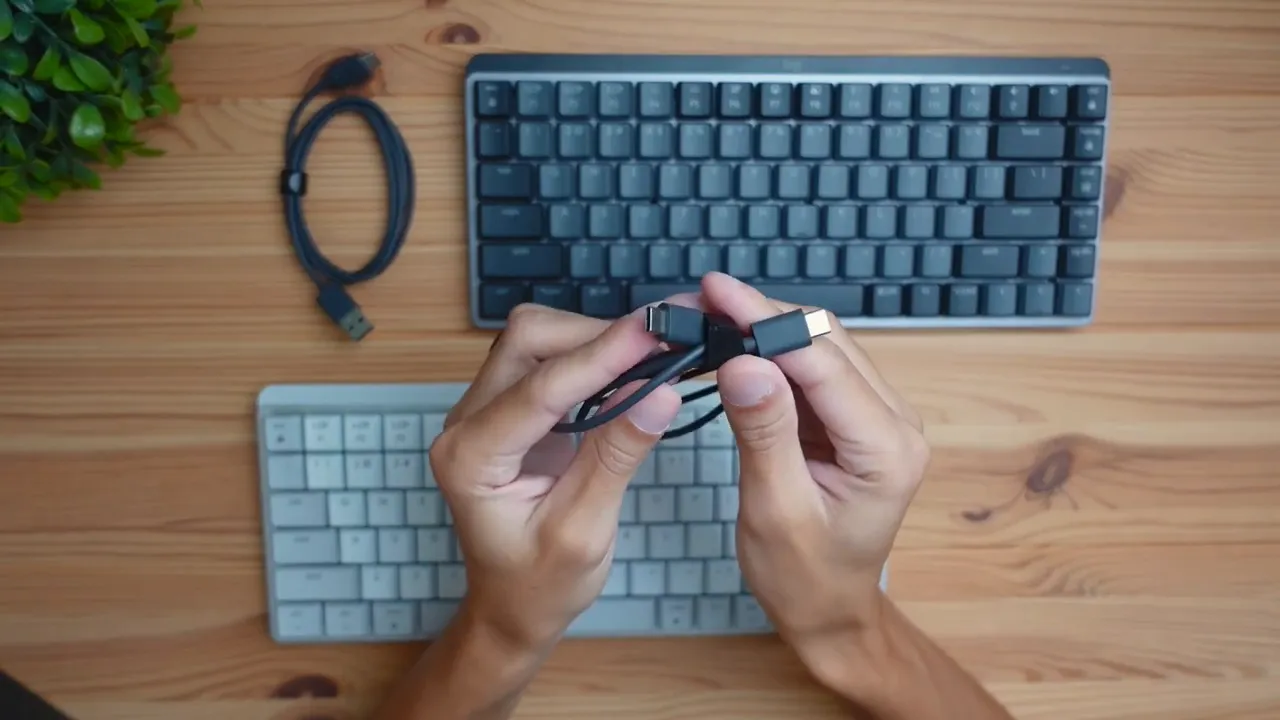
Both keyboards use USB-C for charging, but the included cable differs:
- Regular MX Mechanical MINI: includes a USB-A to USB-C cable.
- MX Mechanical MINI for Mac: includes a USB-C to USB-C cable.
This matters if your laptop or desktop lacks USB-A ports (many recent Macs do). The Mac model’s USB-C cable aligns with modern Apple hardware. However, it’s important to note that these cables are for charging only; they don’t provide a wired data connection to use the keyboard as a wired peripheral.
4) Key layout & special keys — small but meaningful differences
Most of the layout is identical, but there are a few keycap and top-right key differences to be aware of:
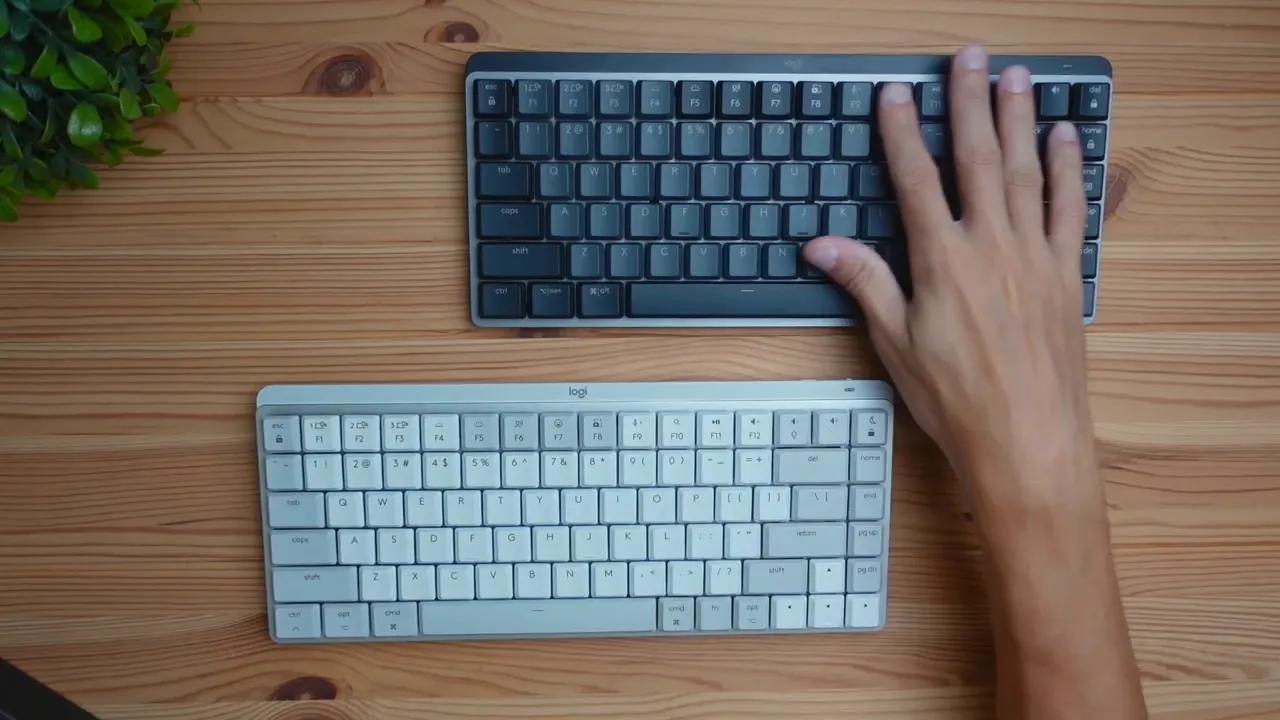
- Regular MX Mechanical MINI: features a Delete/Lock key in the top-right corner.
- MX Mechanical MINI for Mac: swaps that for a Snooze/Lock key—more aligned with macOS conventions and Apple-centric function labeling.
Functionally they do largely the same thing (locking the screen, etc.), but the labeling and default mappings are tuned for each OS. If you care about having keys that match macOS icons and behavior out of the box, the for Mac model has the edge.
5) Color options — one vs two choices
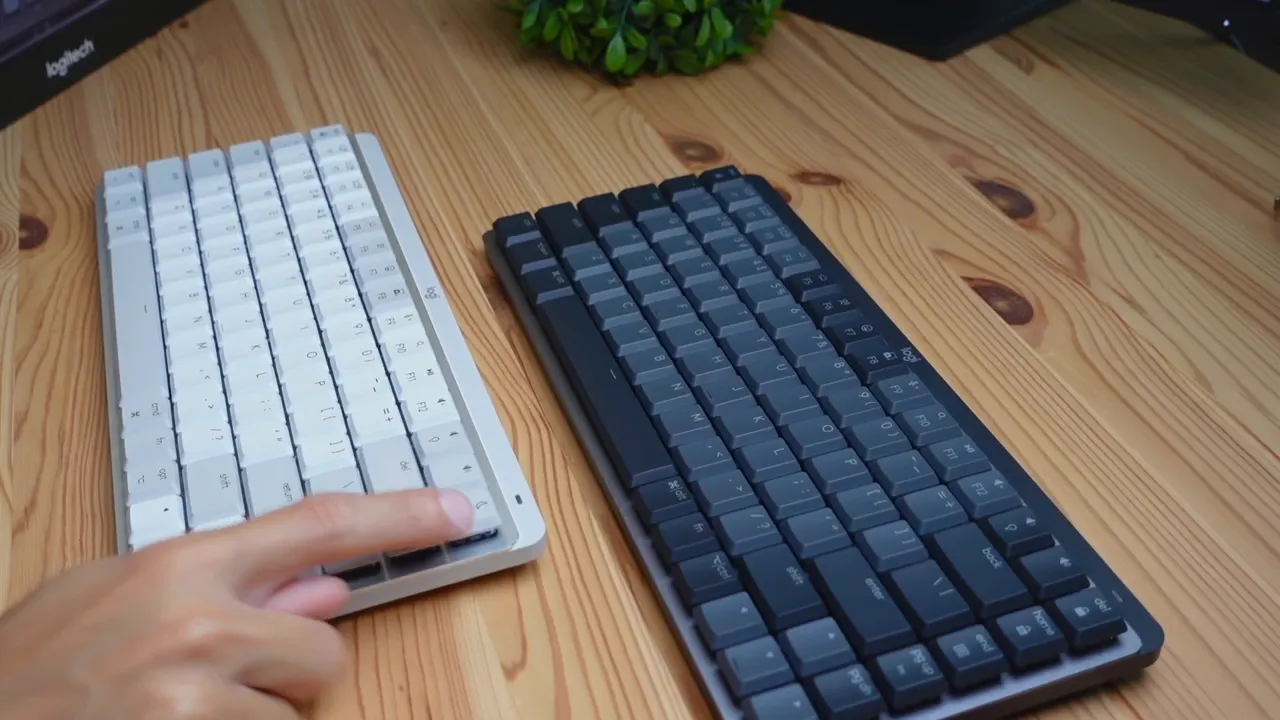
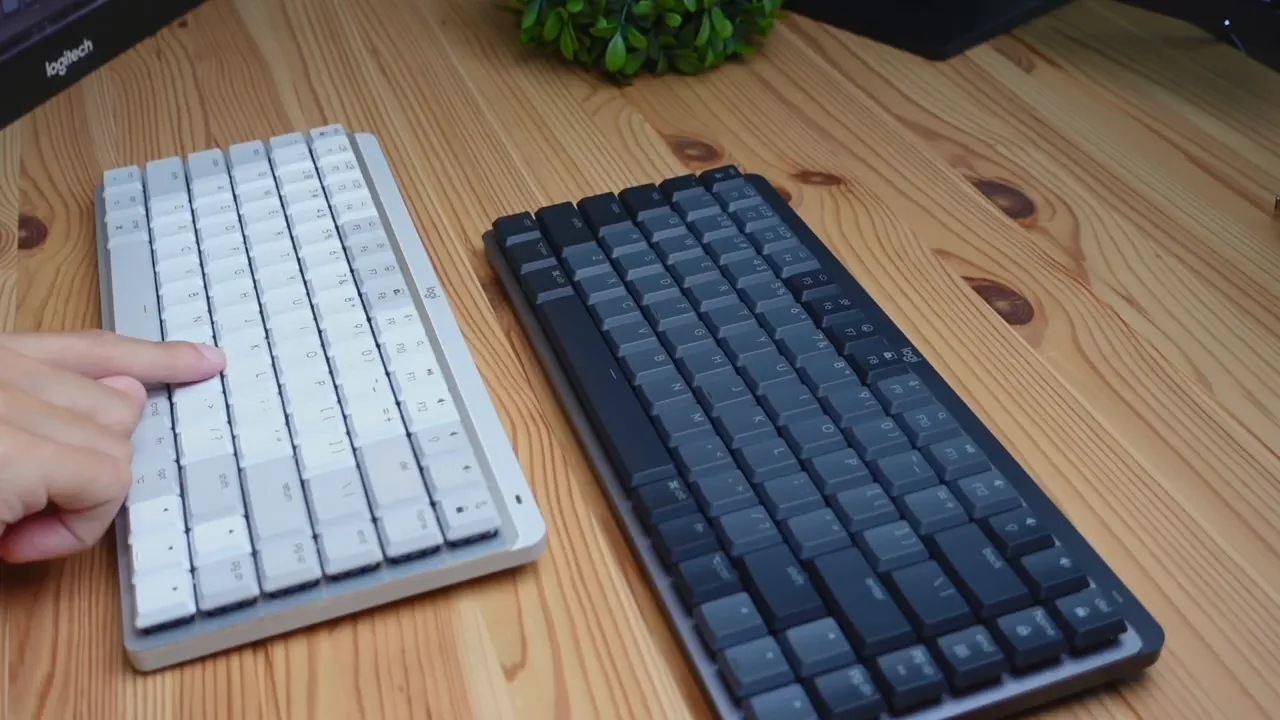
Color and finishes matter if you’re trying to match your setup. The regular MX Mechanical MINI is available in a darker, Logitech-standard color only. The for Mac version offers two finishes:
- Space Gray — darker, matches many MacBook Pro and Apple accessories.
- Pale Gray — a white/very light finish that pairs well with silver MacBooks and lighter desk setups.
If appearance and desktop coordination matter, the for Mac model gives you more options to match Apple hardware aesthetics.
6) Size and SKU choices — mini-only vs mini + full-size option
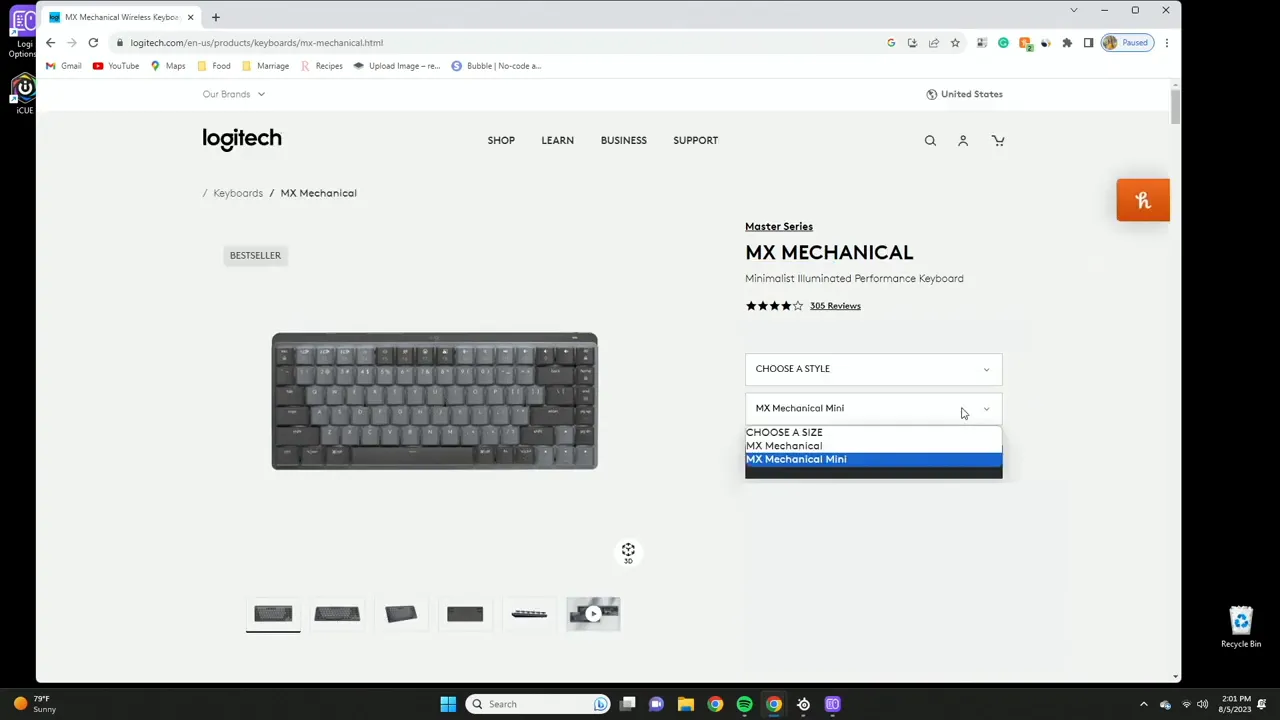
Logitech sells the regular MX Mechanical in multiple sizes: the MX Mechanical MINI (60%/compact) and the larger MX Mechanical (which includes a number pad and extra navigation keys). The for Mac model, however, is limited to the MINI size only.
So if you want a number pad or the larger layout, you’ll need the regular lineup. If you prefer compact 65%/mini layouts and are a Mac user, the Mac-specific MINI covers that niche.
7) Packaging & marketing — built for the Apple shelf
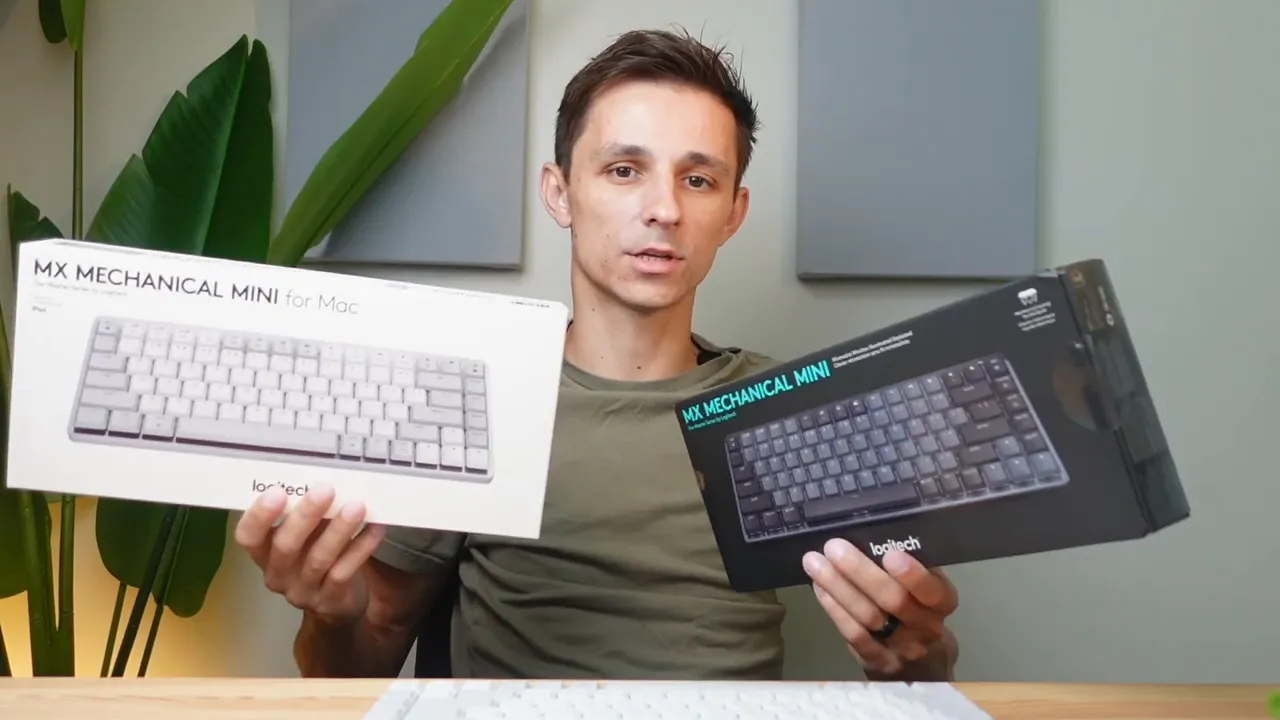
The packaging and marketing aesthetic is another subtle difference. The regular Logitech box uses the brand’s darker palette, which is perfectly fine but may look less “Apple-like” on a store shelf. Logitech’s “for Mac” packaging is designed to resemble Apple product presentation — lighter colors, cleaner layout — explicitly aiming to reduce buyer hesitation among Mac users who might worry about compatibility.
It’s purely cosmetic and doesn’t affect function, but it can influence first impressions, especially if you’re buying in-store or choosing based on aesthetics.
Compatibility — cross-platform and software support
One of the reassuring facts: both keyboards are cross-compatible. The for Mac version will work perfectly on Windows in terms of base functionality and Logitech’s software compatibility, and the regular version will run smoothly on macOS. Logitech has ensured that both models can be used on either platform; the differences are mainly to optimize the user experience for the target OS (key labeling, included cable and dongle, color choices).
Logitech Options / Logi Options+ will manage custom key mappings, layers, and profiles on both systems, so power users who need custom shortcuts are covered regardless of SKU.
Which one should you buy?
Here’s a quick buying checklist based on what matters to most users:
- Choose the regular MX Mechanical MINI if:
- You want multiple switch options (tactile, linear, clicky).
- You want the option of a USB dongle for lower-latency wireless.
- You might want a larger MX Mechanical with a numpad down the line.
- Choose the MX Mechanical MINI for Mac if:
- You want a Mac-first layout and Mac-friendly key labels out of the box.
- You prefer the Mac-style color options (Space Gray or Pale Gray).
- Your machine is USB-C-only and you want a USB-C charging cable included.
Ultimately, both are solid picks. The hardware, typing experience, and software support are practically the same — Logitech’s differences are about polish and user expectations. You can’t go wrong with either model; it’s more about which small conveniences you value.
Final thoughts
If you’re on the fence, think about three questions: Which switch type do you prefer? Do you need a dongle or Bluetooth-only is fine? And do you care about matching your keyboard to a Mac’s aesthetics? Answering those will make the decision trivial.
Both keyboards share the same high-quality construction and feature set, and both will work well across macOS and Windows. The “for Mac” model takes the hassle out of matching visuals and keys to Apple’s ecosystem, while the regular model keeps things flexible with more switch choices and a dongle for more reliable wireless performance.
FAQ
Are the Mac and regular versions functionally different?
Functionally they are nearly identical. Differences are mainly in switch options, included dongle, included cable type, key labeling, color choices, and available sizes. Both models are cross-compatible with macOS and Windows and work with Logitech’s software.
Can I use the for Mac version on Windows?
Yes. The for Mac model works on Windows systems. It will function as a regular keyboard and Logitech software will support customization. You may need to remap some keys if you prefer Windows-centric shortcuts.
Does the included cable provide a wired connection?
No. The included cables (USB-A to USB-C or USB-C to USB-C) are for charging only. Both keyboards operate wirelessly via Bluetooth or, in the regular model’s case, via the included dongle.
Which switches are the quietest?
The tactile quiet (the switch included on the for Mac version) and the linear switch options are typically quieter than clicky switches. Tactile quiet aims to reduce noise compared to a standard clicky or louder tactile switch.
Is the dongle necessary?
No, it isn’t necessary, but it provides a lower-latency and more stable wireless connection compared to Bluetooth, which can be beneficial for certain workflows or environments. If you prefer Bluetooth-only setups (common with Macs), the for Mac model fits that preference.
Thanks for reading — hopefully this clears up the key differences and helps you pick the right MX Mechanical MINI for your setup. If you want an in-depth review on either keyboard’s typing feel, sound tests, or software walkthroughs, I’ve got full reviews that dive deeper into those areas.


