The Logitech MX Anywhere 3 is already a solid little productivity mouse on the hardware side, but the software is where it starts to make a lot more sense. If you are picking one up for travel, office work, editing, or just a cleaner desk setup, the customization inside Logitech Options is what really unlocks it.
This mouse comes in both the regular MX Anywhere 3 and a Mac version, and from a software standpoint they are basically the same story. The main difference is not what the app can do, but how you choose to use the programmable buttons, scroll behavior, and app-specific profiles.
If you want the hardware breakdown too, I already covered the portable MX Anywhere lineup in detail. Here, the focus is strictly on the software experience and whether it actually helps you work faster.
Table of Contents
- What the software teaches you right away
- The main customization screen
- App-specific profiles are the best feature here
- Customizing Chrome and everyday apps
- Keystroke assignments for more specific shortcuts
- System controls and extra commands
- Adding your own applications
- Point and scroll settings
- Logitech Flow and multi-computer control
- How useful is the software overall?
- Who should actually use these features?
- FAQ
What the software teaches you right away
Once the mouse is connected and the software launches, the onboarding screens walk through the core features. This is actually useful, because the MX Anywhere 3 has a few tricks that are easy to miss if you just start clicking around without setting anything up.
The first big one is the scroll wheel behavior. Logitech calls it MagSpeed scrolling, and the software explains the two modes:
- Free spin for fast, nearly endless scrolling
- Ratchet or clicky scrolling for more controlled movement
The center top button acts as the mode shift button, so you can toggle between those two scroll styles on the fly. That alone is a nice feature if you move between long documents, web pages, timelines, and spreadsheets all day.
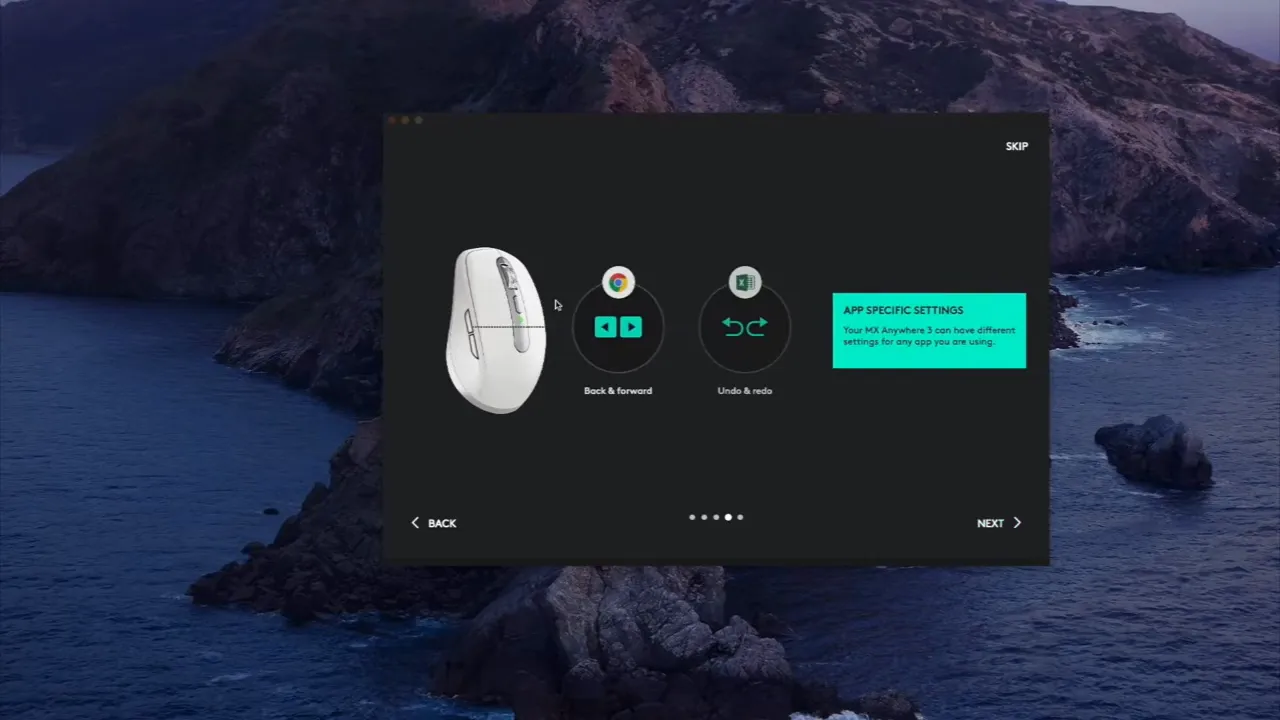
Another built in function is horizontal scrolling. By default, you hold the front side button and scroll the wheel to move left or right instead of up and down. For some people that is a really useful shortcut in video timelines, wide spreadsheets, and editing interfaces. For others, it is something they will disable immediately. The good thing is that Logitech gives you the option either way.
The welcome screens also introduce one of the strongest parts of the software, which is application-specific profiles. That means the same button can do one thing in Chrome, something else in Final Cut Pro, and something entirely different system-wide.
The main customization screen
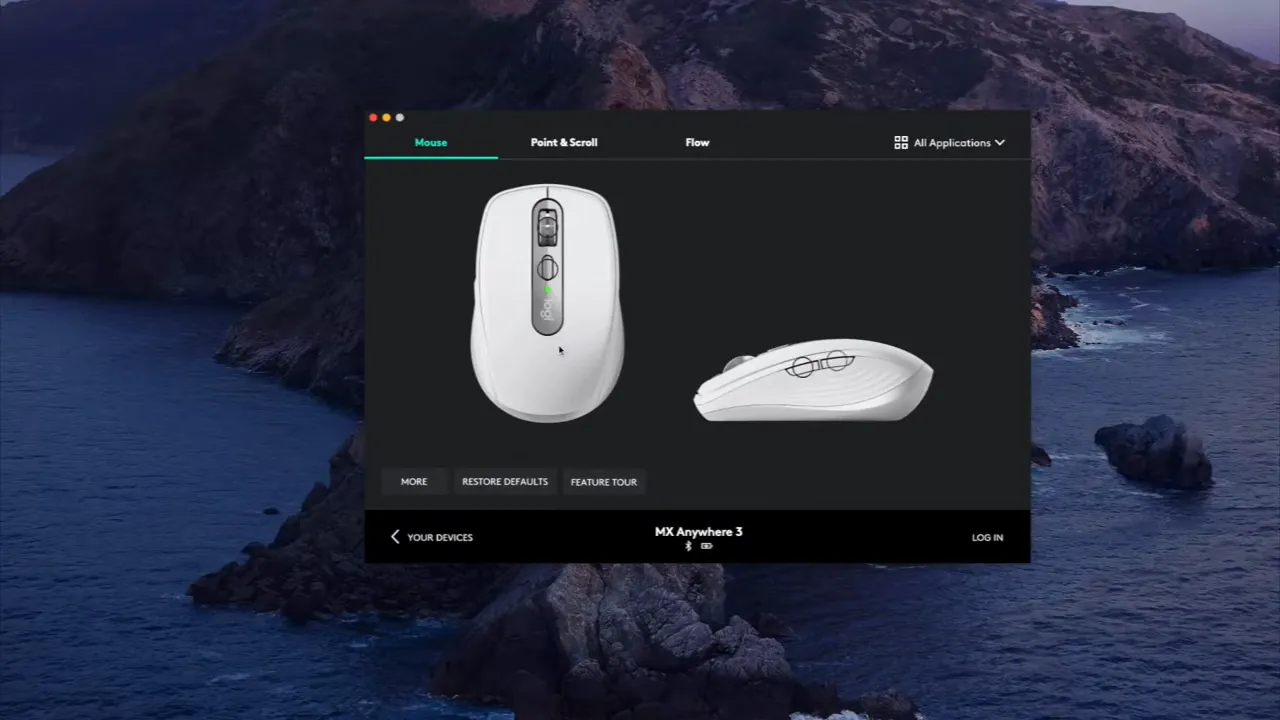
After setup, the software brings you into the main customization area for the mouse. If you already use other Logitech gear, you may see multiple devices in the app. Once you select the MX Anywhere 3, you get a visual layout of the mouse and the buttons you can program.
On this mouse, you are mainly working with four customizable controls:
- The scroll wheel click
- The mode shift button above the wheel
- The back side button
- The forward side button
Out of the box, that layout is pretty straightforward. The mode shift button changes the scroll wheel feel, and the side buttons act as back and forward in supported apps like web browsers. That is fine as a starting point, but the real value is in changing those defaults to fit your workflow.
App-specific profiles are the best feature here
This is where the MX Anywhere 3 starts feeling less like a generic mouse and more like a productivity tool.
The software can detect supported applications and automatically switch your button assignments when that app is active. You do not have to manually change profiles every time. It just happens in the background.
That matters a lot if you use creative apps, because one set of shortcuts usually does not make sense across everything.
For example, in Final Cut Pro the middle mouse button can be set to play and pause playback, while the side buttons can be set to undo and redo. If you do any editing, you already know how often those actions come up. Having them on the mouse can save a surprising number of keyboard reaches over time.
Instead of forcing one global layout across your whole computer, Logitech lets you tailor the mouse around the software you actually use. That is a much smarter approach.
And it is not limited to Final Cut Pro. The MX Anywhere 3 supports predefined profiles for a bunch of popular apps, including Chrome, Safari, Microsoft Word, Excel, PowerPoint, and Adobe apps. Logitech also makes this same kind of app-aware customization available across its other productivity mice. If that kind of workflow interests you, the MX Master 3S software guide covers a very similar system with a few extra controls.
Customizing Chrome and everyday apps
In Google Chrome, the default middle click can be set to open in new tab, while the side buttons remain forward and back. That is already useful, but the point is that you are not stuck with it.
If your habits are different, you can swap those actions for something more practical, like:
- Close tab
- Reopen closed tab
- Media controls
- Gesture shortcuts
- System commands
The software makes it pretty easy to click a button on the on-screen mouse and assign a new action from a menu. Logitech includes a long list of ready-made commands, so in a lot of cases you will not need to build anything custom.
That is important because good mouse software should be flexible without becoming a project. Logitech mostly gets that balance right here. There is a broad list of options, but common actions are easy to find.
Keystroke assignments for more specific shortcuts
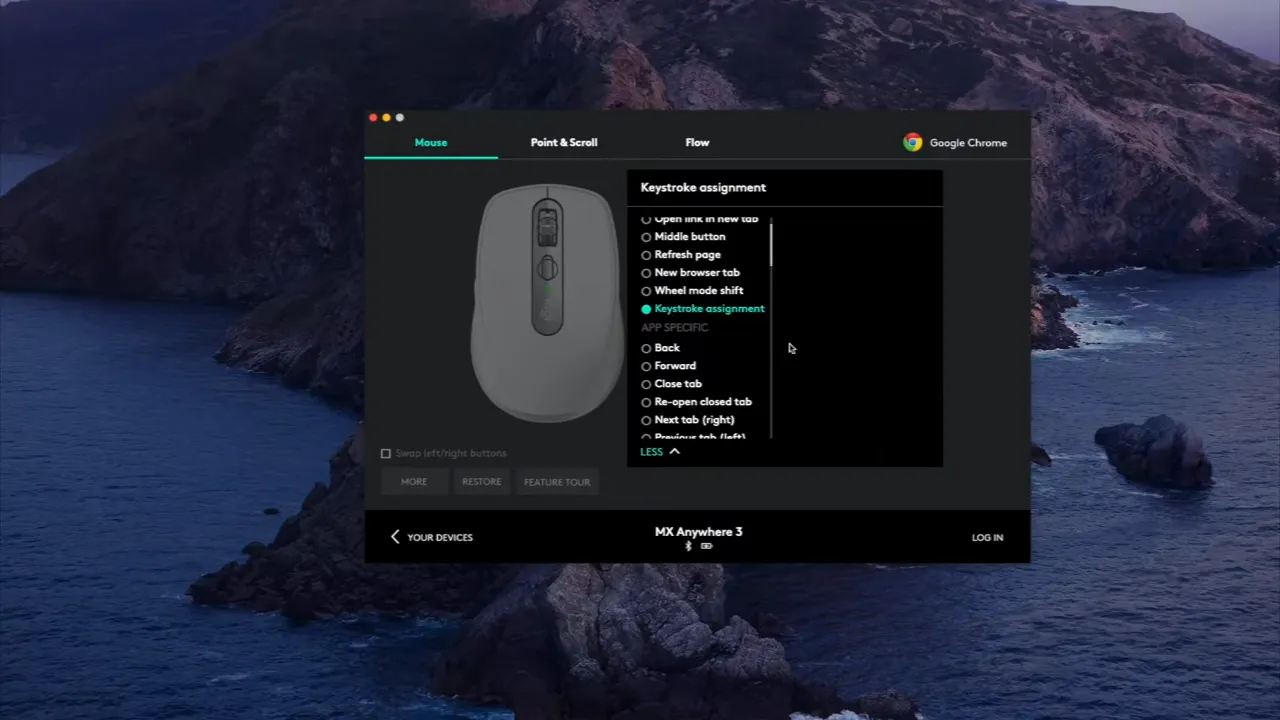
If the built in commands are not enough, you can assign a custom keystroke sequence to a button. This is one of the more powerful features in the app, especially for niche workflows.
Say you want one button in Chrome to trigger a shortcut like Shift + Command + T to reopen the last closed tab on macOS. You can do that. If you want a custom shortcut in an editing app, you can do that too.
This kind of feature is great when:
- Your app already relies heavily on keyboard shortcuts
- You repeat the same command all day
- The built in Logitech actions do not match what you need
At the same time, I would not overdo it. For a lot of common browser and productivity tasks, Logitech already includes native assignments that are cleaner than manually building every shortcut yourself. The custom keystroke option is best saved for the things that are truly specific to your setup.
System controls and extra commands
Beyond app shortcuts, the software also gives access to broader system-level actions. You can map commands like brightness up and down, media controls, smart zoom, and other utility functions.
That opens the door to turning the MX Anywhere 3 into more of a general desktop controller, not just a pointer. If you want one side button to pause music and another to trigger a zoom function in a browser or document, you can build that in a couple of clicks.
The nice thing here is not just the number of commands. It is the fact that these can be assigned globally or only inside one app. So you can keep your mouse simple in most places and more specialized only where it counts.
Adding your own applications
If the software does not already show the app you want, you can manually add it from the top corner menu. Logitech detects many installed applications automatically, but it also gives you a way to bring others into the system and attach custom button layouts to them.
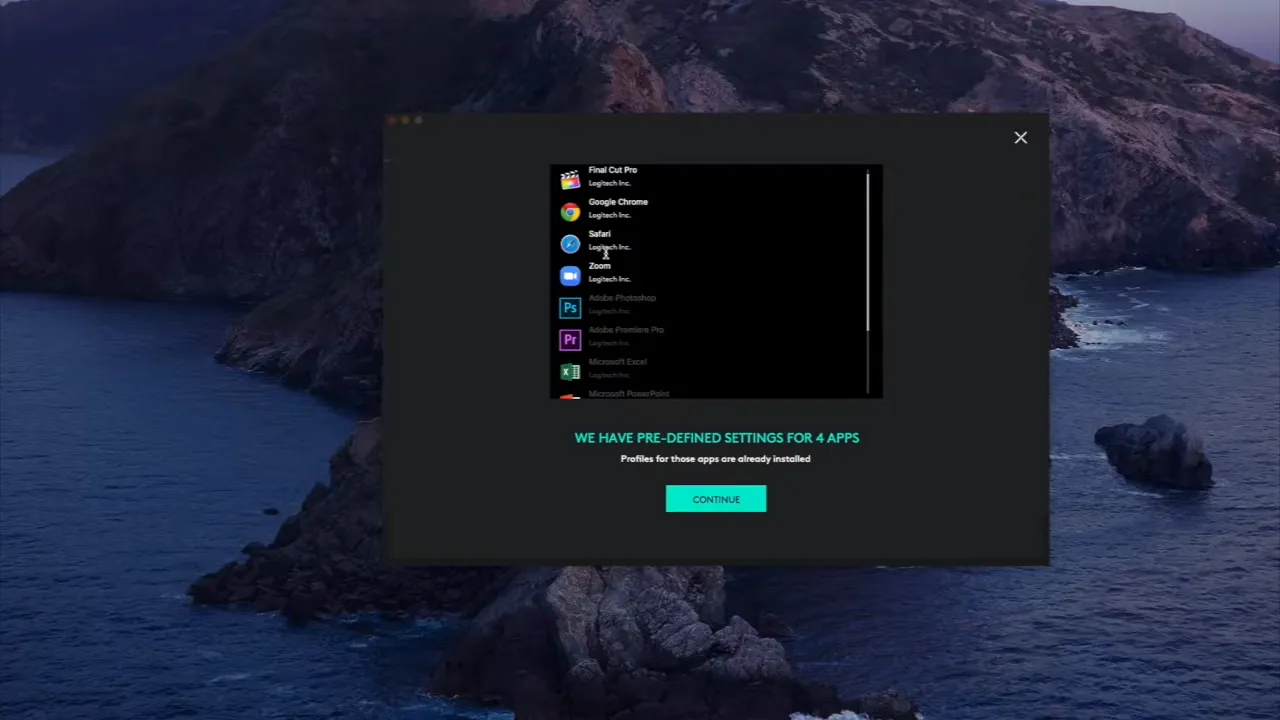
This is how you build a setup that feels intentional. Your global profile can stay clean and familiar, while individual apps get the shortcuts that make sense only there.
For anyone bouncing between browsers, office apps, editing tools, and communication apps all day, that is a big improvement over a one-size-fits-all layout.
Point and scroll settings
A lot of people think customization starts and ends with button mapping, but the Point & Scroll section matters too. This is where you tune how the mouse actually feels in daily use.
The software includes settings for:
- Pointer speed
- Scroll speed
- Scrolling direction such as natural or standard
- Smooth scrolling
- Horizontal scrolling on or off
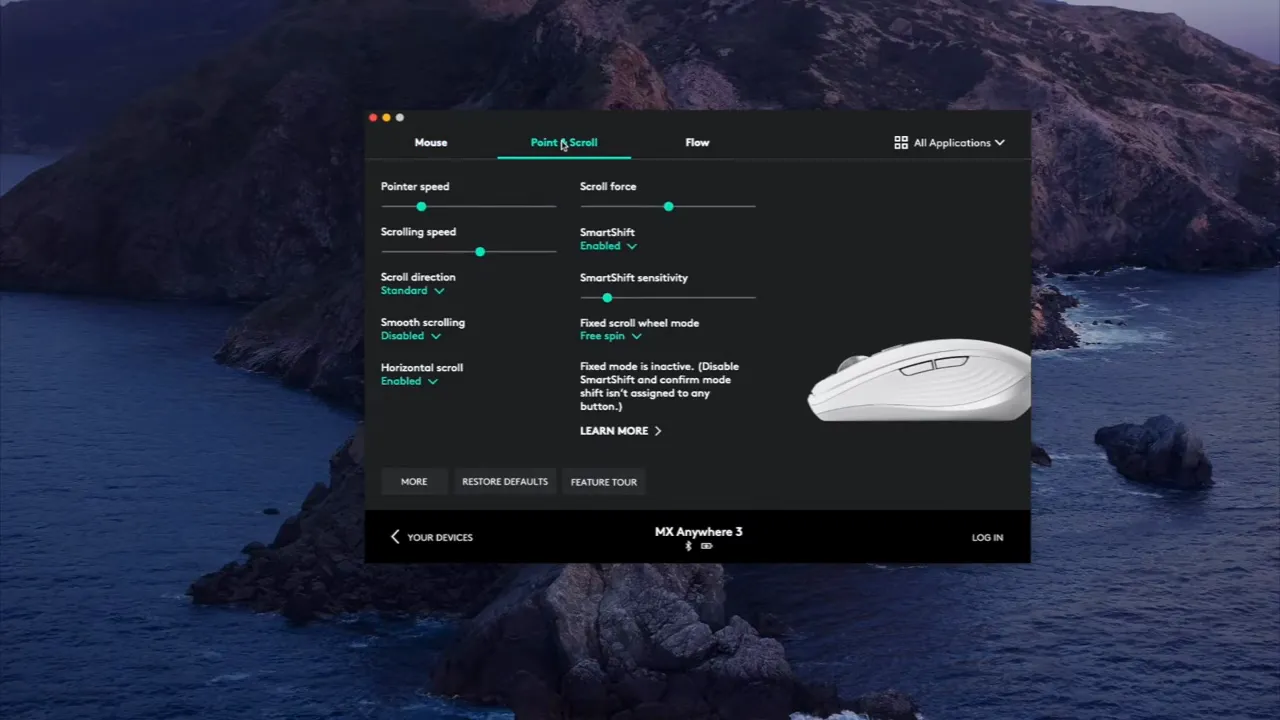
That scrolling direction option is especially useful if you regularly move between operating systems. macOS and Windows users often have opposite preferences here, and it is nice to have a quick way to match the mouse behavior to what feels natural.
Smooth scrolling is another one that comes down to preference. Some people want movement to feel softer and more fluid. Others want a more defined, step-by-step response. Logitech gives you enough control to make the mouse feel less generic.
If you care about productivity peripherals in general, there are also more comparisons and reviews in the broader mouse category here.
Logitech Flow and multi-computer control
One of the flashier software features is Logitech Flow. This lets you control multiple computers with one mouse and move the cursor across them almost like they are part of the same workspace.
It also supports copying and pasting text, images, and files between machines.
The concept is simple:
- Place two computers next to each other
- Set them up inside Flow
- Move the pointer from one screen to the other
- Transfer small items between systems more seamlessly
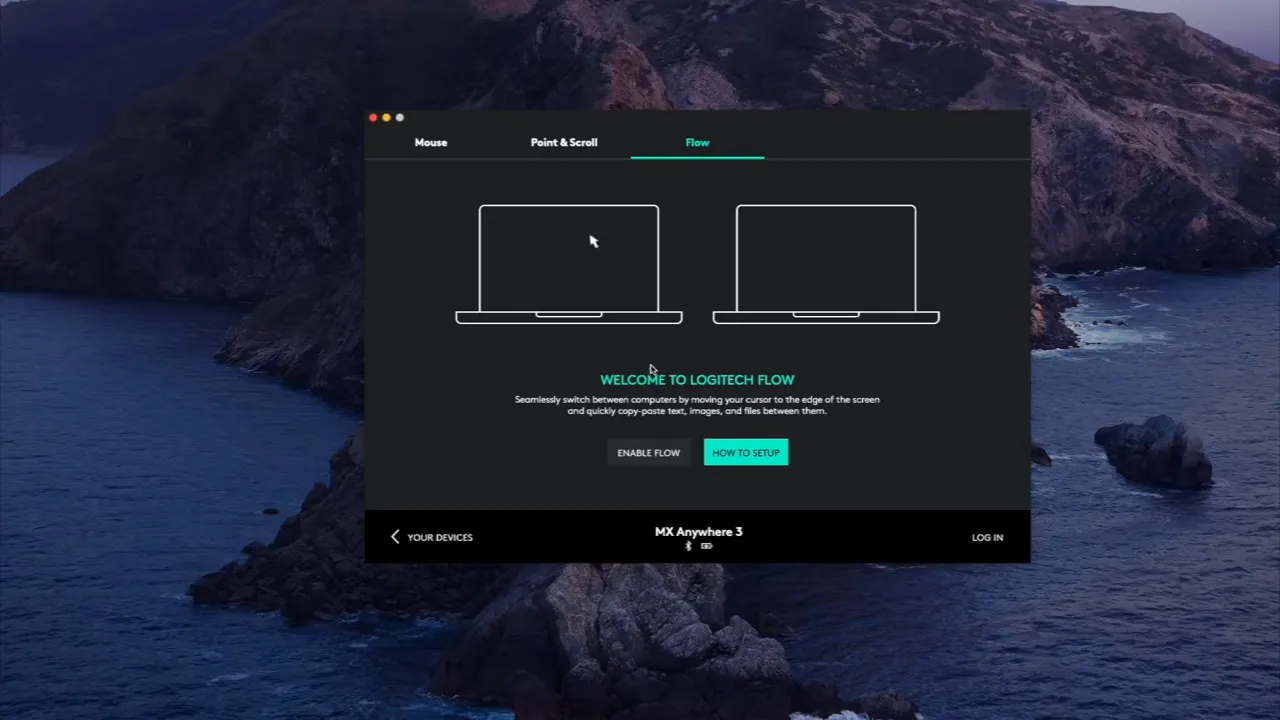
This can be genuinely useful if you run a Mac and Windows machine side by side, or even two of the same platform. For smaller file moves and quick copy paste tasks, it can reduce the friction of jumping between systems.
That said, it is also a situational feature. If you are constantly moving larger files, a service like Dropbox or a dedicated shared storage workflow may still make more sense. Flow is strongest for light, frequent handoffs rather than heavy transfer jobs.
So I would describe Flow like this: if you need it, you will probably love it. If your setup does not involve multiple computers side by side, it may never matter to you at all.
How useful is the software overall?
For a compact wireless mouse, the MX Anywhere 3 software is surprisingly capable. Logitech did not just add a couple of button swaps and call it a day. The app gives you a real customization system with app detection, profile switching, pointer tuning, gesture and command support, and multi-computer features.
What makes it work is that it does not require you to use every feature. You can keep it simple:
- Use the default layout and tweak one or two buttons
- Adjust pointer and scroll feel
- Set one or two app-specific profiles
Or you can go deeper:
- Create custom shortcuts for editing apps
- Build browser-specific tab controls
- Use Flow across multiple systems
- Assign media and system functions to underused buttons
That flexibility is exactly what I want from software that ships with a premium mouse.
Who should actually use these features?
If you only need a basic pointer for occasional laptop use, you may never touch most of the app. The mouse will still work fine.
But if you are any of the following, the software becomes a lot more valuable:
- Video editors using apps like Final Cut Pro
- People who keep a browser open all day for work
- Anyone switching between multiple apps with very different shortcut needs
- Users working across multiple computers
- People who care about dialing in pointer and scroll behavior
That is really the story of the MX Anywhere 3 software. It is not complicated for the sake of being complicated. It is there to remove repetitive friction from the way you already work.
If you are shopping for the mouse itself, you can check the current MX Anywhere 3 listing. And if you want the broader hardware perspective, the full mouse review is worth checking out too.
FAQ
Can the Logitech MX Anywhere 3 use different button layouts for different apps?
Yes. That is one of the best features in the software. You can assign one set of functions globally and then create app-specific profiles for tools like Final Cut Pro or Google Chrome.
How many buttons can you customize on the MX Anywhere 3?
You mainly get four programmable controls: the scroll wheel click, the mode shift button, and the two side buttons.
Can you assign keyboard shortcuts to the MX Anywhere 3 buttons?
Yes. The software supports custom keystroke assignments, so you can map specific shortcut combinations to a mouse button for individual apps.
What does the mode shift button do by default?
By default, it switches the scroll wheel between ratchet scrolling and free spin scrolling.
Can the MX Anywhere 3 scroll horizontally?
Yes. By default, holding the front side button while scrolling the wheel lets you move left and right. You can also disable that behavior in the settings.
What is Logitech Flow on the MX Anywhere 3?
Logitech Flow is a feature that lets one mouse control multiple computers and transfer text, images, and some files between them. It is especially useful for side-by-side multi-computer setups.
Are the software features different on the Mac version of the MX Anywhere 3?
No. The software features are essentially the same between the regular version and the Mac version.


