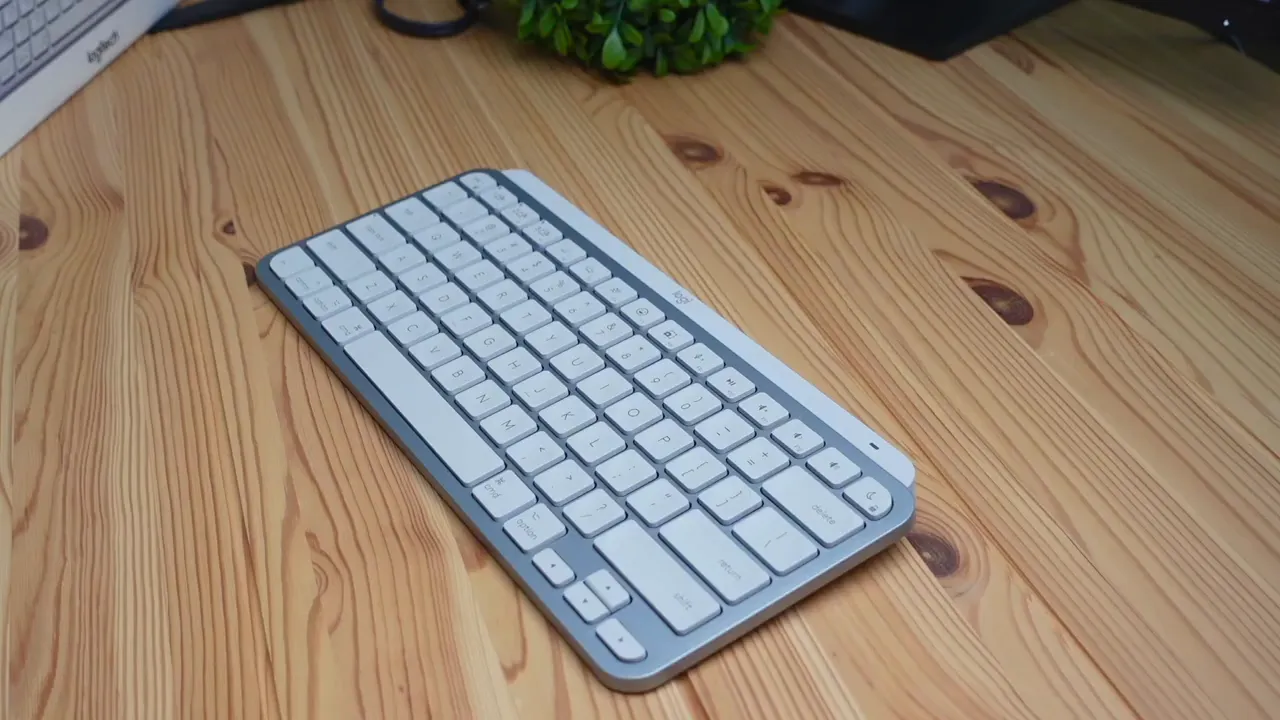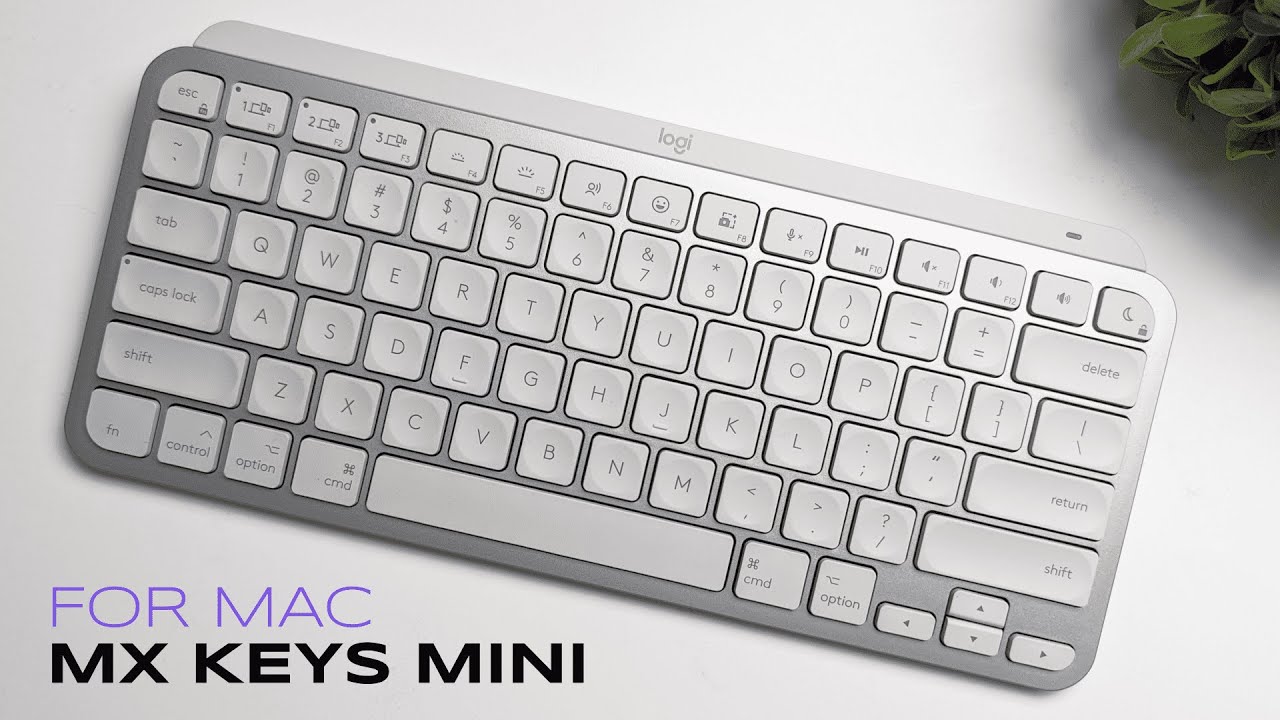
If you want a small, elegant keyboard that feels like it belongs next to a Mac, the Logitech MX Keys MINI for Mac is one of those products that immediately clicks with you. I spent time with the keyboard, unboxed it, typed on it, and poked around its features to get a sense of whether it lives up to the hype. Below I walk through what you get, what stands out, and what you should know before buying.
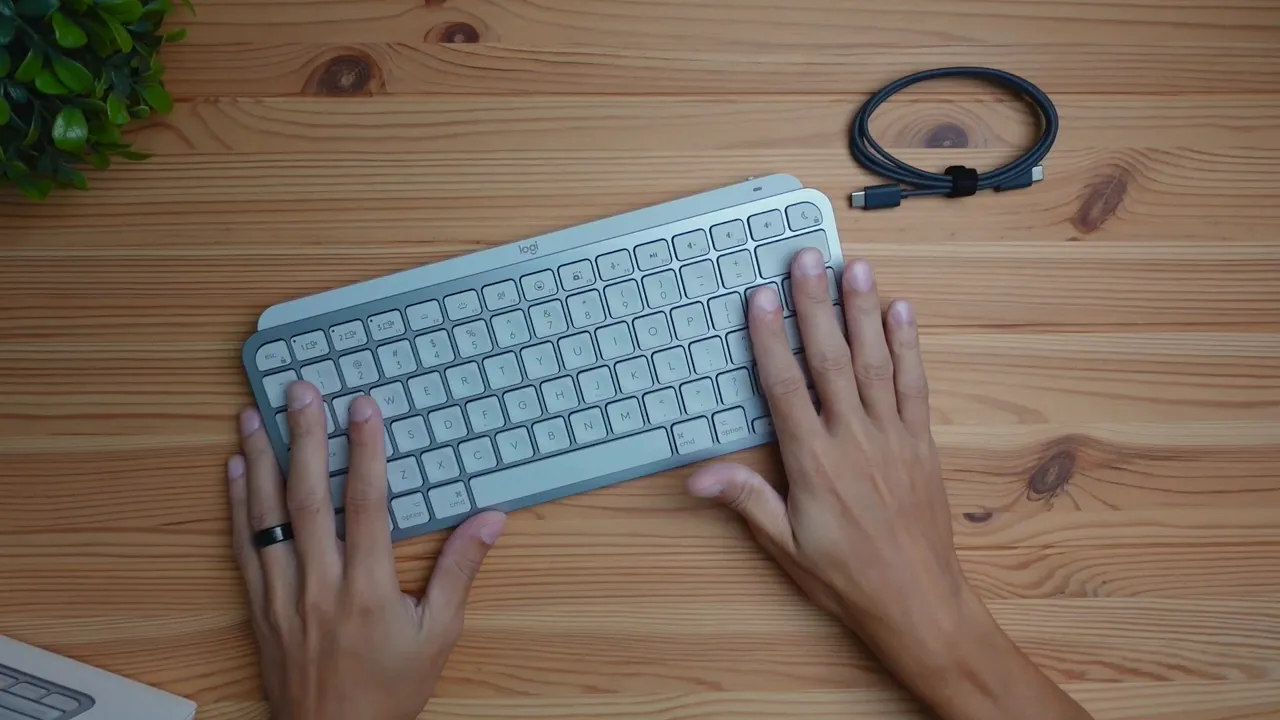
Table of Contents
- Overview: Who the MX Keys MINI for Mac is for
- What you get in the box
- Design and build: ultra low profile with Mac vibes
- Keys and typing experience
- Special keys and media shortcuts
- Connectivity: Bluetooth only, with an optional Bolt dongle
- Charging and battery life
- Backlight and smart illumination
- What I liked
- What could be better
- Who should buy the MX Keys MINI for Mac
- Quick verdict
- FAQ
- Final thoughts
Overview: Who the MX Keys MINI for Mac is for
The MX Keys MINI for Mac is aimed at people who want a compact, low profile keyboard that integrates smoothly into the Apple ecosystem. It is optimized for macOS, iPadOS, and iOS and comes with Mac-specific keys like Dictation, Emoji, Mic Mute and a dedicated sleep/snooze key that sends your Mac to bed instantly. If you value minimal desk clutter, quiet typing, and a keyboard that looks like it belongs on a clean, Apple-style desk, this should be on your shortlist.
What you get in the box
- MX Keys MINI for Mac keyboard
- USB-C to USB-C charging cable
- Quick start documentation
The cable is purely for charging. You cannot use it to connect the keyboard to your machine for a wired connection. Powering up is as simple as flipping the on/off switch on the side. When it powers on, a small green LED indicates the keyboard is active.
Design and build: ultra low profile with Mac vibes
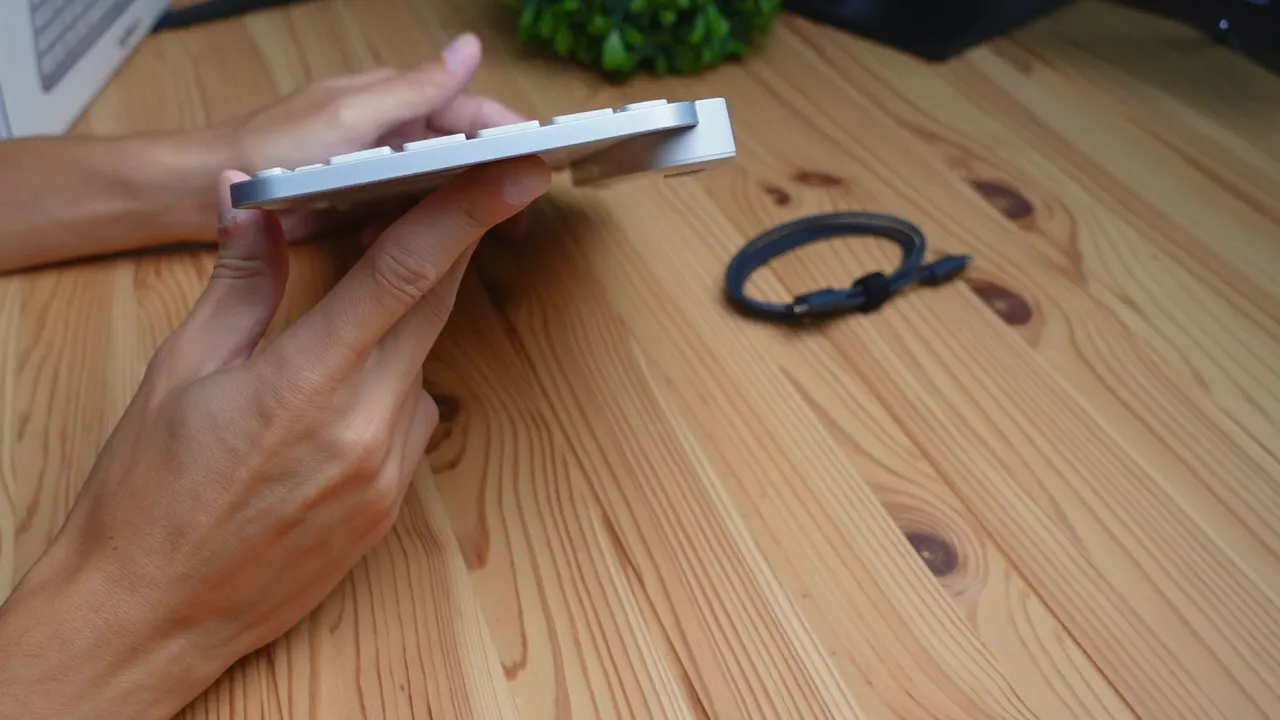
The MX Keys MINI for Mac sells itself on aesthetics. It is ultra low profile with no adjustable legs on the back, so the keyboard sits almost flat on your desk. That low-slung look paired with soft, Apple-friendly curves makes it feel like an accessory designed to complement Apple hardware.
Build quality is mostly plastic with a subtle glossy finish in places. It does not have a metal chassis, so it will not survive heavy bending or rough handling the way a metal keyboard might. In normal use, lying flat on your desk, it feels perfectly fine and even a bit premium because of the tight, refined design language.
Keys and typing experience
The keyboard uses scissor key switches. If you like concise, low-travel keys that feel stable, this is a familiar and comfortable typing experience. Each key uses an X-shaped scissor mechanism that guides the keypress down into a rubber dome. The result is smooth, consistent travel and a "silent" profile.
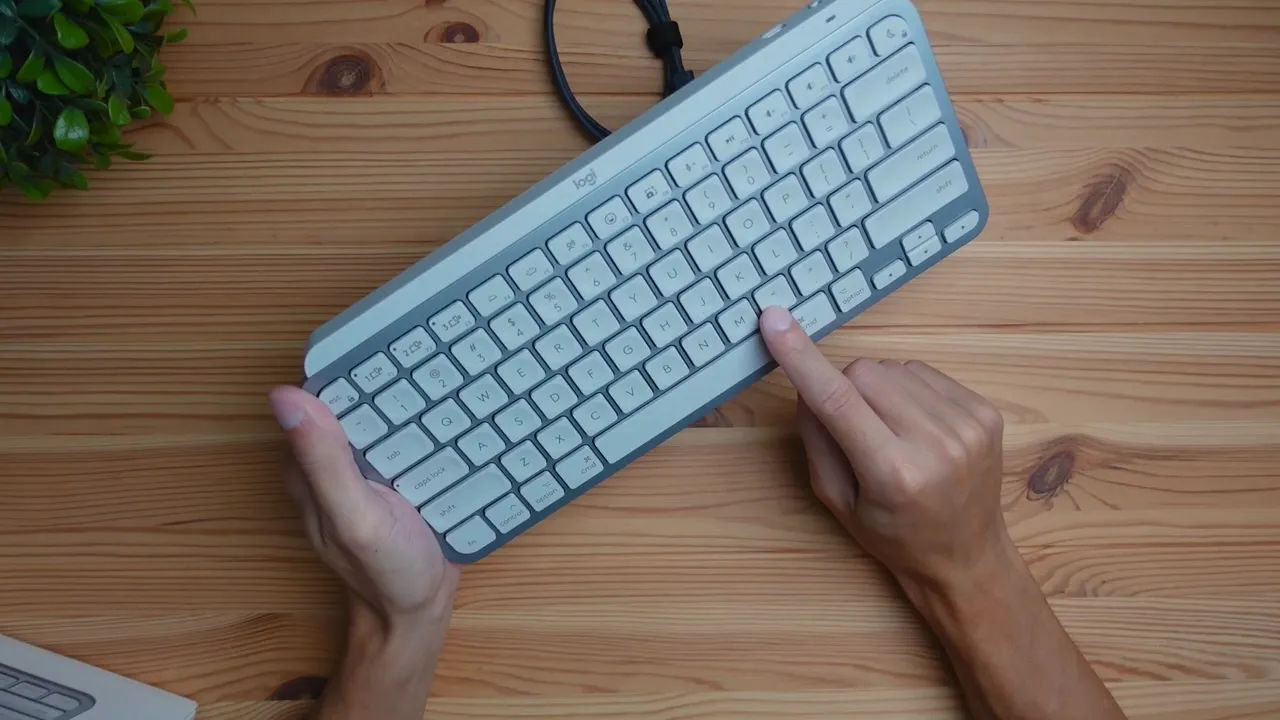
To give you a real sense of how it sounds, I did a quick typing test. The keyboard is ultra silent. The noise level is low enough that you can comfortably use it in shared spaces, co-working environments, or at home with sleeping kids nearby. The scissor switches are satisfying without the clack of mechanical switches.
Special keys and media shortcuts
One of the strengths of the MX Keys MINI for Mac is its row of functional keys. Up top you get:
- Multi-device keys to quickly switch between three paired devices
- Brightness adjustment
- Dictation / voice-to-text key
- Emoji key
- Screenshot key
- Mic mute / unmute
- Standard media controls (play, pause, skip)
- Dedicated sleep/snooze key on the far right that immediately puts your Mac to sleep
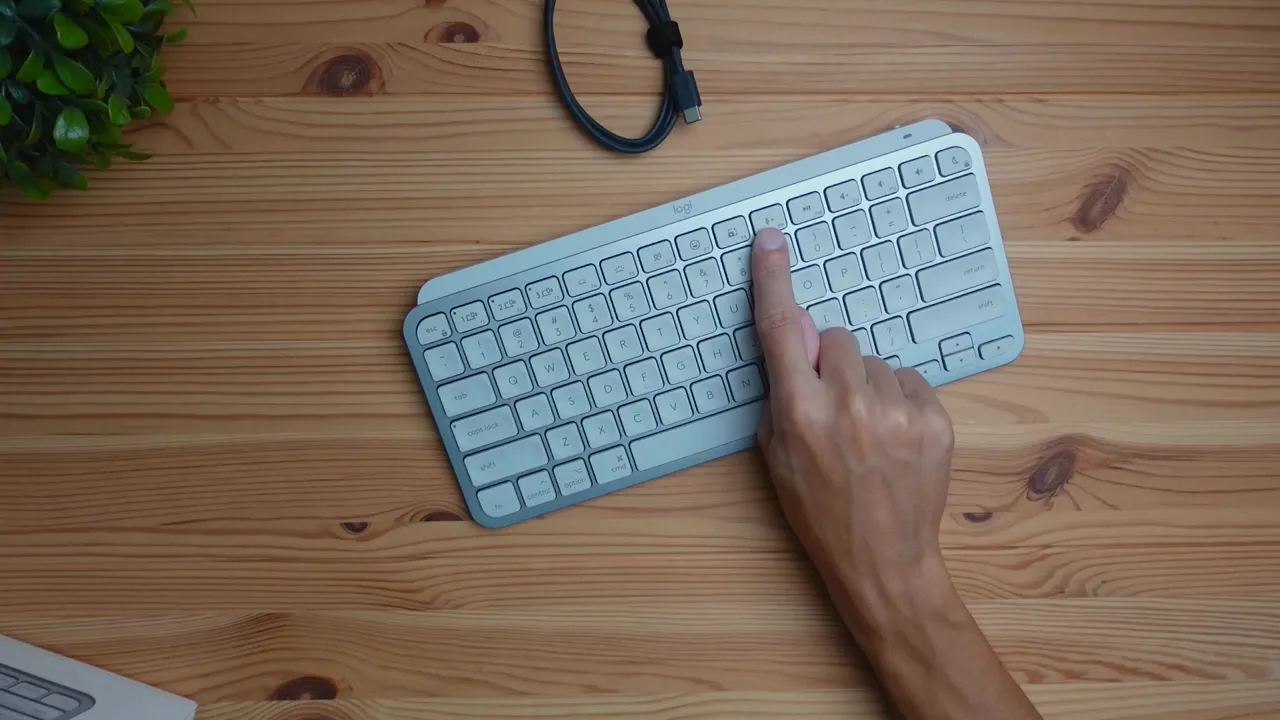
I love keyboards that pack useful shortcuts because they save time. It is simply faster to hit a single dedicated key than to juggle the mouse and dive into menus. The combination of macOS-optimized keys and media controls makes the MX Keys MINI for Mac particularly productive for knowledge work and content creation on Apple devices.
Connectivity: Bluetooth only, with an optional Bolt dongle
The keyboard connects exclusively via Bluetooth out of the box. That means you pair it with your Mac, iPad, or iPhone and it stays connected wirelessly. There is no included USB receiver or dongle in the box.
If you need a dongle for tighter wireless performance in crowded wireless environments, Logitech sells the Logitech Bolt USB receiver separately. Keep in mind that the Bolt receiver is not included with the keyboard, so you will need to purchase it if you rely on a dongle connection.
Charging and battery life
The MX Keys MINI charges via USB-C, using the included USB-C to USB-C cable. Important detail: the cable is for charging only. You can not use it to operate the keyboard in wired mode. Flip the switch to power on and let Bluetooth handle the rest.
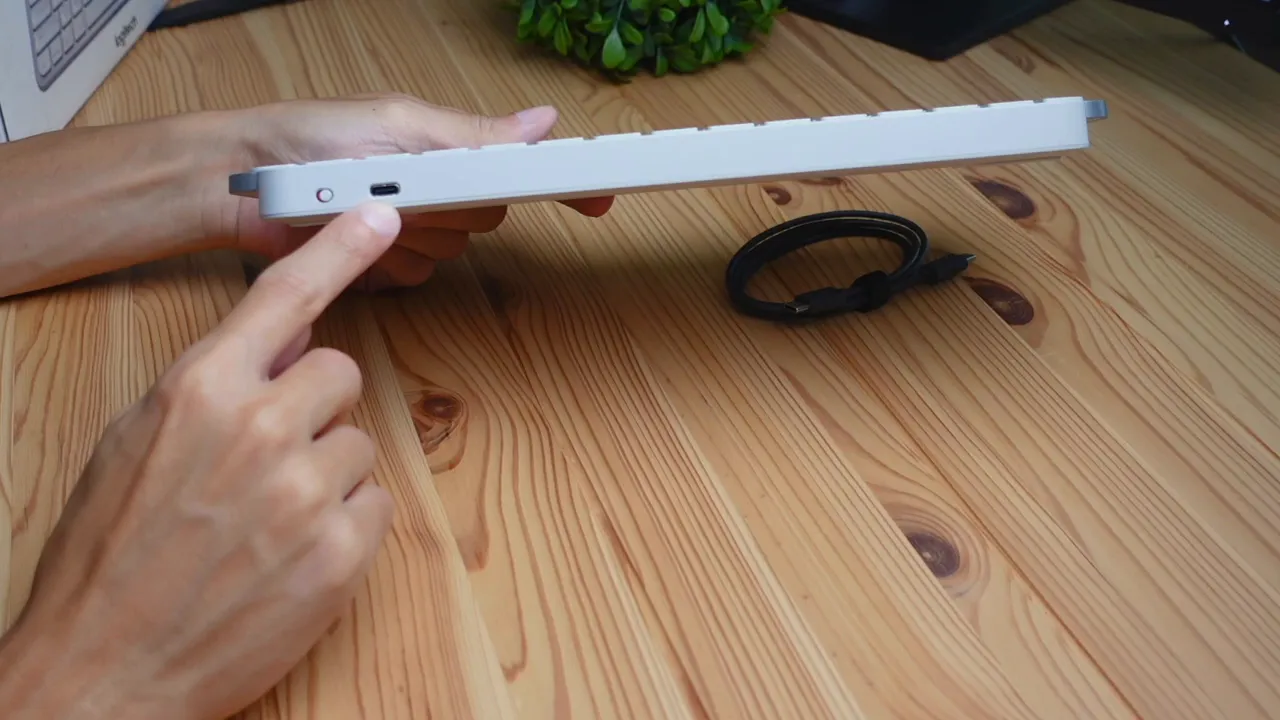
Battery life depends heavily on backlight use. Logitech specifies roughly 10 days of battery life with the lights on and up to five months with the lights off. In realistic use you will likely land somewhere in the middle because the keyboard adapts its lighting. It features smart illumination that turns keys on when the environment is dark and off when it is bright. You can configure illumination behavior in Logitech Options software to balance brightness with battery longevity.
Backlight and smart illumination
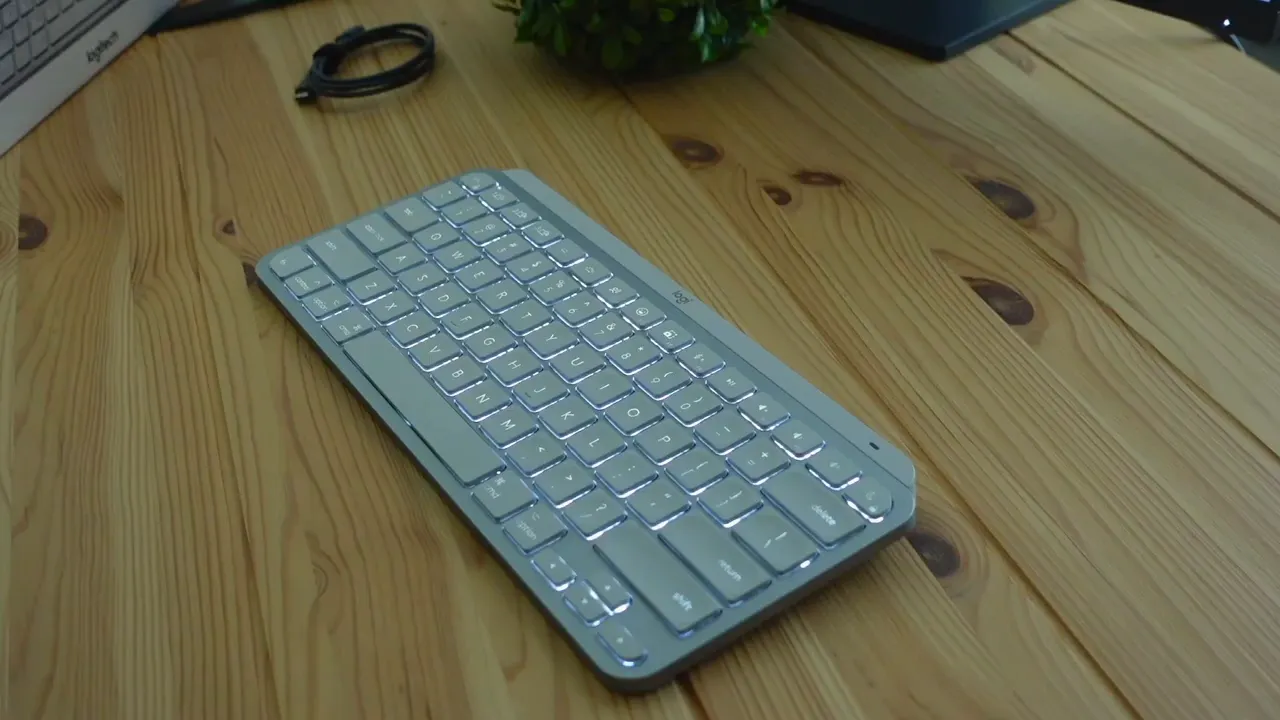
The keys are backlit. In bright daylight the illumination is subtle rather than vivid, but in dim environments the lighting becomes much more noticeable. The keyboard's dynamic lighting system automatically responds to ambient light, which is handy and helps extend battery life. The backlight is configurable in Logitech software, so you can tweak brightness and behavior to match your workspace.
What I liked
- Excellent design and Apple-friendly aesthetics
- Ultra low profile makes typing comfortable and desk-friendly
- Quiet, scissor-based typing that works well in shared spaces
- Useful macOS-specific keys like Dictation, Emoji and Sleep
- Smart illumination and good battery life when not using backlight constantly
What could be better
- All plastic construction lacks the heft of metal-bodied keyboards
- Charging cable is charge only; no wired mode for instant wired connection
- No Bolt dongle included for users who prefer a receiver
- Backlight is not extremely bright in daylight, though it works well at night
Who should buy the MX Keys MINI for Mac
Buy this keyboard if you:
- Use a Mac, iPad, or iPhone and want a keyboard that fits the Apple aesthetic
- Prefer a low profile, minimalist keyboard without bulky feet
- Type a lot and want a quiet, comfortable key feel
- Value macOS-specific shortcuts and a dedicated sleep key
Avoid this keyboard if you:
- Need a wired connection option for absolute latency control
- Expect a heavy, metal build and ultimate rigidity
- Need a receiver included for secure enterprise wireless right away
Quick verdict
The Logitech MX Keys MINI for Mac is a compact, attractive keyboard that nails the essentials for everyday Mac users. It is quiet, full of convenient shortcuts, and smart about power. Build quality is acceptable for normal use, though it is not a tank. If you want a minimalist keyboard that integrates tightly with macOS and iPadOS, this is a strong candidate.
FAQ
How long does the battery last?
Battery life varies by backlight usage. Logitech quotes around 10 days with backlight on and up to five months with backlight off. Real-world usage falls somewhere in between because the keyboard uses dynamic lighting that adjusts to ambient light. You can also tweak illumination settings in Logitech software to extend battery life.
Can I use the USB-C cable to connect the keyboard as wired?
No. The USB-C to USB-C cable included is for charging only. The keyboard operates over Bluetooth. If you need a wired connection, this model does not support it.
Does the keyboard include a USB receiver?
No. It connects via Bluetooth by default. Logitech sells a Bolt USB receiver separately for users who prefer a dedicated dongle. That receiver is not included in the box.
What kind of key switches does it use?
The MX Keys MINI for Mac uses scissor switches with a rubber dome. Keys have an X-shaped scissor mechanism under each cap for stability and a low-travel feel that is quiet and well suited to office and home environments.
Is the keyboard compatible with Windows?
While this version is optimized for Mac and ships with Mac-specific keys, it will still function over Bluetooth with Windows. However some keys and shortcuts are Mac-specific and may not map directly on Windows systems.
How bright is the backlight?
Backlight brightness is adequate but not overly strong in direct daylight. It becomes more vivid in low-light settings. The keyboard uses smart illumination to turn lights on in darker environments, and you can adjust brightness levels in Logitech software.
Does it support multiple device pairing?
Yes. The keyboard has three device keys that let you switch quickly between three paired devices. This is handy if you regularly switch between a Mac, iPad, and iPhone.
Is it worth it for the price?
If you value design, quiet typing, and macOS-specific features in a compact layout, it offers strong value. If you need metal construction, wired operation, or a receiver included, there are other keyboards that may be a better fit.
Final thoughts
The Logitech MX Keys MINI for Mac gets the essentials right: clean looks, quiet typing, useful Mac shortcuts, multi-device support, and smart illumination. It is not perfect, but for daily productivity on Mac and iPad, it delivers a refined, distraction-free experience. In short, it is a very Apple-like keyboard from a third-party maker that understands what Mac users want.