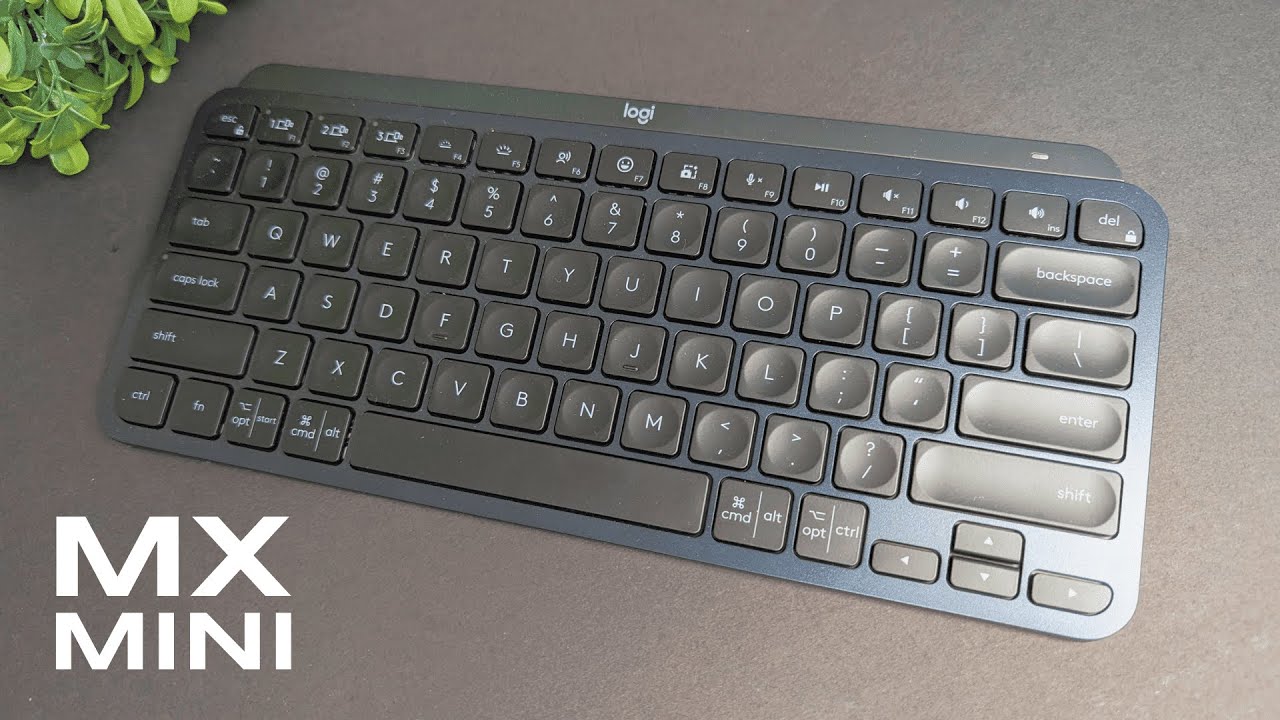
Hi — I’m Kova Tech, and in this deep dive I’ll walk you through everything I learned while testing the Logitech MX Keys Mini. If you’re a productivity-focused professional, remote worker, or someone who simply wants a quiet, elegant keyboard that blends into a serious workspace, this review will help you decide whether the MX Keys Mini (and its full-size sibling) deserve a spot on your desk.
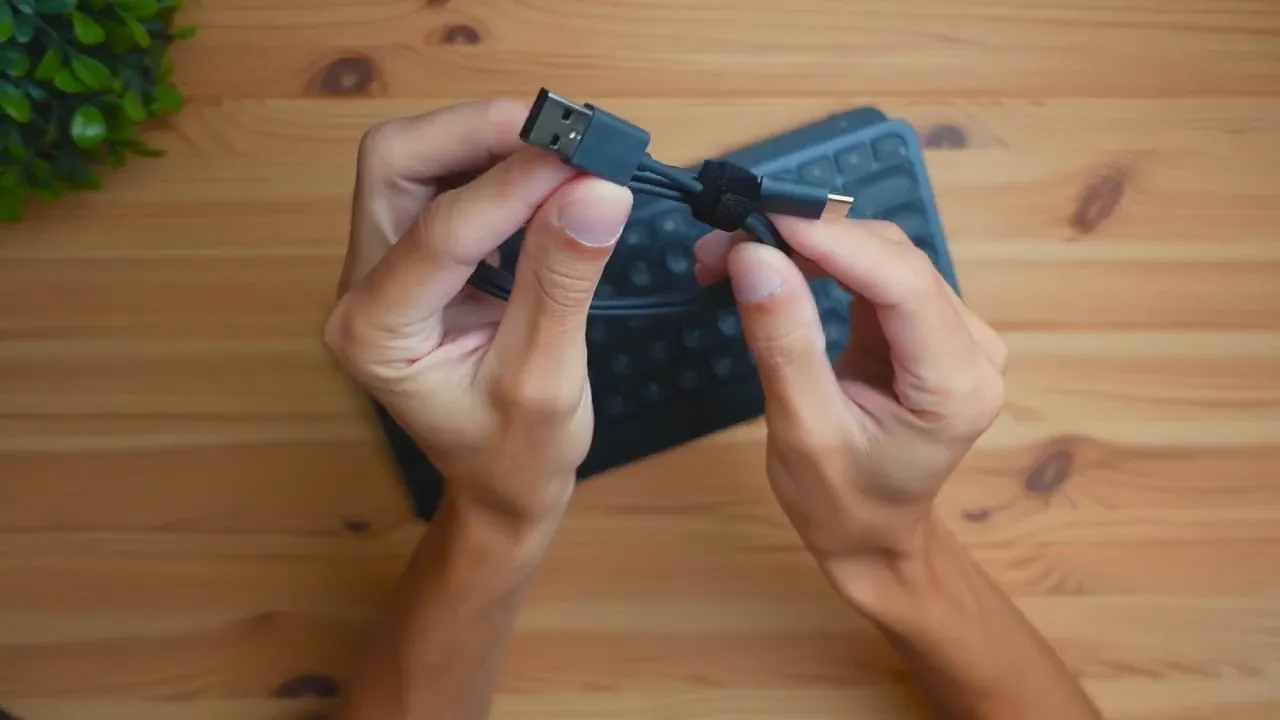
Table of Contents
- What’s in the box
- Design and finishes
- Build quality: how solid is it?
- Keycaps and switches: typing experience
- Productivity features and media controls
- Software and customization
- Lighting and battery life
- Connectivity and compatibility
- Who is the MX Keys Mini for?
- Final verdict
- FAQ
What’s in the box
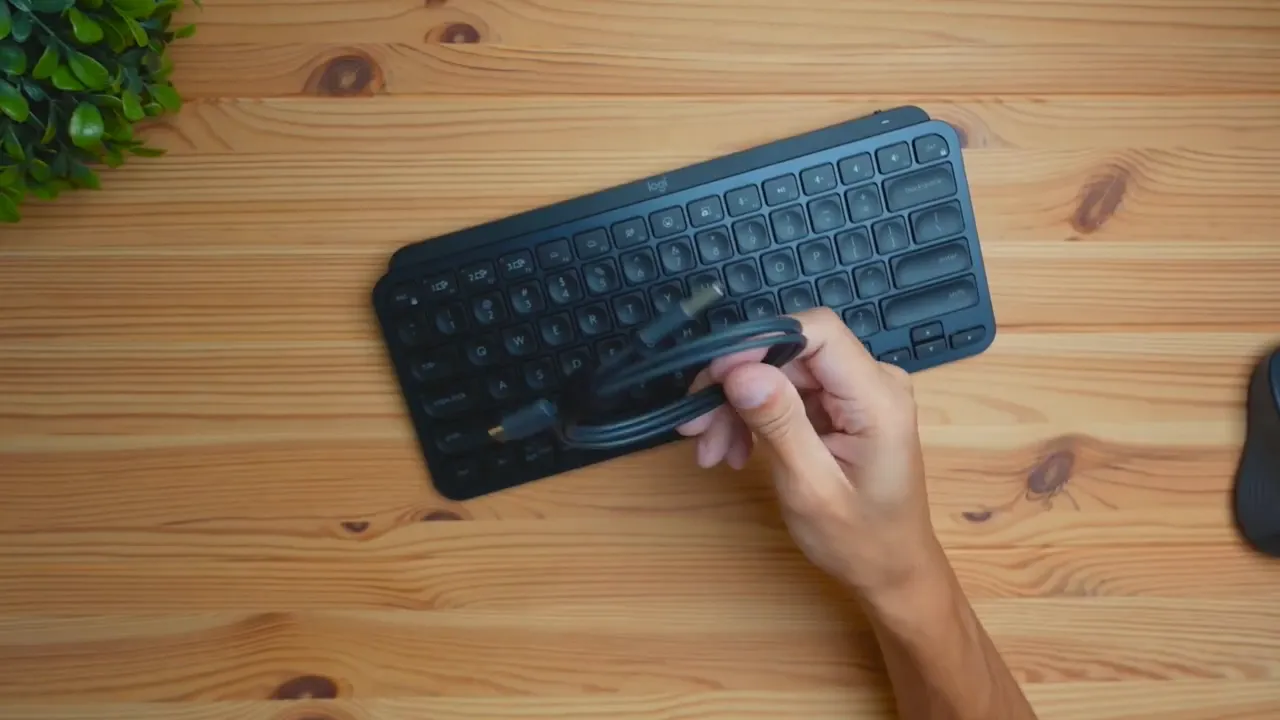
Out of the box you get just two things: the keyboard itself and a USB-A to USB-C charging cable. That’s it — no dongle, no extra accessories. The cable is only for charging; it does not provide a wired connection for use.
- Keyboard (available in Mini and Full size)
- USB-A to USB-C cable (for charging only)
Design and finishes
The MX Keys Mini is ultra-slim with a very low-profile layout. The surface has a matte finish with a subtle gloss on the edges — understated and professional. It comes in four colors: graphite (the darker gray), pale gray, rose, and an all-black matte finish (the unit I tested).
The keyboard’s aesthetic is minimal and modern, designed to sit on your desk without drawing attention away from the rest of your setup. It’s ideal for a home office or studio where you want a clean look that still feels premium.
Build quality: how solid is it?
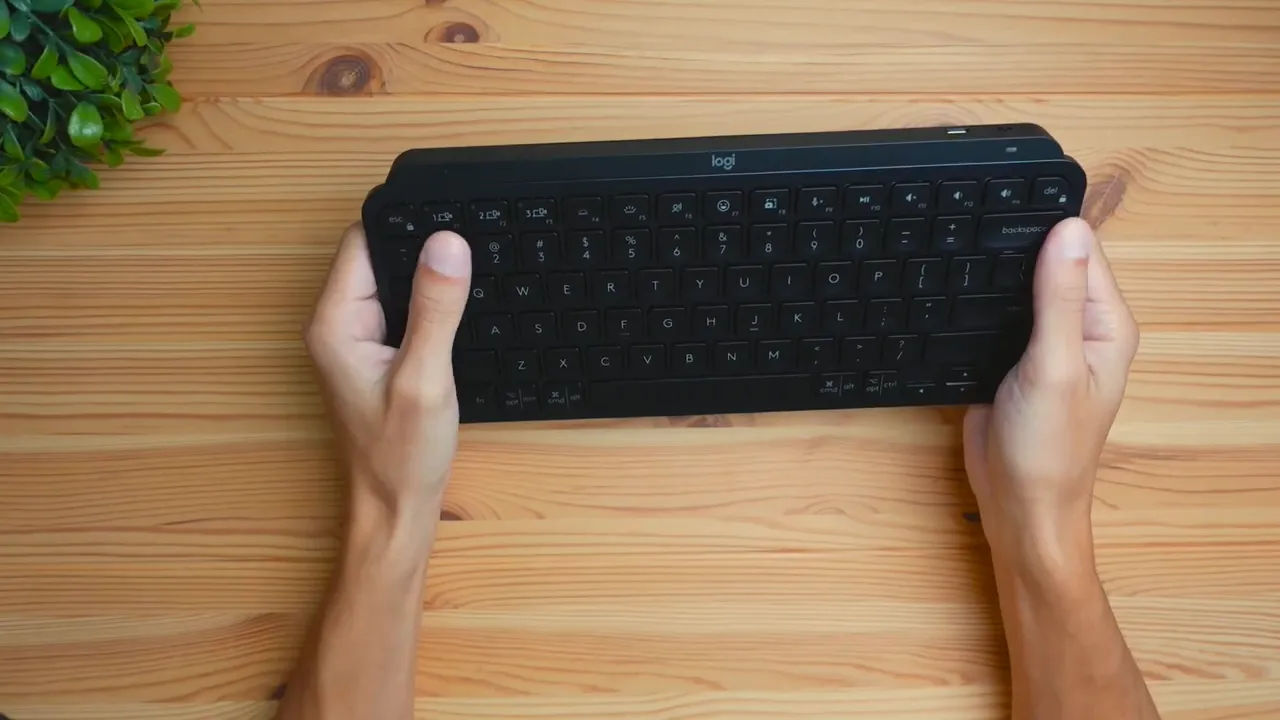
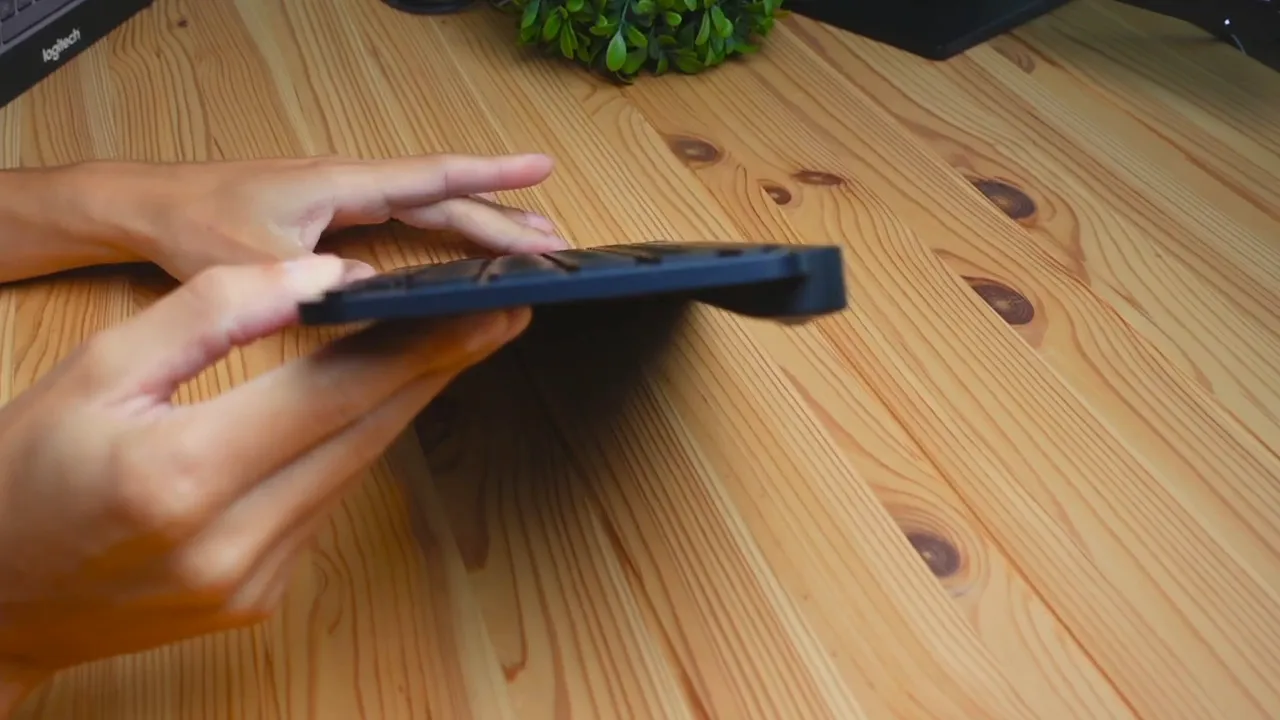
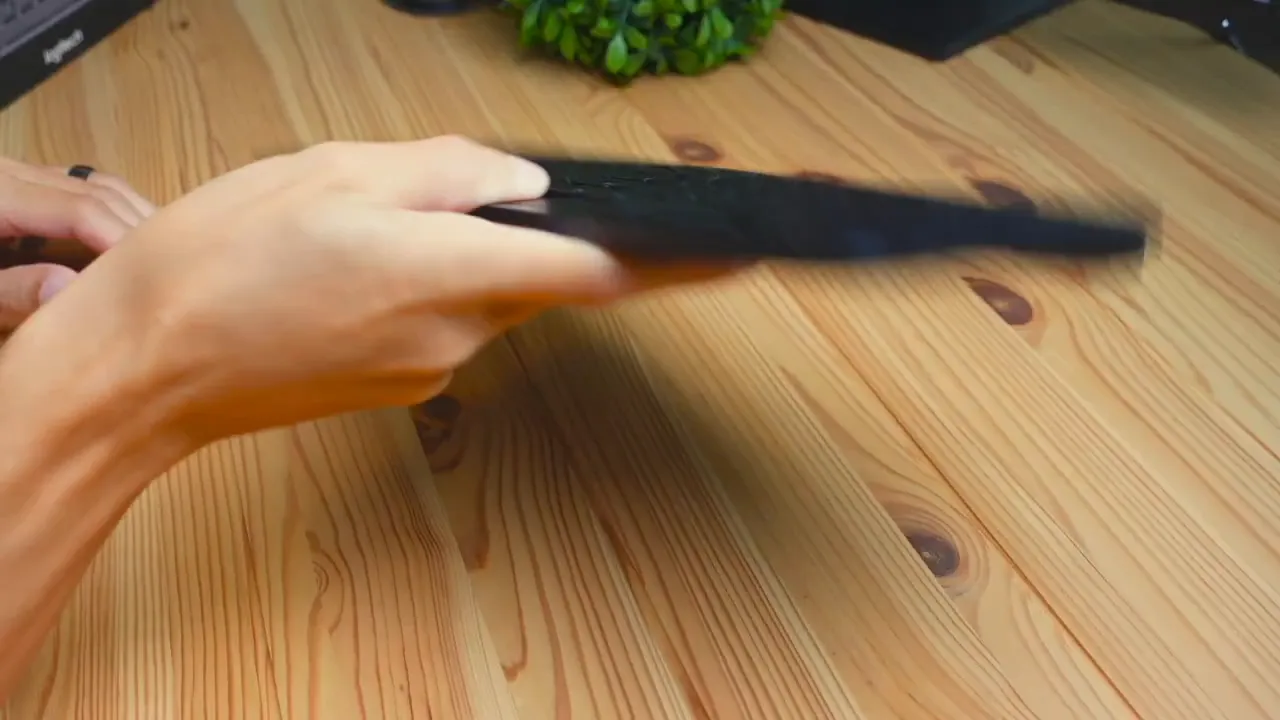
Build quality is very good for a primarily plastic construction. It doesn’t feel like a tank, but it also doesn’t feel cheap — the plastic has a solid, dense quality to it. I performed a light bend test and a shake test to check for flex and rattling; the keyboard held up well with minimal warping and no rattling components.
On the underside you won’t find adjustable legs. Instead, Logitech used rubber grips in the corners and a single raised hump to set the typing angle. That hump gives the keyboard a comfortable, slightly elevated typing plane and I found adjustable legs unnecessary — the angle felt natural to type on for extended sessions.
Keycaps and switches: typing experience
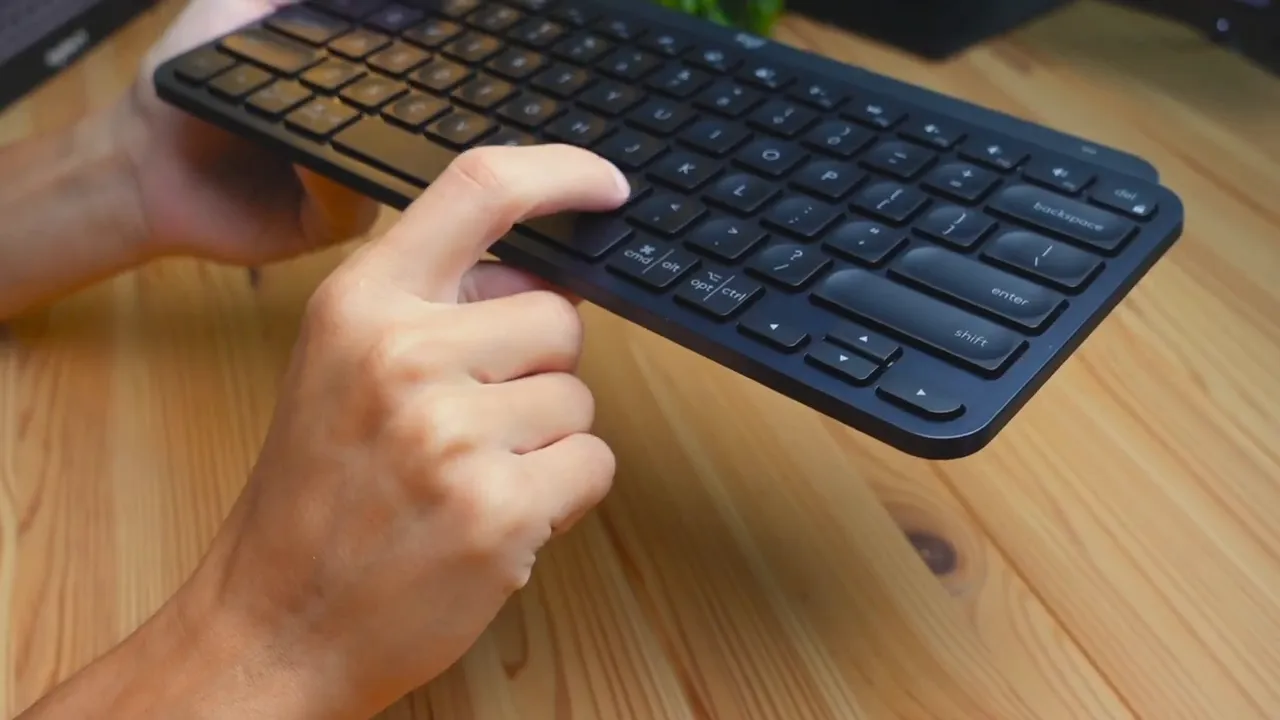
The keycaps are concave to let your finger sit naturally in the middle of the key. Each key has a lightly textured surface to improve grip and prevent your fingers from sliding during long typing sessions. The keys use scissor switches with a membrane beneath — the familiar mechanism that gives laptop-like travel and a quiet, snappy feel.
In short: it’s a very solid typing experience. The MX Keys Mini is remarkably quiet — ideal for shared offices or during video calls where you don’t want your keys to be distracting.
Key wobble and stability
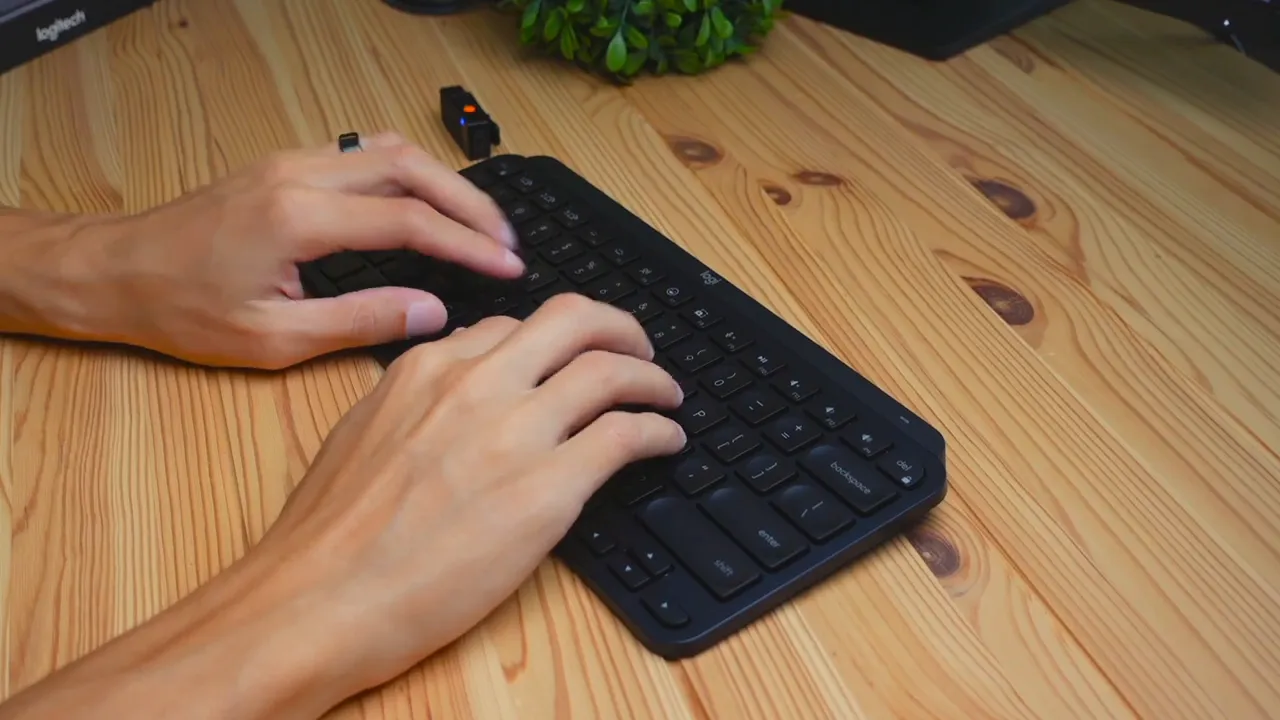
One common frustration with cheaper keyboards is key wobble — especially on large keys like the spacebar. The MX Keys Mini keeps wobble to a minimum. When pressing on the edges of keys, they remain stable and don’t shift. That consistency matters for accuracy and the overall premium feel.
Productivity features and media controls
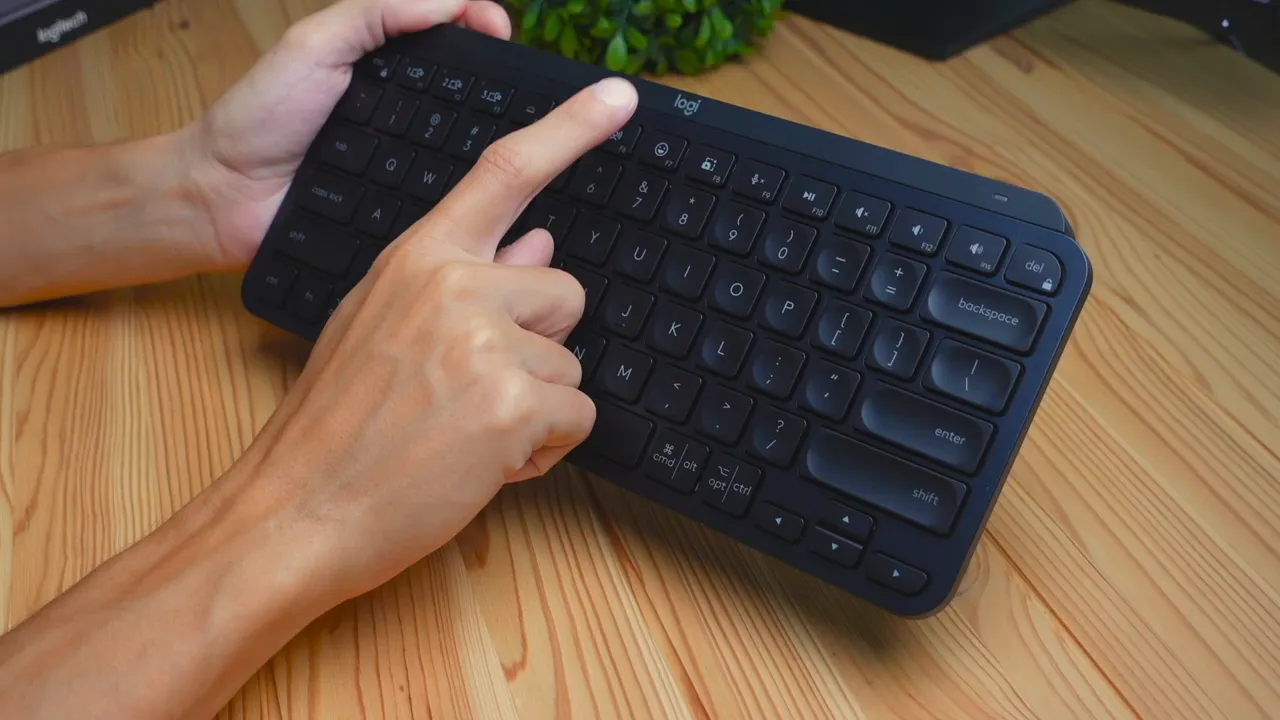
The MX Keys Mini is aimed at productivity, and the key layout reflects that. You have an Easy-Switch row for pairing up to three devices. That makes it straightforward to hop between a desktop, tablet, and phone without re-pairing each time.
- Three Easy-Switch keys to connect device 1, 2, and 3
- Brightness up/down
- Dictation mode — speak and have your mic transcribe
- Dedicated emoji key
- Screen capture button
- Mic mute
- Play/pause and comprehensive volume controls
- Lock mode to put your computer to sleep
These shortcuts are meaningful time-savers if you use them regularly. The emoji key is a small but fun addition that’s handy for quick messages, while the dictation key can speed up note-taking or draft creation when paired with good voice-to-text software.
Software and customization
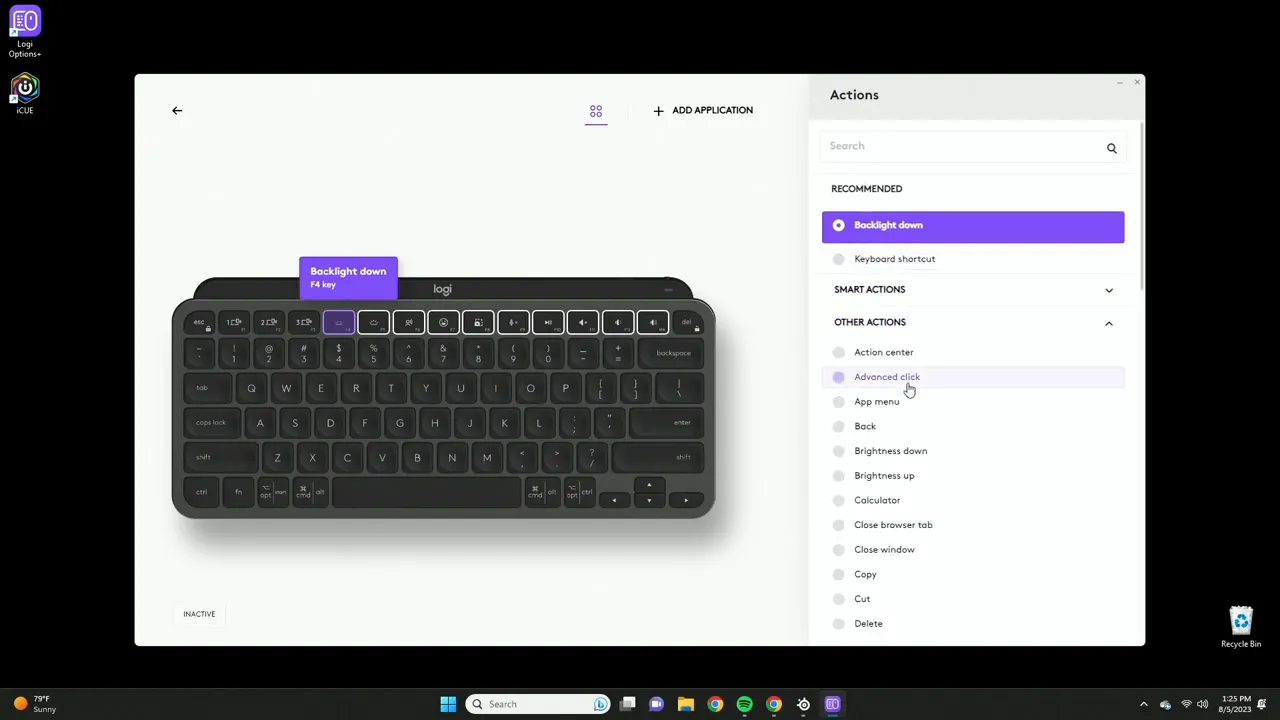
The MX Keys Mini works with Logitech’s software (Logi Options / Options+), which unlocks a lot of customization. Most of the top-row keys can be reassigned. There’s a recommended default tab, but you can swap in actions such as:
- Open specific applications
- App-specific shortcuts
- System controls (back, brightness, volume)
- Custom keyboard shortcuts per application
The software also lets you toggle whether you want F-keys to act as function keys by default or after holding Fn, switch between Windows and Mac layouts, and adjust the Easy-Switch behavior. If you frequently use app-specific shortcuts (e.g., in Photoshop, Excel, or video editing tools), the MX Keys Mini’s software customization is genuinely useful.
Lighting and battery life
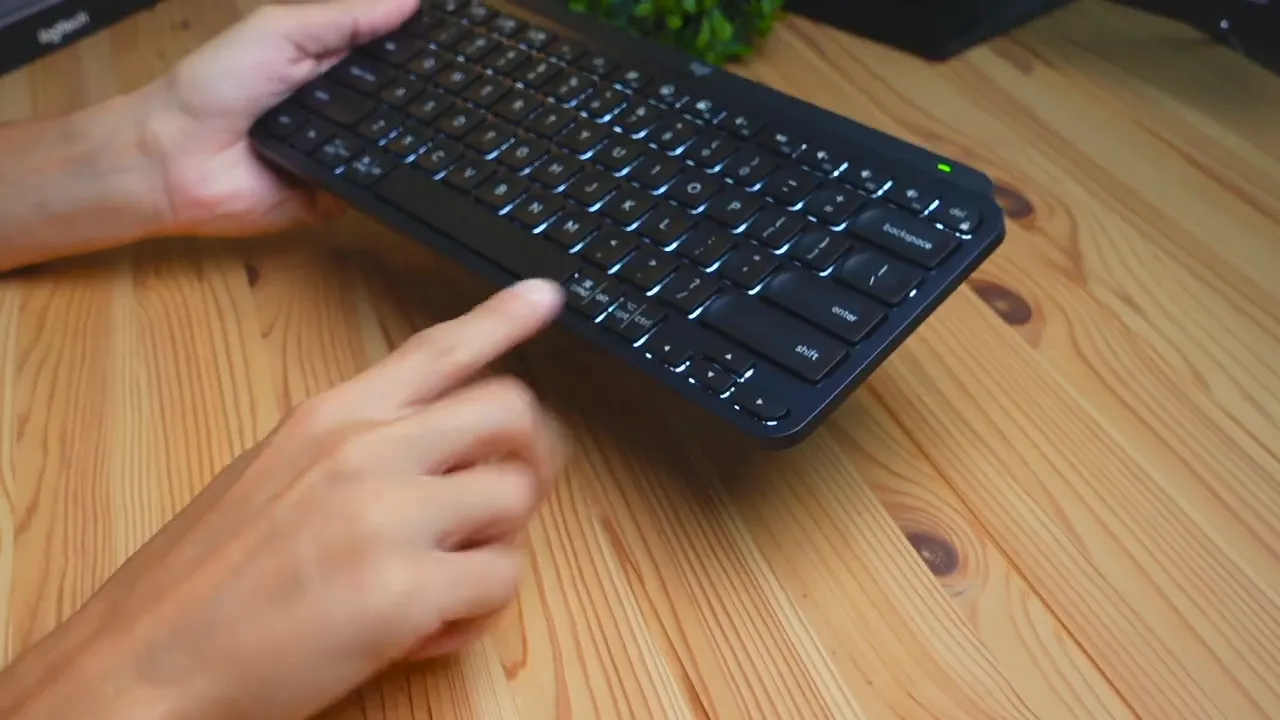
The keyboard has subtle lighting effects that look great in low-light environments. There is a dedicated on/off switch on the back to toggle lights. When turned on, the illumination gives a tasteful, not overwhelming glow.
Battery life depends heavily on whether you use the backlighting:
- Up to 10 days with lights on (typical usage)
- Up to 5 months with lights off
Those are competitive numbers for a compact wireless keyboard. Remember: the included cable is for charging only — if you want a USB receiver dongle instead of Bluetooth, you’ll need to buy Logitech’s Unifying receiver separately.
Connectivity and compatibility
Connectivity is Bluetooth-only out of the box. The MX Keys Mini supports multi-device pairing and works with both Windows and macOS, and the software supports both platforms as well. If you prefer a 2.4GHz dongle, Logitech sells a separate receiver that can be used with compatible models.
Because the keyboard is Bluetooth-first, it’s an excellent companion for tablets and phones that support Bluetooth keyboards, and it’s lightweight enough to be part of a travel setup.
Who is the MX Keys Mini for?
If you want a keyboard that looks professional, types quietly, and has thoughtful productivity features, the MX Keys Mini is hard to beat. I particularly recommend it for:
- Writers, coders, and content creators who need a quiet setup
- Multi-device users who switch frequently between desktop, tablet, and phone
- People who prefer a low-profile, laptop-like typing experience
- Anyone wanting easy customization for app-specific shortcuts
It’s not a mechanical keyboard — if you crave heavy tactile feedback or hot-swappable switches, look elsewhere. But for a compact, reliable, and attractive wireless keyboard that emphasizes comfort and productivity, the MX Keys Mini shines.
Final verdict
The Logitech MX Keys Mini delivers an excellent balance of style, comfort, and useful features. It’s well-built without being bulky, offers a high-quality silent typing experience, and includes plenty of productivity shortcuts and customization through software. Battery life is solid, especially if you keep the backlighting off. The primary trade-off is the Bluetooth-only connection by default and the lack of physical adjustable legs, which some users might miss.
Overall, if you’re looking for a professional-looking keyboard that keeps noise to a minimum and boosts productivity through thoughtful shortcuts and software customization, the MX Keys Mini is a great choice.
Want to see the keyboard in action?
For a closer look at the software and a full walkthrough of the customization options, check out my detailed review and software deep dive on the Kova Tech channel.
FAQ
Is the MX Keys Mini compatible with both Windows and Mac?
Yes. The MX Keys Mini supports both Windows and macOS layouts. Logitech’s software (Options / Options+) allows you to switch between OS-specific key mappings and customize shortcuts for each platform.
Does the keyboard come with a USB dongle?
No — a dongle is not included. The MX Keys Mini connects via Bluetooth by default. If you want a 2.4GHz receiver, you can purchase Logitech’s Unifying receiver separately and use it with compatible devices.
Can I charge and use the keyboard with the cable plugged in?
The included USB-A to USB-C cable is for charging only. It does not enable a wired connection for using the keyboard while charging.
How long does the battery last?
Typical battery life is up to 10 days with backlighting enabled and up to five months with the lights off. Actual battery life depends on usage patterns and brightness settings.
Are the keys noisy?
No — the MX Keys Mini uses scissor switches with membrane actuation and is very quiet. It’s a good option if you need a low-noise keyboard for shared spaces or during calls.
Does the keyboard have adjustable feet for angle customization?
There are no adjustable legs. Instead, the keyboard has rubber grips and a single raised hump on the underside that sets the typing angle. I found the angle comfortable for extended typing without the need for flip-out feet.
Thanks for reading — if you have questions about specific workflows, app shortcuts, or want a dedicated deep dive into the software customization, drop a comment and I’ll cover it in a follow-up.


