Overview
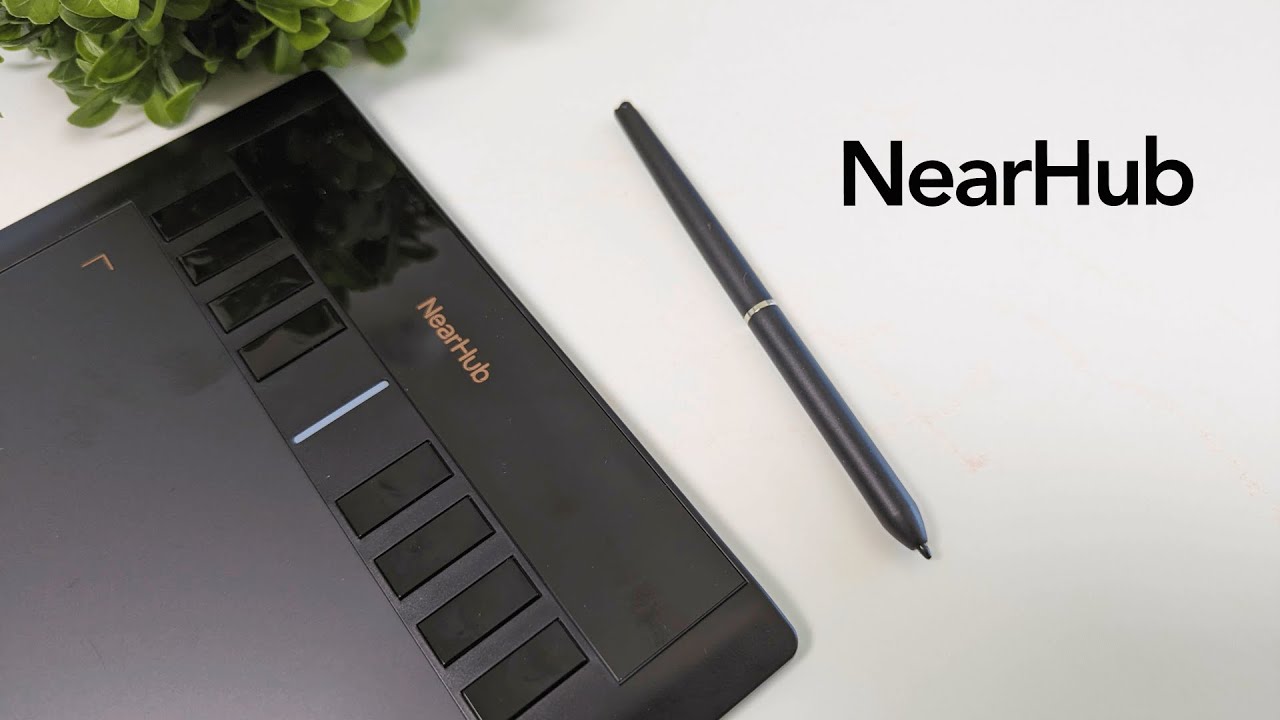
The NEARHUB S13 is a low-profile drawing tablet aimed at designers, artists, and anyone who sketches or plans digitally. It’s lightweight, sleek, and mostly plug-and-play, with a stylus that feels accurate and responsive right out of the box. If you want a compact tablet that works with Figma, Photoshop, Illustrator and NEARHUB’s own canvas, the S13 is worth a look.
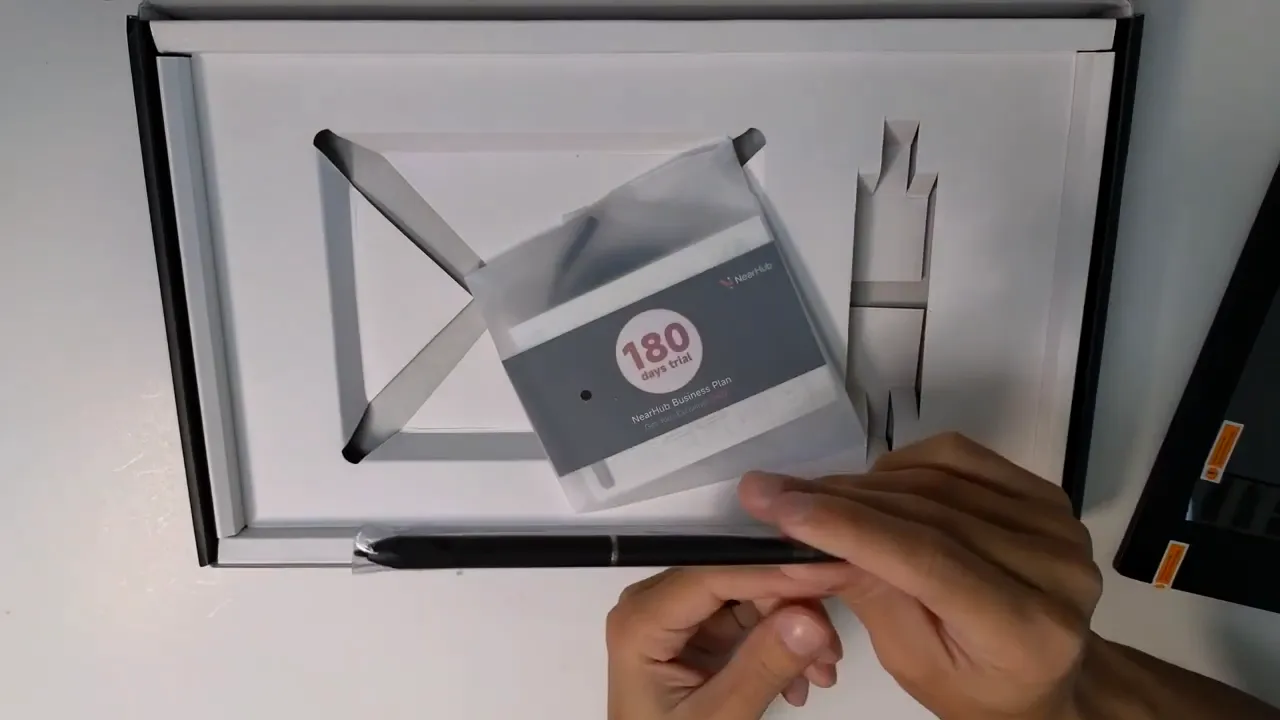
What’s in the box
The package is straightforward and includes everything you need to get started:
- NEARHUB S13 tablet with a dedicated drawing area and shortcut buttons
- Stylus pen with spare tips
- USB cable (regular USB to micro USB)
- User manual
First impressions and design
The S13 has a clean, minimal look. The tablet’s low profile keeps it from taking up too much desk real estate, and the stylus matches that aesthetic with a sleek, simple design. The back of the tablet has rubber grips so it won’t wander while you work.
Setup: Plug and play, plus the driver caveat
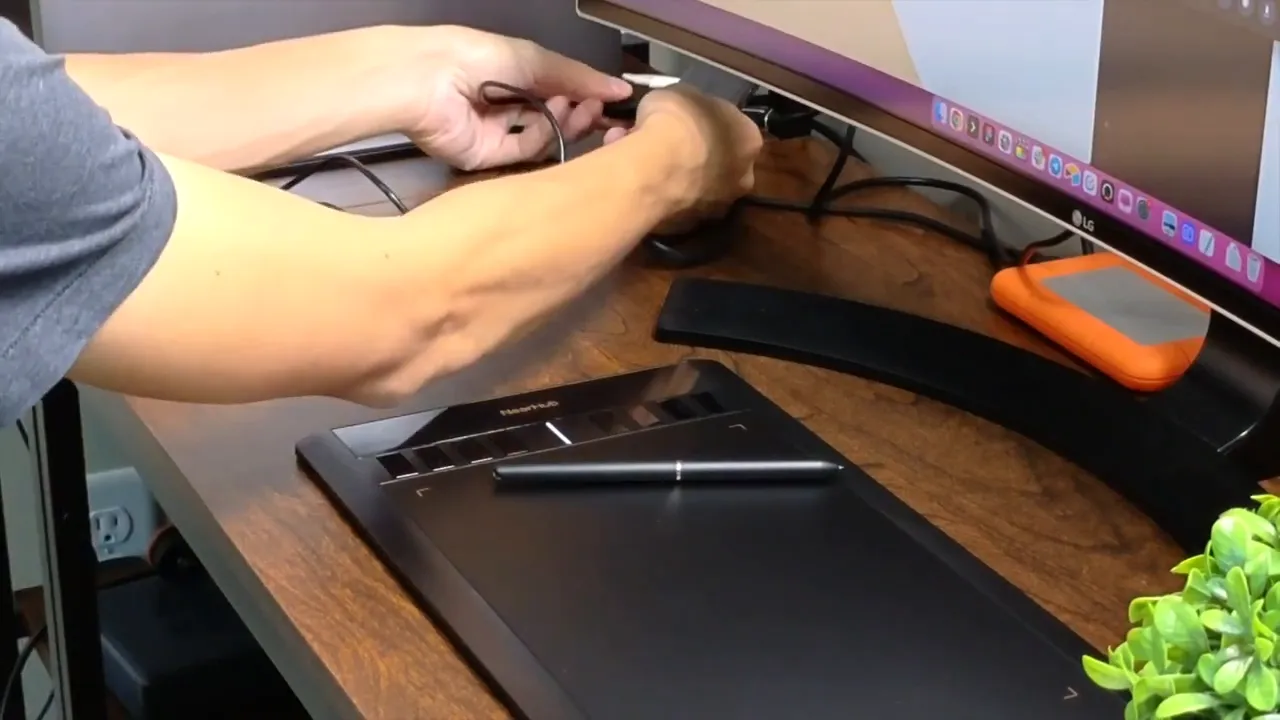
Setup is easy. Plug the full-size USB into your computer and the micro USB into the tablet and you can immediately start drawing. The tablet is genuinely usable without installing drivers, so you can test responsiveness in seconds.
Important note: to unlock the full functionality of the physical shortcut buttons on the side of the tablet you will need to install drivers from NEARHUB’s website. Without drivers, the buttons don’t do anything and functionality is limited to basic pen input.
How it performs with creative apps
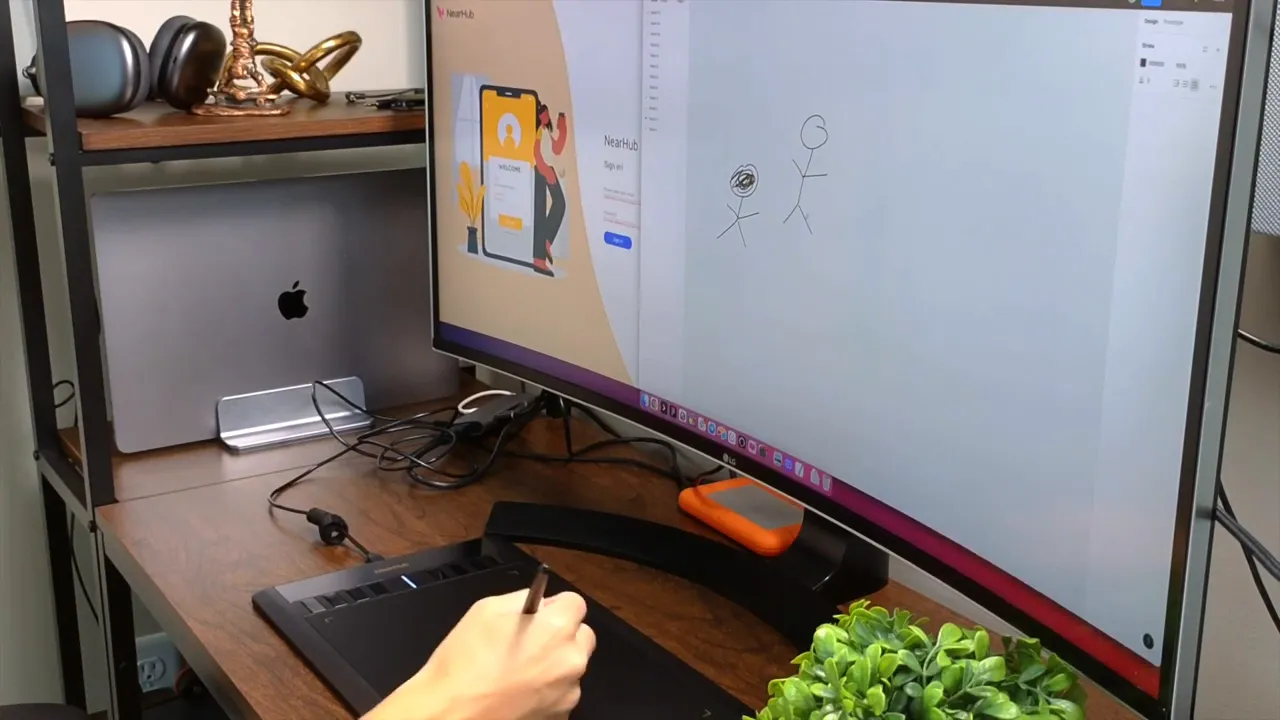
In blank-canvas tools like Figma, the stylus worked well for quick sketches and freehand notes. I’m not a pro artist, but the S13 captured simple strokes cleanly and felt responsive while drawing. It’s also compatible with mainstream apps like Adobe Photoshop and Illustrator, so professionals who rely on those tools should be fine once drivers are installed.
NEARHUB’s dedicated canvas and app.nearhub.us
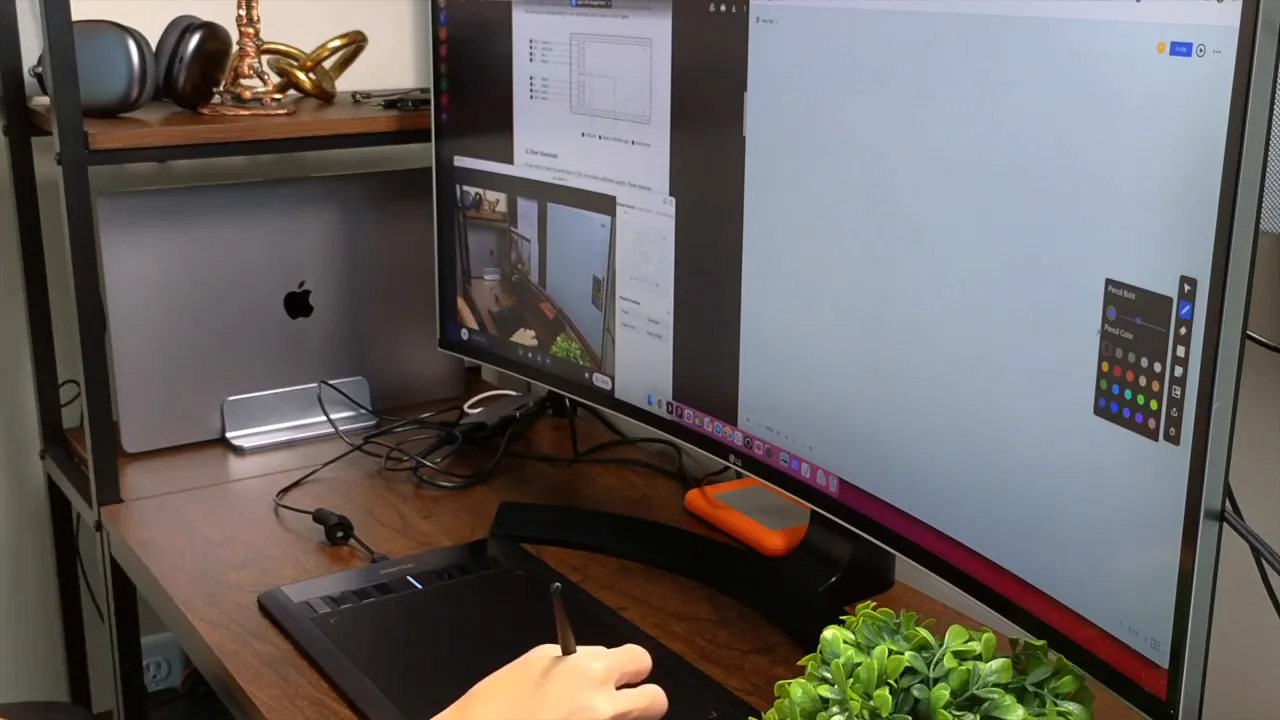
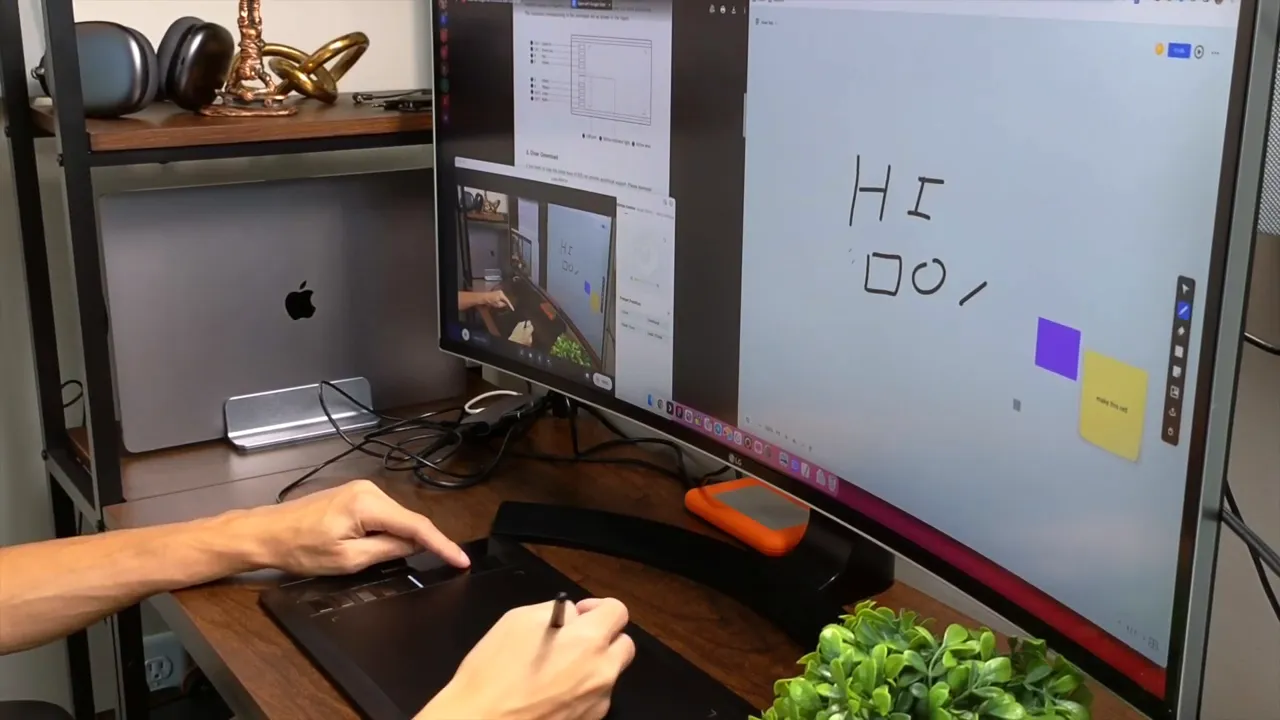
NEARHUB provides a web canvas at app.nearhub.us. After creating an account you can start projects, pick brush sizes, colors, and use an interface that’s pleasant and slightly more focused on drawing and brainstorming than a basic vector tool.
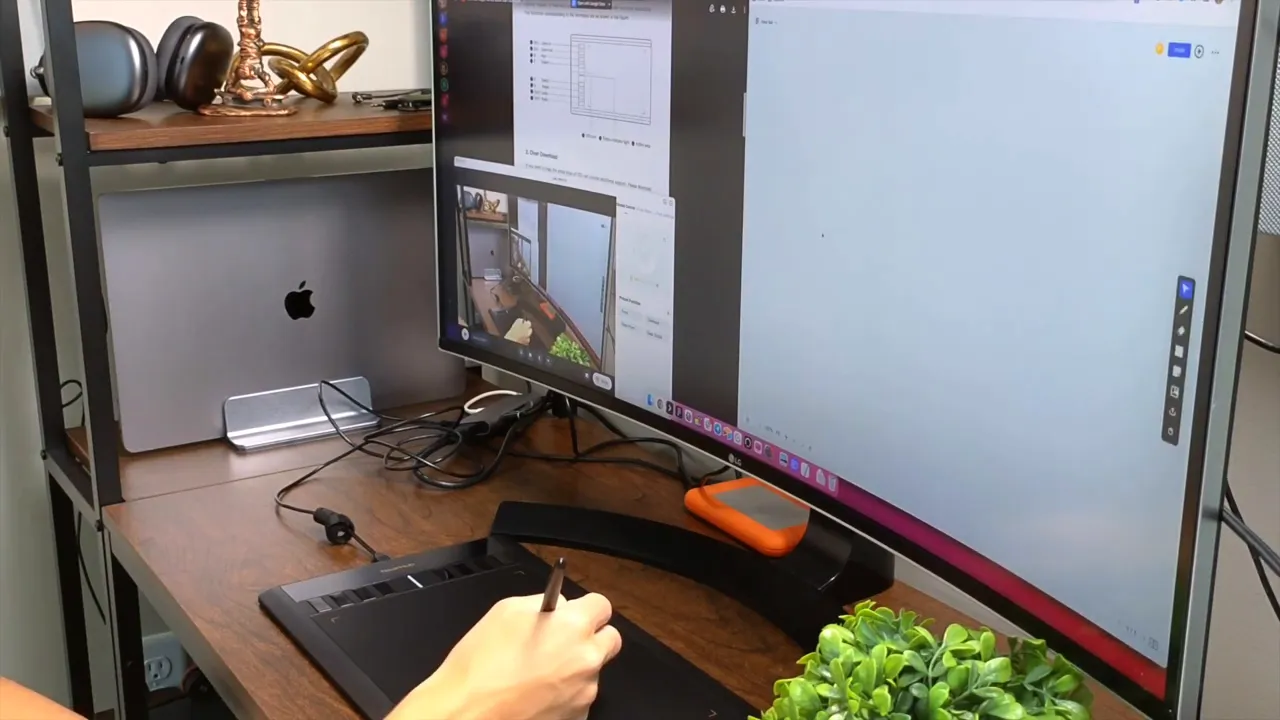
The canvas includes:
- Brush and eraser tools
- Shape tools for boxes, triangles, etc.
- Sticky note elements useful for brainstorming or planning
- Templates for workflows, strategy, agile planning
- A built-in timer to timebox sessions
Physical shortcut buttons and workflow shortcuts
The left-hand column of buttons on the S13 maps to useful actions once drivers are installed. Out of the box, I identified these mappings:
- Top two buttons: Zoom in and zoom out
- Third button: Pen tool
- Fourth button: Eraser
- Fifth button: Shape tool
- Bottom two buttons: Undo and redo
Having these shortcuts physically available speeds up flow—no reaching for the keyboard or hunting through the interface. The buttons worked smoothly and felt logically placed.
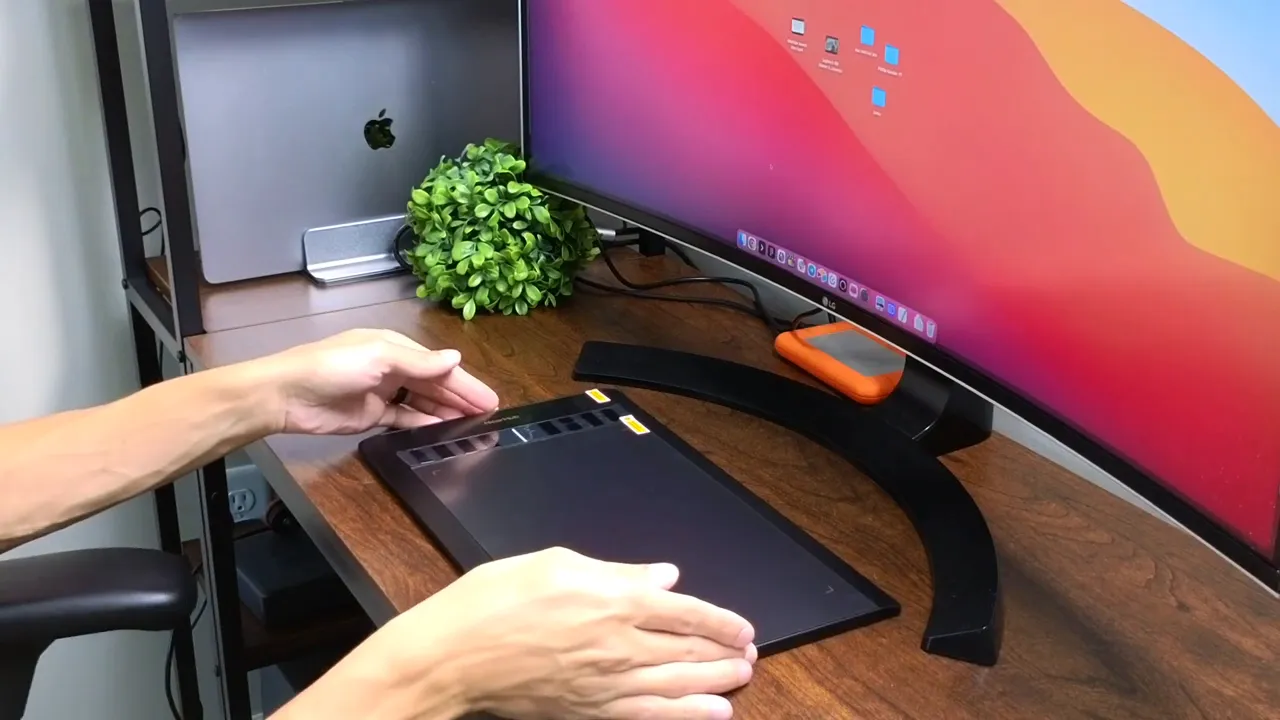
Desk layout tips
The stylus and tablet do take up desk space. Two practical layouts:
- Keep keyboard and mouse in their usual spot and slide them to create room for the tablet to the left or right.
- If you’re focused purely on drawing, temporarily remove the keyboard and use the tablet and stylus as your main input area.
Find what’s comfortable for you—left- or right-handed placement changes the ergonomics.
Pros and cons (quick summary)
- Pros: Compact, sleek design; responsive stylus; plug-and-play usability; useful physical shortcuts after driver install; compatible with major design apps.
- Cons: Full button functionality requires driver installation; micro USB rather than USB-C; the stylus base needs desk space.
Final thoughts and recommendation
The NEARHUB S13 is a strong entry-level to mid-range drawing tablet. It’s especially appealing if you want a simple, portable device that works immediately and integrates with both mainstream creative apps and NEARHUB’s own canvas. For the best experience, install the drivers so the physical shortcut buttons map correctly and you get full control.
If you want a tidy, affordable tablet that won’t dominate your desk and gives you clean, sensitive input for sketching and planning, the S13 is worth considering.


