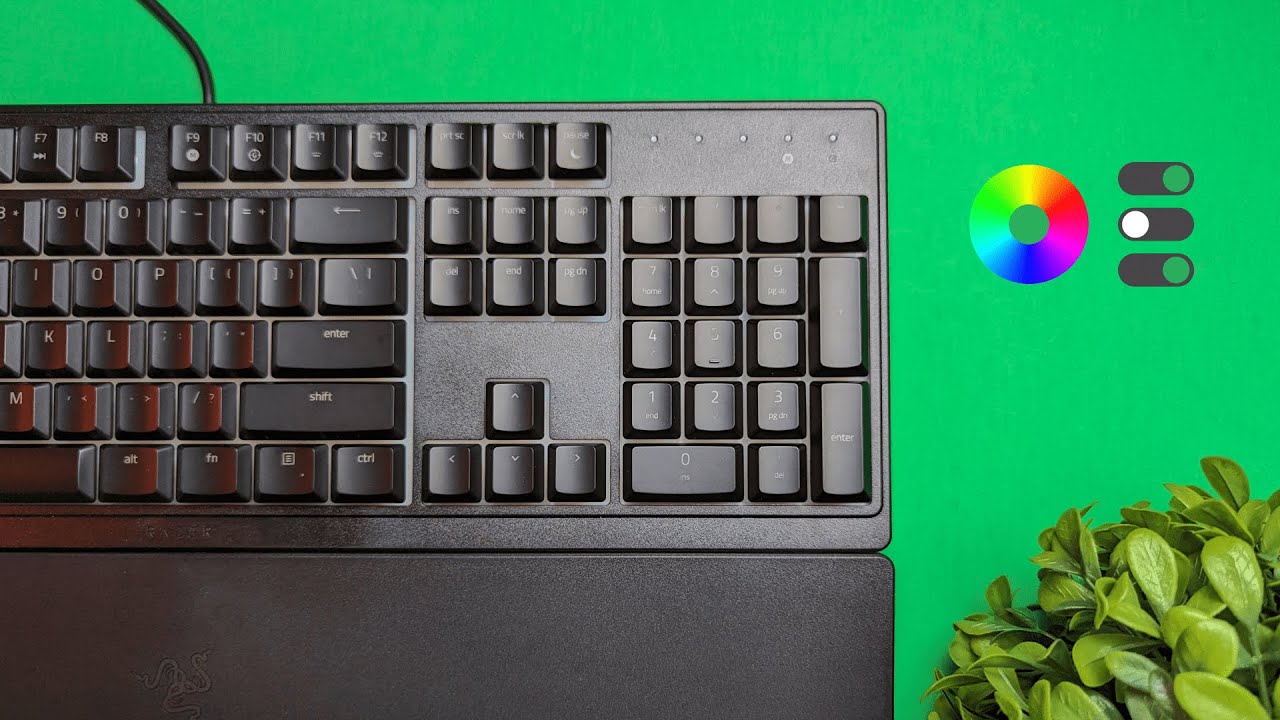
The Razer Ornata V3 X comes with a surprisingly capable software suite that turns a solid budget keyboard into a highly personalized input device. Razer Synapse handles profiles, lighting, macros, key remaps, cross-device interactions, and more. Below is a practical guide to the settings and workflows that matter most—presented in plain language so you can get productive fast.
Table of Contents
- Initial setup and profiles
- Gaming mode and behavior controls
- Lighting control: brightness, sleep, and effects
- Full key customization: remaps, macros, and turbo
- Mouse functions, cross-device actions, and Hypershift
- Practical examples and recommended setups
- How do I make the keyboard lights react to music?
- How can I stop accidentally opening the Windows menu while gaming?
- Can I remap every key on the Ornata V3 X?
- Is it possible to type a full sentence with one key?
- How do I sync lighting across multiple Razer devices?
- Final thoughts
Initial setup and profiles
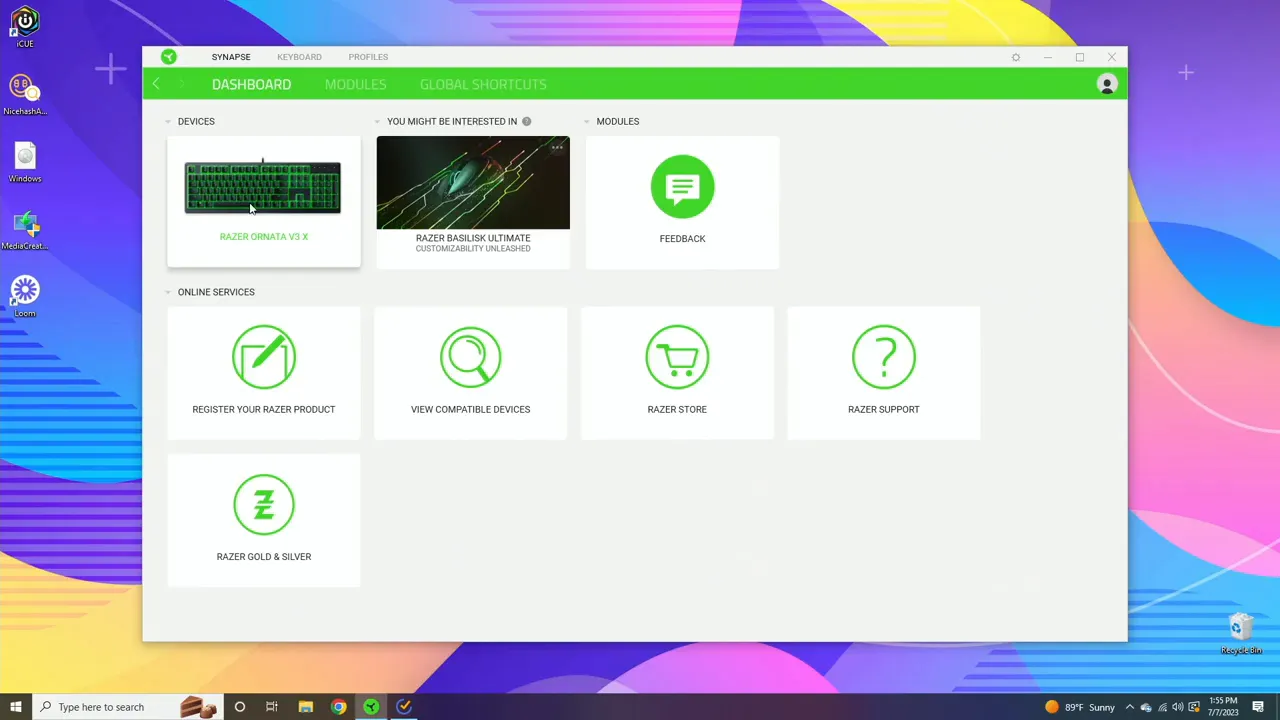
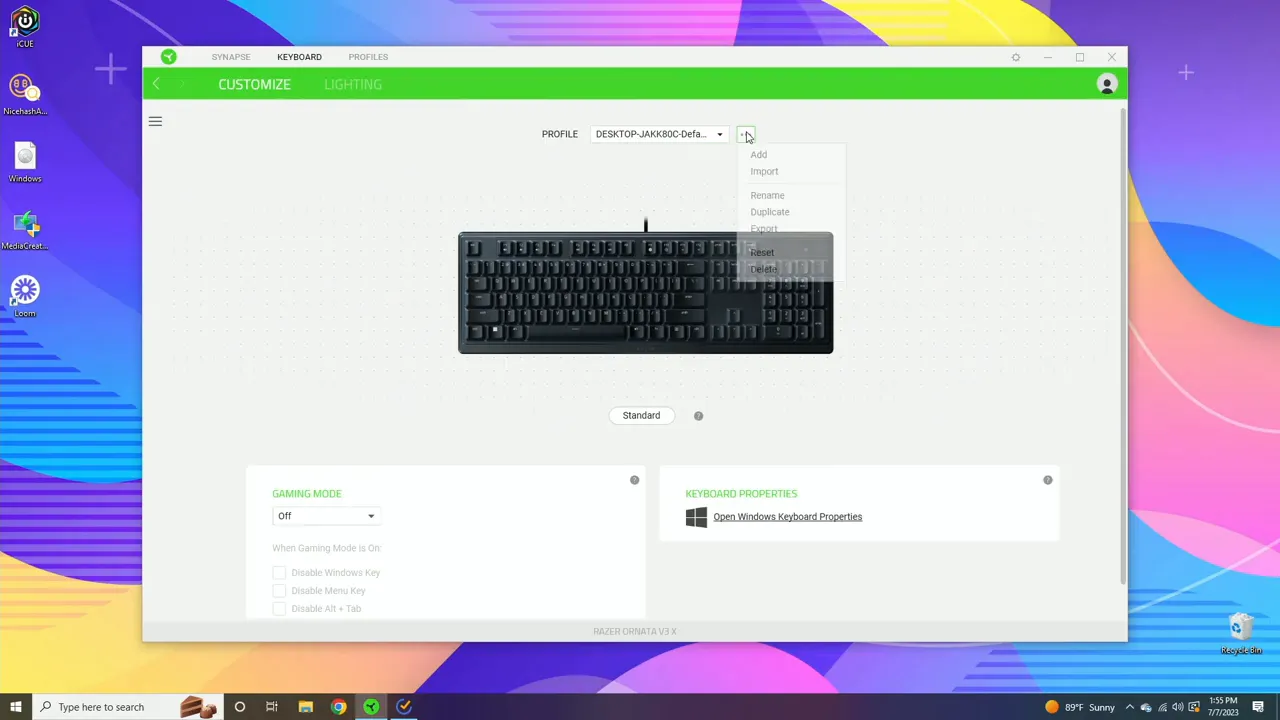
Once Synapse detects the Ornata V3 X, the customization panel is where most of the work happens. Profiles live at the top of the window. You can add, rename, duplicate, export, reset, or delete profiles with a couple of clicks. Duplicating a profile is great when you want a base layout and only a few tweaks for a different game or workflow. Exporting lets you carry your setup between PCs.
Quick profile tips
Create a profile per context. One for work, one for a favorite game, one for streaming. Duplicate profiles to preserve a baseline and tweak just what you need. If you move between computers, export and import profiles so your custom keys and lighting stay consistent.
Gaming mode and behavior controls
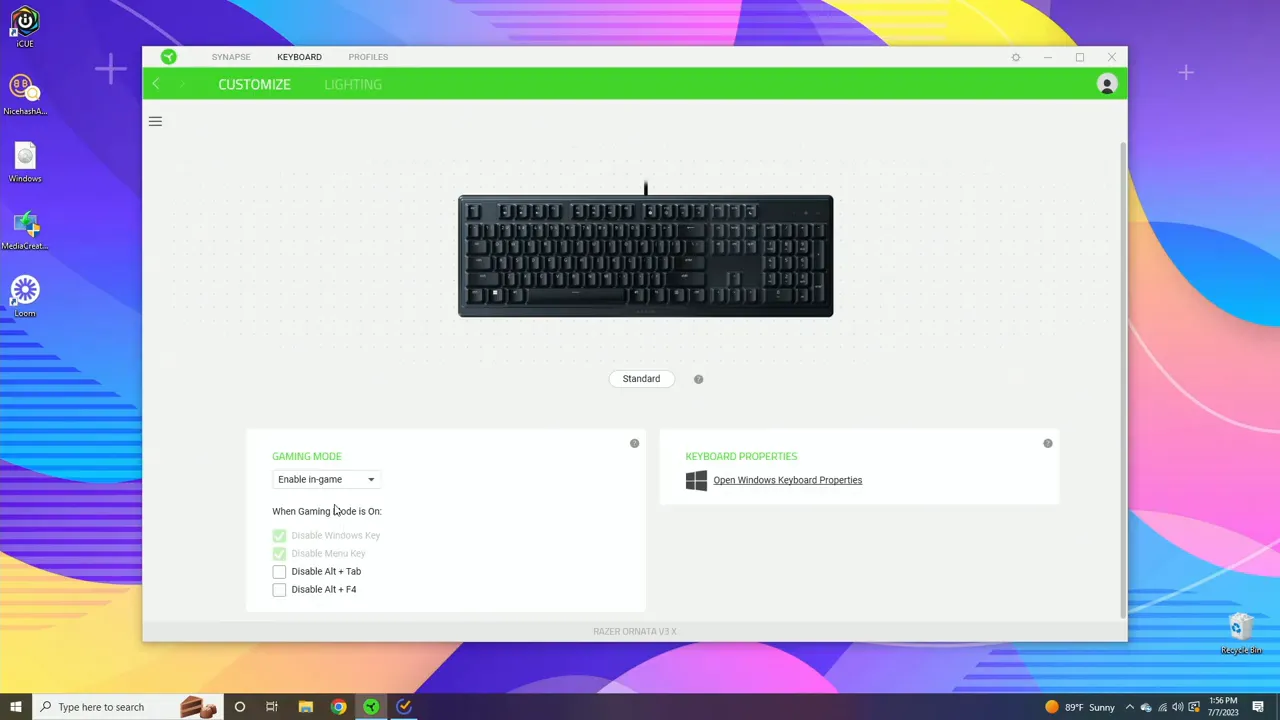
Synapse can prevent accidental interruptions by disabling the Windows key and other common shortcuts. Use the always-on gaming mode to disable the Windows key permanently while the keyboard is active, or enable the in-game option so those keys are blocked only when a game is detected. This reduces the risk of that sudden menu or unwanted Alt+Tab during intense moments.
Lighting control: brightness, sleep, and effects
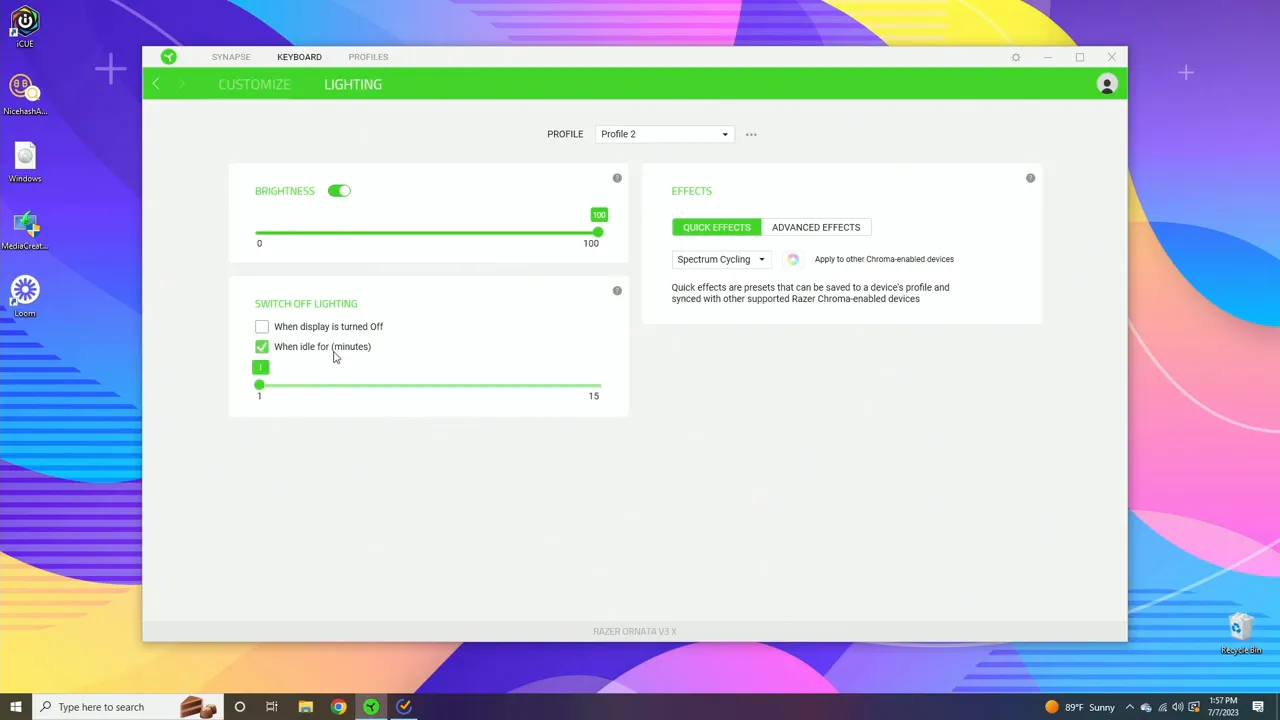
Lighting options are flexible and easy to understand. Adjust brightness with the on-screen slider or use the keyboard’s dedicated brightness keys. The lighting can automatically go to sleep when the display turns off, or you can set a manual timer to turn lights off after a chosen interval. Note that “turn off” applies to the lights only; the keyboard remains powered while the PC is on.
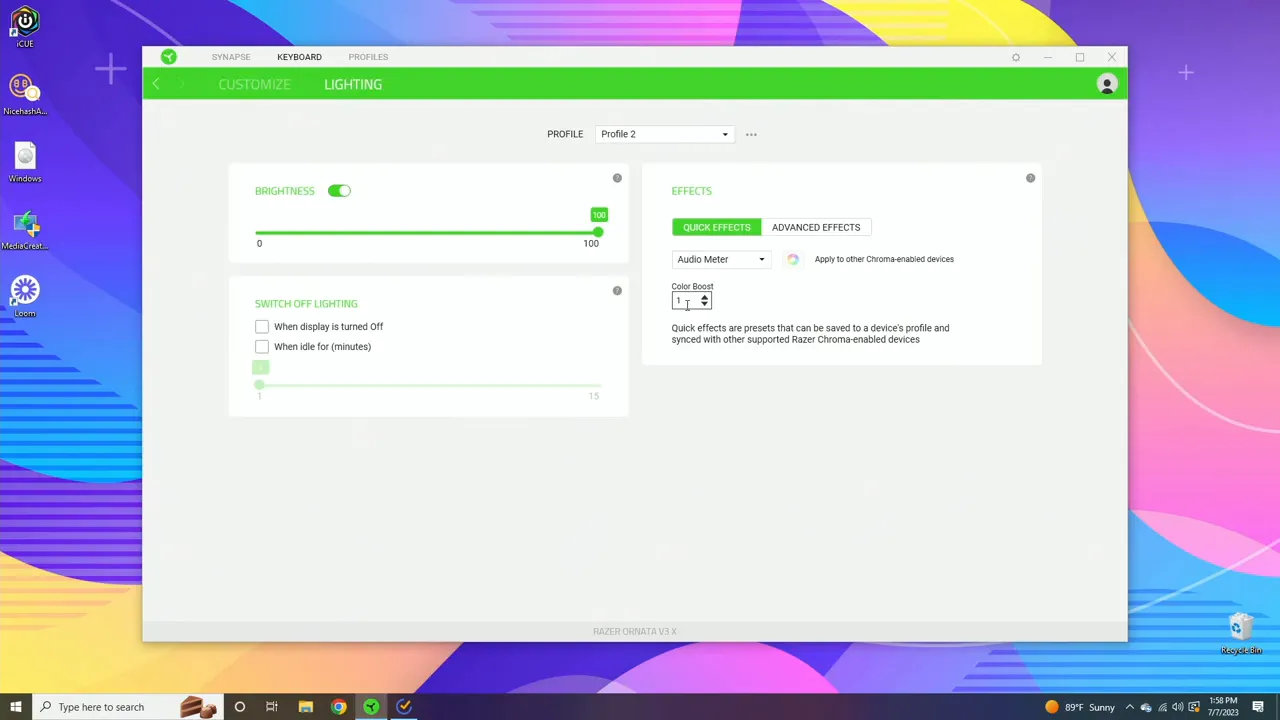
Razer Synapse includes several effects:
- Audio Meter - Lights react to audio output. Great for music or in-game audio cues. A Color Boost slider sets how sensitive the effect is.
- Breathing - Smooth transitions between two chosen colors. Use random color mode to let the colors shift unpredictably.
- Spectrum Cycling - Rotates through the full color wheel on loop.
- Static - Keeps one color active; choose from presets or build your own with the color wheel.
Full key customization: remaps, macros, and turbo
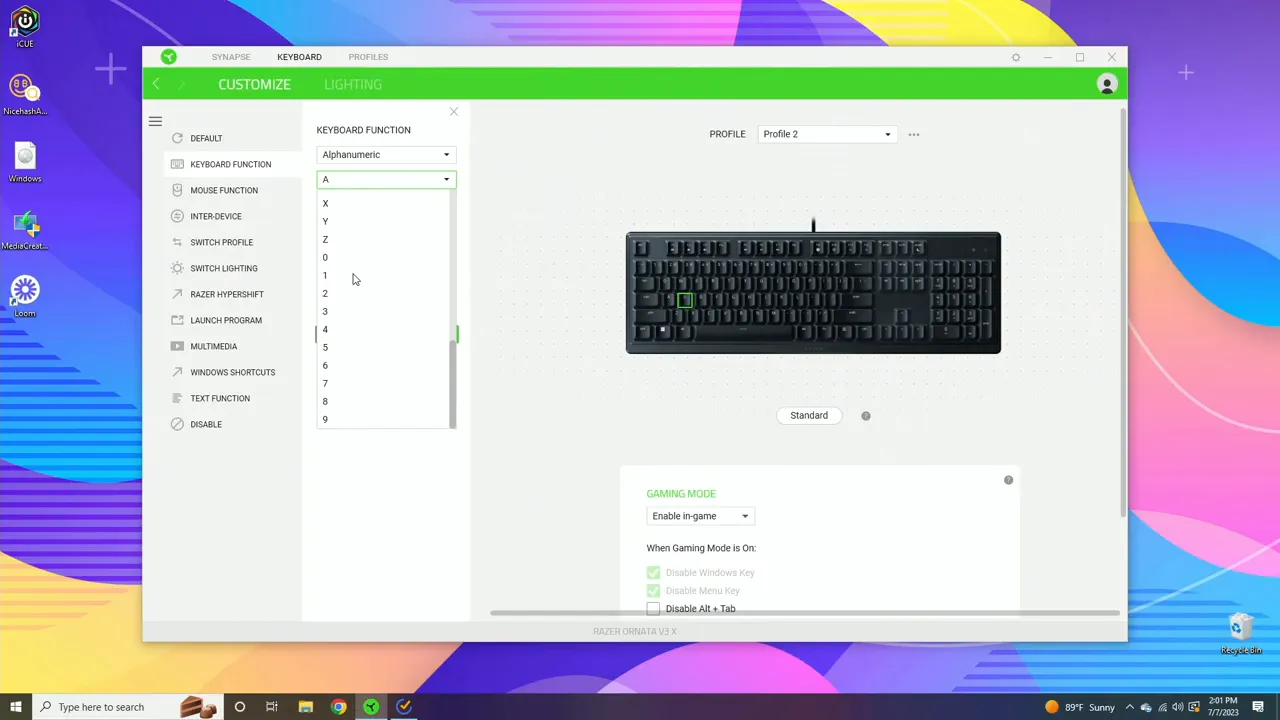
Every key on the Ornata V3 X can be customized. Click a key in Synapse to see the options. Primary functions include full remaps, turbo (rapid-fire on hold), macro recordings, and special categories like mouse functions and inter-device commands.
Keyboard function options
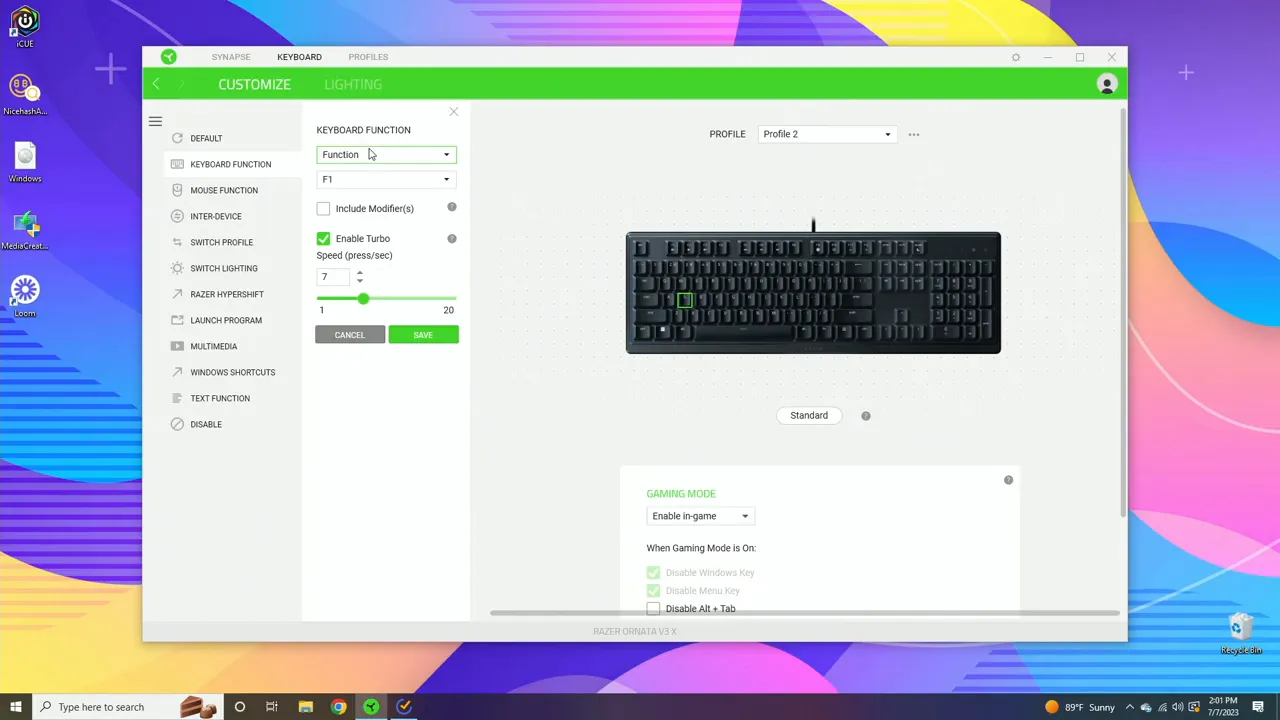
Remapping lets you change a letter key into another letter, a function key, a number pad button, or navigation command (Escape, arrows, Page Up/Down). You can assign modifier keys such as Ctrl, Shift, or Alt, and include symbols if needed. Turbo mode repeats a key while you hold it—useful for in-game actions that require repeated input. Macro recordings capture complex sequences so a single tap can execute multiple keystrokes.
Mouse functions, cross-device actions, and Hypershift
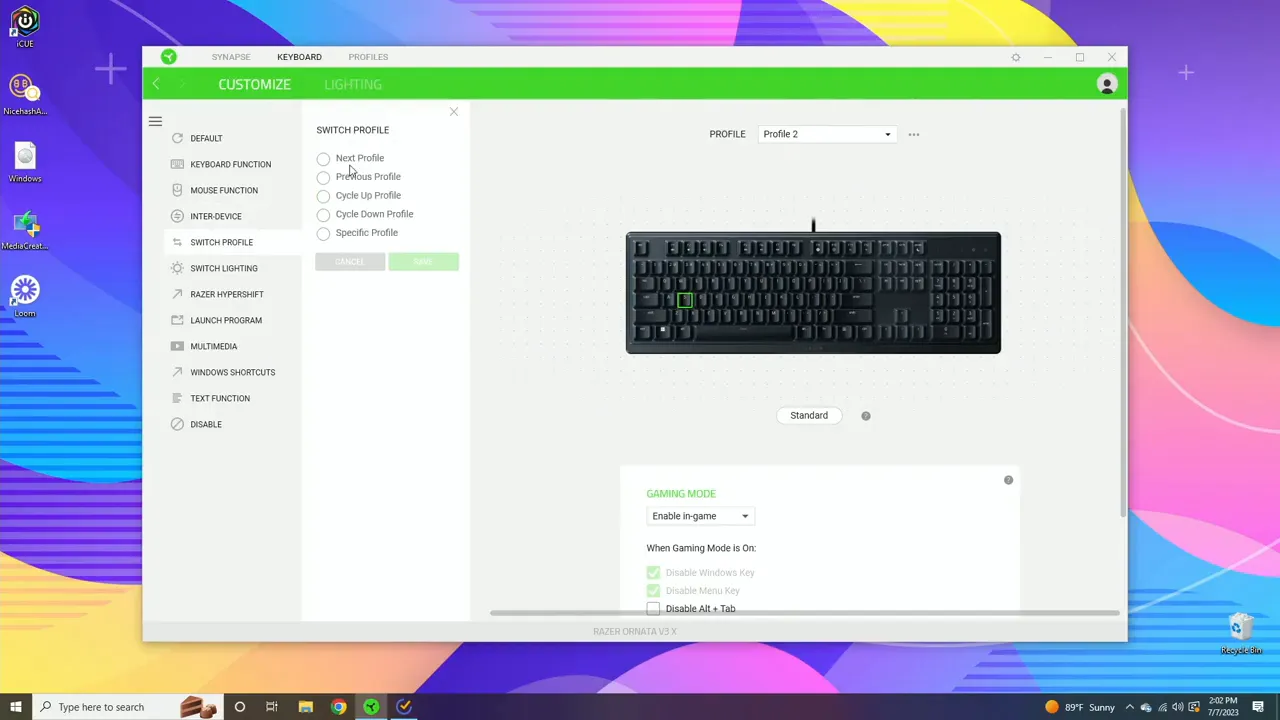
Keys can be set to mouse actions—left click, right click, scroll, and more—or to act as a bridge between Razer devices. If you own multiple Razer peripherals, the Inter-Device option creates linked behaviors. For example, a keyboard shortcut could trigger a lighting or action on a Razer mouse.
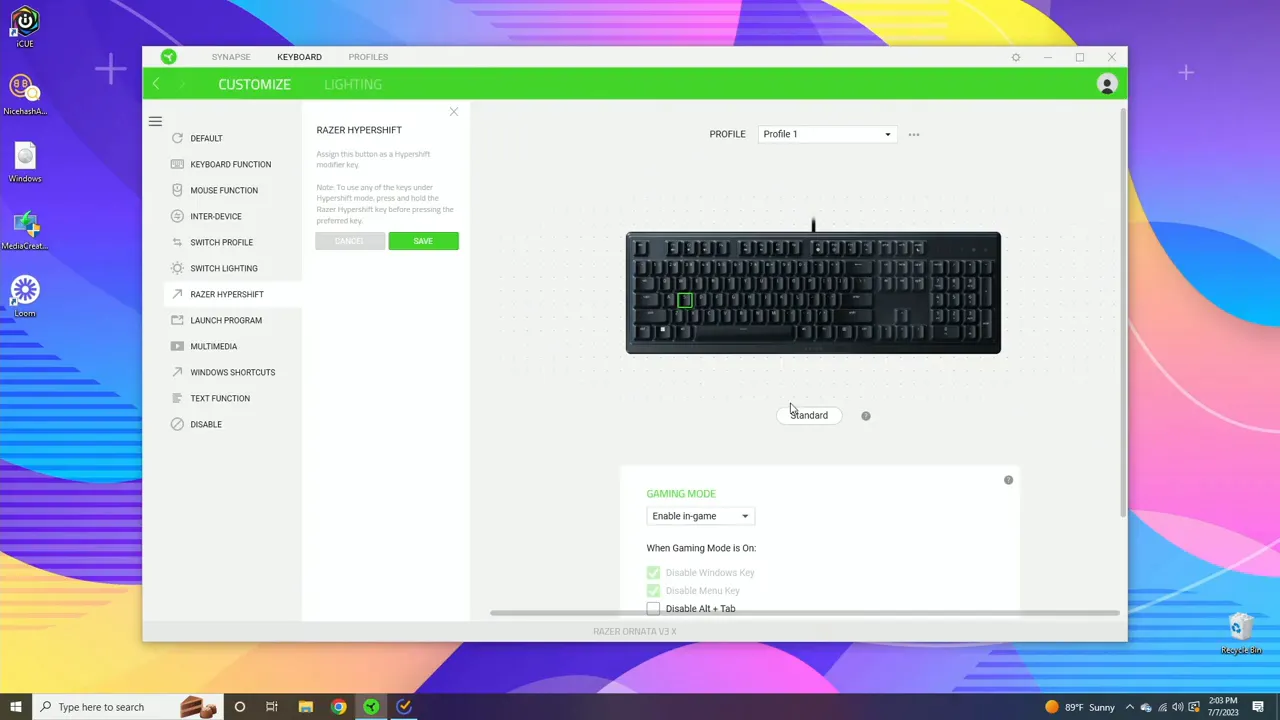
Switch profile and Switch lighting allow one key to change the active profile or lighting layer. Hypershift creates a secondary layer of functions, similar to holding a modifier key but with persistent toggling available from software. Use Hypershift to double the functionality of your layout without losing primary key behavior.
Launching apps, multimedia, and text macros
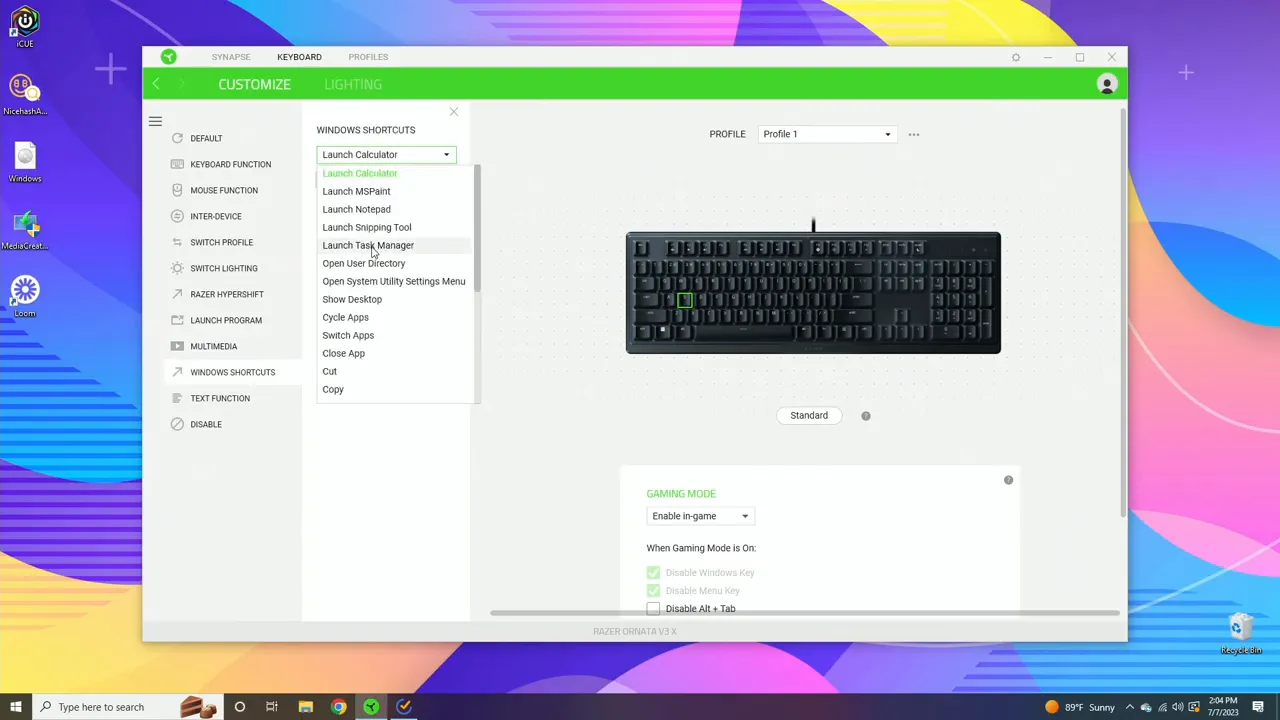
Synapse can launch programs or websites from a keystroke. Enter the path to an application or paste a URL and assign it to a key. Multimedia options include volume, mute, and playback controls. Windows shortcuts let you assign common actions like copy, paste, or open calculator. The text function types a whole string when triggered—handy for signatures, chat macros, or repetitive messages.
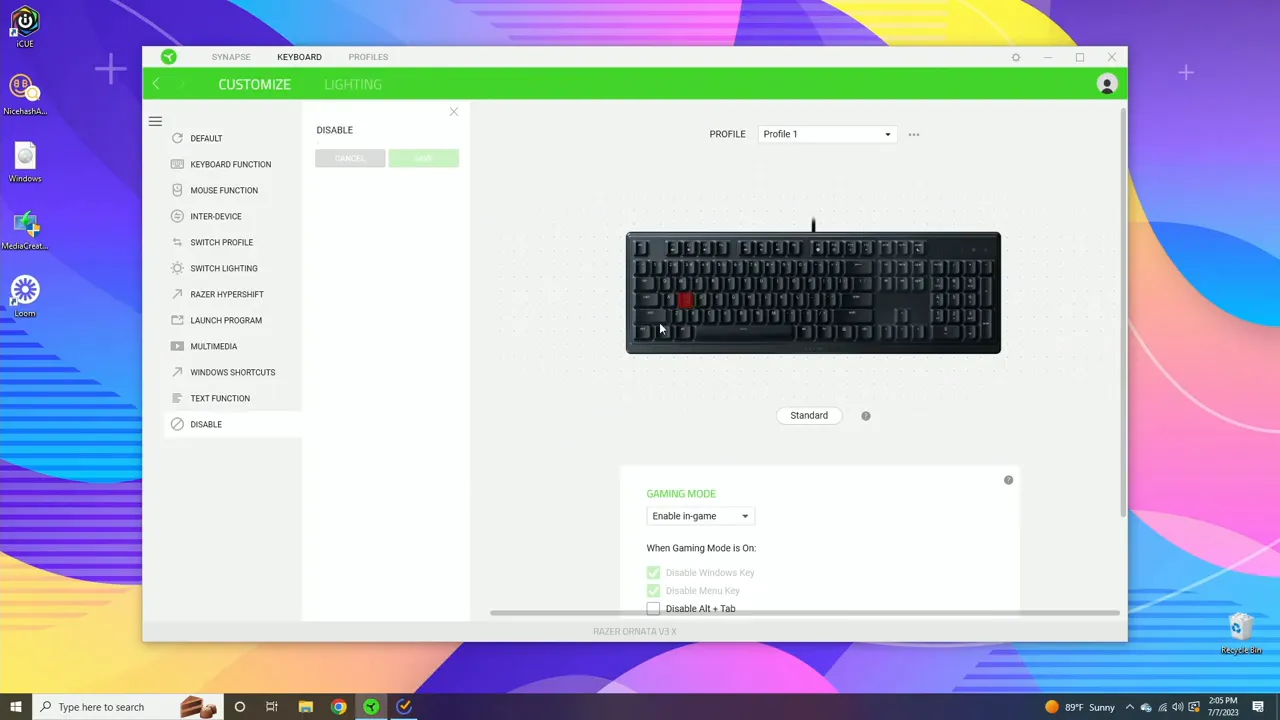
If you ever need to prevent a key from doing anything, the disable option turns the key off. Disabled keys are highlighted so you don’t forget which ones are inactive. Re-enable by choosing default or assigning a new action.
Practical examples and recommended setups
- Streaming: Set lighting to Audio Meter and tweak Color Boost so your keyboard syncs with music and in-game sound. Map a key to toggle streaming software or mute quickly.
- FPS gaming: Duplicate your base profile, map secondary keys for melee/utility, and enable gaming mode with Windows key disabled. Use turbo on a non-critical key for rapid presses when needed.
- Productivity: Create a work profile with app-launch keys for email, browser, or document folders. Use text macros for signatures and repetitive entries.
- Multi-device setups: Use Inter-Device actions and Switch Lighting to coordinate effects across keyboard and mouse through Chroma Studio compatibility.
- Layering: Use Hypershift to create a temporary alternate layout for editing or creative apps without losing your gaming bindings.
How do I make the keyboard lights react to music?
Set the lighting effect to Audio Meter and adjust the Color Boost slider to change sensitivity. The keyboard will respond to system audio, so it reacts to music and in-game sound.
How can I stop accidentally opening the Windows menu while gaming?
Enable Gaming Mode in Synapse. Choose always-on to disable the Windows key continuously, or enable in-game detection so common interrupting shortcuts are blocked only while playing.
Can I remap every key on the Ornata V3 X?
Yes. Every key can be customized to act as another key, a macro, a mouse function, a program launcher, or a special Windows shortcut. Turbo and macro recording are also available.
Is it possible to type a full sentence with one key?
Use the text function in Synapse to assign a string of text to a key. When pressed, the keyboard will type that exact string automatically.
How do I sync lighting across multiple Razer devices?
Use the Switch Lighting and Inter-Device options and ensure devices are Chroma Studio compatible. This allows the keyboard to trigger lighting changes on other Razer peripherals.
Final thoughts
Razer Synapse brings a lot of customization to the Ornata V3 X without overwhelming the user. Profiles, lighting, and per-key behavior provide the tools to tailor the keyboard to games, work, and streaming. The learning curve is mostly clicking through menus and experimenting with Hypershift, turbo, and macros to find what fits your routine. Treat Synapse as a toolbox: start small, export working profiles, and expand your setup piece by piece.
Personalize one thing at a time: lighting first, then a profile for your most-used app, and finally macros and cross-device links. The keyboard will feel more powerful with each small change.


