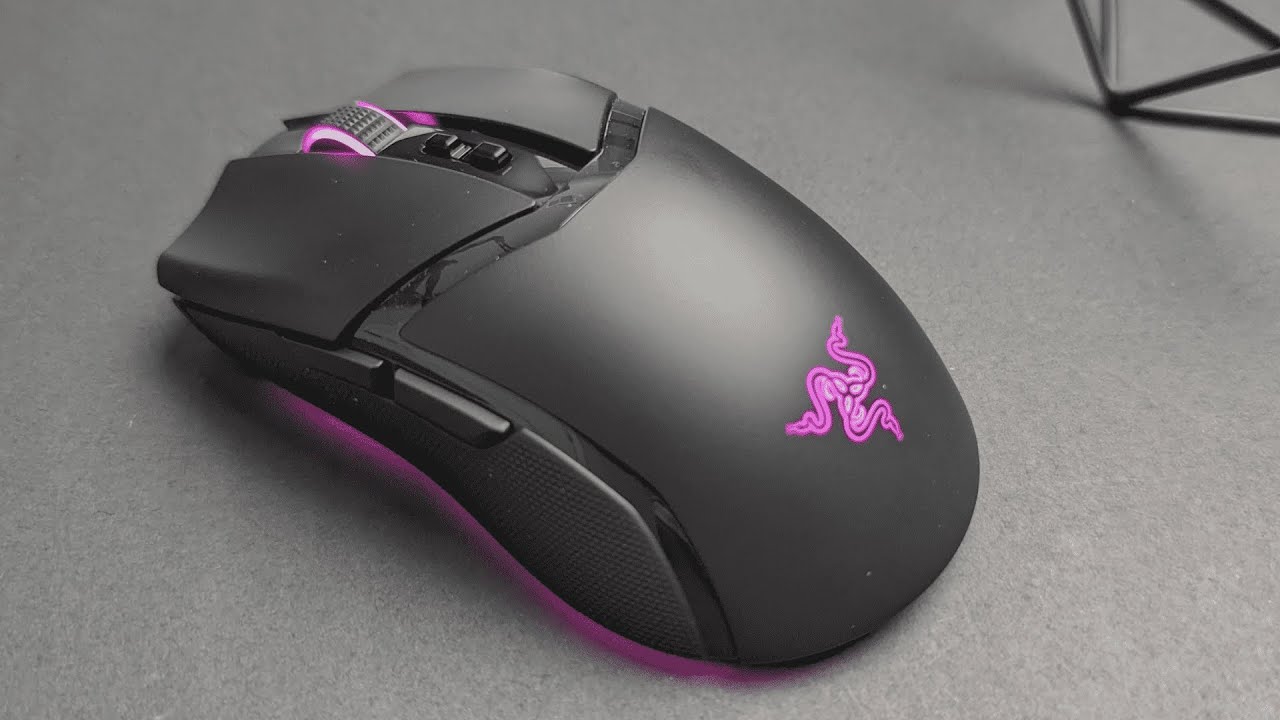
The Razer Cobra Pro arrives as a compact but feature-packed wireless gaming mouse designed for serious players who want precision, customization, and low-latency performance without a lot of bulk. It pairs a Focus Pro 30K optical sensor with Razer Gen‑3 optical switches, Hyperspeed wireless options, and a sleek, minimal aesthetic. Below I break down the important bits—what stands out, practical details, and whether this mouse might fit your setup and playstyle.
Table of Contents
- What’s in the box and initial setup
- Design and materials: minimal, functional, and comfortable
- Sensors, switches, and performance cues
- Ergonomics and grip versatility
- Lighting and customization
- Click feel and noise
- Practical pros and cons
- Quick setup tips
- Final thoughts
- Does the Cobra Pro support onboard profiles for switching between saved configurations?
- What are the differences between the connection modes and which should I use?
- Are all the mouse buttons optical switches?
- Is there wireless charging, and do I need to buy anything extra?
- How loud are the clicks and will they bother others?
What’s in the box and initial setup
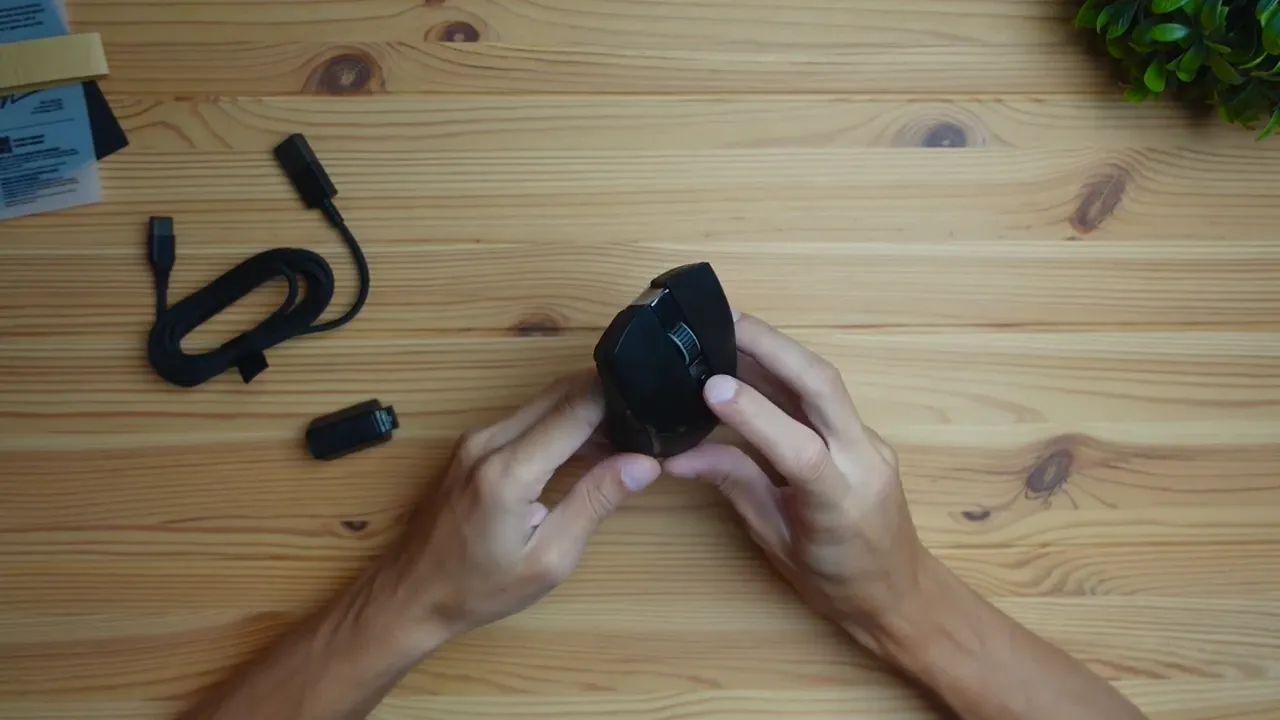
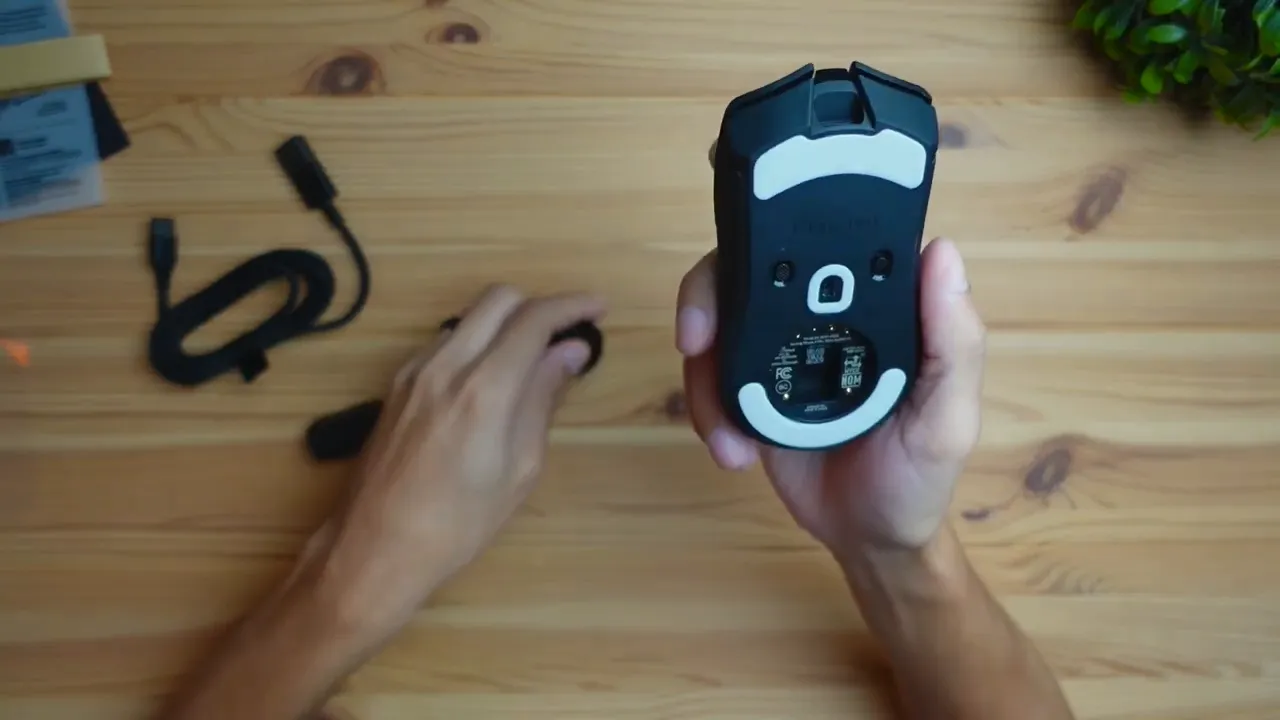
Out of the box you get the mouse, a braided USB-C to USB-A cable, the HyperPolling wireless receiver with a removable dongle, a small sticker pack, and basic documentation. There is a clever storage compartment on the underside of the mouse for the USB dongle so you can keep everything together when you travel.
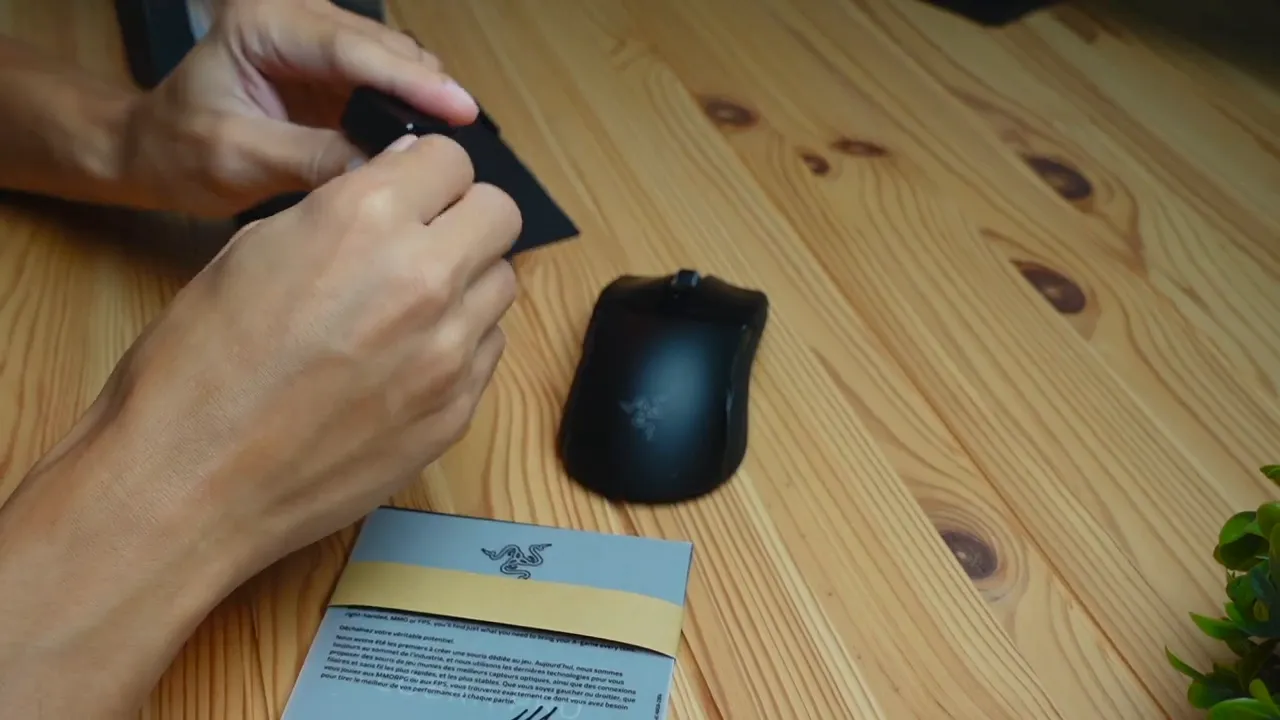
There are multiple ways to connect: wired via the included cable, wireless using the 2.4 GHz HyperPolling receiver, or Bluetooth for low-power convenience. Wired gives you the absolute lowest latency, the 2.4 GHz receiver is the middle ground with excellent responsiveness, and Bluetooth is best for battery life but not for competitive play.
Design and materials: minimal, functional, and comfortable
The Cobra Pro goes for a clean, understated look. It uses a smooth plastic top with textured rubber grips on the sides. The combination feels solid without being heavy. The scroll wheel is rubberized for good tactile control, and two small buttons on top let you shift DPI on the fly.
On the underside there’s a profile switch button for swapping stored profiles and a threaded compartment that lets you dock the mouse on the optional charging dock. The basic kit doesn’t include the dock, but the option is there if you want wireless charging in the future.
Sensors, switches, and performance cues
Focus Pro 30K sensor provides very high-resolution tracking—plenty for fast movements and high-sensitivity players. The sensor is designed to track cleanly across a variety of surfaces and supports the high DPI the mouse advertises.
Gen‑3 optical switches are used on the left and right clicks. These optical switches register actuation using a light beam rather than traditional metal contacts, which reduces debounce and can feel snappier with a longer lifespan. Side buttons and the scroll wheel use more conventional mechanical or rubber-dome action, so only the primary clicks are the optical type.
Why the connection method matters
Three connection modes are useful depending on priorities:
- Wired — Lowest latency and simplest setup. Best for competitive gamers who need deterministic input.
- 2.4 GHz receiver (HyperPolling) — Near-wired performance while staying wireless. Razer recommends plugging the cable into the receiver and placing it close to the mouse to reduce any interference and lower latency further.
- Bluetooth — Slowest option but longest battery life. Fine for everyday desktop use and browsing.
Ergonomics and grip versatility
The Cobra Pro is built to support multiple grip styles comfortably. Palm grip users will appreciate the gentle slope and full contact on the rear. Claw grip players can anchor their fingertips and find quick access to buttons, and fingertip grip users will find the reduced mass and contoured sides easy to control. In short, the shape is versatile rather than specialized.
Lighting and customization
Out of the box the lighting presents a default purple across three zones: the scroll area, the Razer logo on the rear, and a subtle edge glow. With Razer Chroma you can customize up to 11 RGB zones, choose from 16.8 million colors, and map dynamic effects to in-game events or system states.
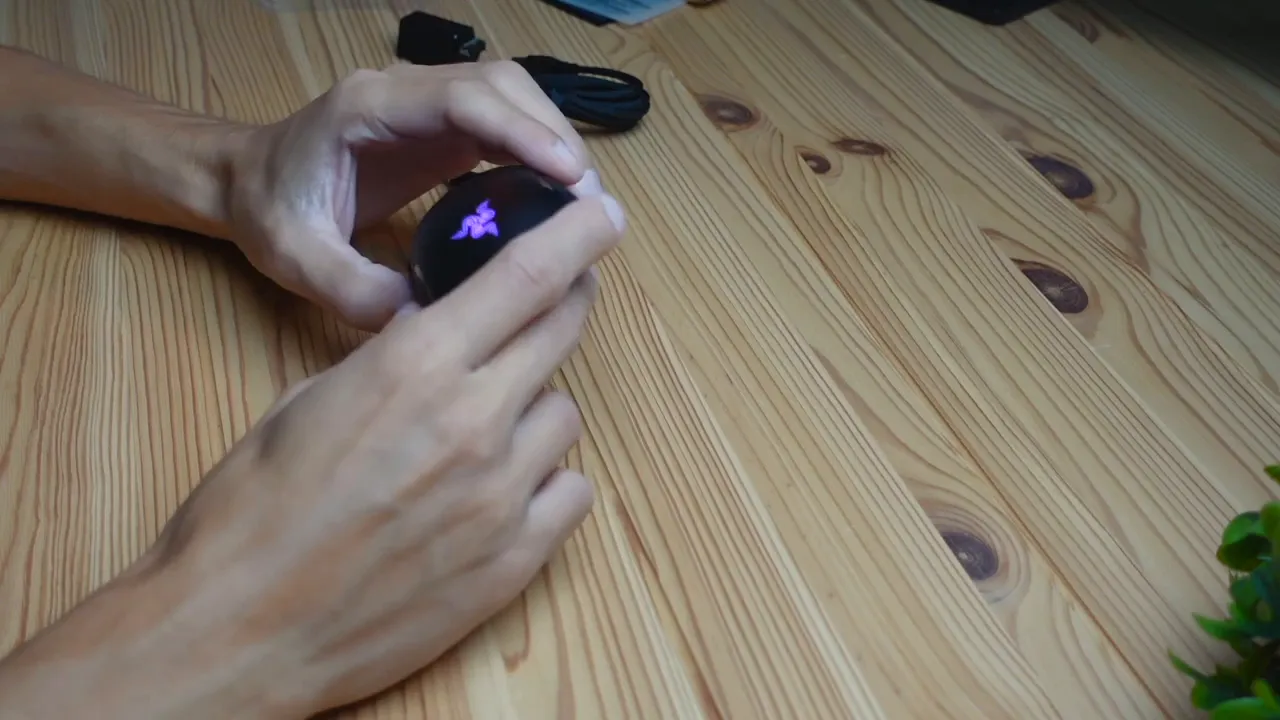
Onboard memory supports several profiles so you can store DPI settings, button mappings, and lighting presets directly on the mouse. That makes it easy to move between systems without reconfiguring software on each machine.
Click feel and noise
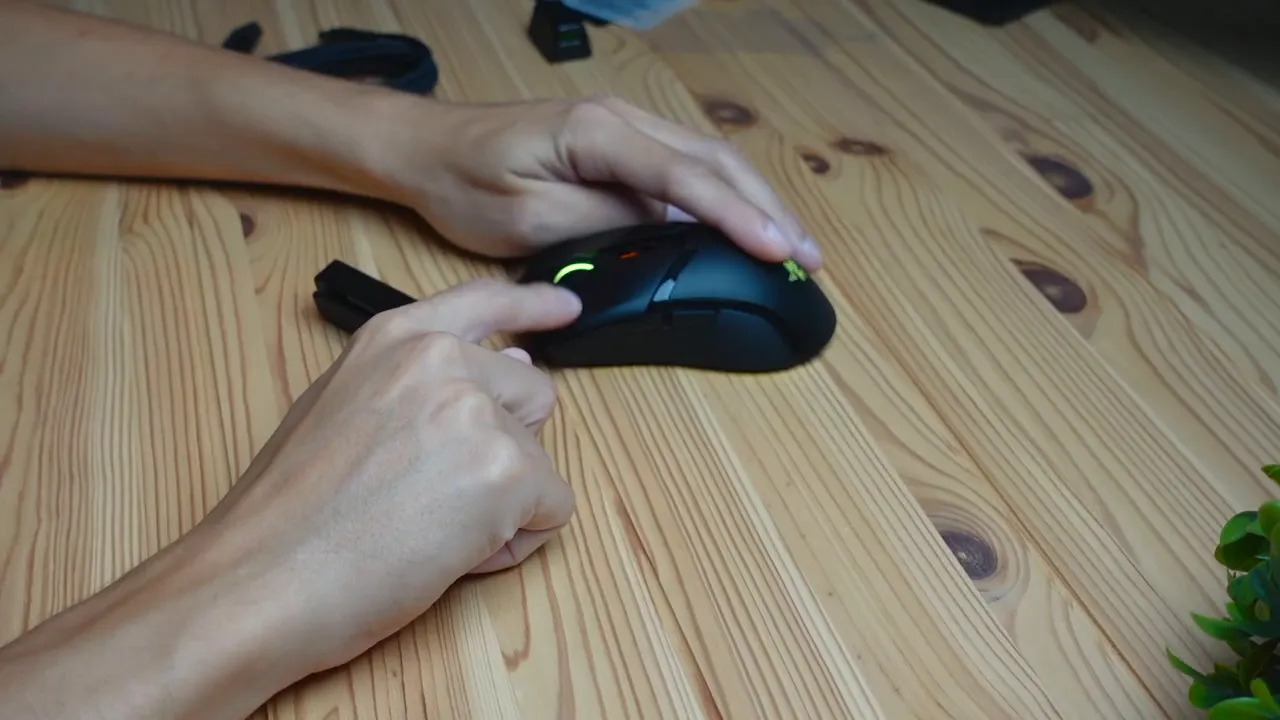
The optical left and right clicks give a crisp, tactile actuation. Overall sound levels are average—noticeable in ultra-quiet rooms but not disruptive in typical home setups. If you need near-silent clicks you would want a model with specific silent-click technology.
Practical pros and cons
- Pros: High-end sensor, Gen‑3 optical switches, flexible connectivity, onboard profiles, compact and lightweight design, good side grips.
- Cons: Only the primary clicks are optical, optional wireless charging costs extra, Bluetooth latency limits competitive use.
Quick setup tips
- Choose connection based on use: wired for minimal latency, 2.4 GHz for wireless performance, Bluetooth for battery life.
- If using the receiver, plug the included cable into it and set the receiver close to the mouse to reduce interference.
- Use onboard profiles when switching between gaming rigs to avoid reinstalling software on each machine.
- Adjust DPI using the top buttons for quick sensitivity swaps without messing with software mid-game.
Final thoughts
The Razer Cobra Pro strikes a strong balance between performance and portability. Its high-end sensor and Gen‑3 optical switches make it attractive to gamers who want fast, reliable tracking and crisp actuation. The design is clean, and the connectivity options cover most scenarios. For competitive players who want the very lowest latency, wired or the optimized 2.4 GHz setup with the receiver positioned near the mouse will be the best approach. For everyday users and content creators it performs more than well enough while offering solid battery life and customization.
Does the Cobra Pro support onboard profiles for switching between saved configurations?
Yes. The mouse has onboard memory that stores multiple profiles, and a profile switcher button on the underside lets you cycle through them without needing software on each machine.
What are the differences between the connection modes and which should I use?
Wired gives the lowest latency, 2.4 GHz via the HyperPolling receiver provides near-wired wireless performance, and Bluetooth maximizes battery life but has higher latency. Competitive players should stick with wired or the 2.4 GHz receiver placed close to the mouse.
Are all the mouse buttons optical switches?
No. Only the left and right primary clicks use Razer Gen‑3 optical switches. Side buttons, the scroll wheel, and DPI buttons use conventional switch mechanisms or rubber-dome style components.
Is there wireless charging, and do I need to buy anything extra?
Wireless charging is supported via an optional charging dock. The basic mouse kit does not include the dock, so wireless charging requires purchasing the dock separately.
How loud are the clicks and will they bother others?
Click sound is average. It should be fine in normal home or office environments but may be noticeable in ultra-quiet spaces. If you need near-silent operation, look for mice with silent-click technology.
Where to start if you get one
Install the configuration software to customize DPI stages, button mappings, and lighting. Set up at least one onboard profile that matches your usual gaming title or workflow so you can move between systems without reconfiguring. If latency matters, try the receiver with the cable plugged into it and position it near the mouse.


