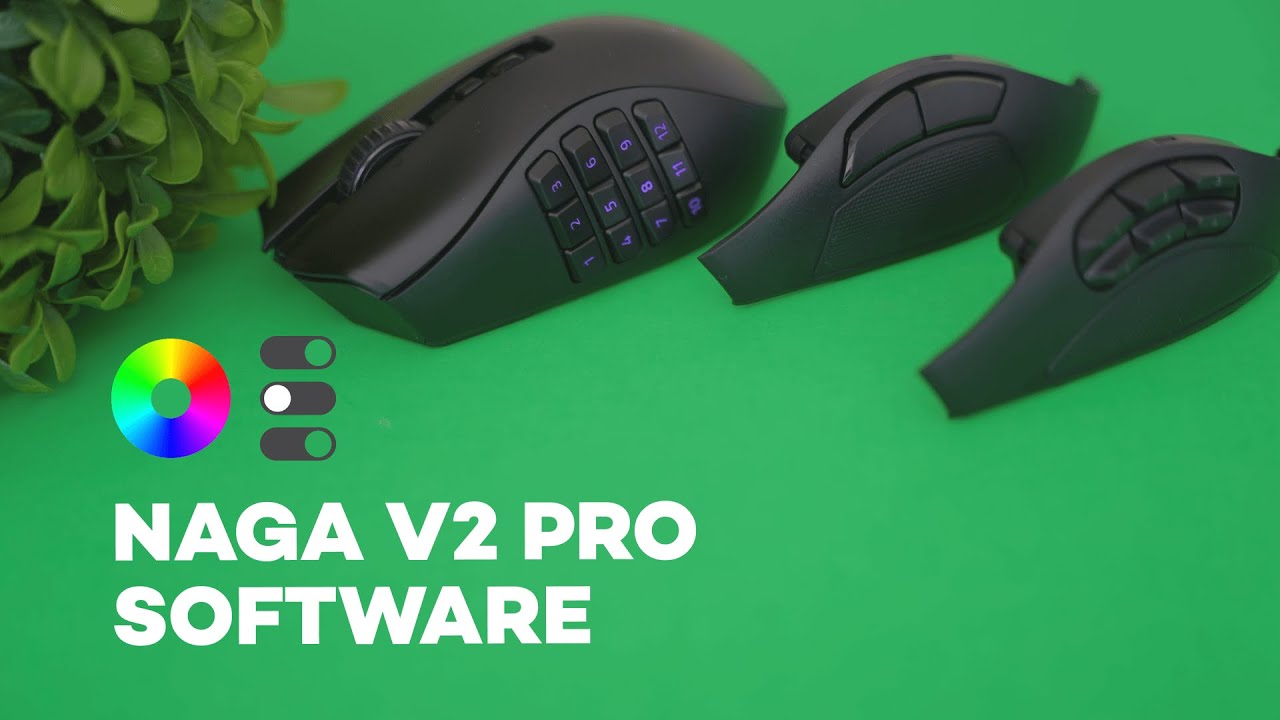
The Razer Naga V2 Pro is built around flexibility: three detachable side panels, extensive button mapping, on‑board profiles, and deep performance tuning. Razer Synapse is the app that unlocks all of that. This guide breaks down the most useful Synapse features for the Naga V2 Pro and shows how to get the mouse dialed in for FPS, MOBA, or MMO play.
Dashboard and device detection
Once Synapse is installed, the Dashboard is where you pick the Naga and access its settings. The app lists connected Razer devices, battery status, and quick access to profiles and mode switches.
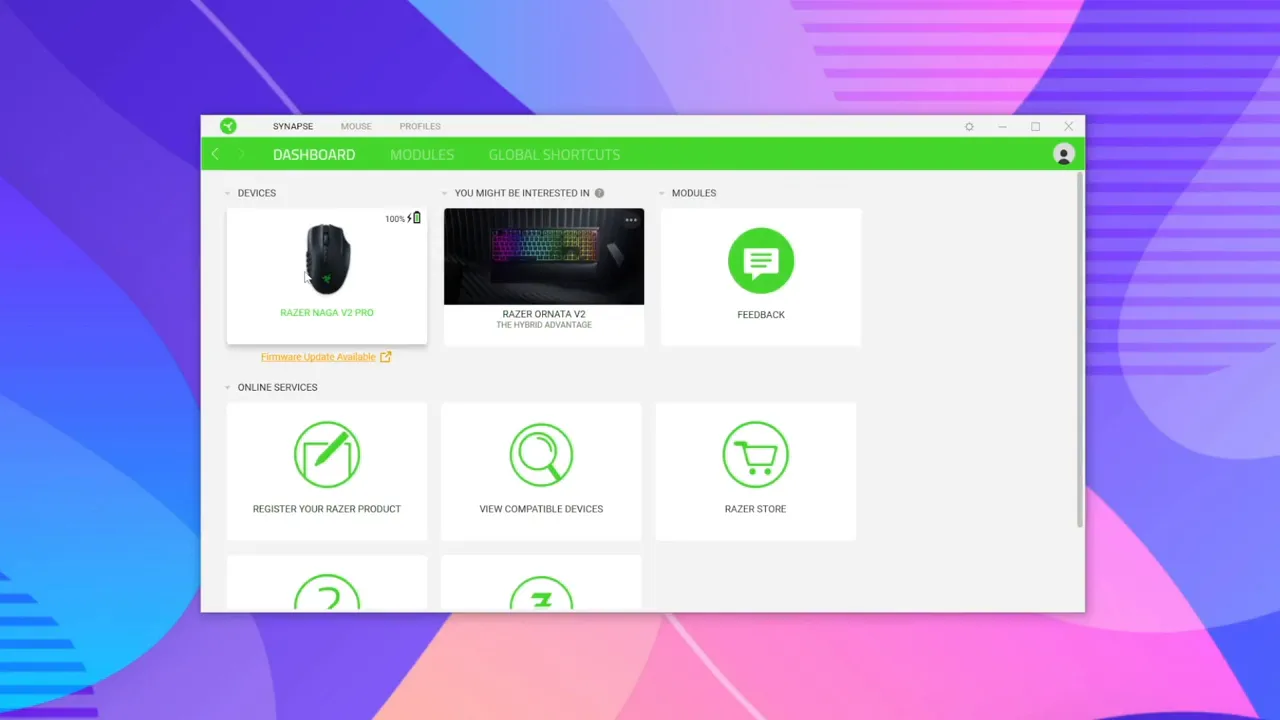
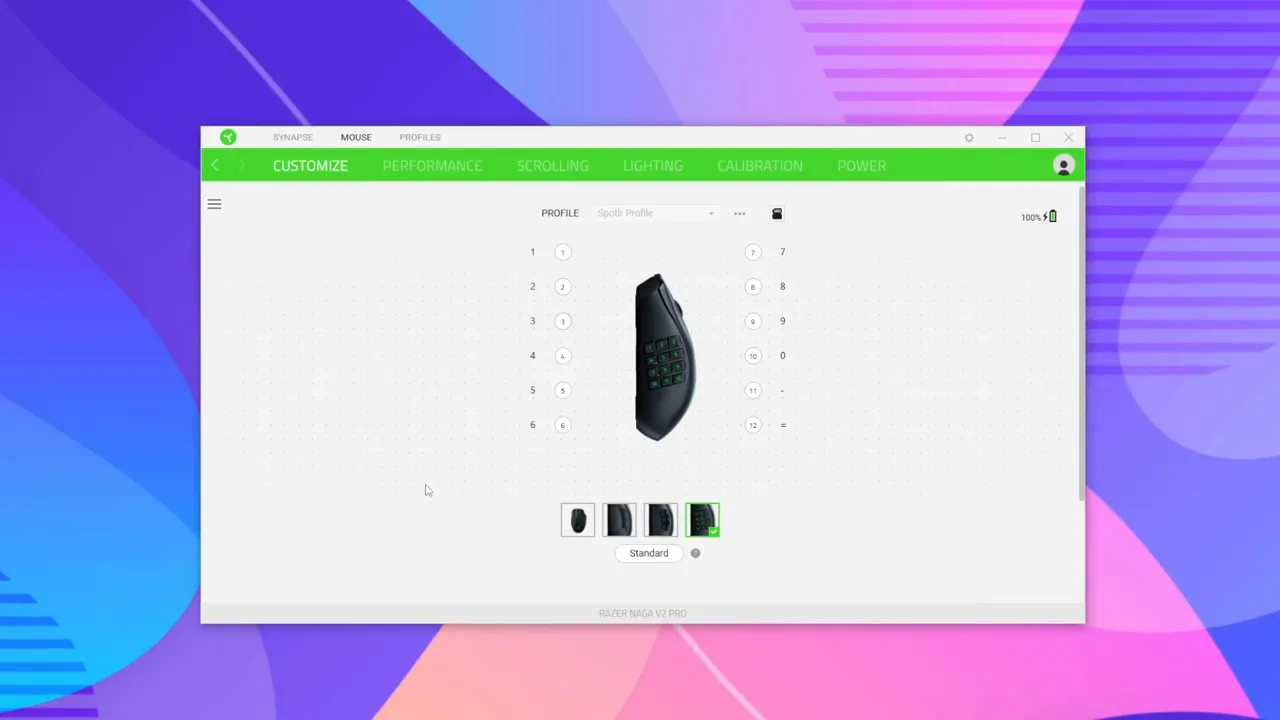
One of the first conveniences: Synapse instantly detects which detachable side panel is attached. Swap the FPS, MOBA, or MMO panel and the UI updates so you can configure the exact button layout you have physically installed.
Profiles and on‑board memory
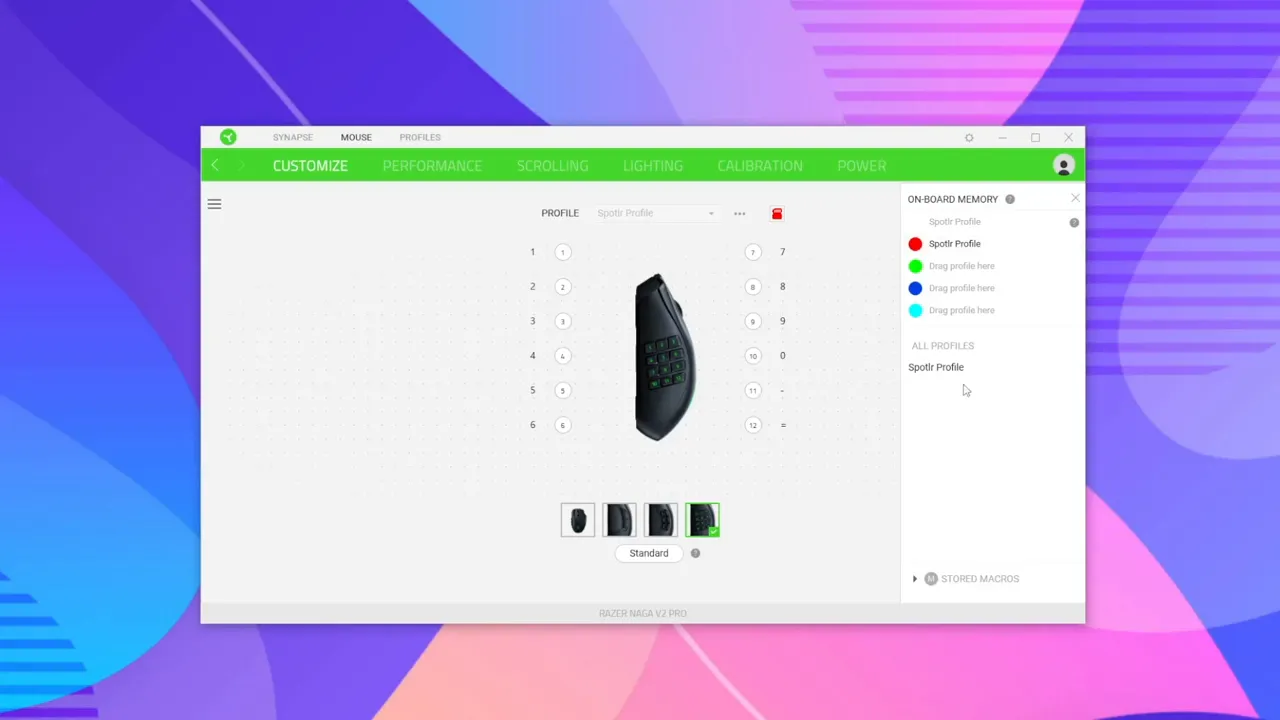
The Naga V2 Pro stores up to four profiles in on‑board memory, meaning your button maps travel with the mouse. Synapse also keeps local copies on your PC. Key points:
- On‑board slots: drag assignments to one of the four slots to program the mouse itself.
- Local profiles: stored on the computer and useful for machine‑specific customizations.
- Import, export, duplicate, rename: everything you need to manage multiple setups.
Global buttons and hypershift
A few buttons remain global regardless of the attached side panel: left/right click, middle click, scroll up/down, the two buttons under the wheel, and the profile switcher. Those are a good place to keep functions you always want available.
Hypershift acts as a modifier layer. Assign a hypershift key and every mapped button can get a secondary function while the key is held. Think of it like Shift for your mouse: double the actions with a single physical button.
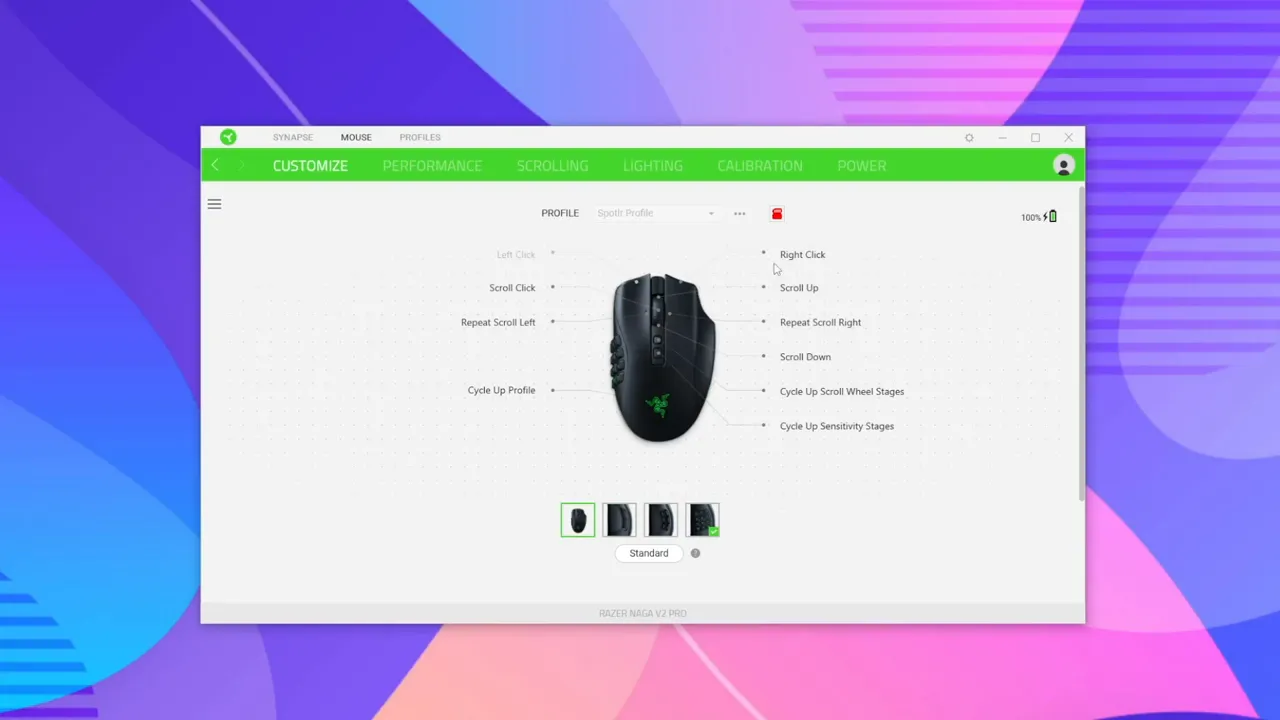
Button mapping — keyboard, macros, and turbo
Synapse offers a wide range of mapping options:
- Keyboard functions: map letters, numbers, numpad, or navigation keys to any mouse button.
- Mouse functions: set buttons to act as left/right click, scroll, DPI toggle, etc.
- Turbo mode: make a button auto‑repeat a click N times when pressed (up to 20).
- Macros and text: record complex inputs or have a button type a line of text or emoji.
- Launch program / URL: open an app or website directly from a mouse button.
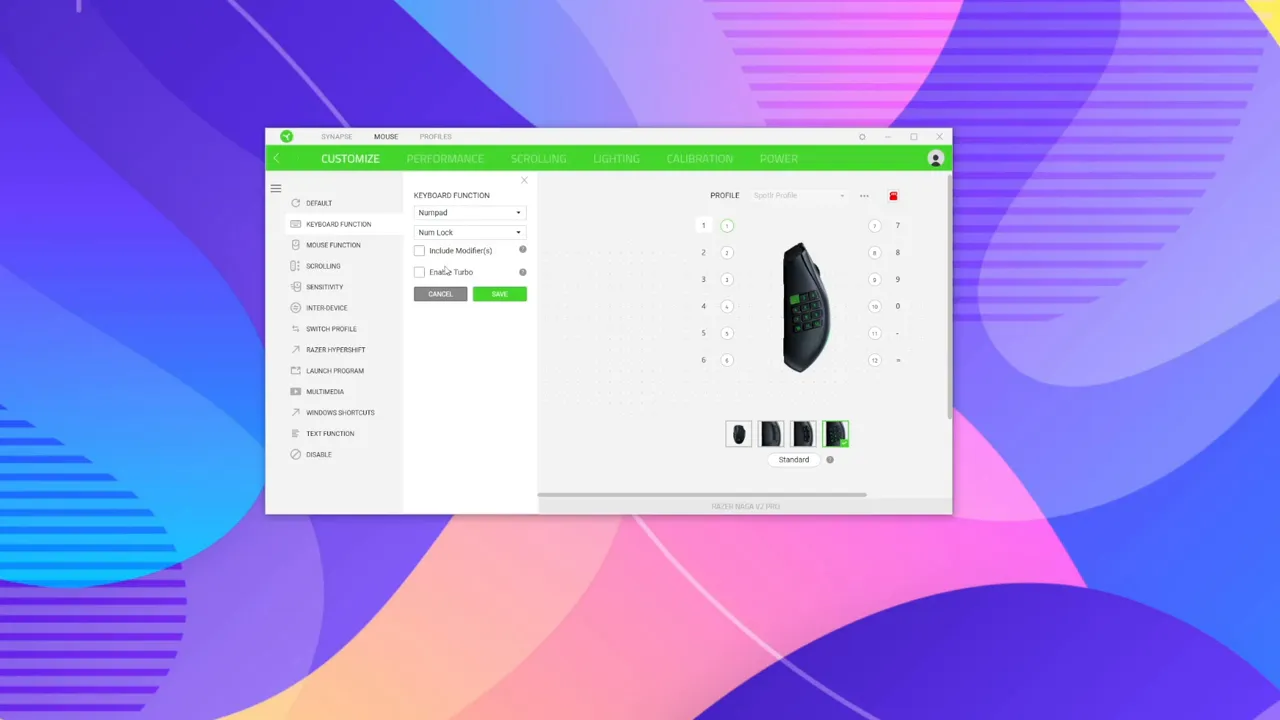
Performance: DPI and polling rate
DPI settings are available as multiple steps you can cycle through with a dedicated DPI button. Synapse lets you set each DPI level precisely and configure an on‑the‑fly DPI toggle for temporary sniper precision.
Polling rate controls how often the mouse reports to the PC. Higher polling improves tracking smoothness and responsiveness, which matters for high‑precision gameplay.
Scroll wheel customization
One of the standout features in Synapse for the Naga V2 Pro is full control over scroll wheel feel and step behavior. You can:
- Choose modes: tactile detents, smooth free‑spin, or adaptive profiles.
- Set tension: increase or decrease how much force is required to turn the wheel.
- Adjust step size: control how large each scroll increment is.
- Create custom profiles: save a tension + step combination that matches your finger preference.
If you prefer a heavy, definite click per step or a buttery smooth scroll for browsing, Synapse gives you both. Browser detection can even switch the wheel to smooth scroll automatically when you’re in Chrome or Edge.
Lighting and power management
Lighting controls let you set brightness, effects (static, breathing, reactive, spectrum cycling), and power rules:
- Brightness and effect presets: tweak colors and patterns to match your rig.
- Switch off lighting: tell the mouse to turn LEDs off when the monitor sleeps or after X minutes idle to save battery.
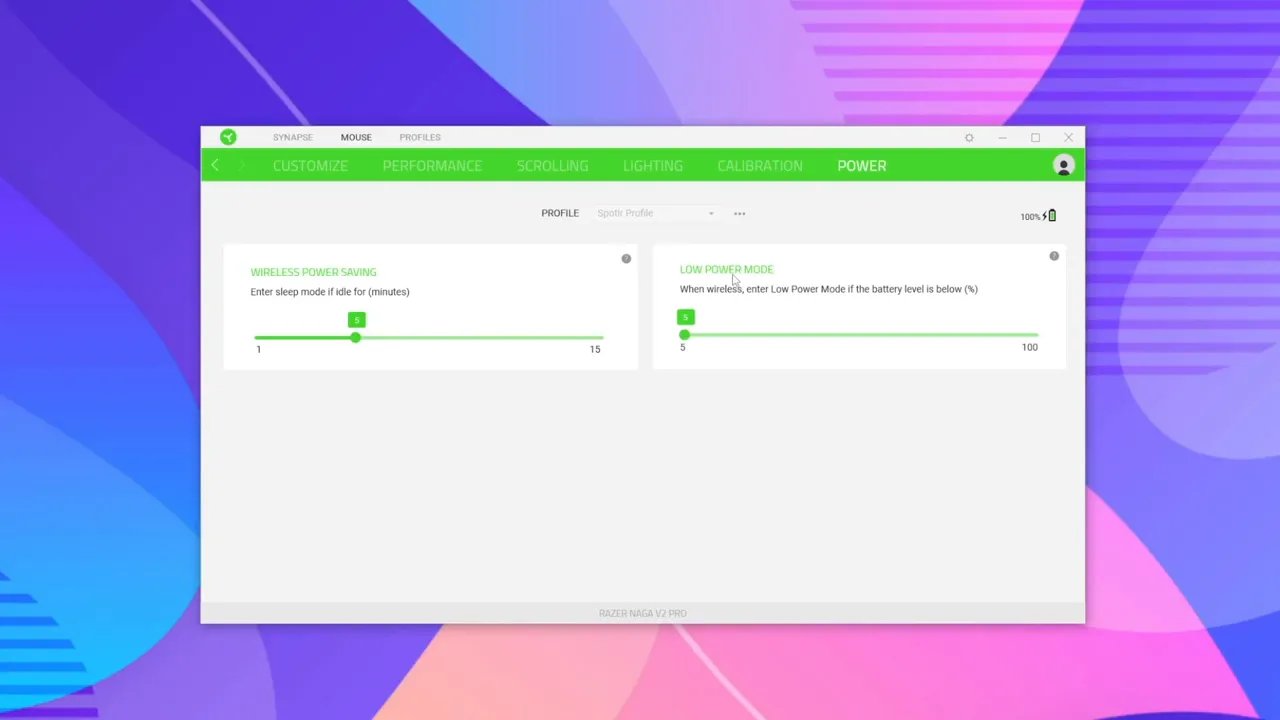
- Low power mode: when battery falls below a set threshold, the mouse reduces performance to avoid shutting off mid‑session.
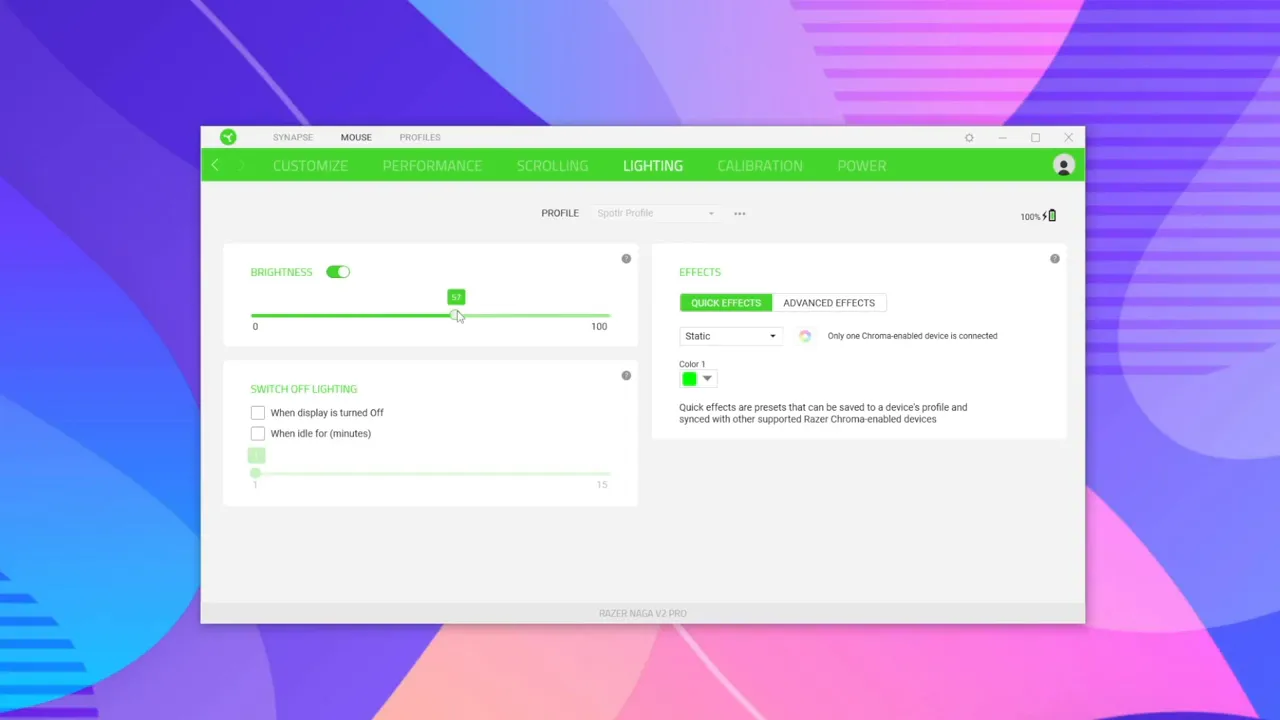
Surface calibration and lift distance
Calibration tunes the sensor to your specific surface, whether a cloth pad, hard pad, or desk. Adjusting tracking and lift distance reduces accidental cursor jumps when lifting and repositioning the mouse.
Power settings and sleep behavior
The power tab controls idle sleep and low power thresholds. Useful settings include:
- Sleep after X minutes: fully powers down the mouse when not in use to preserve battery.
- Low power performance: drops polling/DPI slightly when battery is low so the mouse stays usable until you can recharge.
Practical tips for configuring the Naga V2 Pro
- Pick the right side panel: FPS for minimalism, MOBA for quick macros, MMO for heavy keybinding needs.
- Set up on‑board profiles: program at least one profile for work and one for gaming so settings travel with the mouse.
- Use hypershift: it effectively doubles your button count without changing hardware.
- Customize scroll wheel: try a few tension/step combos — small changes make a big difference in feel.
- Calibrate to your pad: helps tracking precision and reduces lift glitches.
Conclusion
Razer Synapse turns the Naga V2 Pro from a feature‑packed mouse into a tailored tool for how you play. Between detachable side panels, on‑board profiles, hypershift layers, and deep scroll/performance controls, you can build setups for multiple games and switch between them instantly. Spend a little time with the settings and the mouse quickly becomes intuitive and powerful.


