Razer usually lives in the gaming lane, so when it puts out a mouse built around productivity and ergonomics, that gets my attention pretty quickly. The Razer Pro Click is clearly trying to do something different from the company’s usual aggressive gamer aesthetic. It goes for a cleaner, office-friendly look, adds multi-device connectivity, and promises all-day comfort with a long battery life.
On paper, that sounds like a strong alternative to the usual productivity heavyweights. But specs are one thing and daily use is another. After spending time with it, there are a few things this mouse does really well, and a few things that hold it back from being an easy recommendation for everyone.
If you are comparing productivity mice in general, it is worth also looking at other options in this collection of mouse reviews and comparisons, because hand size and grip style matter a lot more than people think.
Table of Contents
- What comes in the box
- Design and first impressions
- Comfort and ergonomics depend heavily on your grip style
- Buttons and click feel
- Scroll wheel and side controls
- Connectivity options are flexible
- Battery life
- Software is where the productivity angle gets serious
- How it compares to the Logitech MX Master 3
- What I liked
- What I did not like
- Who should buy the Razer Pro Click
- Final verdict
- FAQ
What comes in the box
The package is pretty straightforward, but there are a couple of useful extras included:
- The Razer Pro Click wireless mouse
- A carrying pouch
- A USB-A wireless dongle stored inside the mouse
- A micro USB to USB-A charging and data cable
- A quick start guide
The carrying pouch is a nice touch, especially if the mouse is going to travel between home, the office, and a laptop bag. The dongle being stored inside the mouse is also practical. It keeps everything tidy and makes it less likely that the receiver ends up lost in a backpack somewhere.
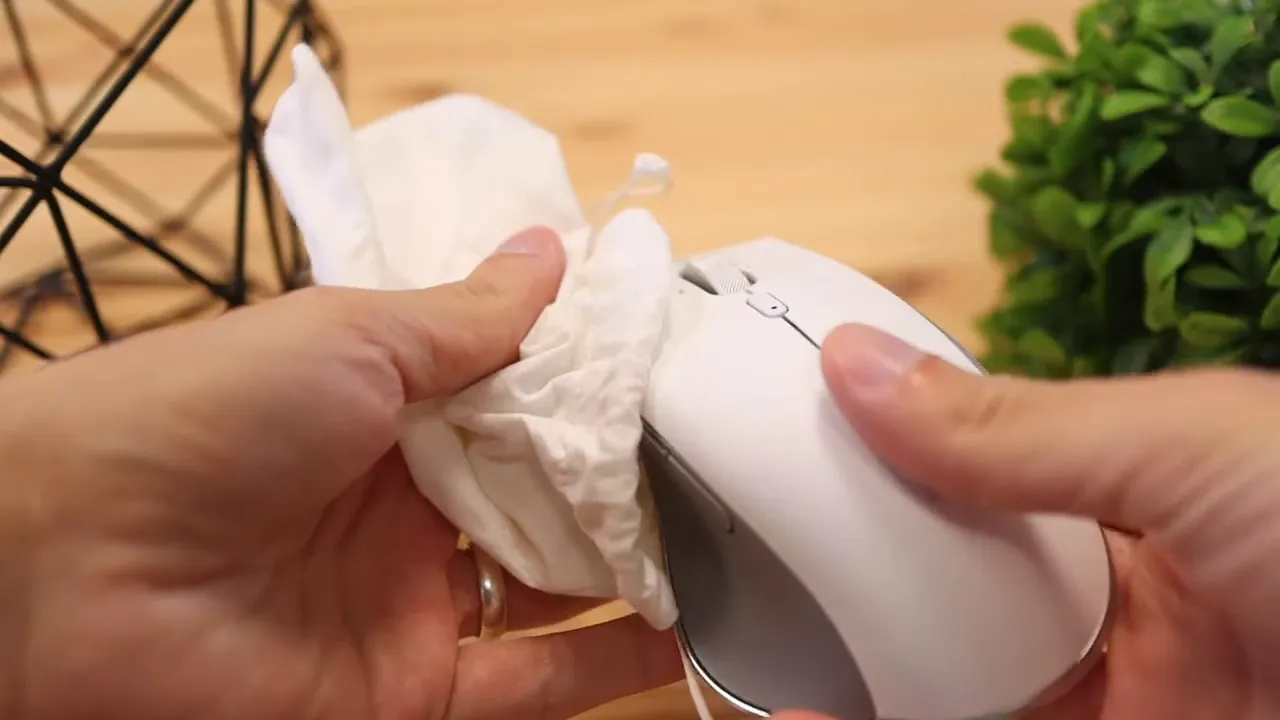
The one thing that feels dated right away is the cable. Razer went with micro USB here, which already felt old at the time. For a premium productivity mouse, USB-C would have made a lot more sense.
Design and first impressions
Razer made a deliberate styling shift with the Pro Click. Instead of black plastic and RGB-heavy gamer energy, this mouse goes with a bright white shell, gray side panels, and silver accents. It has a much cleaner look and fits better in professional setups.
Honestly, the design is one of the best things about it. It feels fresh. It stands out without looking loud. If most productivity mice feel a little too safe or too corporate, the Pro Click has more personality.
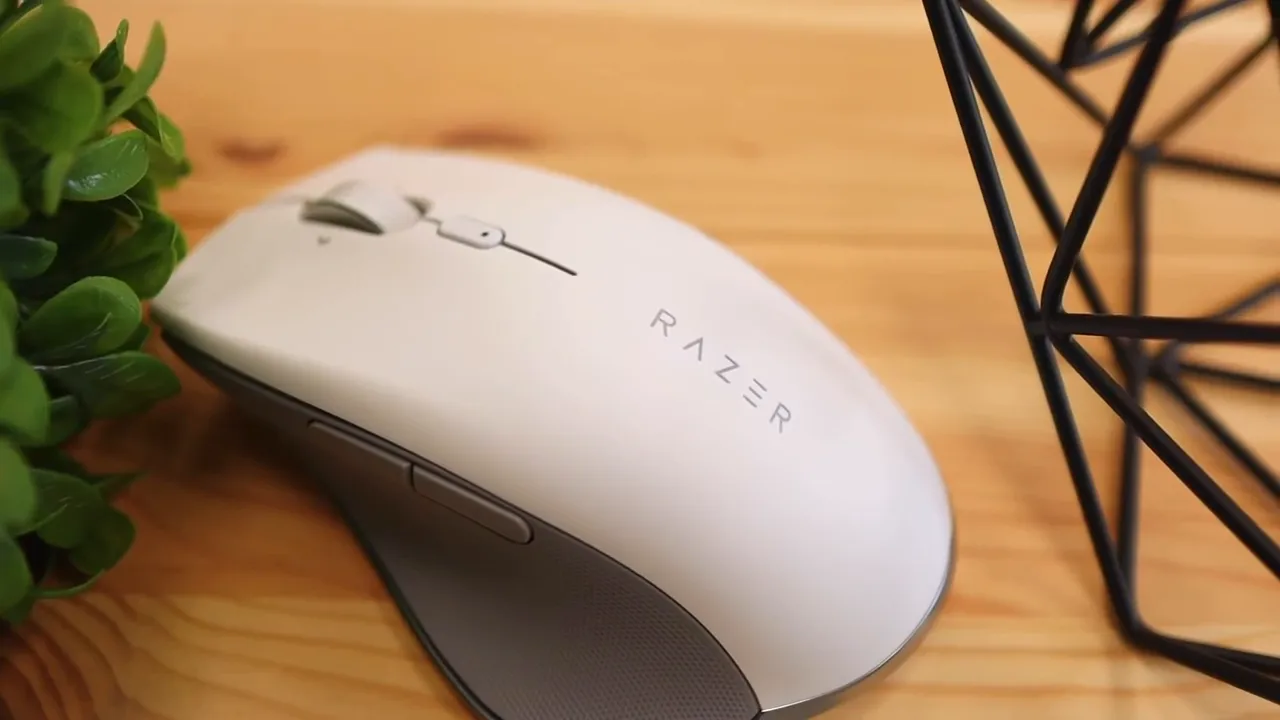
Build-wise, you are getting three main materials:
- A smooth plastic top shell
- Textured rubber side grips
- A metal scroll wheel
The side grips feel good. The scroll wheel also has a nice premium touch with its cool metal surface and textured finish. But the overall mouse is fairly light, especially compared with something like the Logitech MX Master 3.
That light weight can be a good thing for reducing hand fatigue, but here it also creates a slight downside. It gives the mouse a more fragile impression than you might expect at this price. The construction is not bad, but it does not feel tank-like or ultra-substantial in the hand.
Comfort and ergonomics depend heavily on your grip style
This is where the Pro Click becomes a little tricky.
Razer markets it as ergonomic, and technically the shape is sculpted for right-handed use. But whether it actually feels comfortable depends a lot on how you hold a mouse.
Palm grip
If you use a palm grip, where your palm rests fully across the top of the mouse, this may not be the best fit. The top shell is smooth and slippery, and that lack of grip becomes noticeable fast. My hand kept feeling like it was sliding backward rather than staying locked in place.
That creates an odd sensation where the mouse feels like it is trying to escape your hand a little. For long work sessions, that is not great.
Fingertip grip
If you mainly control the mouse with your fingertips and keep your palm floating, the experience is much better. The lighter weight helps here. It makes quick movements easy, and you are not relying on the slick top shell for control in the same way.
Claw grip
Claw grip lands somewhere in the middle. It works, but I still noticed some backward slipping because the upper shell does not give your hand much to hold onto.
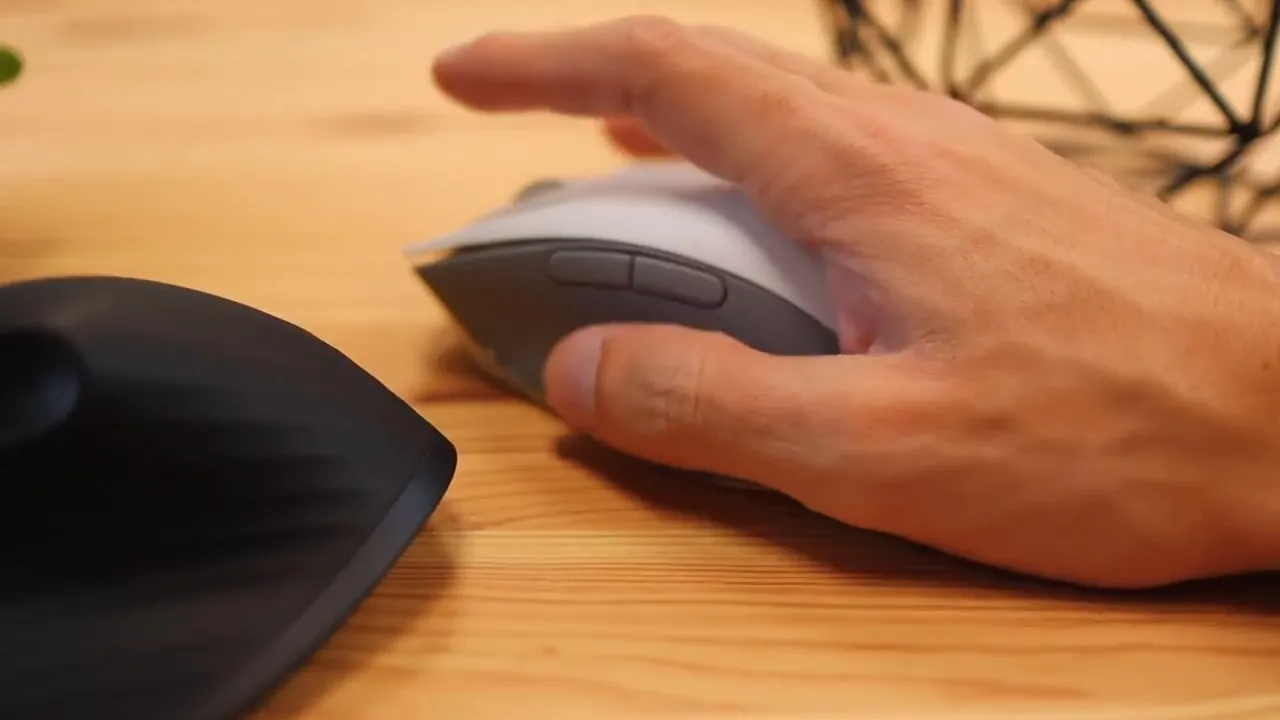
So the short version is this: if you like a palm-heavy grip, comfort may be a problem. If you are more of a fingertip user, the Pro Click makes a better case for itself.
Buttons and click feel
The click experience is one of the stronger parts of this mouse.
The left and right buttons feel direct, crisp, and satisfying. The scroll wheel click, tilt inputs, and side buttons also feel solid. Nothing here feels mushy or vague. If button feel matters to you, Razer did a good job.
There is one important design detail, though. The main click panels are attached at the back without a big separation cut toward the front. That means clicks become harder to actuate if you press closer to the tip of the buttons.
For average or large hands, that may not be a major deal. But for smaller hands, it could be. If your fingers naturally rest farther forward, you may need a bit more pressure to register clicks consistently.
That makes this a less ideal choice for smaller-handed users than the shape alone might suggest.
Scroll wheel and side controls
The metal scroll wheel deserves a little extra credit. It has a textured surface that feels nice under the finger and adds some premium character to the mouse. The left and right tilt actions are also useful for horizontal scrolling or custom shortcuts.
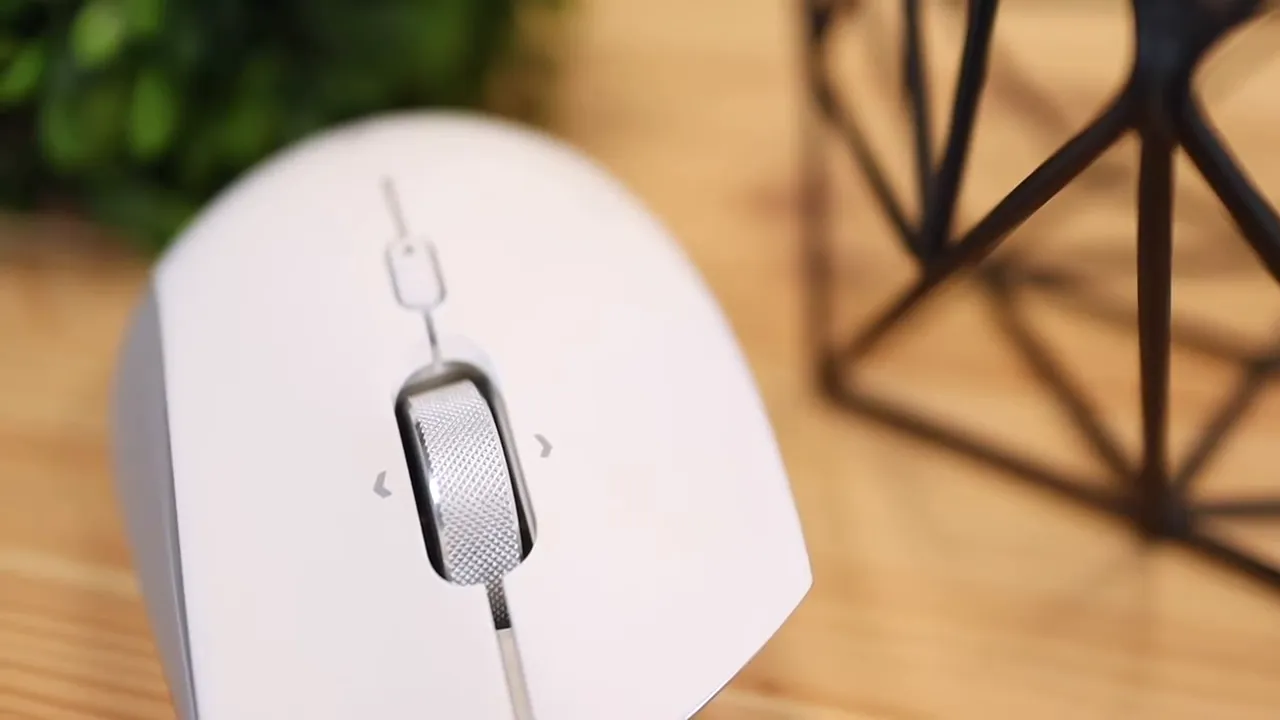
On the side, you get programmable buttons positioned where your thumb can reach them without much effort. That is especially useful if you want app-specific shortcuts for productivity work.
Connectivity options are flexible
One thing I really like about the Pro Click is how many ways you can connect it.
You get three options:
- USB wireless dongle for a simple plug-and-play connection
- Bluetooth for laptops, tablets, and other modern devices
- Wired mode with the included micro USB cable
That flexibility is great for mixed setups. You can move between different devices without being locked into one method, and wired mode gives you a backup if you ever need to charge while working.
The product features also point to multi-host support for up to four devices, which is exactly the kind of feature that makes sense on a productivity mouse.
Battery life
Battery life is one of the easiest wins here. Razer rates the Pro Click at up to 400 hours, which is excellent for a productivity mouse.
That means this is not the kind of device you should constantly be thinking about charging. It is built to disappear into your workflow, and long battery life helps a lot with that.
The only catch, again, is that charging still happens over micro USB. So the endurance is modern, but the port is not.
Software is where the productivity angle gets serious
Razer’s software support is a big part of what makes the Pro Click interesting. You are not just getting a basic pointer with a few buttons. You can customize shortcuts, remap controls, create macros, add time delays, and tailor the mouse to specific apps.
The most useful feature here is application-specific profiles. You can set the buttons to behave one way in a browser and a completely different way in another app. That is a real productivity boost if you jump between tasks all day.
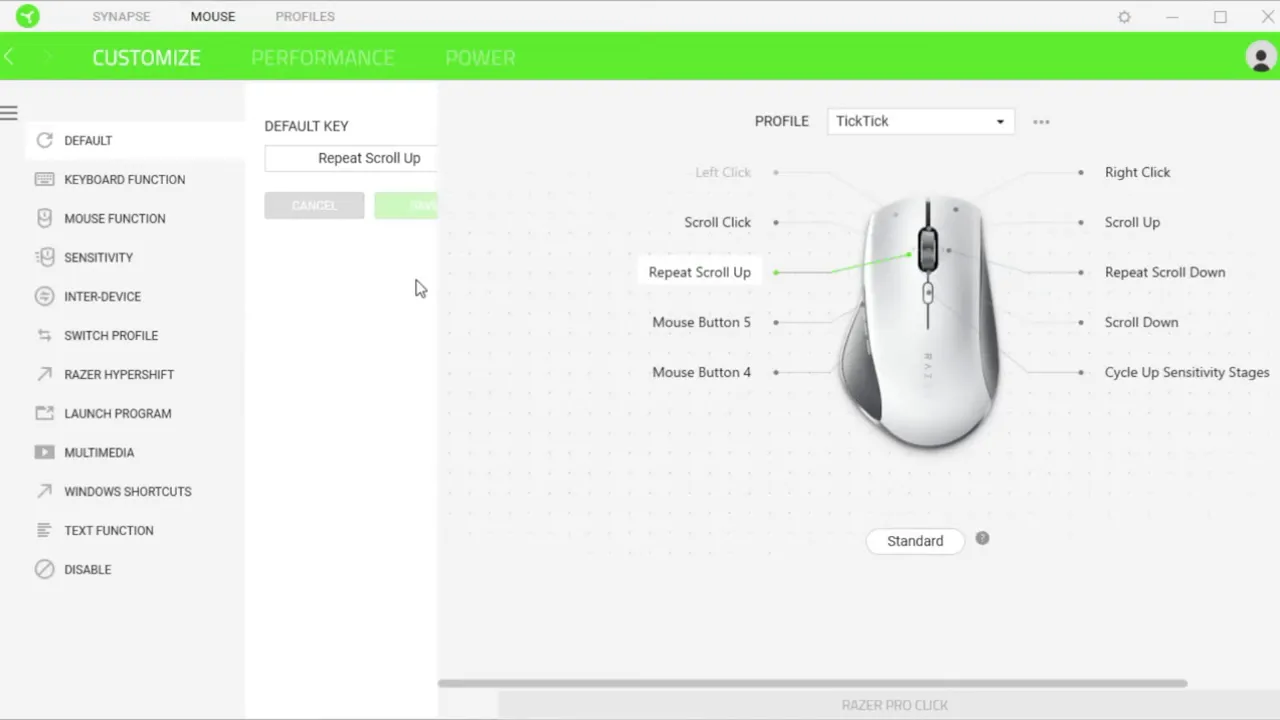
That kind of software flexibility matters because hardware alone rarely makes a productivity mouse special. What really separates good from great is how well it adapts to your workflow.
If you like digging into customization, this is one of the stronger parts of the package. If that is your priority, you may also want to compare it with the kind of deep customization available in Logi Options+ on the MX Master 3S.
How it compares to the Logitech MX Master 3
The Logitech MX Master line is the obvious comparison because it is one of the best-known productivity mouse families out there.
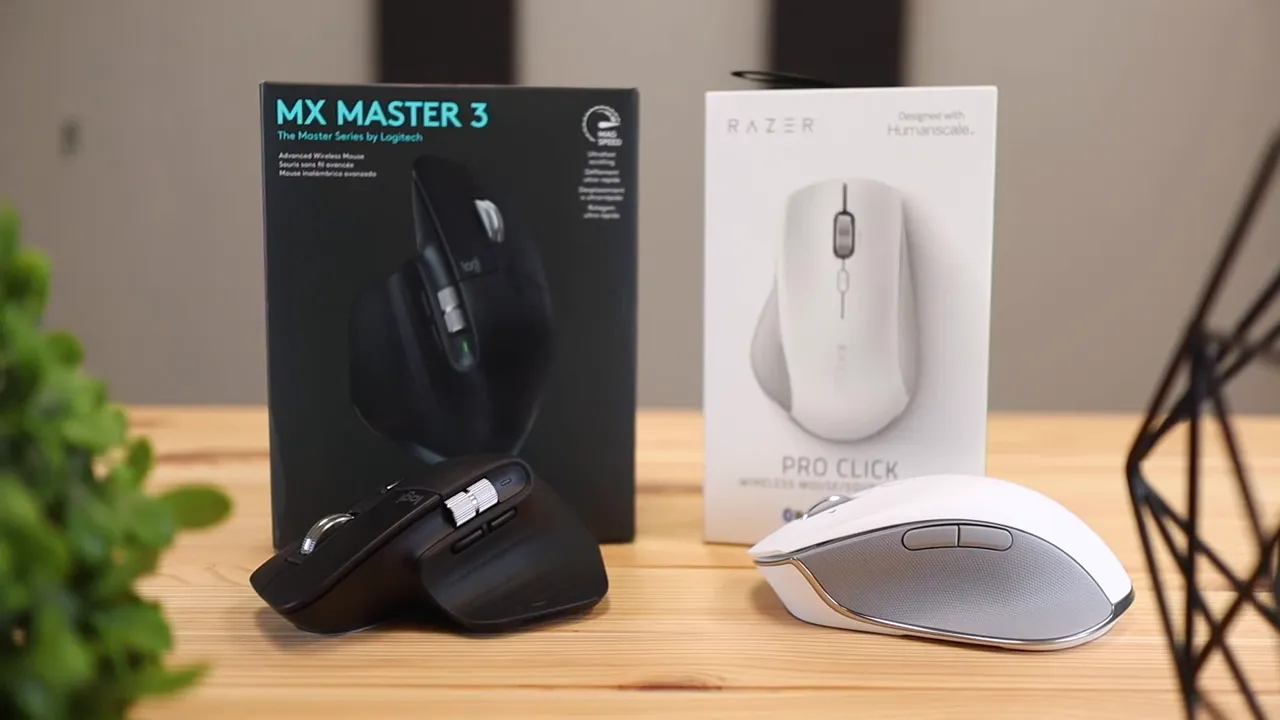
Compared to the MX Master 3, the Pro Click feels lighter and more minimal. Some people will prefer that. Others will immediately feel like the Logitech has a more substantial and premium build.
The MX Master 3 also tends to feel more secure in the hand for palm users, while the Pro Click has the cleaner, brighter aesthetic. So this comparison really comes down to what matters more to you:
- Choose the Pro Click if you want a lighter mouse, cleaner styling, and strong customization features
- Choose the MX Master 3 class of mouse if you want a more confidence-inspiring build and often use a palm grip
The Pro Click is not a bad mouse. It just faces a very strong competitor in this category.
What I liked
- Clean, fresh design that looks great in a professional setup
- Strong click feel across the main buttons, wheel click, tilt, and side buttons
- Excellent battery life
- Flexible connectivity with dongle, Bluetooth, and wired mode
- Powerful software with macros, shortcuts, and app-specific profiles
- Travel-friendly extras like the carrying pouch and internal dongle storage
What I did not like
- The smooth top shell can feel slippery, especially with a palm grip
- The lightweight build makes it feel less premium than expected
- Micro USB charging feels outdated
- Main clicks may be less comfortable for smaller hands pressing near the front
Who should buy the Razer Pro Click
The Razer Pro Click makes the most sense for someone who wants a productivity mouse with a more stylish look than the usual black-and-gray crowd, values software customization, and prefers fingertip or lighter grip styles.
If your priority is maximum palm comfort and a more planted, premium-in-hand feel, you may want to look elsewhere. If ergonomics are your main concern, it can also help to compare shapes across other purpose-built options, including more vertical designs like those discussed in this Logitech Lift vs MX Vertical comparison.
If you want to check current pricing or availability, you can find the mouse through this retailer listing or browse more details on the Razer product page.
Final verdict
The Razer Pro Click is a good productivity mouse with a great look, strong feature set, and very capable software. It feels like Razer stepping into a new category with some genuinely smart ideas.
At the same time, it is not a universal ergonomic slam dunk. The slippery top surface and lighter, slightly fragile feel keep it from being an easy recommendation at its price. This is especially true if you use a palm grip or expect the kind of solid hand feel you get from top-tier alternatives.
So here is the honest takeaway: the Pro Click is worth considering, but only if its shape works for your grip style. If it does, you get a sharp-looking productivity mouse with long battery life and excellent customization. If it does not, the competition may fit your hand better.
FAQ
Is the Razer Pro Click good for productivity?
Yes, especially if you want programmable buttons, app-specific profiles, Bluetooth connectivity, and long battery life. Its software is one of the strongest parts of the experience.
Is the Razer Pro Click comfortable for all grip styles?
No. It is more comfortable for fingertip users than palm-grip users. The smooth top shell can make the mouse feel slippery if your palm rests heavily on it.
Does the Razer Pro Click use Bluetooth?
Yes. It supports Bluetooth, the included USB wireless dongle, and wired use through the charging cable.
How long does the battery last?
Razer rates it for up to 400 hours, which is excellent for a wireless productivity mouse.
Does the Razer Pro Click charge with USB-C?
No. It uses micro USB, which is one of the more disappointing aspects of the mouse.
Is the Razer Pro Click better than the Logitech MX Master 3?
That depends on what you value. The Pro Click has a cleaner aesthetic and strong software features, while the MX Master 3 generally feels more premium in hand and may be better for palm-grip comfort.


