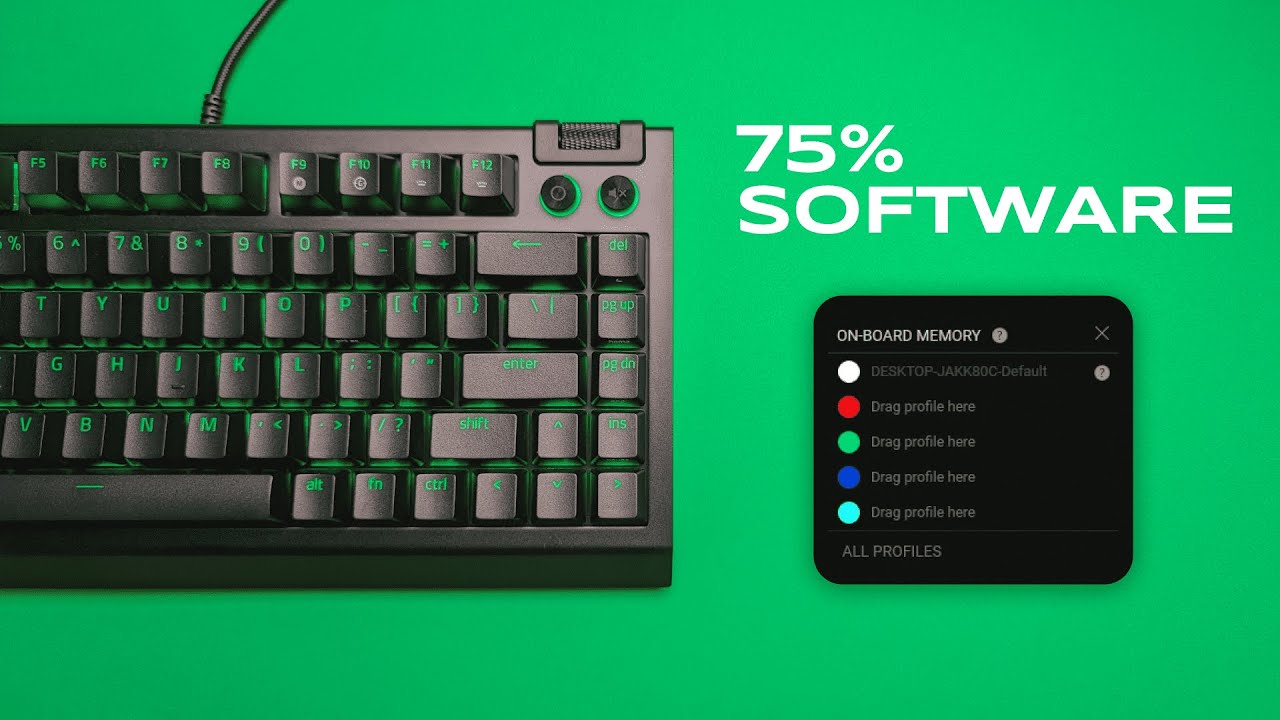
Hi, I'm Kova Tech. In this guide I walk you through the Razer Synapse software for the Razer BlackWidow V4 75% mechanical keyboard and show how to unlock the keyboard's customization, macros, lighting, and advanced features. If you want a practical, no-nonsense breakdown of each Synapse setting and how to use it in real situations, you’re in the right place.
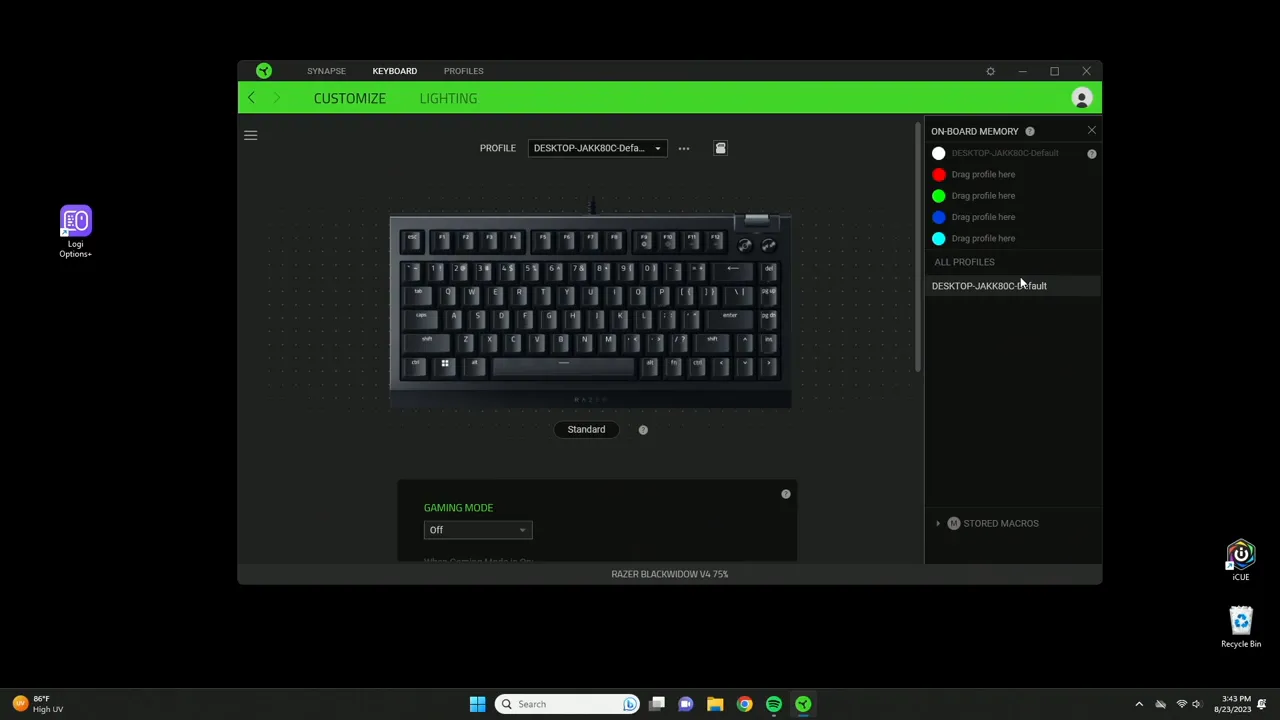
Table of Contents
- Quick Overview: The Synapse Home Screen
- Profiles, Game Linking, and Workflow Automation
- Key Remapping: Full Control Over Every Key
- Inter-Device Actions and Hypershift
- Macros, Text Snippets, and Turbo Mode
- Game Mode, Polling Rate, and Performance Considerations
- Lighting: Per-Key Effects, Brightness, and Power-Saving
- Practical Use Cases and Examples
- Troubleshooting and Best Practices
- Conclusion
- Frequently Asked Questions
Quick Overview: The Synapse Home Screen
After installing Razer Synapse (Windows only), the first screen you see gives you a clean overview of profiles, onboard memory options, and macro storage. The top area lists your profiles — these are where you store different keyboard configurations for work, gaming, or creative apps. You can create new profiles directly from this screen and choose whether each profile lives on your PC or the keyboard's onboard memory.
Onboard memory is particularly useful if you frequently switch PCs or use the keyboard on consoles that support it. By saving profiles to the keyboard itself, your custom key remaps and lighting persist even when Synapse isn’t running on a machine.
Profiles, Game Linking, and Workflow Automation
Profiles do more than just store key layouts. You can link a profile to a specific game or application so the keyboard automatically switches when that program launches. For example, I play Valheim a lot and have a dedicated profile that activates as soon as Valheim starts. That means dedicated macros, lighting, and key remaps are ready without manual switching.
- Create profiles: Add profiles for games, apps, or different users.
- Link to programs: Automate profile switching by linking to a game's executable.
- Onboard vs Synapse storage: Save to the keyboard to keep settings portable.
Key Remapping: Full Control Over Every Key
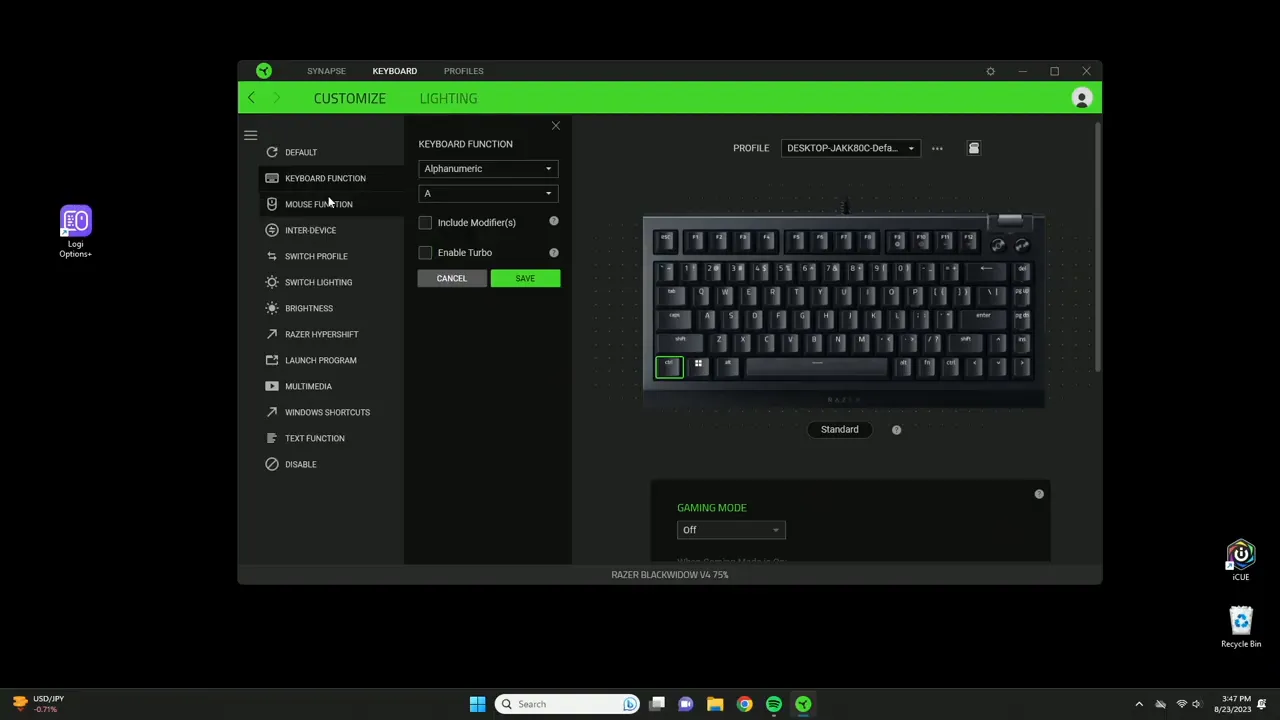
Clicking the keyboard graphic in Synapse lets you click any key and assign a new command. This is where the BlackWidow V4 75 really shines — almost every key can be repurposed for something else.
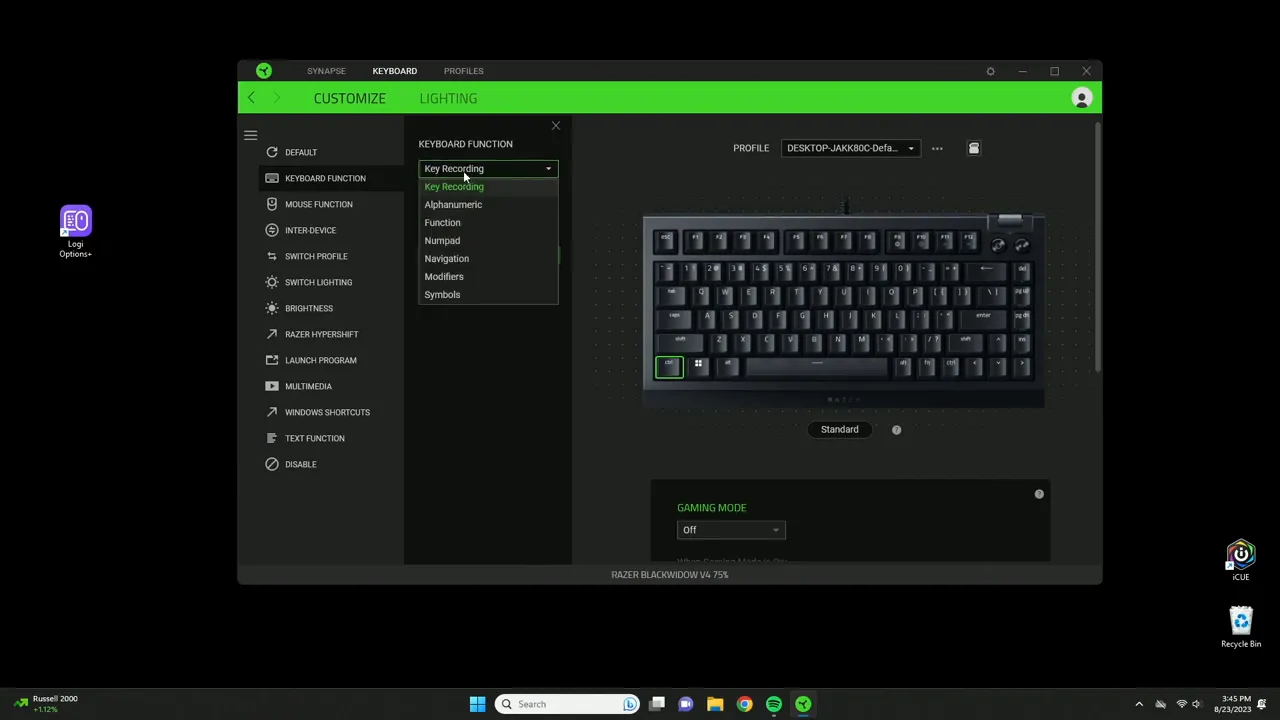
Here’s what you can map a key to:
- Keyboard functions: Alphabets, numbers, navigation, and custom key combos (e.g., make Ctrl type "A").
- Mouse functions: Map mouse buttons or movements to a keyboard key.
- Enable Turbo: Set a key to repeat a press multiple times when tapped once. I used this to set a button to press 20 times in a row — ideal for in-game spamming or repetitive tasks.
- Modifiers: Use Shift, Ctrl, or Alt combinations as part of a remap.
- Switch profile / lighting: Change profiles or lighting schemes on the fly.
- Launch program / website: Open apps or URLs with a single press.
- Multimedia & Windows shortcuts: Quick access to media controls, copy/paste, calculator, refresh, etc.
- Text function: Store frequently typed phrases or emojis. Press a key and it outputs the saved text instantly.
- Disable key: Turn a key off entirely (handy for accidental key presses while gaming).
Inter-Device Actions and Hypershift
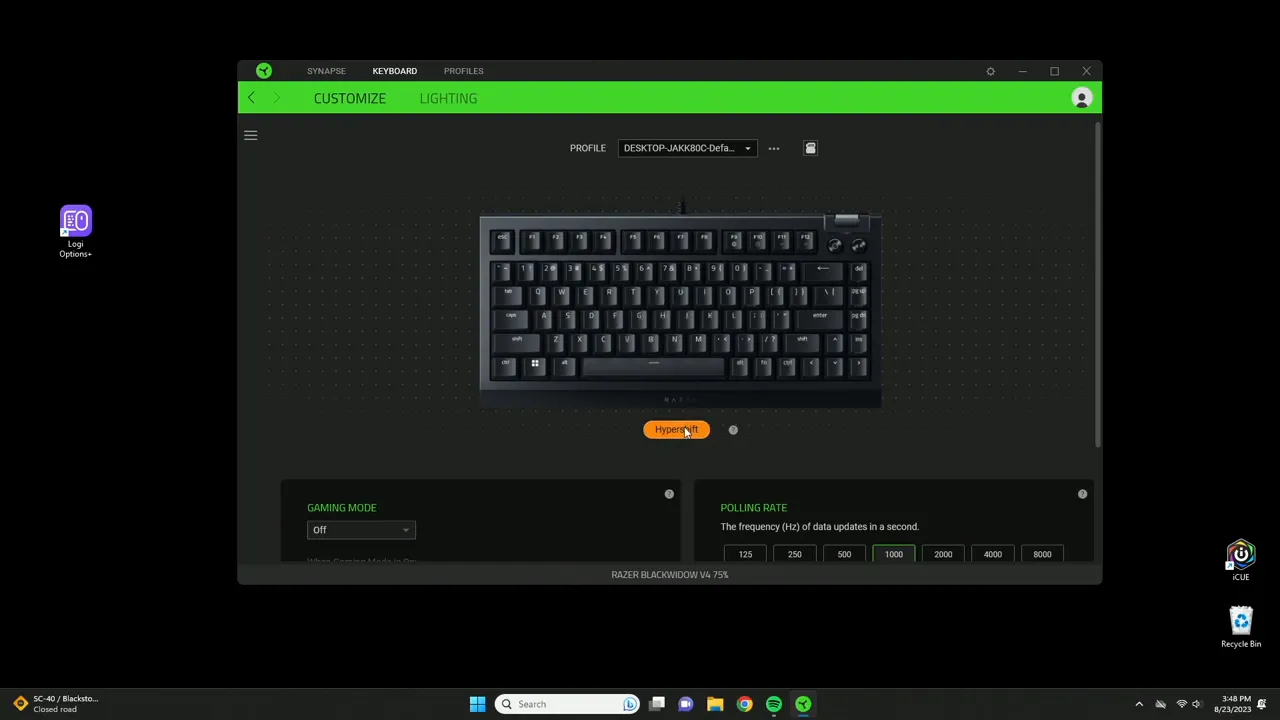
Some actions require multiple Razer devices to be connected. The Enter Device feature allows two Razer peripherals to interact and create combos—useful if you own a Razer mouse and keyboard and want dedicated cross-device shortcuts (for example, Shift + Right Click running a custom macro).
Hypershift is one of my favorite Synapse features: it duplicates your keyboard layout into a second layer. Hold (or toggle) the Hypershift key and each physical key performs its alternate function. Think of it as adding a second keyboard without extra hardware. It’s great for complex games or productivity shortcuts when you want more actions without sacrificing ergonomics or size.
Macros, Text Snippets, and Turbo Mode
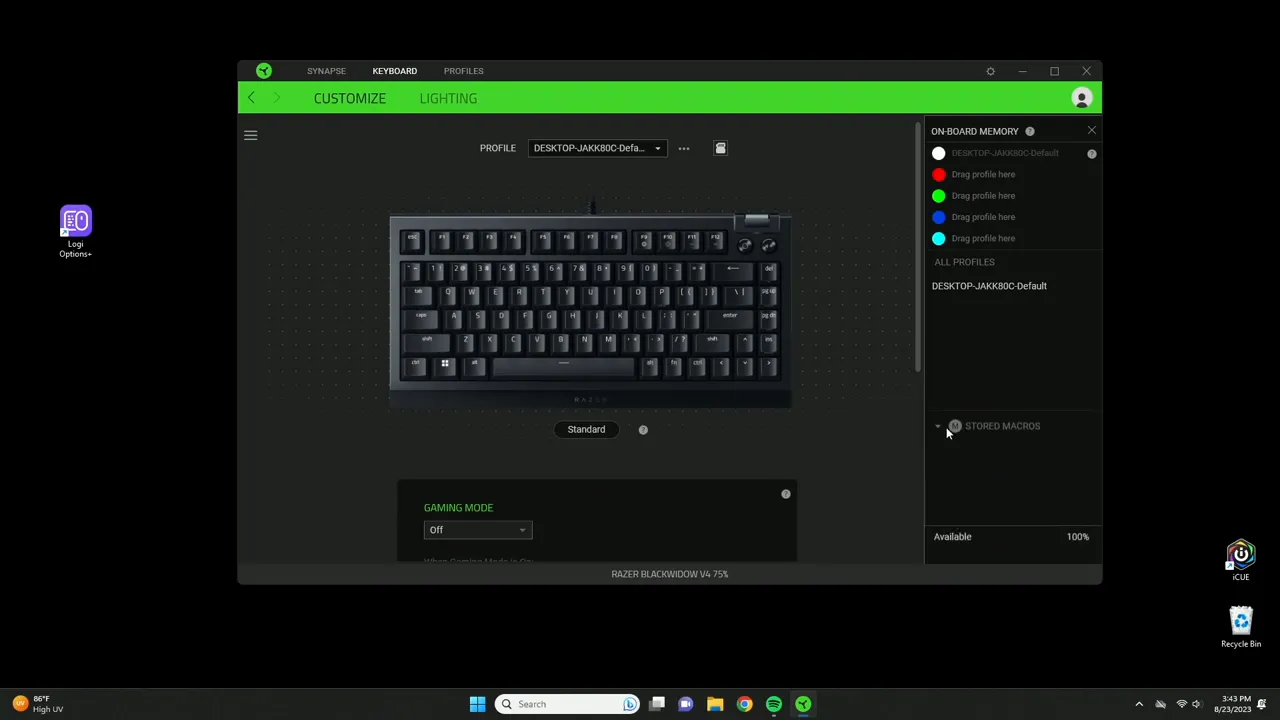
Macros are stored at the bottom of the Synapse home and can be tied to profiles or saved in onboard memory. The text function is especially handy for phrases you type repeatedly — for example, signatures, email snippets, or common chat messages. You can also include emojis and special characters via the character map.
Turbo mode deserves an extra note: set a key to repeat an input a set number of times with one press. This can be used for legitimate productivity shortcuts, but be mindful of game or platform rules regarding repeated automated inputs.
Game Mode, Polling Rate, and Performance Considerations
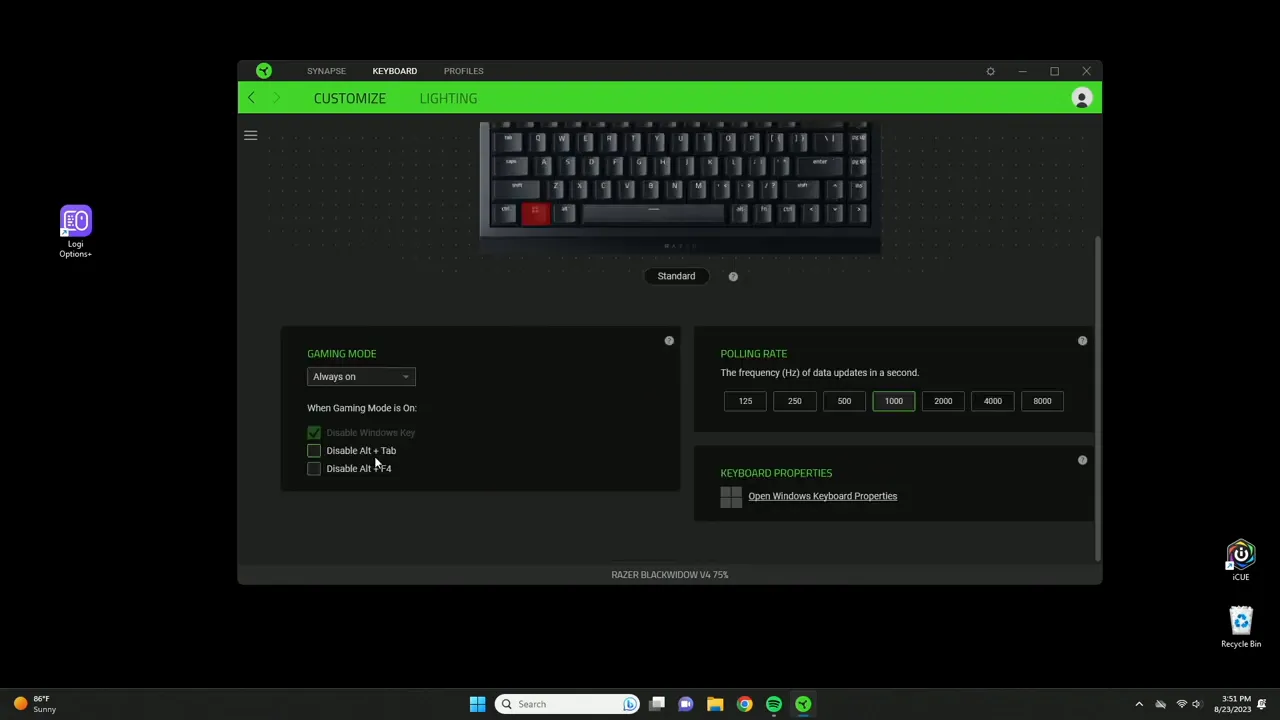
Under the keyboard settings you'll find Game Mode, which disables disruptive shortcuts like the Windows key or Alt+Tab/Alt+F4 so you don't accidentally lose focus mid-game. You can set Game Mode to always on or bind it to a specific profile.
Polling rate controls how frequently the keyboard reports inputs to your PC. Default is 1000 Hz, but Synapse offers 4000 Hz and 8000 Hz options. Higher polling rates reduce input latency but increase CPU usage. If you set 8000 Hz and notice sluggish system performance, step down to 4000 Hz or 1000 Hz until stability returns. It's a balance between responsiveness and overall system load.
Lighting: Per-Key Effects, Brightness, and Power-Saving
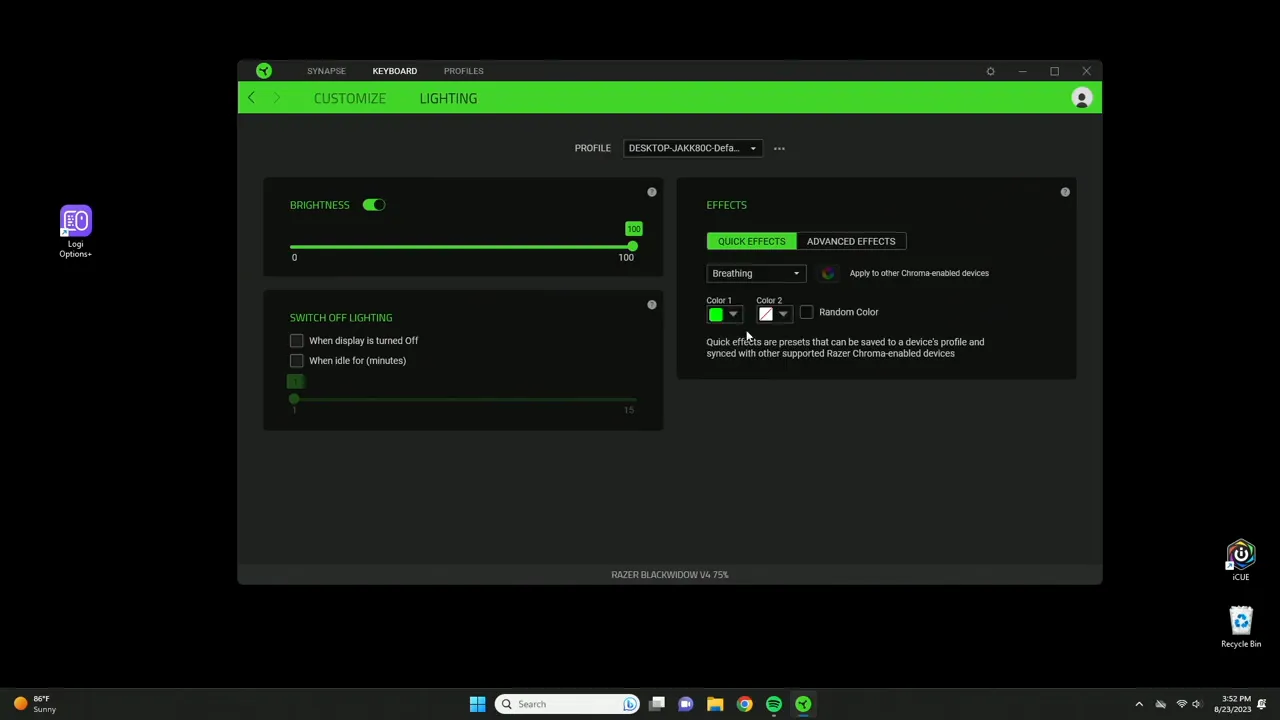
The lighting tab gives you full control of the BlackWidow's RGB. There are many effects—breathing, wave, static, and more. I personally keep it on static Razer green, but breathing effects look great if you want a dynamic desk atmosphere.
- Per-key lighting: Customize individual key colors or apply global effects.
- Brightness: Adjust within Synapse or use the keyboard hotkeys (Fn + F11 to lower, Fn + F12 to raise).
- Auto shutoff: Set lighting to turn off when your display sleeps, or automatically after a set idle period (up to 15 minutes).
Pro tip: if you stream or record, static lighting can avoid visual noise on camera; dynamic effects are more fun for personal setups.
Practical Use Cases and Examples
Here are a few real-world ways to use these features:
- Game-specific shortcuts: Create a Valheim profile that maps building tools to easy-to-reach keys and enables Game Mode so you won’t accidentally minimize the game.
- Productivity workspace: Make a work profile that maps shortcuts for copy/paste, screenshot, and a macro to insert boilerplate text or email signatures.
- Streaming layout: Use Hypershift to toggle functions for scene switching, muting mic, or controlling OBS without a separate stream deck.
- Macro automation: Use Turbo sparingly to automate legitimate repetitive tasks in software (not to circumvent game rules).
Troubleshooting and Best Practices
- Always test macros and Turbo settings in a non-critical environment before using them in live games or work—unexpected behavior can happen.
- If your system slows after increasing polling rate, reduce the rate stepwise until performance stabilizes.
- Use onboard memory for travel or console use — it keeps your custom setup portable.
- Keep Synapse updated and back up profiles if you’ve created complex setups.
Conclusion
The Razer BlackWidow V4 75% combined with Synapse gives you an impressive level of customization: per-key remapping, macros, cross-device combos, lighting control, Hypershift layers, and more. Whether you're optimizing for gaming, productivity, or streaming, Synapse offers tools to make the keyboard work the way you want it to.
From linking profiles to launching programs, to setting Turbo for repetitive actions, Synapse is robust and powerful. Just remember to balance high polling rates against CPU load, and use onboard memory when you want portability.
If you want a more hardware-centric review of the keyboard itself — build, switches, wrist rest, and overall feel — check out my dedicated hardware review linked elsewhere on my channel.
Frequently Asked Questions
Can I save profiles directly to the BlackWidow V4 keyboard?
Yes. Synapse lets you save profiles to onboard memory so your remaps and lighting persist even when Synapse isn't running on a machine. This is ideal for switching computers or using the keyboard with consoles that support stored profiles.
What does Hypershift do and how do I use it?
Hypershift acts like a second keyboard layer. When activated (hold or toggle), each key performs a secondary function you assign in Synapse. It effectively doubles the number of available shortcuts without changing your physical layout.
Is setting polling rate to 8000 Hz always better?
Not always. Higher polling rates reduce input latency but increase CPU usage. If you notice your system slowing after switching to 8000 Hz, reduce the polling rate to 4000 Hz or 1000 Hz until performance stabilizes.
How do I make a key type a phrase or emoji?
Use the Text Function in Synapse. Type your phrase (including emojis or special characters from the character map), save it, and assign it to a key. Pressing that key will output the phrase instantly.
Can I map mouse functions to keyboard keys?
Yes. Synapse supports mapping mouse actions to keyboard keys, as well as cross-device shortcuts if you have multiple connected Razer products enabled for Enter Device interactions.


