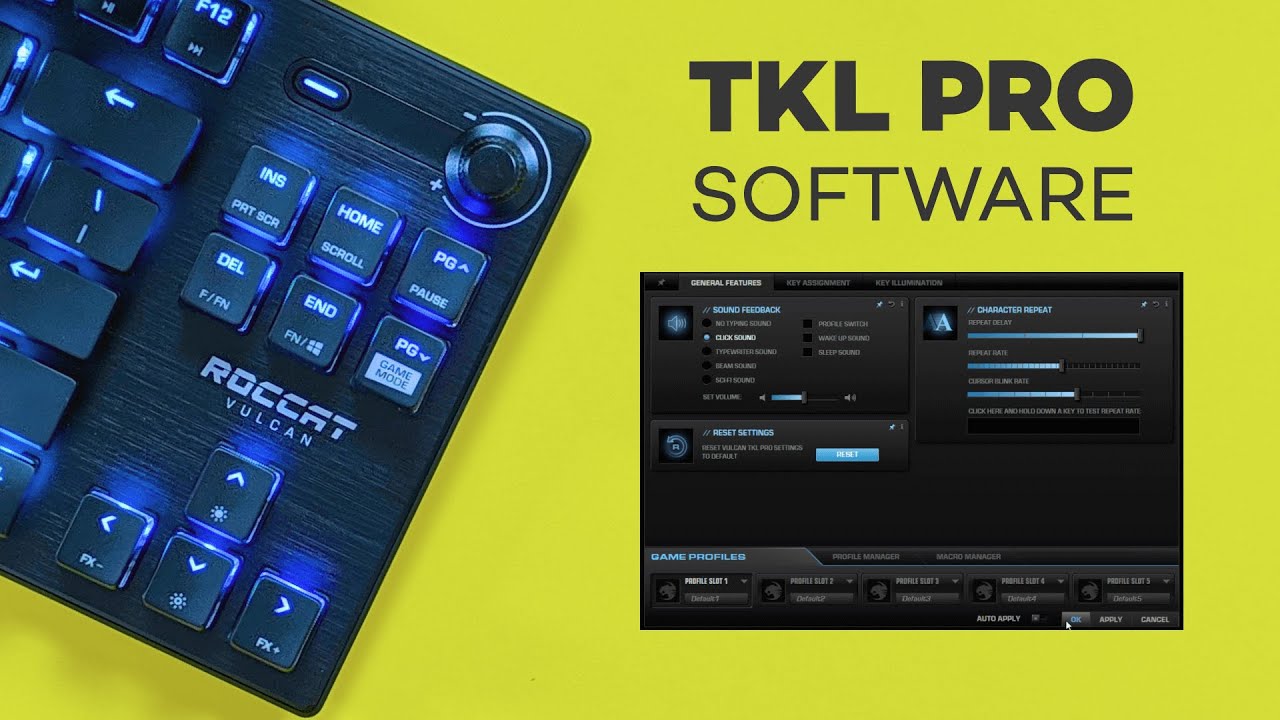
If you just picked up the Roccat Vulcan TKL Pro and want to figure out what the Roccat Swarm software actually lets you do, here’s the practical breakdown. Swarm is the control center for your keyboard settings, lighting, profiles, and a few extra features, but it also has some limits on the TKL Pro that are worth knowing up front.
The short version is this: Swarm is useful for RGB customization, typing behavior adjustments, and application-based profiles. It is not especially powerful for macros on this specific keyboard because the Vulcan TKL Pro does not include dedicated macro keys.
If you're comparing boards or shopping around, you can also check the Roccat Vulcan TKL Pro listing and browse more keyboard reviews here.
Getting Roccat Swarm Installed
The setup process is simple. Search for Roccat Swarm software, download it, install it, and launch the app. Once it opens, the top section shows the Roccat devices connected to your system.
In this case, Swarm can display multiple Vulcan models if you’ve used more than one, including the Vulcan TKL Pro and older Vulcan variants.
General Features: Sound Feedback and Key Repeat Settings
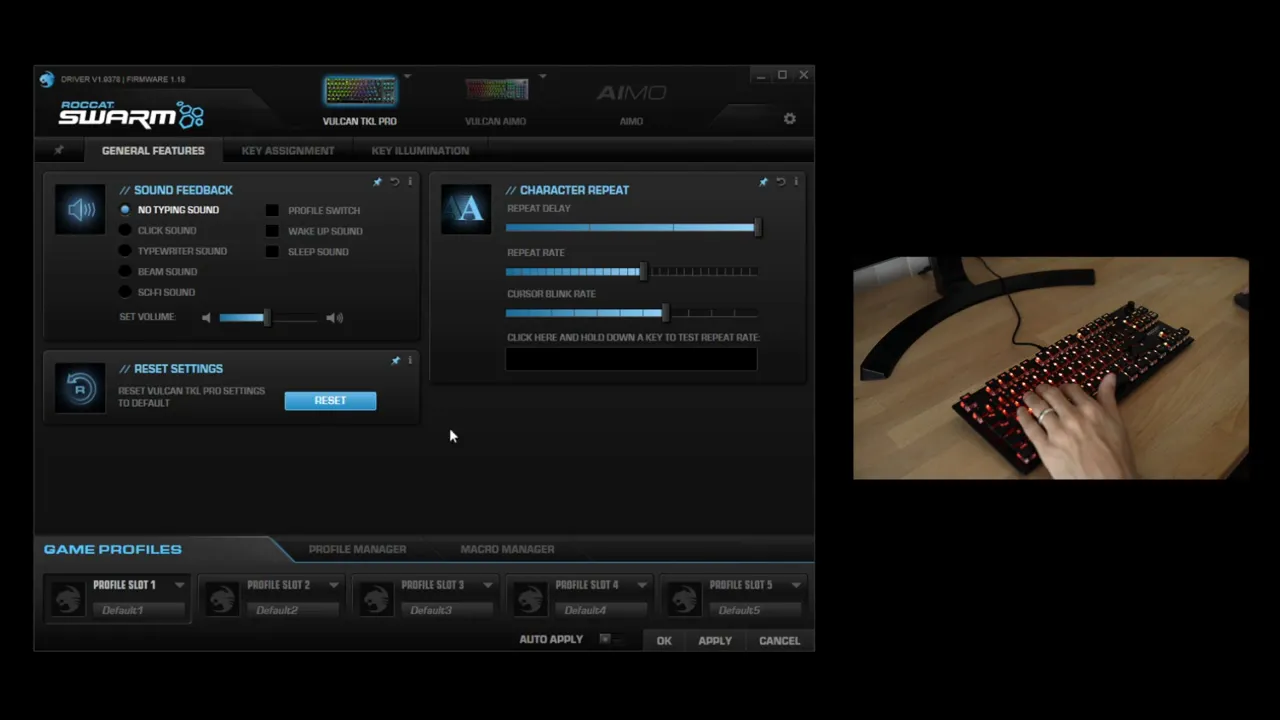
The first section most people will land on is General Features. This area is more about keyboard behavior than appearance.
1. Typing Sound Feedback
Swarm can play synthetic sounds through your speakers when you press keys. These are not sounds coming from the keyboard itself. They’re software-generated audio effects.
There are a few sound options available, including click-style effects and some more exaggerated ones. If you like audible feedback while typing, it’s there. Personally, this is one of those features that feels more gimmicky than useful. The keyboard already has its own natural typing sound, and that’s usually the better experience.
2. Character Repeat Rate
This setting controls how quickly a key repeats when you hold it down. For example, if you hold the letter A, this determines how fast the keyboard starts spamming that character.
Lower the repeat rate, and held keys repeat more slowly. Raise it, and the repeated input comes faster.
3. Repeat Delay
This is different from the repeat rate. The delay setting controls how long you need to hold a key before repeating starts.
If the delay is set high, you can hold a key for a noticeable moment before the repeated characters begin. If it’s lower, repeating kicks in faster. Keeping this around the default middle area is usually the safest option unless you have a specific need for changing it.
Key Assignment: What You Can Remap
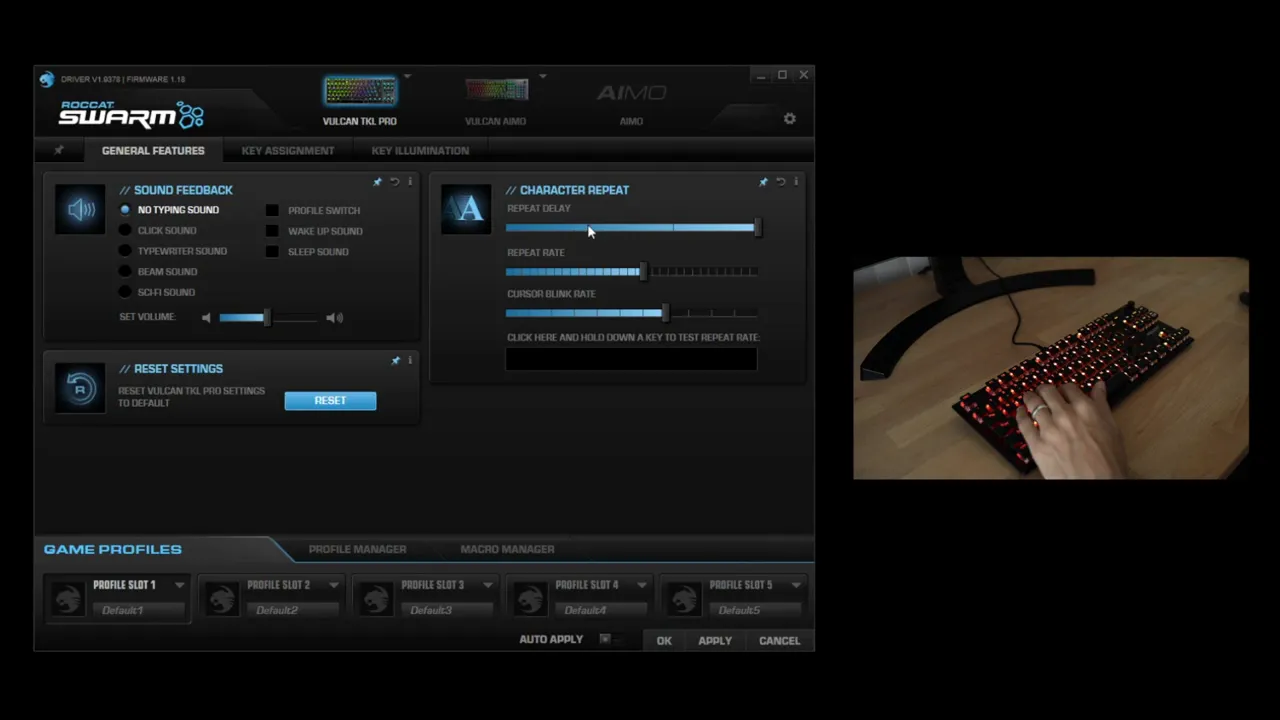
The Key Assignment section is where you customize what individual keys do. This is useful if you want to remap keys for convenience, productivity, or a specific game setup.
For example, if you wanted to change the tilde key into another key like Z, you can select that key, assign the new function, and apply the change.
You’re not getting unlimited remapping flexibility here, but you do get enough to set up basic custom shortcuts. Swarm also includes predefined actions for:
- Operating system controls like restart or log off
- Internet functions
- Multimedia controls like volume up and volume down
These actions can be dragged and assigned to supported keys. If you’ve used other peripheral software suites before, this part will feel familiar. If you want to compare how another brand handles customization software, this software guide section is a useful reference point.
The Macro Limitation on the Vulcan TKL Pro
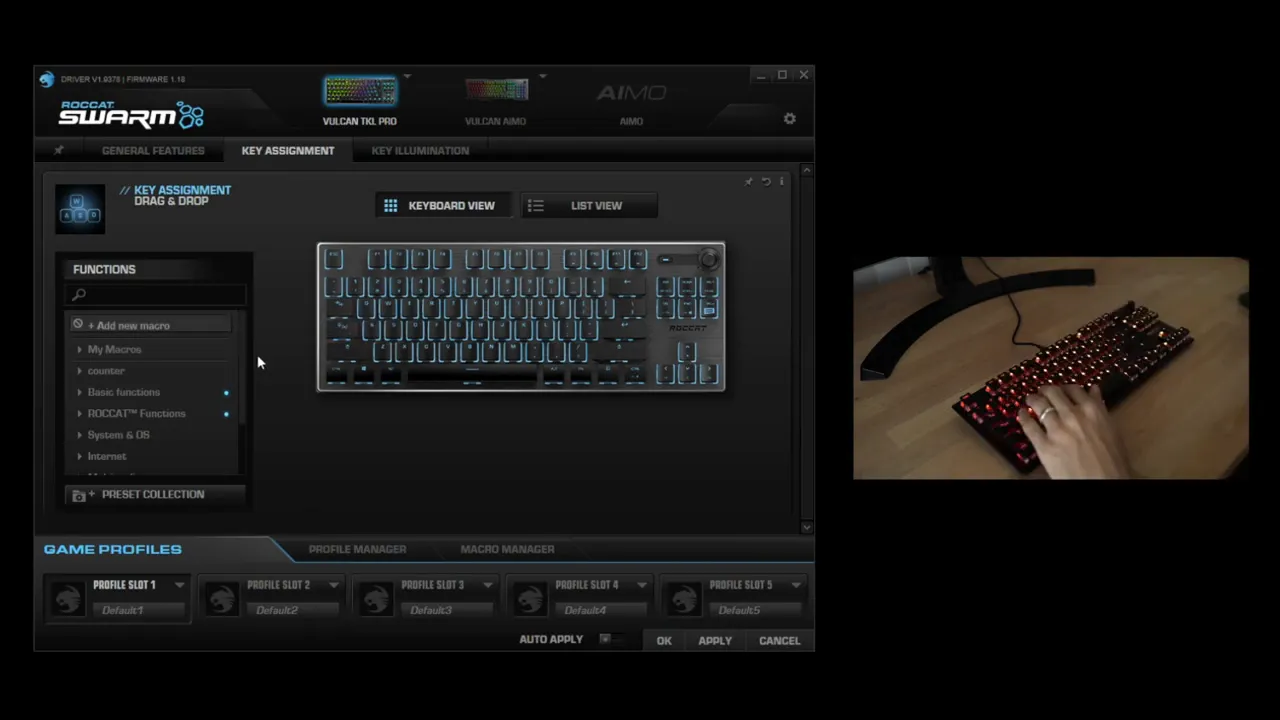
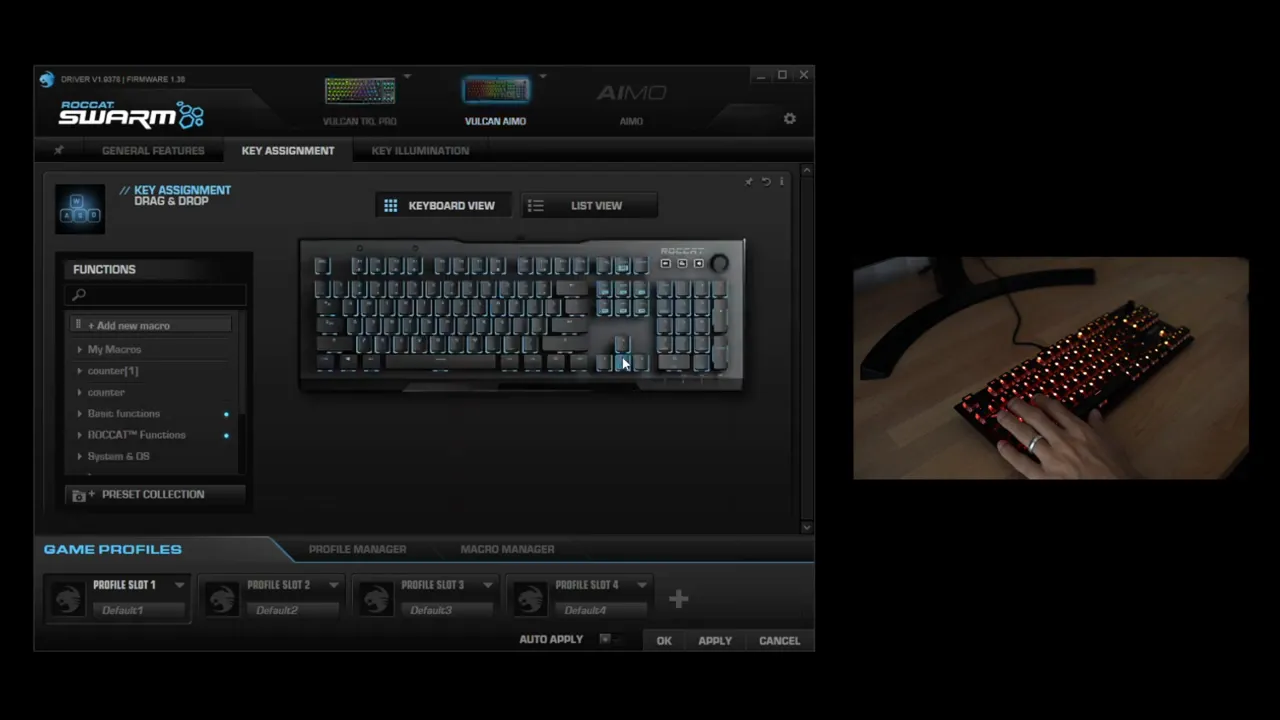
This is the biggest thing to understand before spending too much time in the macro section: the Roccat Vulcan TKL Pro does not really support macros in a meaningful way through Swarm, at least not the way some older Vulcan boards do.
Why? Because the keyboard does not include dedicated macro buttons.
In Swarm, you can see the macro area, but when trying to assign one on the TKL Pro, the software effectively blocks it. That’s because this board lacks the macro-specific keys required for that workflow.
On older Roccat Vulcan models, there are dedicated macro keys labeled M1 through M6. On those keyboards, you can drag a macro onto one of those macro-capable inputs and use it normally.
On the TKL Pro, that option just isn’t really there.
So if macros are a major part of your setup, this is something to keep in mind. Boards with dedicated macro support, such as some full-size gaming keyboards, are going to be a better fit. For example, keyboards like the Razer BlackWidow V4 X tend to lean harder into macro functionality.
RGB Lighting Effects: Where Swarm Is Actually Fun
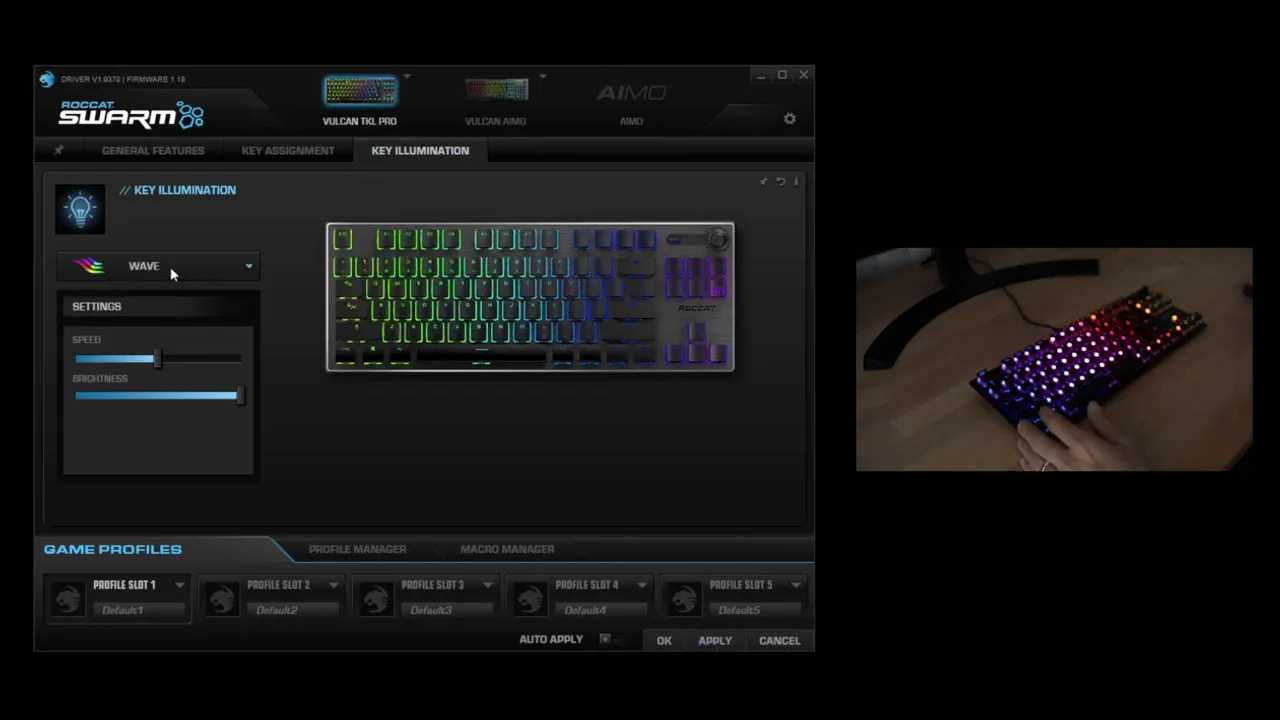
If there’s one area where the Roccat Swarm software earns its keep on the Vulcan TKL Pro, it’s lighting. This keyboard has per-key AIMO RGB lighting, and Swarm gives you a decent amount of control over how it looks.
Preset Lighting Effects
Swarm includes built-in presets like:
- Wave
- Snake
- Fully lit static effects
Pick an effect, hit apply, and the keyboard updates right away. These presets are the fastest way to get a good-looking setup without spending time on per-key edits.
Per-Key Custom Lighting
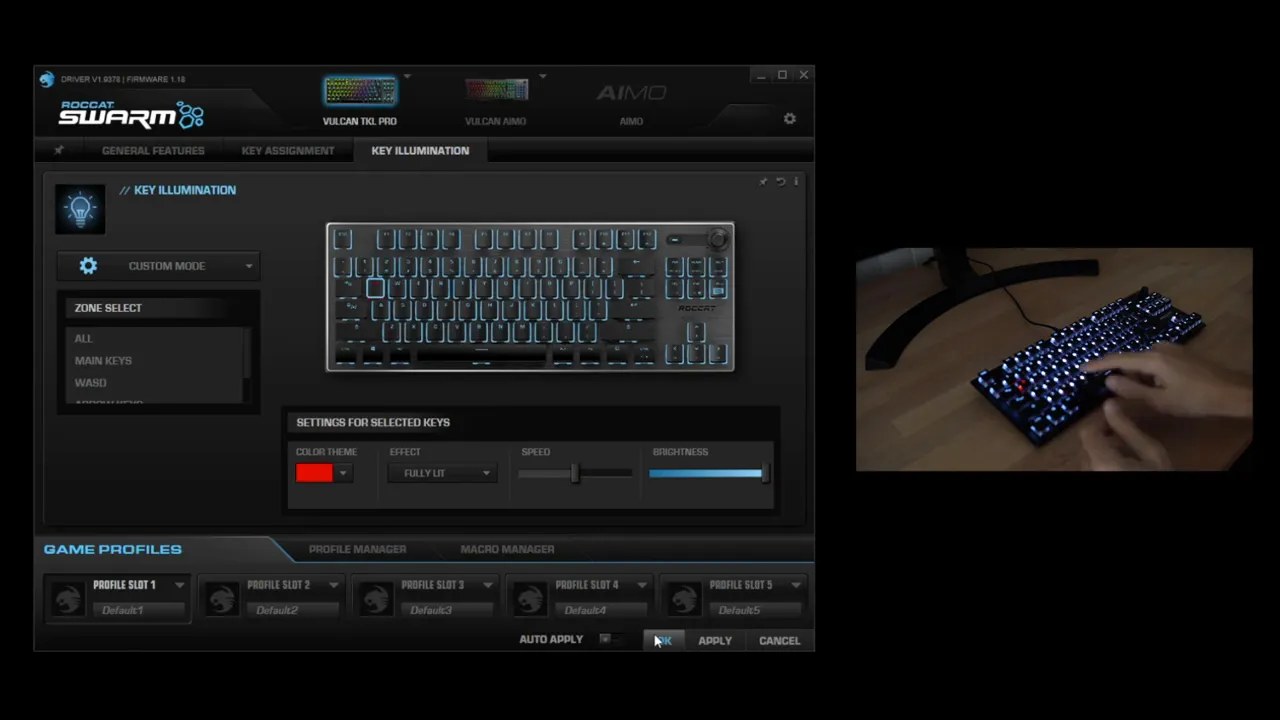
If you want more control, switch to the Custom lighting option. This lets you click individual keys and assign specific colors to each one.
For example, you can set the Q key to red while leaving the rest of the board blue. That opens the door for game-specific color layouts, hotkey highlighting, or just building a color scheme you like.
It’s definitely more time-consuming than using presets, but if custom RGB matters to you, this is where you’ll spend most of your time in Swarm.
Adjusting Colors and Animations
Swarm separates the look into two main ideas:
- Animation/effect style, such as wave or static
- Color selection, which changes the palette used by that effect
So if you like a static fully lit setup but want green instead of red, that’s easy. If you prefer an RGB wave effect, you can switch back to that just as quickly.
For most people, this is going to be the main reason to install and keep Swarm on the system. The lighting controls are simply more useful than the software’s other extras on this particular board.
Profiles and Auto-Switching by App
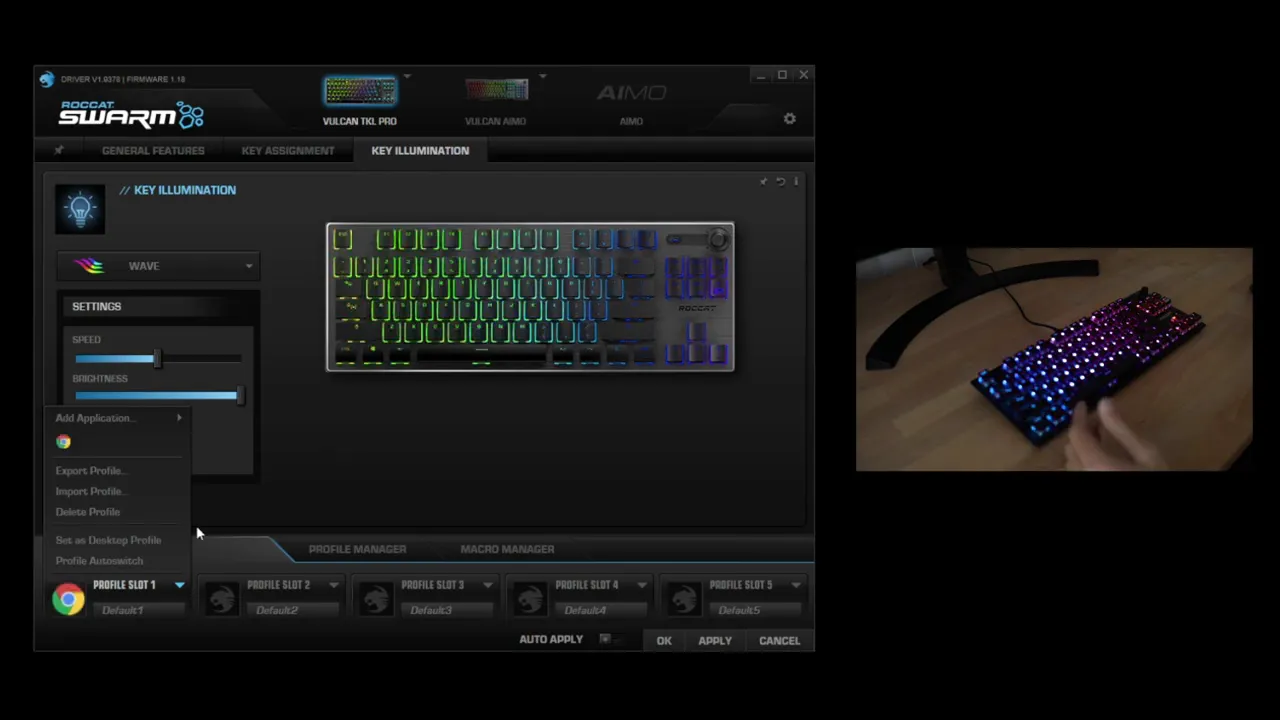
Profiles are one of the more practical features in Swarm. You can create different keyboard setups for different applications and have them switch automatically.
Here’s how it works:
- Create or select a profile.
- Assign it to an application, such as Chrome or a game.
- Enable Auto Switch in the profile manager.
- Swarm will load that profile whenever the app launches.
That means you can have one lighting layout and key setup for web browsing, another for a specific game, and another for general desktop use.
Examples of where this makes sense:
- Gaming: Different RGB layouts or remaps for different titles
- Work: App-specific shortcuts for browsers or productivity tools
- Streaming or media use: Different lighting and key behavior depending on what’s open
What Swarm Does Well on the Vulcan TKL Pro
For this keyboard specifically, Swarm is best at a few things:
- Changing repeat rate and delay for typing behavior
- Remapping some keys to basic functions
- Customizing RGB lighting with presets or per-key edits
- Managing profiles that switch with applications
That’s really the core value here.
If you want a deeper look at the board itself beyond the software, there’s also a full Vulcan TKL Pro review here.
What Swarm Does Not Do Well on This Keyboard
The weak spot is clear:
- Macro support is very limited on the TKL Pro
- The sound feedback feature feels unnecessary for most people
- Customization beyond lighting and basic remapping is fairly light
So if you were expecting a super advanced software suite packed with deep automation and macro tools, this probably isn’t going to impress you on the tenkeyless Vulcan model.
A Quick Note on the Physical Audio Controls
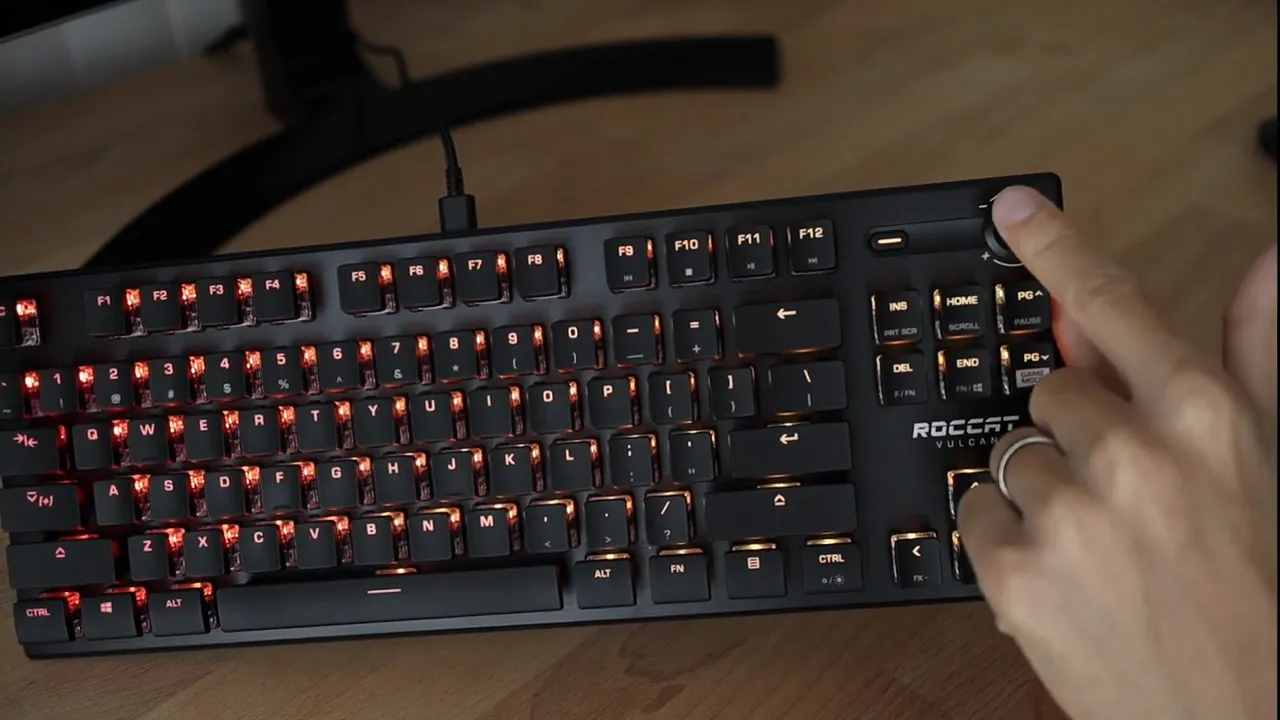
The keyboard includes physical audio controls, and these are pretty straightforward:
- Volume control adjusts system volume up and down
- Mute button toggles audio mute
These controls are not customizable in Swarm. They just do their intended jobs, nothing more.
Final Thoughts
The Roccat Vulcan TKL Pro and Roccat Swarm combo is a bit of a mixed bag, but it makes sense once you know what this keyboard is built for.
If your priority is clean design, solid typing performance, optical Titan switches, and good RGB lighting control, Swarm does enough to support that. The lighting section is the standout, and the profile system is nice to have.
If your priority is heavy macro use or deep remapping, the TKL Pro is not the best match, mostly because of the hardware limitations rather than the idea of the software itself.
So the realistic expectation is this: install Swarm for the lighting, tweak your repeat settings if needed, set up profiles if you use different apps, and don’t buy this board expecting macro-key functionality that it simply doesn’t have.
For extra background on keyboard lighting behavior in general, Corsair has a useful overview of keyboard RGB customization concepts, and Microsoft also has a helpful reference on keyboard repeat and accessibility settings in Windows.


