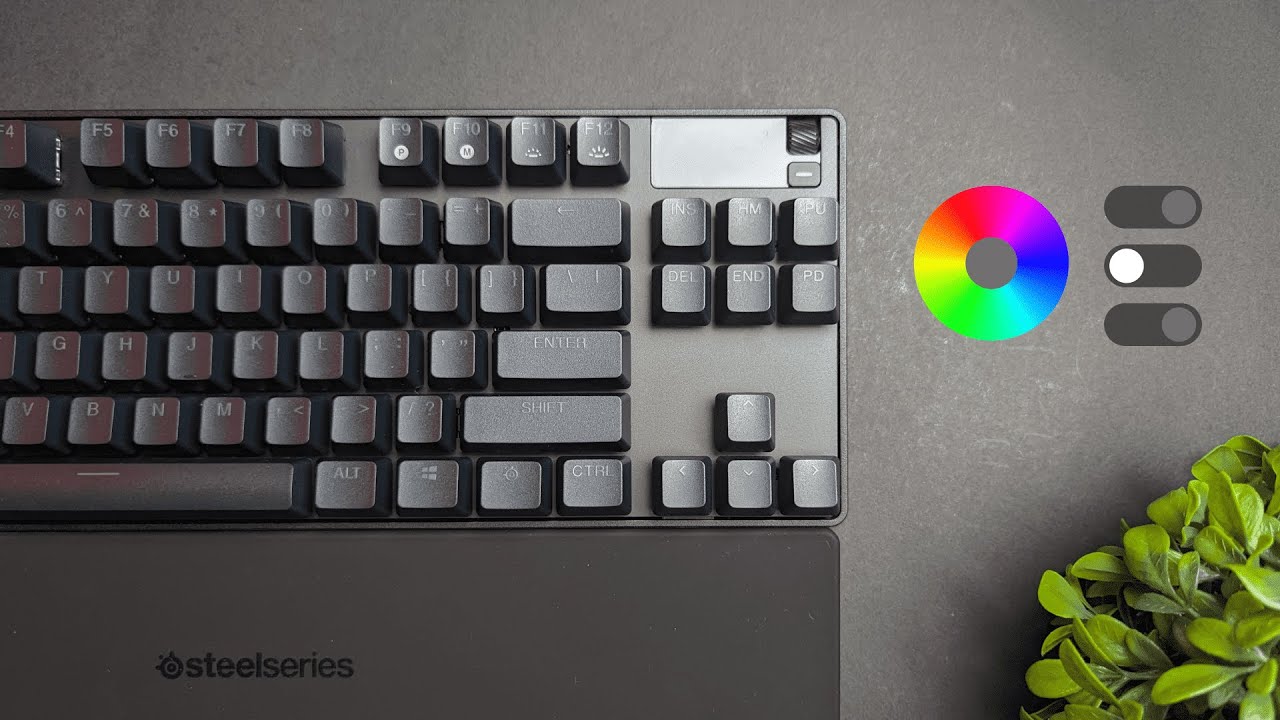
The SteelSeries Engine software turns the Apex Pro TKL from a solid piece of hardware into a highly customizable tool for gaming and productivity. Lighting, key remaps, macros, actuation sensitivity, dual-actuation and small OLED personalizations are all handled inside the Engine. Most of these features go beyond what budget keyboards offer, and a little time spent in the software can meaningfully change how the keyboard feels and performs.
Table of Contents
- Interface and where to start
- RGB and Prism lighting: fast customization
- Remapping and key bindings: what you can make a key do
- OLED screen: personal but limited
- Actuation control: tune responsiveness
- Practical tips and recommended workflows
- Is this software worth the price?
- FAQ
Interface and where to start
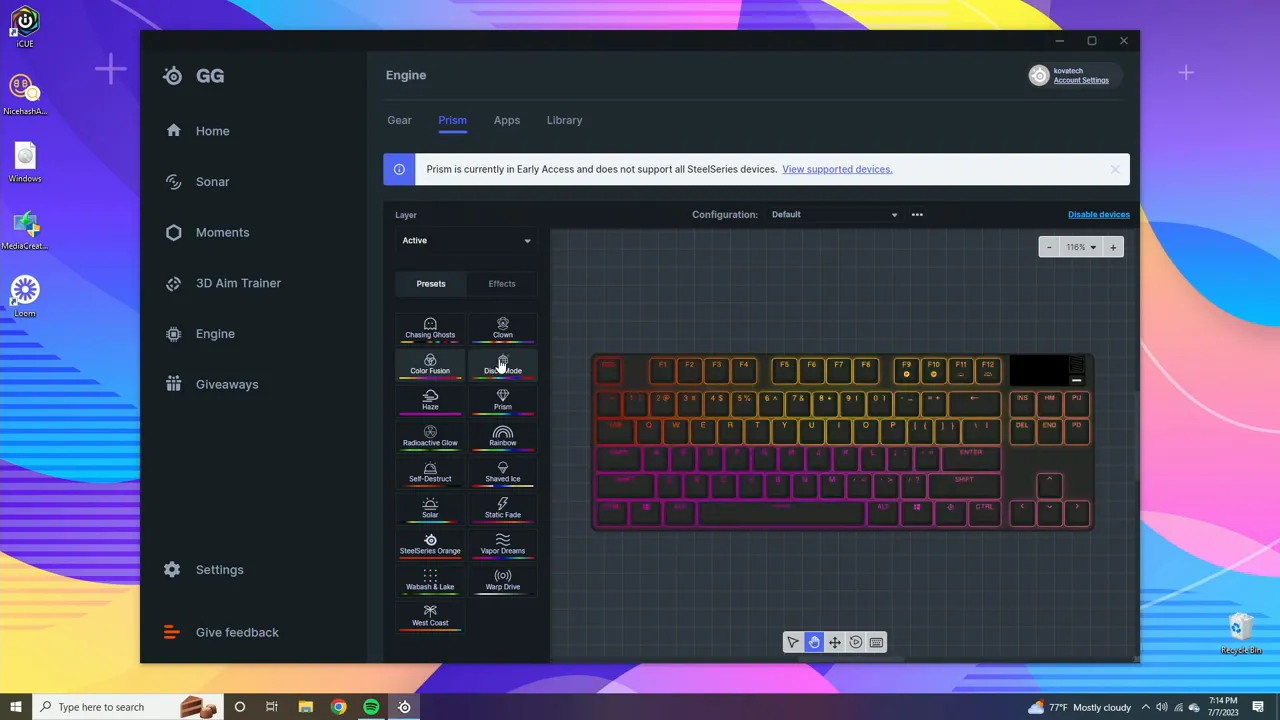
After installing the SteelSeries Engine you land on a hub that has news and promotions, but the area that matters is the Engine section. That is where Prism (lighting) and Gear (key and macro configuration) live. The interface separates presets and effects so you can quickly apply a prebuilt look or dig into granular controls for animations and key behavior.
RGB and Prism lighting: fast customization
Lighting is straightforward and flexible. The Prism section includes a selection of presets—color shift, static, fade, shaved ice, self-destruct and more—so you can get a polished effect instantly. If you want finer control, the Effects panel lets you choose breathing patterns, single-color modes, or layered effects and then tweak speed and animation size.
Animation size controls how broad the effect is across the plate and speed adjusts tempo. For a subtle desktop glow set a single color. For an attention-grabbing rig use a fast color shift or a layered effect. When you want multiple looks for different occasions—team color, holiday theme, tournament mode—create and save multiple light profiles so you can switch on the fly.
Remapping and key bindings: what you can make a key do
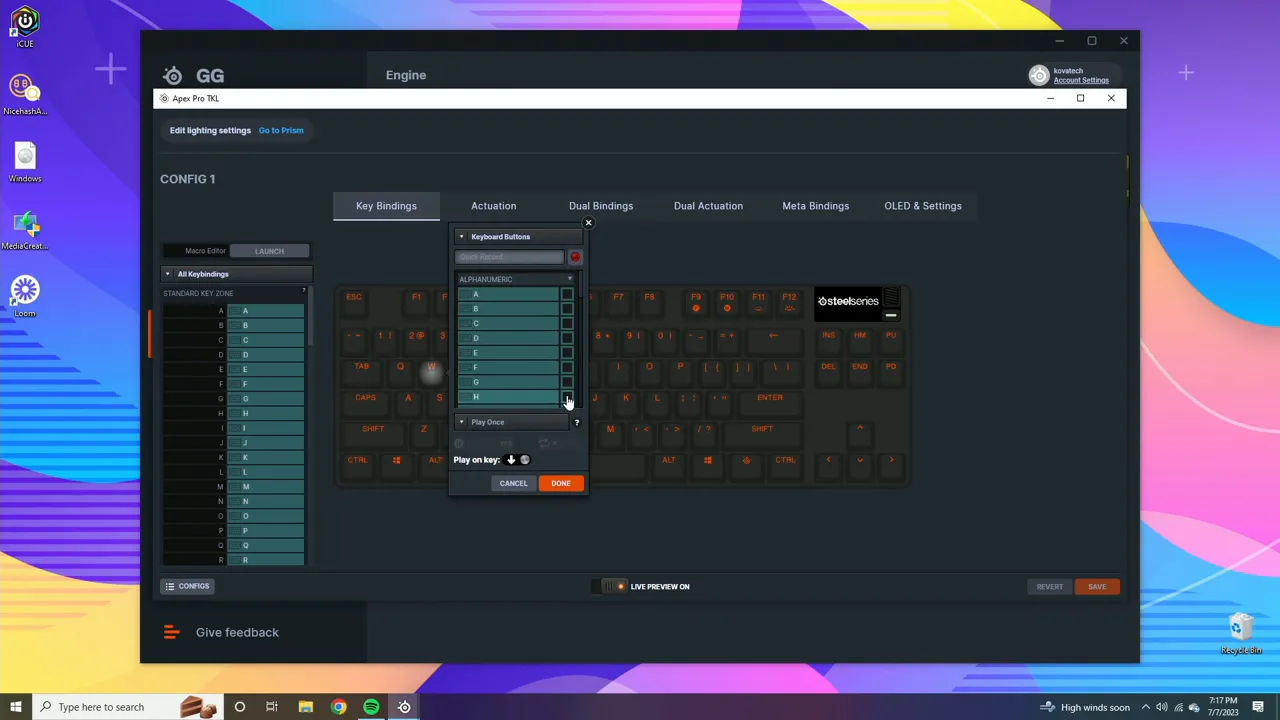
The Gear section handles remaps and macros. Click a key on the virtual layout and assign it to another key, media control, function layer, or a recorded macro. Typical remaps like binding W to H are done in seconds, and reverting to defaults is equally simple.
Beyond single remaps, the Engine supports modifiers, navigation keys, number pad shortcuts and a range of typing modes (insert, caps lock, function layers). That flexibility is useful for both gamers and power users who want to centralize shortcuts on one keyboard.
Repeat and toggle behaviors
One of the unique features is the ability to set how many times a key plays within a timeframe or whether it repeats while held. You can configure an action to "play N times within X milliseconds," "repeat while being pressed," or toggle on/off. For example, a key can be set to output the letter A ten times within 500 milliseconds. This is useful for automation or rapid input needs, though it should be used responsibly and with awareness of game rules and intended use.
OLED screen: personal but limited
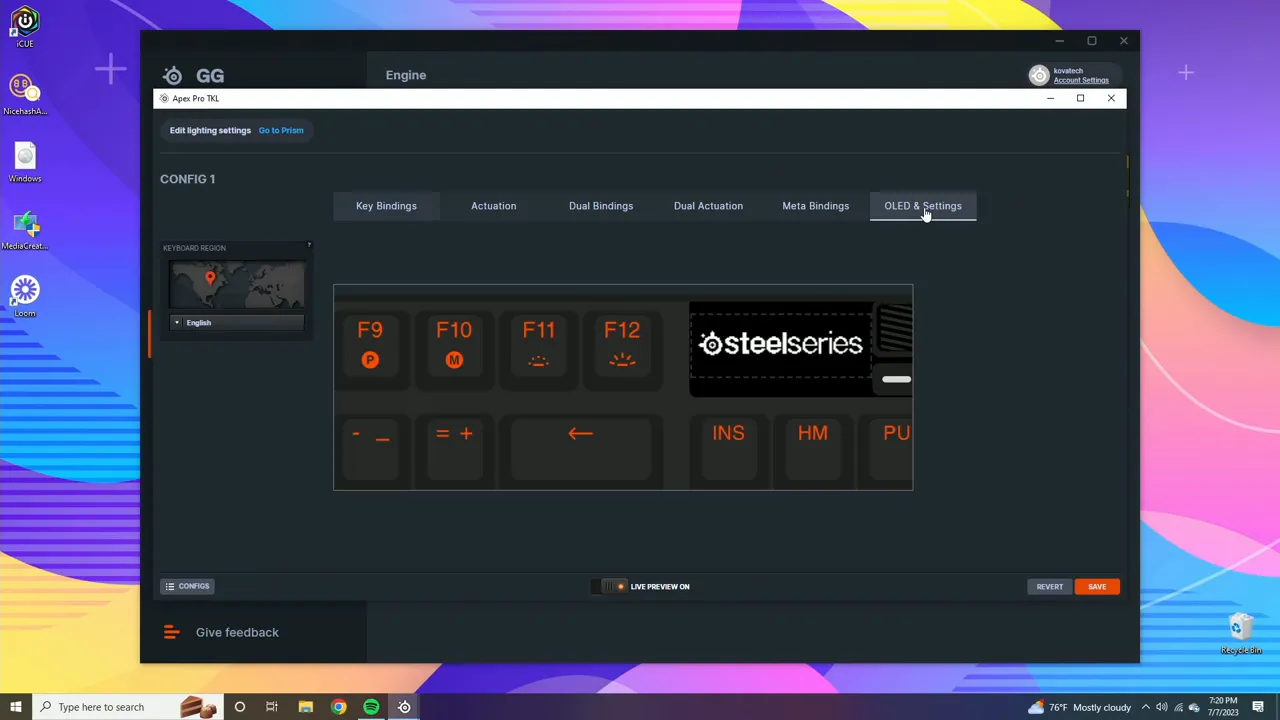
The small OLED on the keyboard is primarily for static images. You can upload or draw an image and invert the colors for clarity, but the software does not support dynamic overlays like real-time system stats, stock tickers, or in-game telemetry. In short, it is a customizable badge rather than a live dashboard.
Actuation control: tune responsiveness
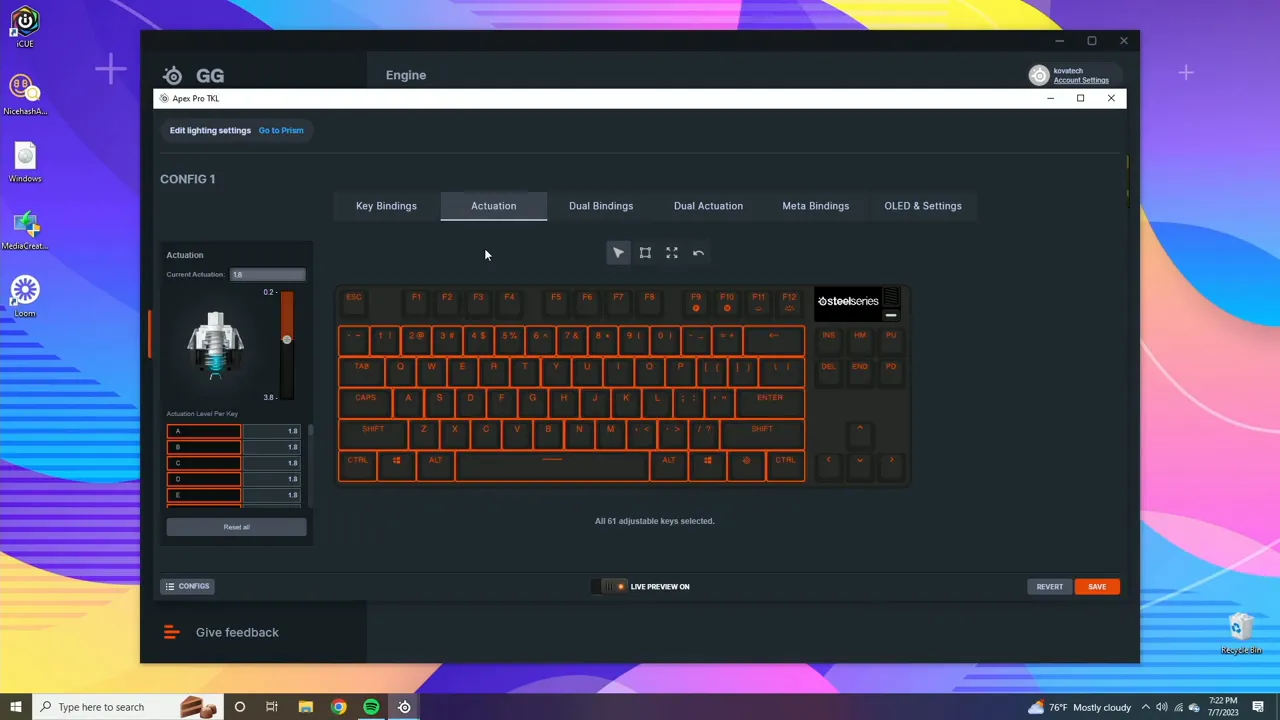
Actuation tuning is where the Apex Pro stands out. The software exposes an actuation dial that changes when a key registers relative to your physical press. Move the dial toward the top and the key registers later, toward the bottom and it registers sooner. Those millisecond differences can be significant in high-level competitive play.
Use the selector to target individual keys, groups of keys, or all keys in the central cluster. Note that some areas—F keys, arrows and navigation cluster—cannot be configured for actuation; configuration is limited to the central main keys.
Dual actuation and dual bindings
Dual actuation makes the keyboard behave like two switches per key depending on how far the key is pressed or released. To enable dual bindings you first set dual actuation thresholds for two keys. For example, select A and S and set their second actuation point to trigger when the key is released past a certain point.
Once set, dual bindings let you fire distinct actions on the first actuation versus the second. Typical uses include binding a movement key to fire a weapon at one actuation depth and—on the second actuation—triggering a macro or media control. This layered behavior is powerful for competitive players because it uses subtle finger motion to do more without leaving the keyboard.
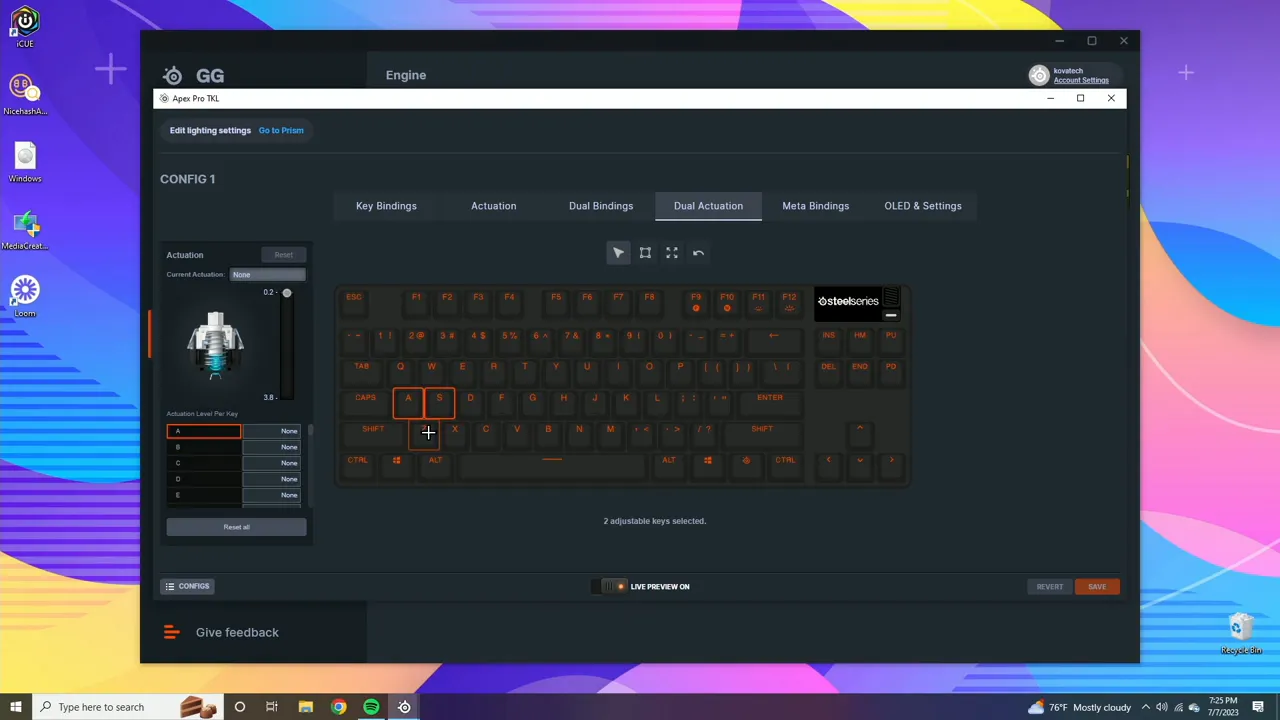
There are some constraints: the dual actuation threshold must be set carefully to avoid errors, and the behavior requires training to use reliably. It is a Pro-level feature—best for players chasing every millisecond advantage rather than casual typists.
Practical tips and recommended workflows
- Create multiple profiles for different contexts: esports config, streaming layout, and a daily typing mode. Save them with clear names so switching is immediate.
- Start conservative with actuation if you also type a lot. Lower actuation values improve reaction times but increase accidental presses while typing.
- Use repeat and toggle features sparingly and only where they are allowed by a game or application. They can be helpful for repetitive workflows in software, but may violate terms in competitive titles.
- Back up profiles if you invest a lot of time into macros and actuation setups. Export profiles so you can restore configurations or move them to another machine.
- Test dual-actuation in practice matches before using it in serious competition. Muscle memory needs time to adapt to layered key behaviors.
Is this software worth the price?
The keyboard and its software represent a premium offering. With the Apex Pro TKL retailing around $190, the value comes from the advanced actuation tuning, the depth of remapping and macro control, and the robust RGB options. For competitive players or users who want a highly personalized keyboard experience, the investment makes sense. For casual users who only need basic remapping and lighting, a less expensive board could be sufficient.
FAQ
Can the OLED display live stats or game data?
The OLED is limited to static images or simple drawn icons. It cannot display live telemetry or dynamic overlays through the official software.
Which keys can I change actuation for?
Actuation can be adjusted for the main central key cluster. Function keys, arrow keys and some navigation keys are not configurable for actuation in the software.
What is dual actuation and who should use it?
Dual actuation gives each key two registration points so different actions can occur at different press depths or on release. It is aimed at competitive players seeking micro-optimizations and requires practice to use effectively.
Can I make a key spam a character or action?
Yes. You can configure a key to play multiple times within a set timeframe, repeat while pressed, or toggle. Use this responsibly and be mindful of rules or terms of service in games or platforms.
How do I preserve different lighting setups?
Create multiple light profiles in the Prism section and save them. Profiles can be named for occasions like holidays, team colors or tournament setups and switched instantly.


