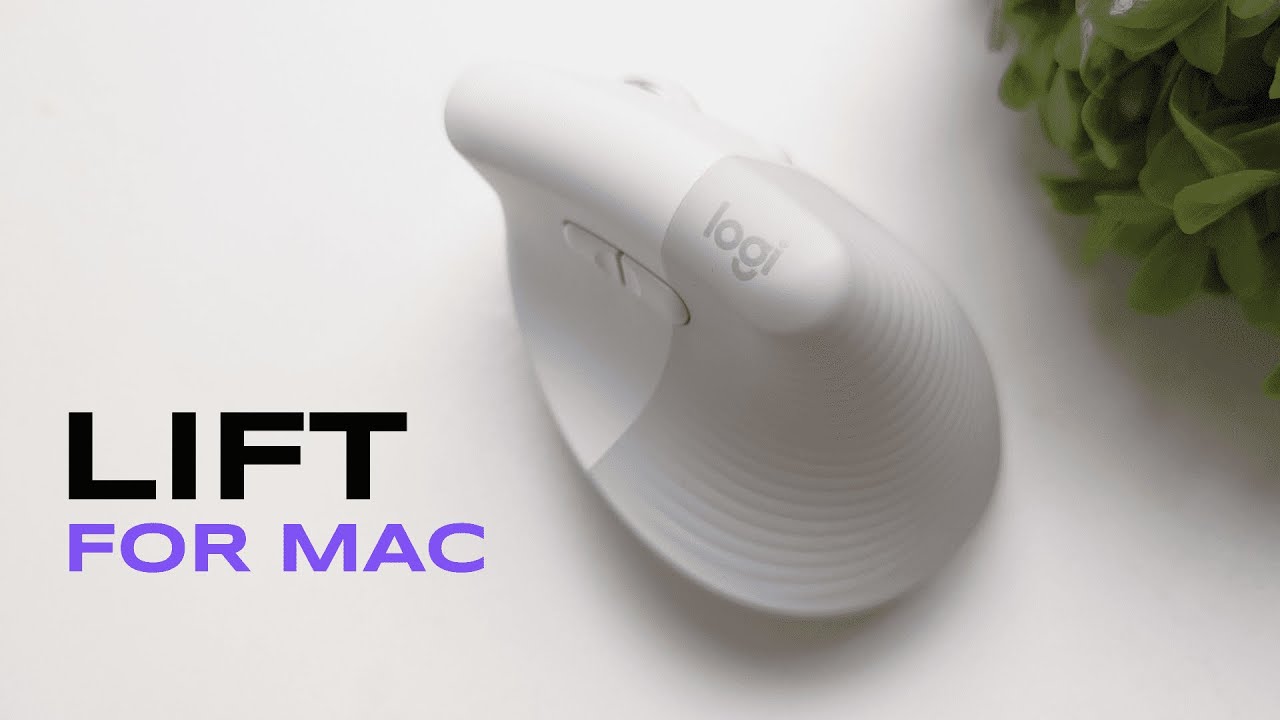
I'm Kova Tech, and in this article I’m walking you through everything I covered in my Logitech Lift for Mac review — from first impressions and design to pairing, battery life, and real-world ergonomics. If you're considering upgrading to a more ergonomic, Mac-friendly mouse that prioritizes comfort and quiet clicks, this walkthrough will help you decide whether the Lift fits your needs.
Table of Contents
- Quick overview
- First impressions: look and feel
- Who is this mouse sized for?
- Buttons, wheel, and controls
- The SmartWheel: scroll behavior that adapts
- Pairing, profiles, and how the Lift connects
- Battery life and portability
- Click noise and office etiquette
- Ergonomics: how it compares to a traditional mouse
- Who should buy the Logitech Lift for Mac?
- Alternatives to consider
- Pros and cons (quick summary)
- Final verdict
- FAQs
- Closing thoughts
Quick overview
The Logitech Lift for Mac is a compact, right-handed ergonomic wireless mouse built with Mac users in mind. It delivers a handshake-style vertical angle to reduce wrist strain, pairs over Bluetooth Low Energy, and uses a single AA battery that Logitech claims can last up to two years. The Lift emphasizes quiet operation (silent clicks) and a refined scrolling experience via a magnetic SmartWheel that adapts to how fast you spin it.
First impressions: look and feel
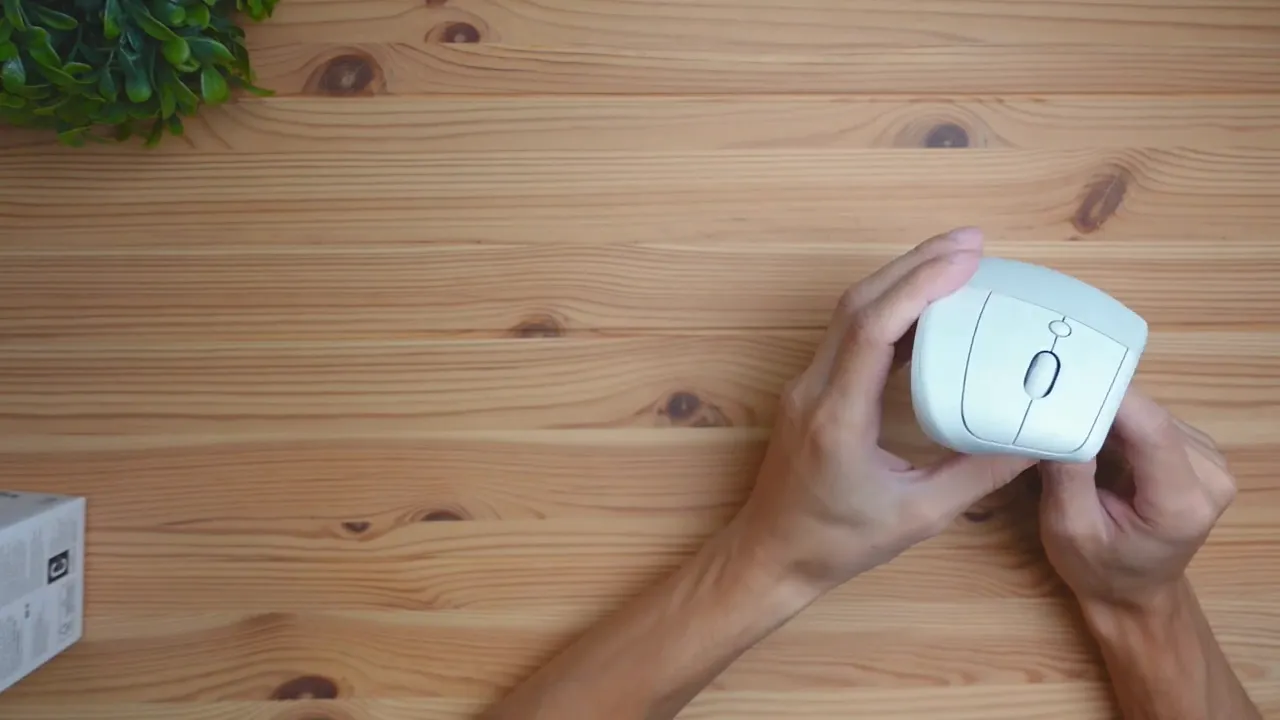
Out of the box the Lift feels premium for its price point. I reviewed the pale gray color and noticed a mix of materials — a soft, line-textured rubber grip for the thumb and high-quality plastic across the rest of the body. That combination gives the mouse a tactile, confidence-inspiring feel without being flashy.
The mouse’s form factor positions your hand in a more neutral handshake position. You place your thumb along the rubberized side, and your fingers naturally wrap around the other half. That grip is comfortable and secure, especially for longer sessions where small posture improvements add up.
Who is this mouse sized for?
The Lift is optimized for small to medium-sized hands. If your hands are on the larger side, you’ll likely find this mouse too compact and might prefer a larger option like the Logitech MX Vertical. The Lift is clearly designed to be compact and travel-friendly while still offering the benefits of an ergonomic vertical design.
Buttons, wheel, and controls
On the right-handed Lift I tested, you get the essentials plus a few convenient extras:
- Primary left and right buttons — tuned to be ultra-quiet.
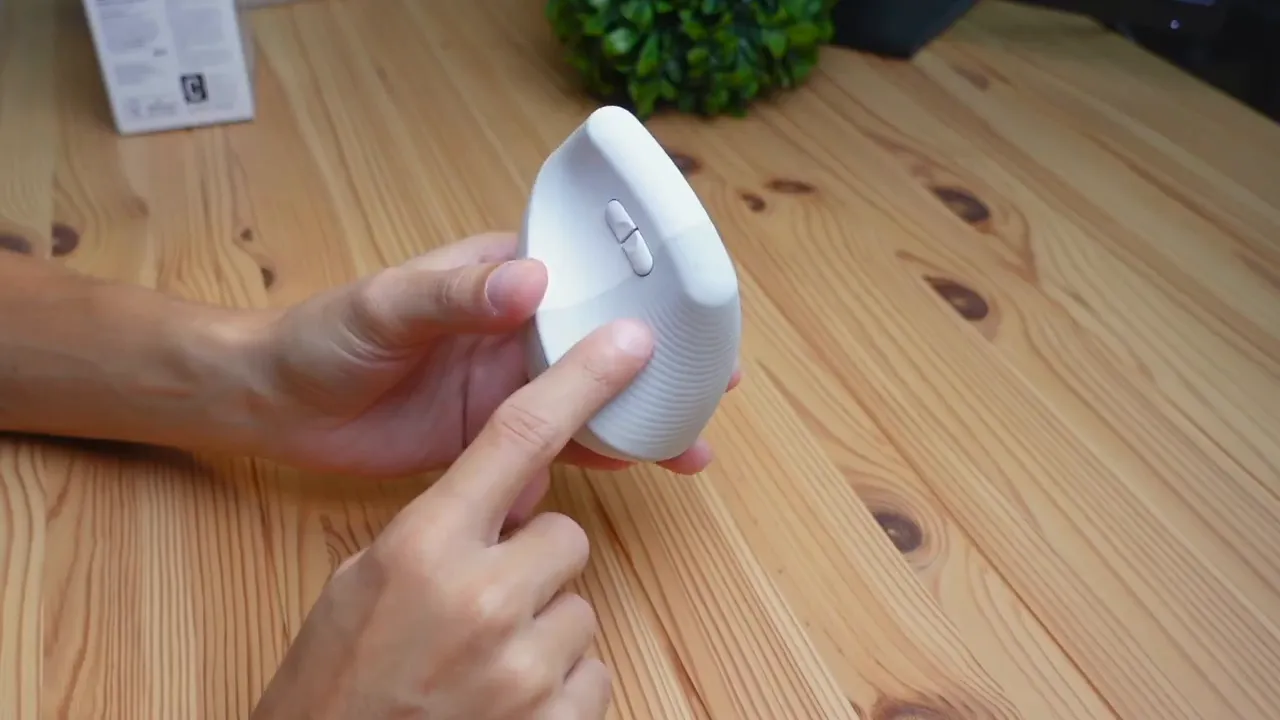
- Back and forward buttons — easy to reach with your thumb and great for browsing and document navigation.
- DPI/Mode button — switches between speed modes (slow and fast) depending on what you need for precision or quick movement.
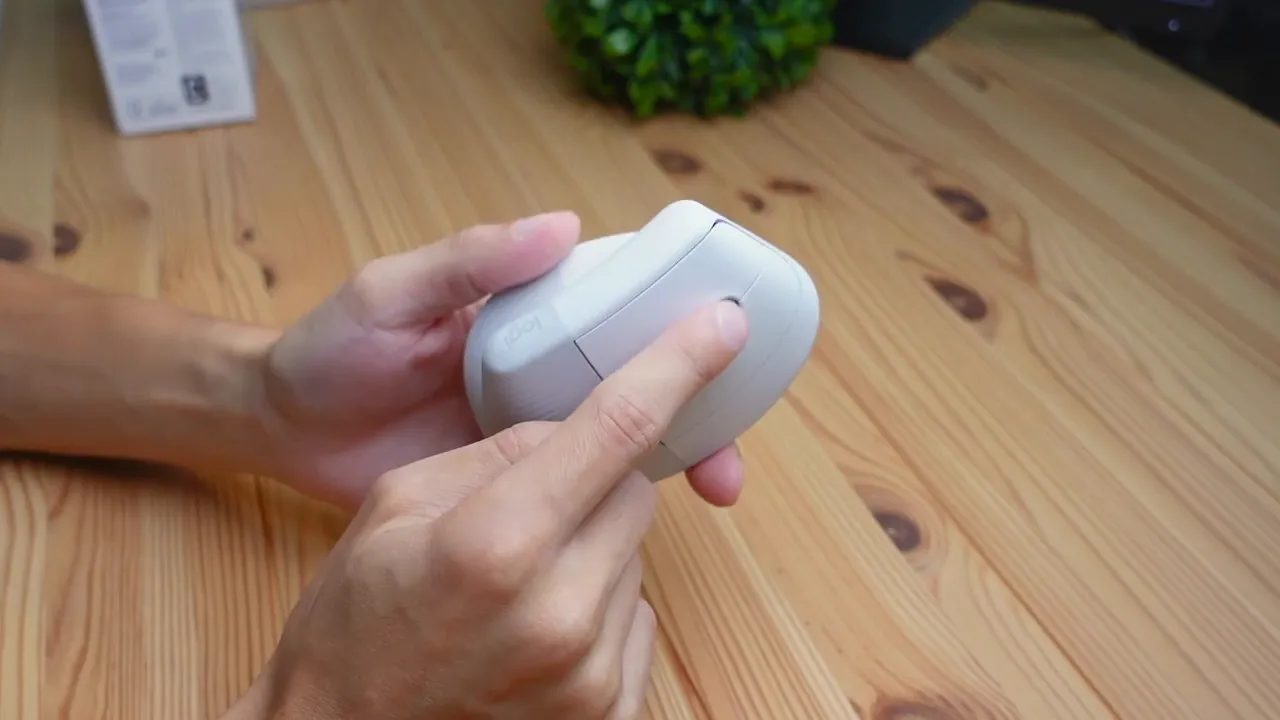
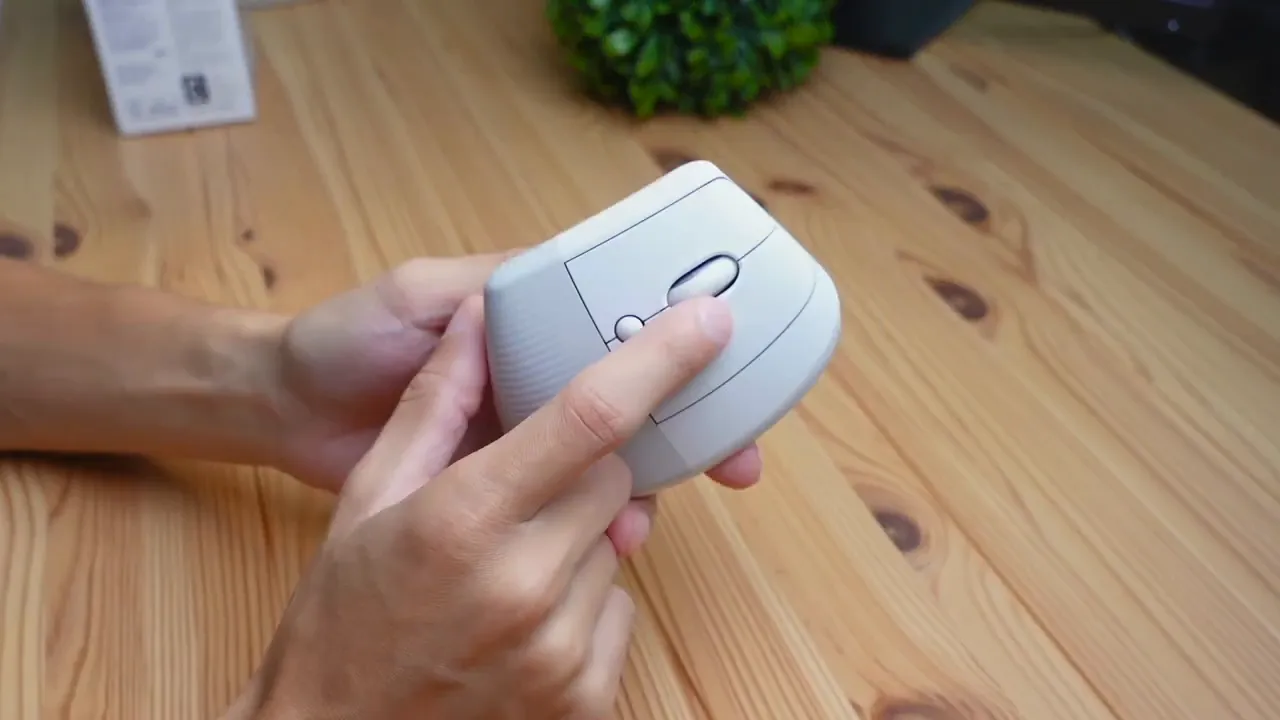
- SmartWheel — not a standard tactile wheel: scroll slowly for precise, stepped scrolling; spin faster and it goes into a free-spin mode for rapid navigation.
The SmartWheel: scroll behavior that adapts
The SmartWheel is one of the Lift’s standout features. It behaves like a hybrid: a "ratcheted" mode when you need precision, and a free-spin mode when you want to move quickly through long pages or spreadsheets. That makes it flexible for mixed workflows — coding, research, or creative work where both accuracy and speed are necessary.
Pairing, profiles, and how the Lift connects
Pairing is straightforward. There are profile selection buttons on the underside of the mouse for up to three profiles. When you switch profiles, an LED blinks indicating which profile the mouse is trying to pair with. On your Mac or other Bluetooth-capable device, simply open Bluetooth settings and connect to the blinking profile — it’s that simple.

Because it uses Bluetooth Low Energy (BLE), the Lift plays nicely with MacBooks, iMacs, and iPads that support BLE. If you work across multiple devices, the three-profile option makes it handy to switch between different computers or user profiles quickly.
Battery life and portability
The Lift uses a single AA battery. Logitech advertises up to two years of battery life depending on usage patterns. The battery compartment is magnetic and snaps back in place easily — three magnets hold the lid, so it won’t pop off in transit. That magnetic lid is a nice touch for portability and durability when you toss the mouse in a bag.
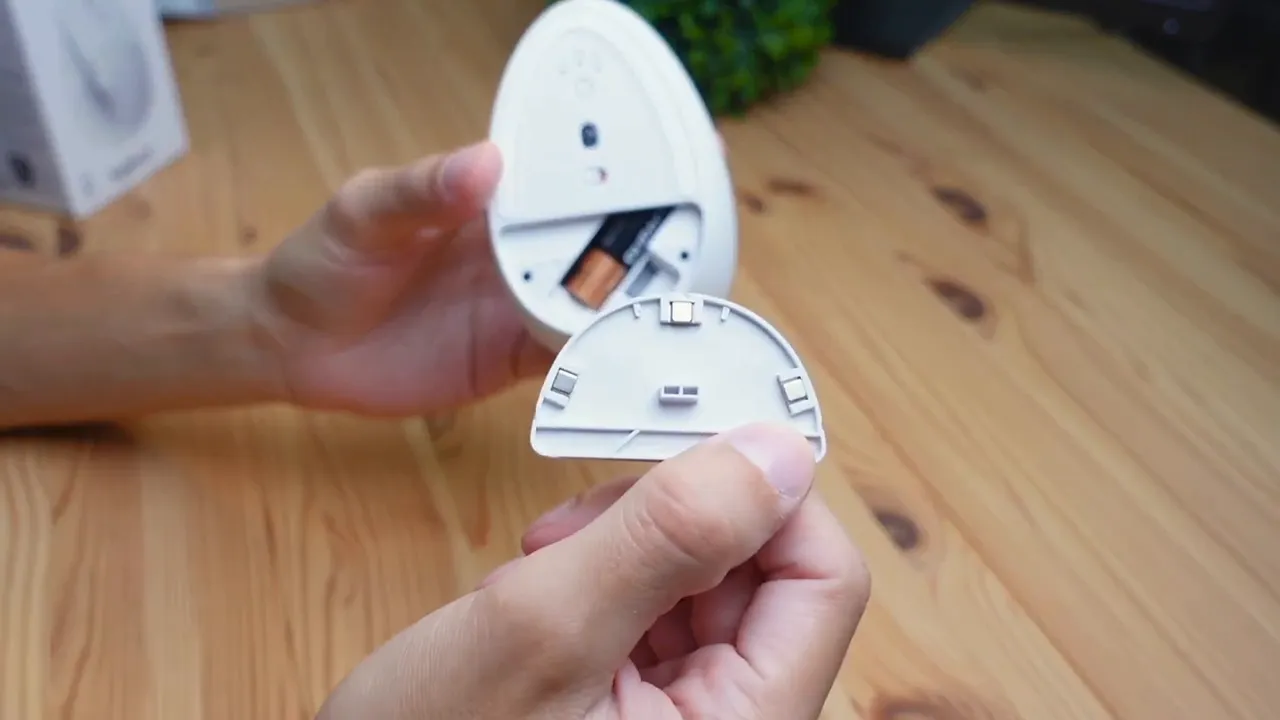
For travel: the lightweight design and secure battery cover make the Lift a practical choice if you frequently take your mouse between home and office or workspaces.
Click noise and office etiquette
The Lift is designed to be ultra-silent. During my testing I did a quick click test and the clicks are significantly quieter than typical mice. This is excellent for shared spaces and open offices — you won’t be drawing attention with loud clicking. If you value a discreet setup or work in meetings and public areas, the silent buttons are a real advantage.
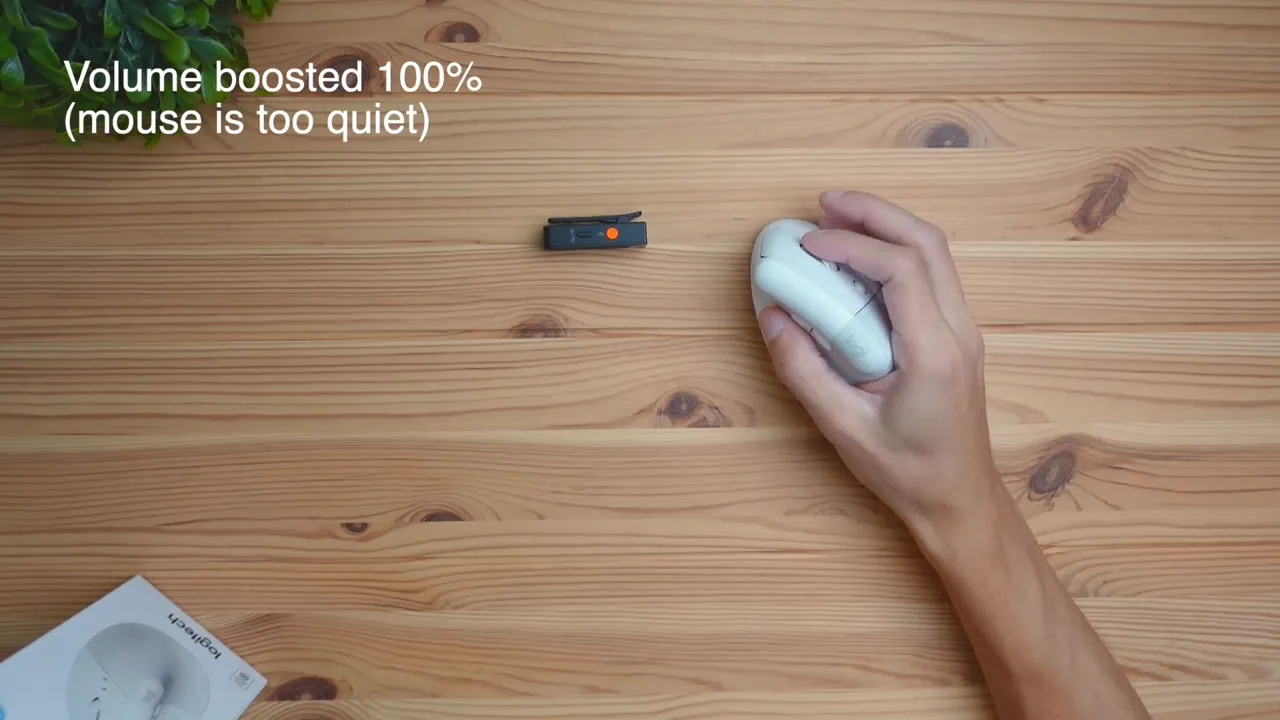
"This is going to be an ultra silent Mouse and you're definitely not going to be distracting anyone around you whether you're working at home or in an office environment."
Ergonomics: how it compares to a traditional mouse
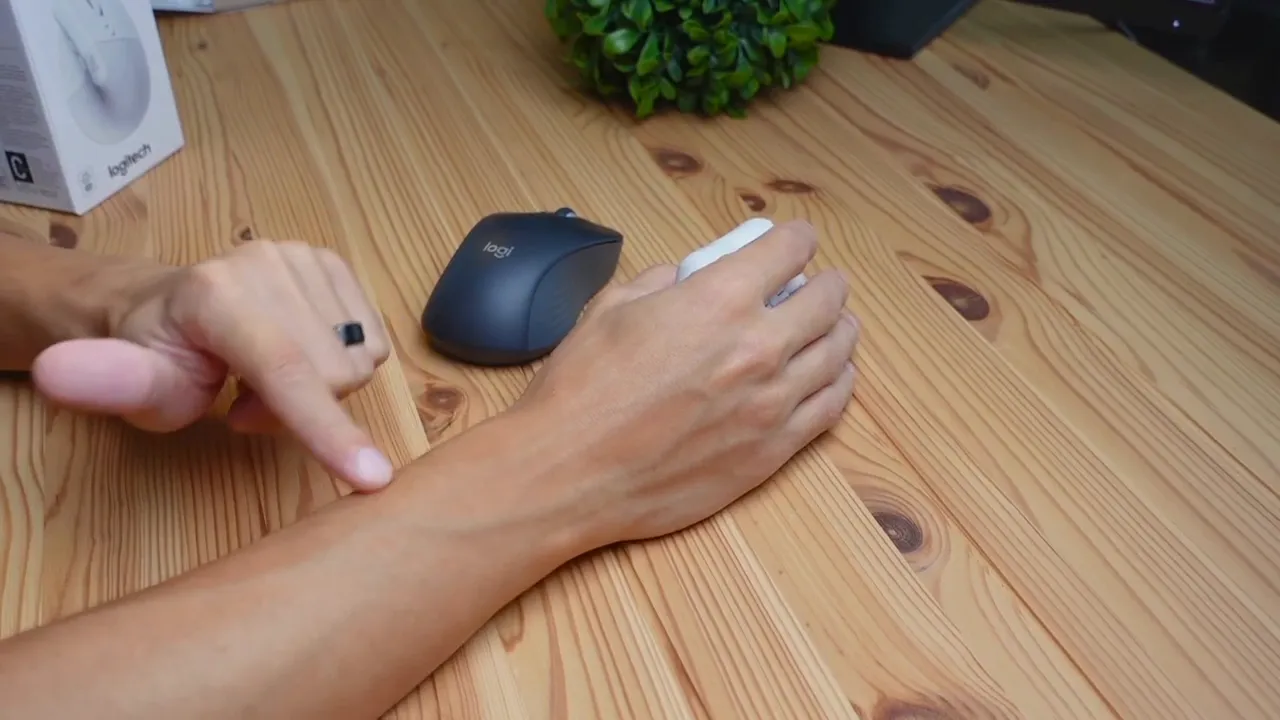
To highlight the ergonomic difference I compared the Lift to a traditional Logitech M550. With the traditional mouse, my palm lies flatter and I felt some strain near the base of the wrist when reaching forward or resting in certain positions. Switching to the Lift moved my hand into a more neutral, handshake angle which reduced tension in that part of my wrist.
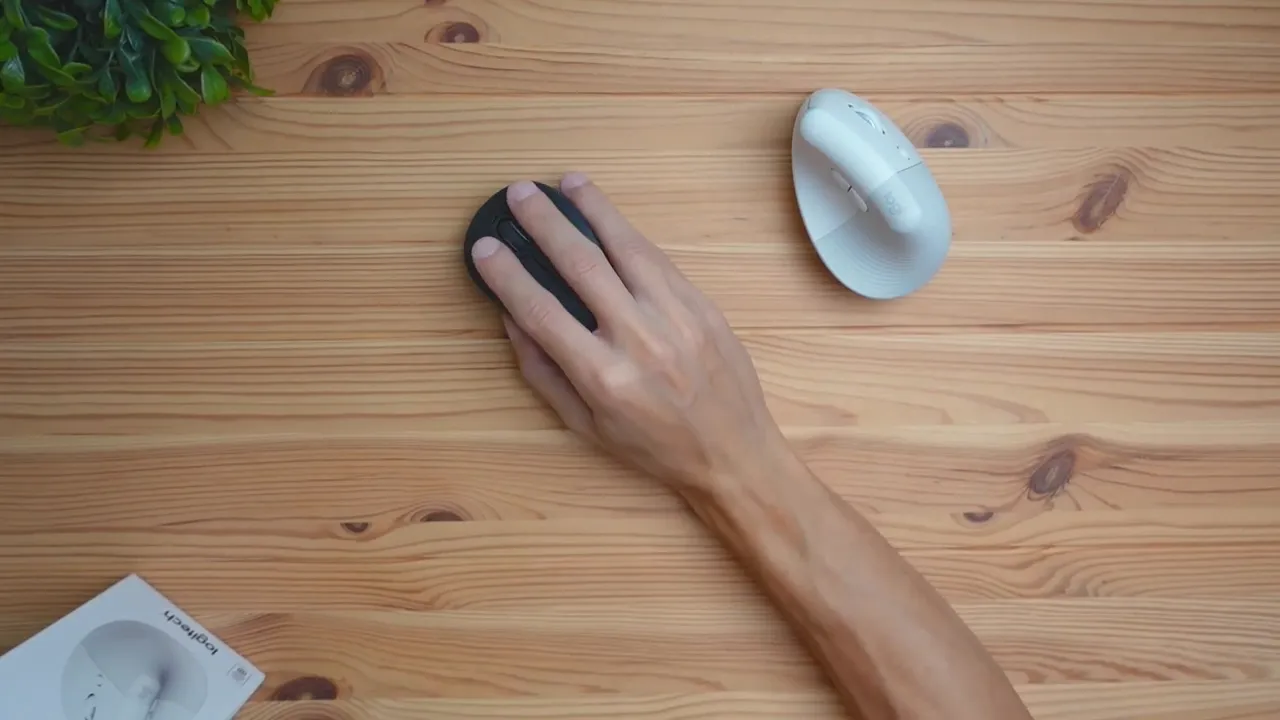
This vertical-ish positioning is subtle but effective for many users. It reduces pronation (the inward rotation of your forearm) and can help minimize wrist discomfort for people who spend hours clicking and scrolling. That said, the Lift is not a full 90-degree vertical mouse; it’s a gently angled ergonomic option designed for comfort without forcing a radical change in hand posture.
Who should buy the Logitech Lift for Mac?
Consider the Lift if:
- You use a Mac and want a mouse that integrates smoothly via Bluetooth Low Energy.
- You have small to medium-sized hands and want an ergonomic upgrade without a steep learning curve.
- You value quiet clicks for shared workspaces or meetings.
- You want a compact, travel-friendly ergonomic mouse with long battery life.
Consider something else if:
- Your hands are large (look at the MX Vertical instead).
- You need programmable buttons beyond the Lift’s four, or you require a USB receiver rather than Bluetooth.
- You prefer a full 90-degree vertical orientation for therapeutic reasons — the Lift is milder in its angle.
Alternatives to consider
- Logitech MX Vertical: Bigger, more vertical, and better suited for larger hands or users needing a more aggressive ergonomic angle.
- Traditional tangential mice (e.g., Logitech M550): If you’re used to standard mice, these have flatter profiles and will feel more familiar, but they don’t offer the same ergonomic benefits.
Pros and cons (quick summary)
- Pros: Comfortable handshake angle for small/medium hands, quiet clicks, adaptive SmartWheel, long battery life, magnetic battery cover, Apple-focused BLE pairing.
- Cons: Too small for large hands, limited button programmability compared to higher-end models, right-handed only in the reviewed unit (left-handed version exists separately).
Final verdict
The Logitech Lift for Mac is a thoughtfully designed ergonomic mouse that hits a sweet spot for Mac users who want improved comfort without sacrificing a compact, travel-ready form factor. Its quiet buttons, adaptive scrolling, and long battery life make it an attractive option for office workers and remote professionals alike. If your hands are small to medium-sized and you’re looking to reduce wrist strain with a minimal learning curve, the Lift is worth a close look. If your hands are larger or you need a more vertical approach, check out Logitech’s MX Vertical instead.
FAQs
Is the Logitech Lift compatible with Mac devices?
Yes. The Lift uses Bluetooth Low Energy (BLE) and is designed to pair easily with MacBook Pro, MacBook Air, iMac, and iPad models that support BLE. Pairing is performed via Bluetooth settings, and the mouse supports up to three profiles for quick device switching.
How long does the battery last?
Logitech advertises up to two years of battery life using a single AA battery, though actual life depends on usage patterns. The battery compartment is magnetically sealed for secure transport.
Is this mouse quiet enough for open offices?
Yes. The Lift’s primary clicks are ultra-silent, which makes it well-suited to shared workspaces, meetings, and quiet environments.
Can left-handed users use the Lift?
The model I reviewed was the right-handed Lift for Mac. Logitech does offer a left-handed Lift version that is optimized for left-handed use.
What should I buy if I have large hands?
If your hands are large, consider the Logitech MX Vertical. It’s a larger, more pronounced vertical mouse that provides a greater ergonomic angle and more space for bigger hands.
Does the Lift support USB receiver connectivity?
The Lift primarily connects via Bluetooth Low Energy. If you require a USB receiver (Logitech Unifying Receiver), you should check the specific SKU or variant as some Logitech mice include receiver options, but the Lift for Mac focuses on Bluetooth pairing.
Is the SmartWheel adjustable in software?
The SmartWheel’s dual behavior (ratcheted vs free-spin) activates based on your scrolling speed. For additional customization (button remapping, sensitivity, etc.), check Logitech’s software for Mac to see which settings are supported for the Lift model.
Closing thoughts
If you’re seeking a comfortable, quiet, and Mac-friendly ergonomic mouse that won’t overwhelm your desk or your hands, the Logitech Lift for Mac is a compelling option. It blends ergonomics, functionality, and portability in a neat package — especially if your priorities include silent clicks and long battery life. For those with larger hands or who need more advanced customization, consider stepping up to a larger vertical model, but for everyday productivity on a Mac, the Lift is a strong, practical choice.


