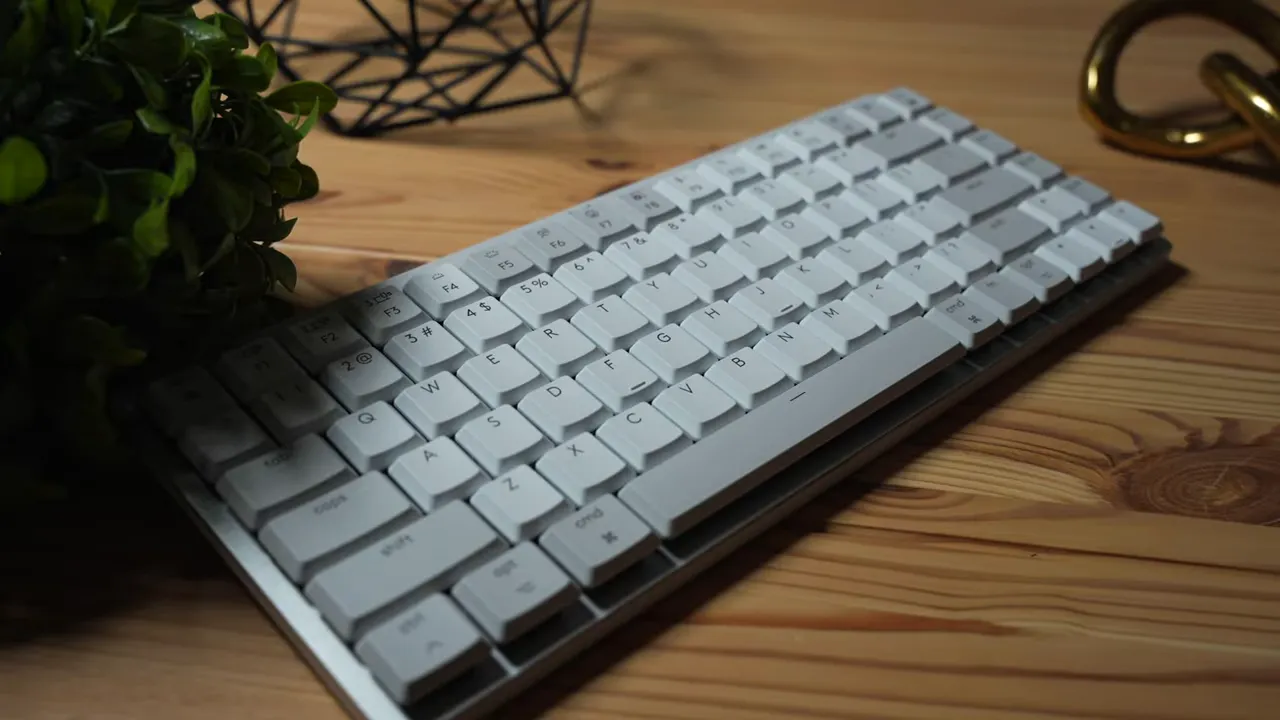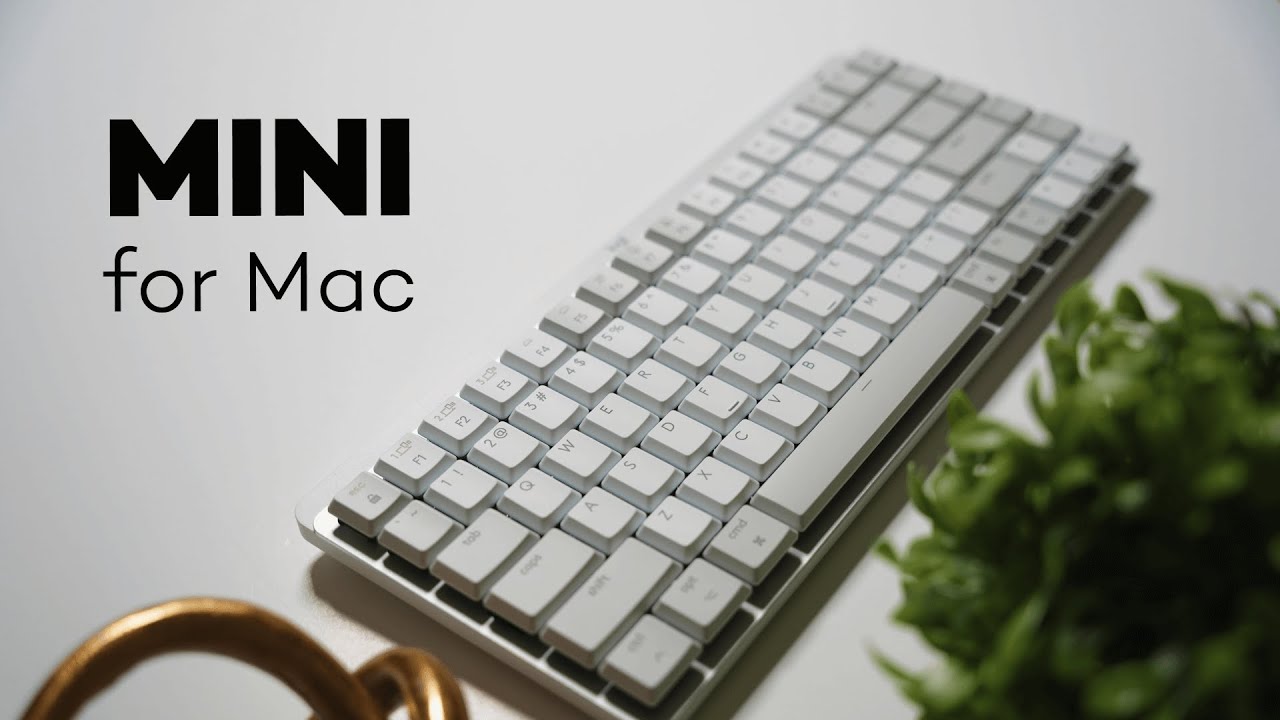
The Logitech MX Mechanical MINI for Mac is a compact mechanical keyboard built for people who want a tactile, productivity-focused typing experience without taking up a full desk footprint. It blends aluminum and quality plastics, offers Bluetooth multi-device switching, and aims to balance feel, portability, and battery life.
Design and build quality
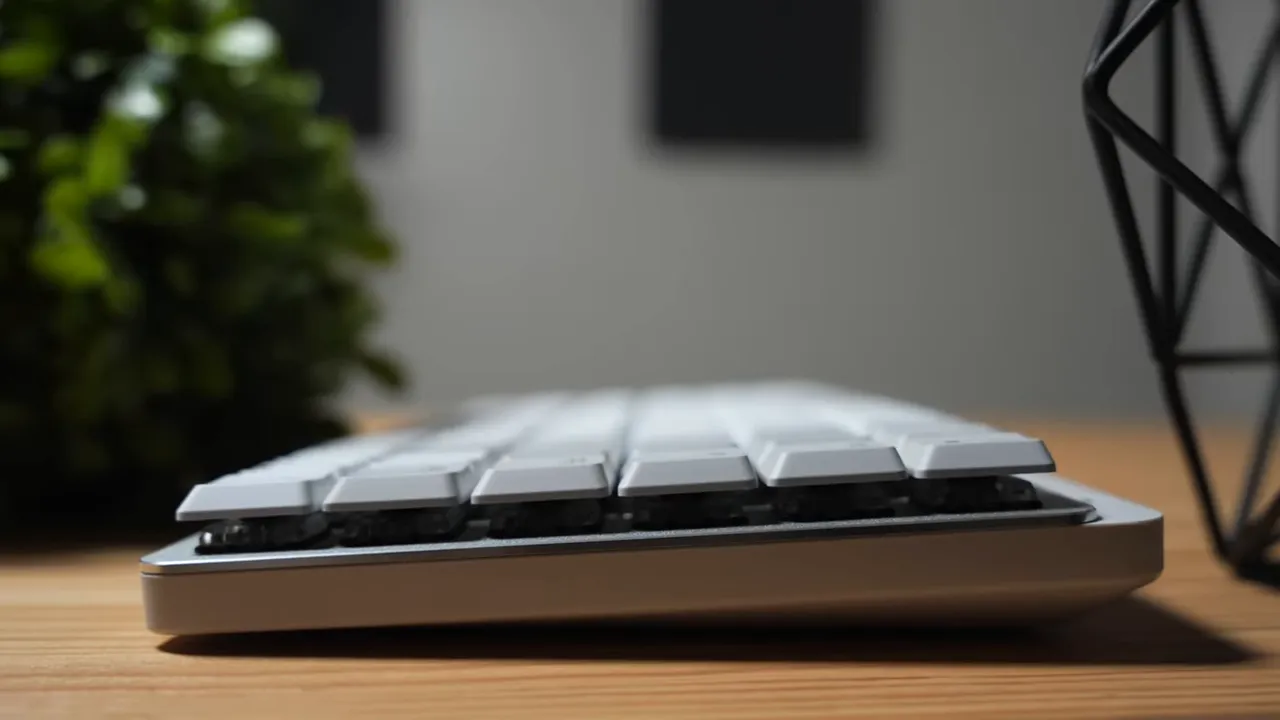
The keyboard's top plate is aluminum, which gives it a cool, premium feel under your hands. The sides are smooth plastic, and the back uses a grainy textured plastic that hides wear. Rubber feet on the front and adjustable legs on the back provide stability and optional tilt.
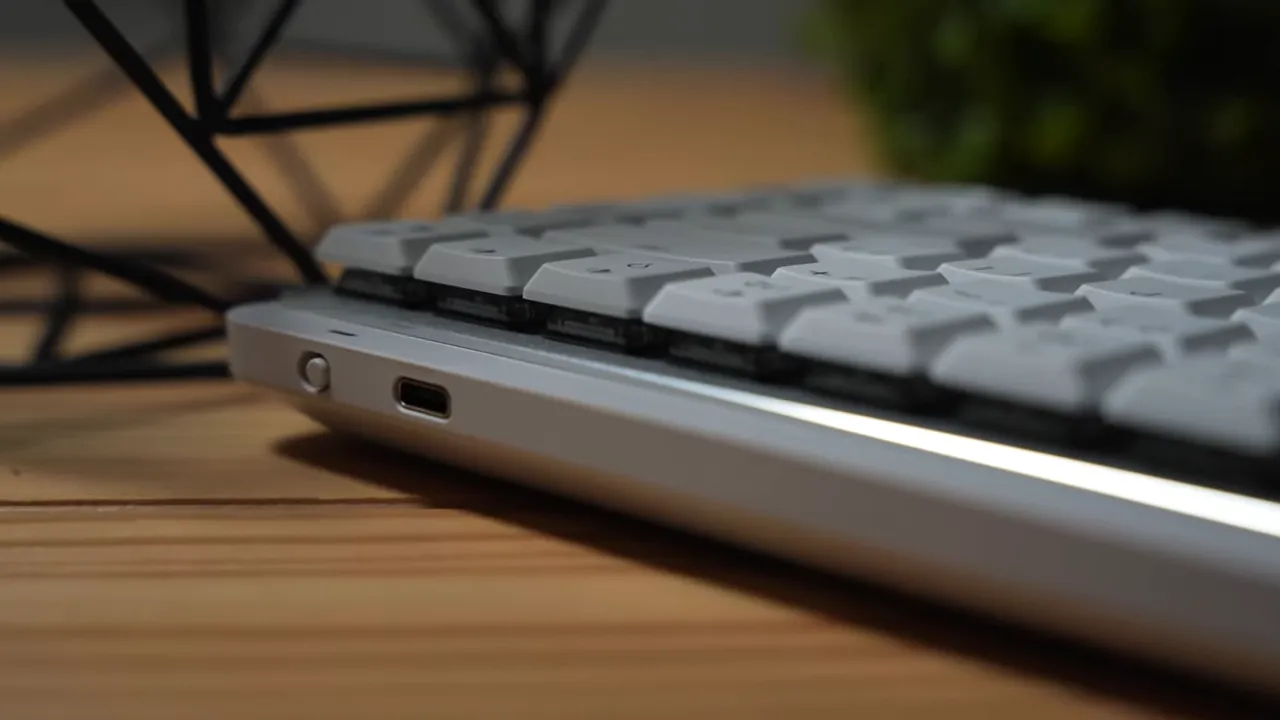
The adjustable legs raise the board to a more ergonomic angle if you prefer a higher tilt, but I found the lower profile comfortable without using the legs. For those who travel with a keyboard, the Mini size makes it easy to slip into a laptop bag or backpack.
Backlighting and proximity sensor
Backlighting is enabled via a proximity sensor that turns the lights on when your hands approach. Thoughtful in theory, but this feature has been hit-or-miss for some users. If the proximity sensor fails, the lights won't come on automatically and you may need support or replacement.
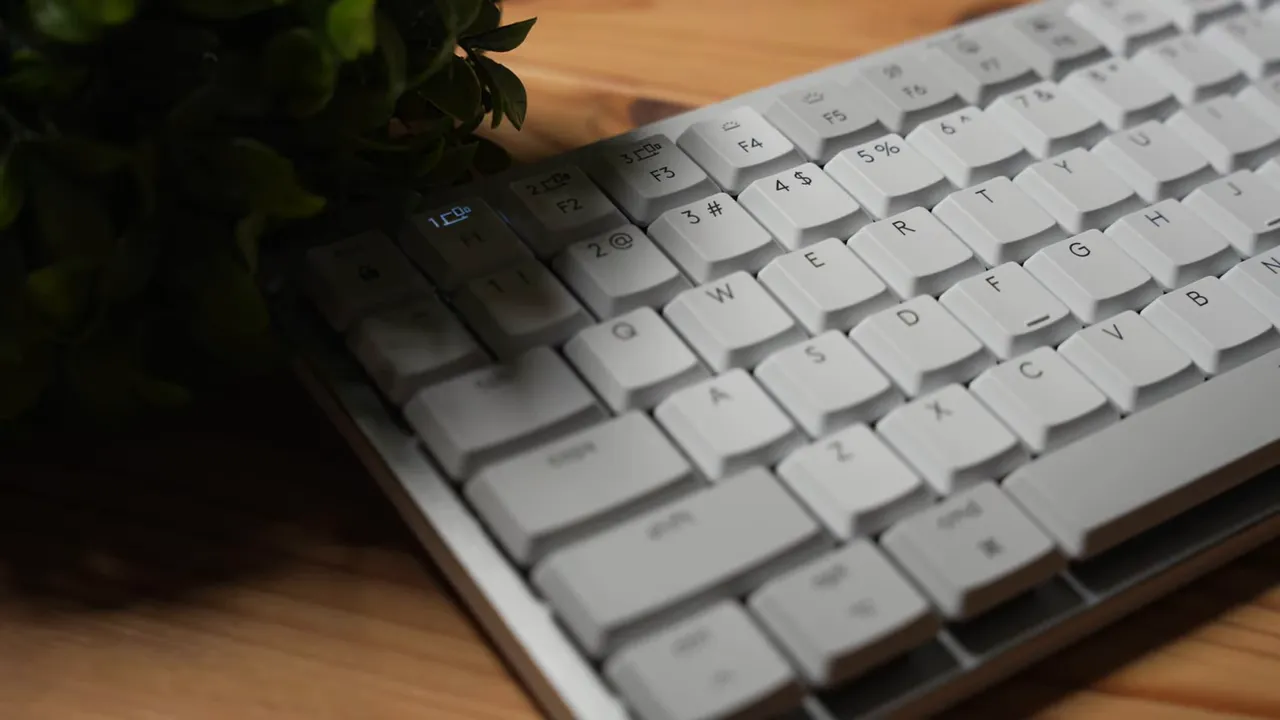
When working in darker environments, backlighting is obviously useful. If long battery life matters more than illumination, the keyboard still performs well with the lights off.
Battery life and charging
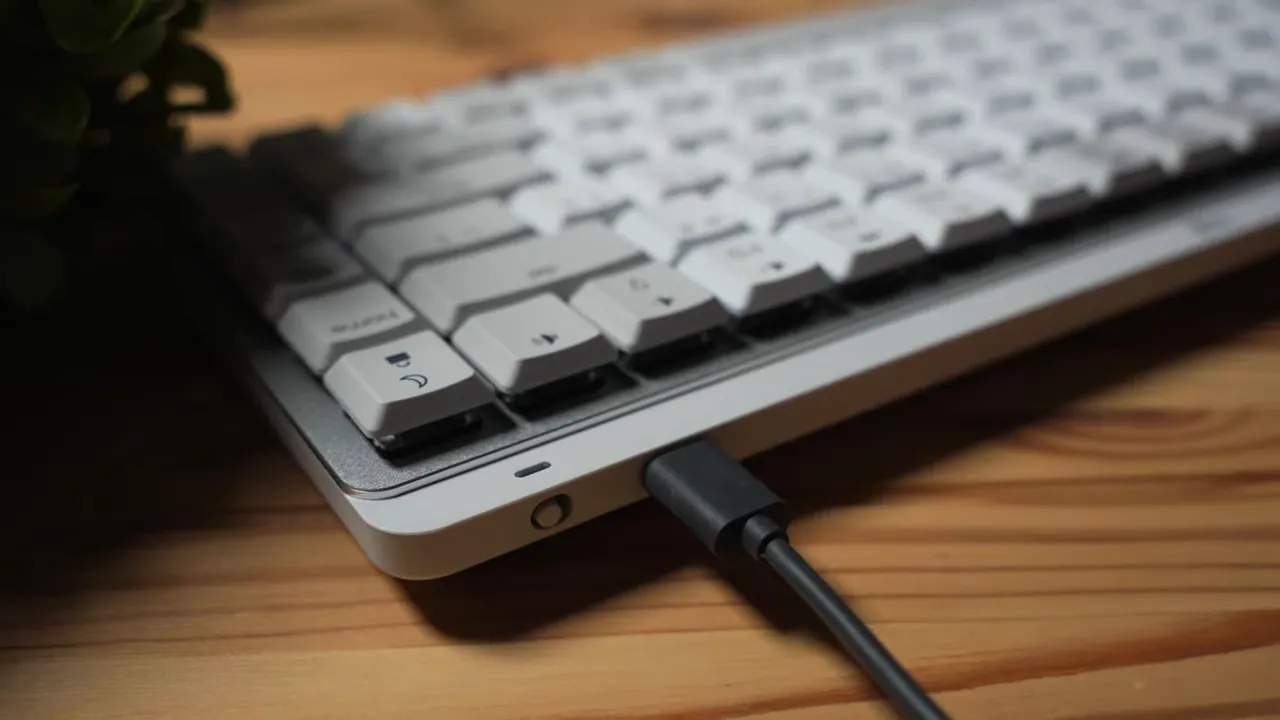
Logitech quotes about 15 days with backlight and roughly 10 months without backlight. Those are attractive numbers for anyone who wants to avoid frequent charging. The keyboard ships with a USB-C cable, but note that the cable is for charging only — it cannot be used as a wired connection to a computer. Make sure your machine supports Bluetooth or has a USB-C receiver option if you need a wired fallback.
Switches and typing feel
The MX Mechanical MINI for Mac ships with Logitech's tactile quiet switches, which are most similar to Brown mechanical switches. They offer a satisfying tactile bump without being overly loud — a great middle ground for mixed-use environments.
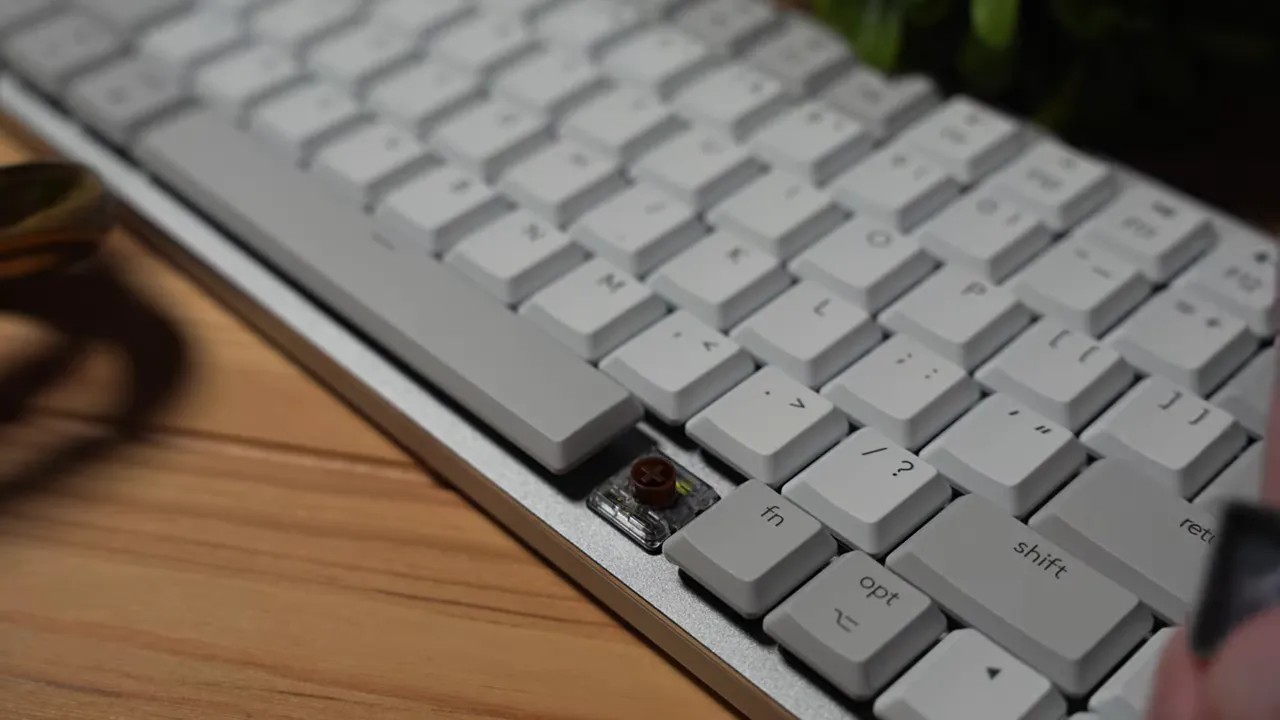
For non-Mac variants, Logitech also offers Blue (clicky) and Red (linear) options. I personally prefer the tactile quiet/Brown-style switches here because they deliver feedback without drawing attention.
How quiet is it?
The switch design is noticeably quieter than clicky alternatives. For anyone sensitive to typing noise in shared spaces, these tactile quiet switches are a strong choice.
Keycaps and ergonomics
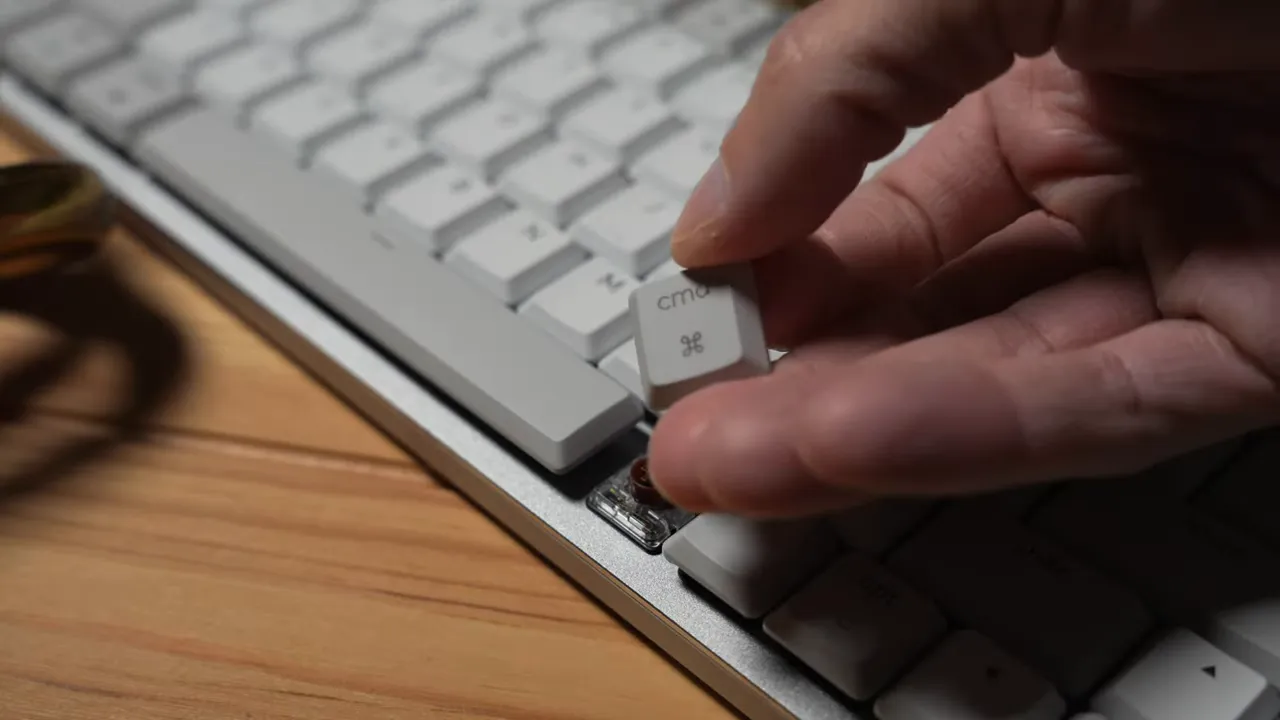
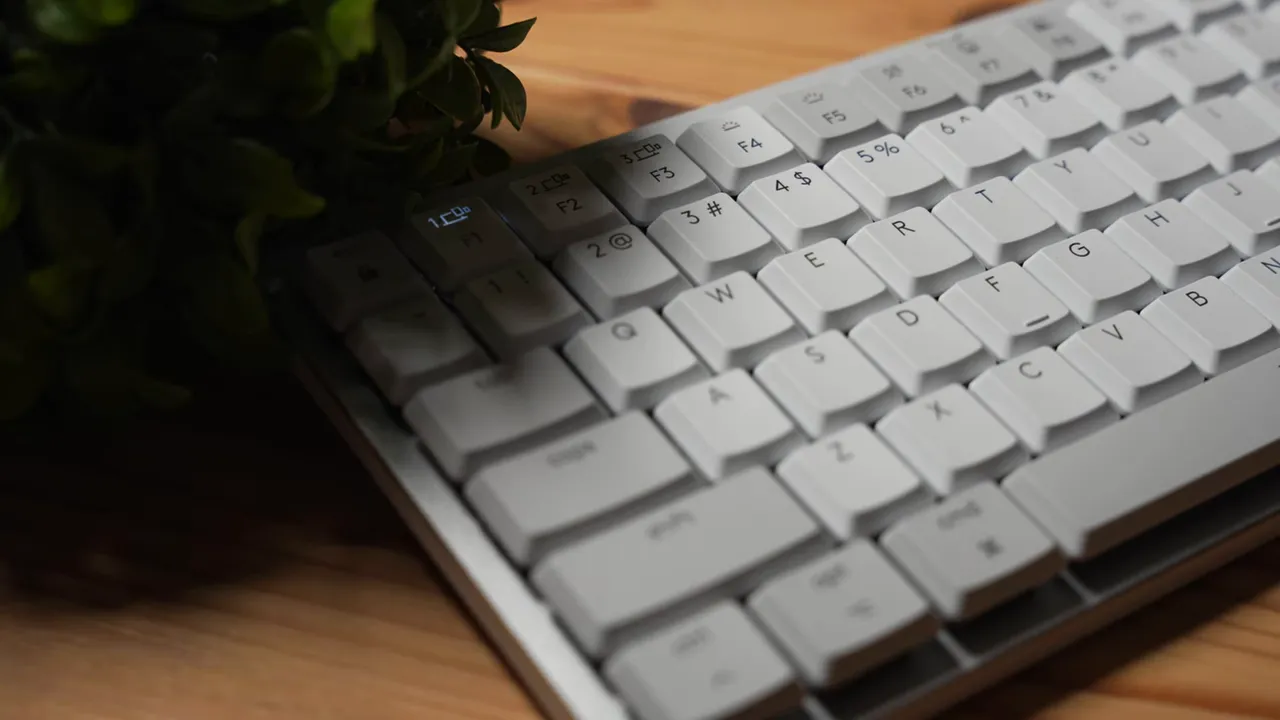
Keycaps are plastic with transparent legends so light can shine through. That choice prevents printed legends from rubbing off over long-term use and looks cleaner when the backlight is active. Each keycap is slightly concave, helping fingers settle into position for more accurate typing.
Media keys, shortcuts, and device switching
Dedicated shortcut keys cover media controls (play/pause, volume), microphone mute, emoji selection, dictation (type with voice), backlight brightness, and Bluetooth device switching. The keyboard supports up to three paired devices, and the three Easy Switch keys allow fast switching between a phone, tablet, or desktop.
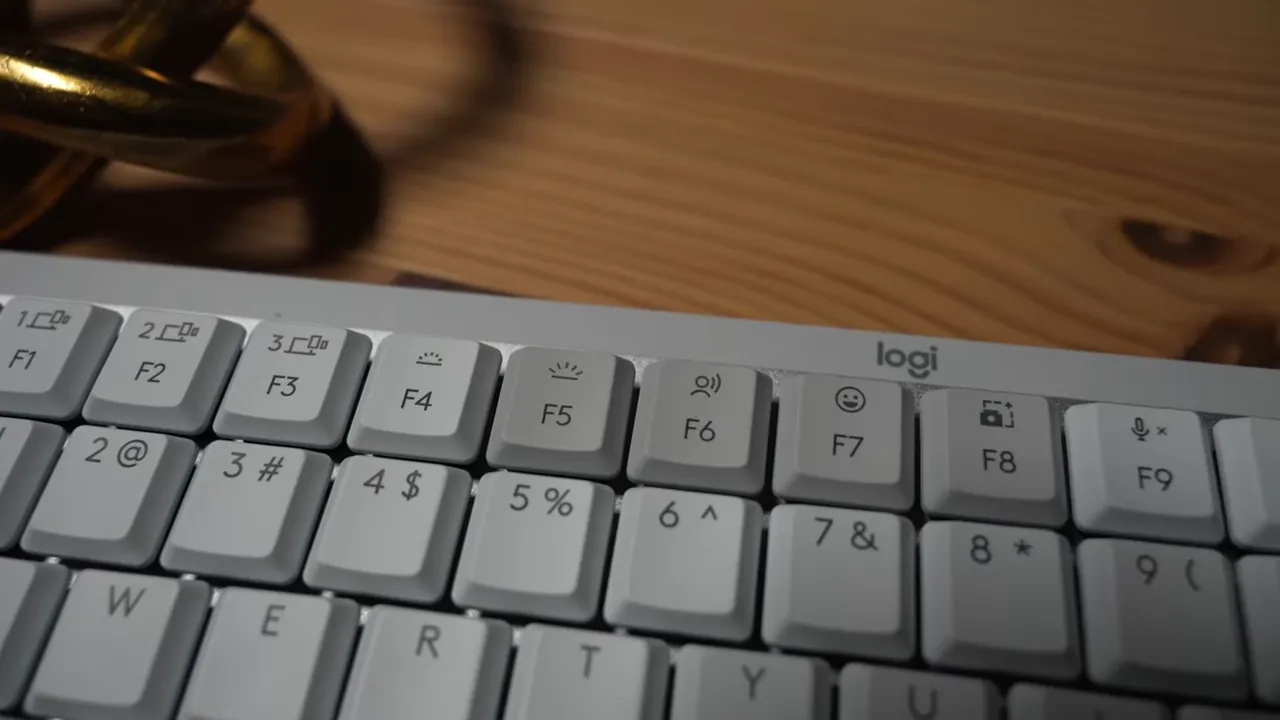
This multi-device capability is one of the most productivity-boosting features. If you frequently hop between devices, the instant-switch buttons save time and friction.
Software and customization
The keyboard is compatible with Logitech software for macOS and Windows. You can remap shortcuts, adjust backlight behavior, and customize behavior per app. The software is handy for adapting the keyboard to specific workflows or replacing less-used keys with shortcuts you actually use.
Pros and cons
- Pros: Premium aluminum top, compact form factor, satisfying tactile switches, transparent legends that won’t fade, long quoted battery life, multi-device switching, solid build quality.
- Cons: Backlight proximity sensor can be unreliable for some units, USB-C is charge-only (no wired mode), premium price point where full functionality is expected out of the box.
Verdict
The Logitech MX Mechanical MINI for Mac is a strong option for Mac users who want a compact mechanical keyboard that balances feel, portability, and productivity features. If you value tactile feedback, multi-device switching, and a premium build, this keyboard delivers. Just be mindful of the backlight/proximity sensor reports — test your unit early and contact support if the lights don't behave as expected.
Overall, it is a solid mini mechanical keyboard that feels high quality and thoughtfully designed, especially for on-the-go or space-conscious setups.