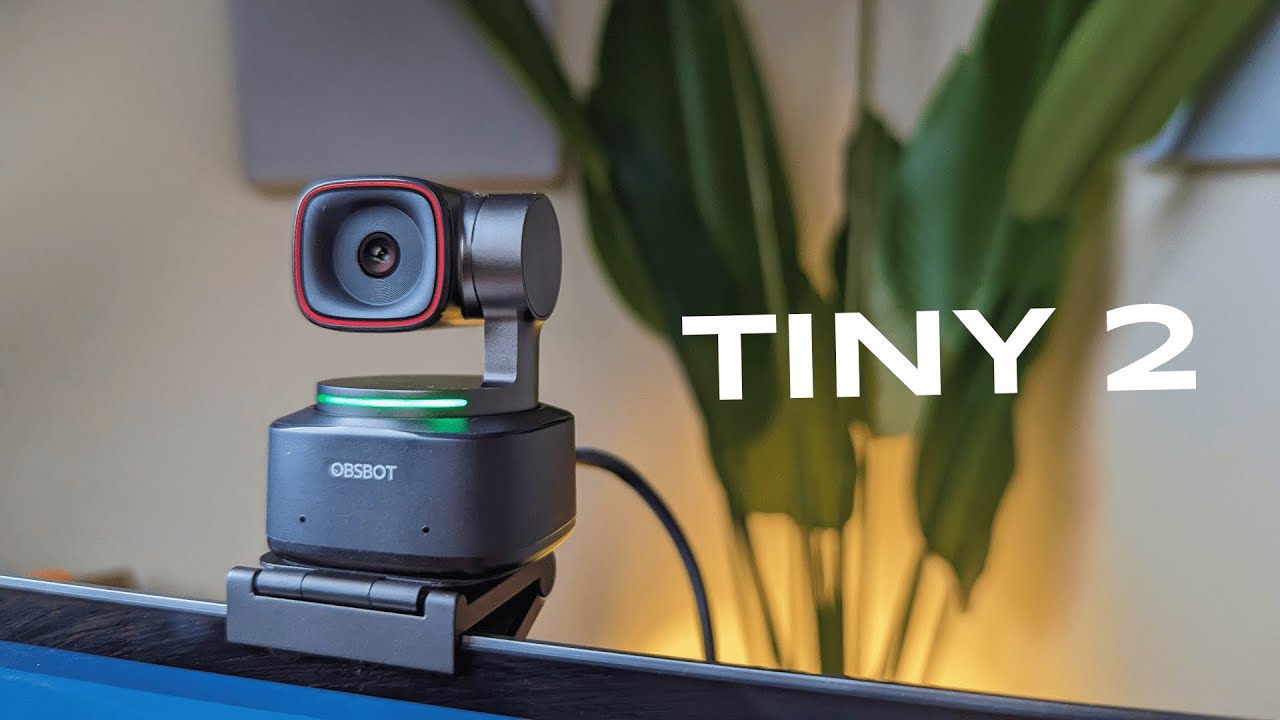
Hey — I'm Kova Tech. In this review I walk through the OBSBOT Tiny 2 webcam, its hardware, and the companion software so you can see whether this compact, AI-powered webcam is worth your desk (or stream). Below I cover what's in the box, first impressions, mounting and setup, real-world performance, the full software walkthrough, and the extras like voice control and the optional remote/HDMI options.
What's in the box
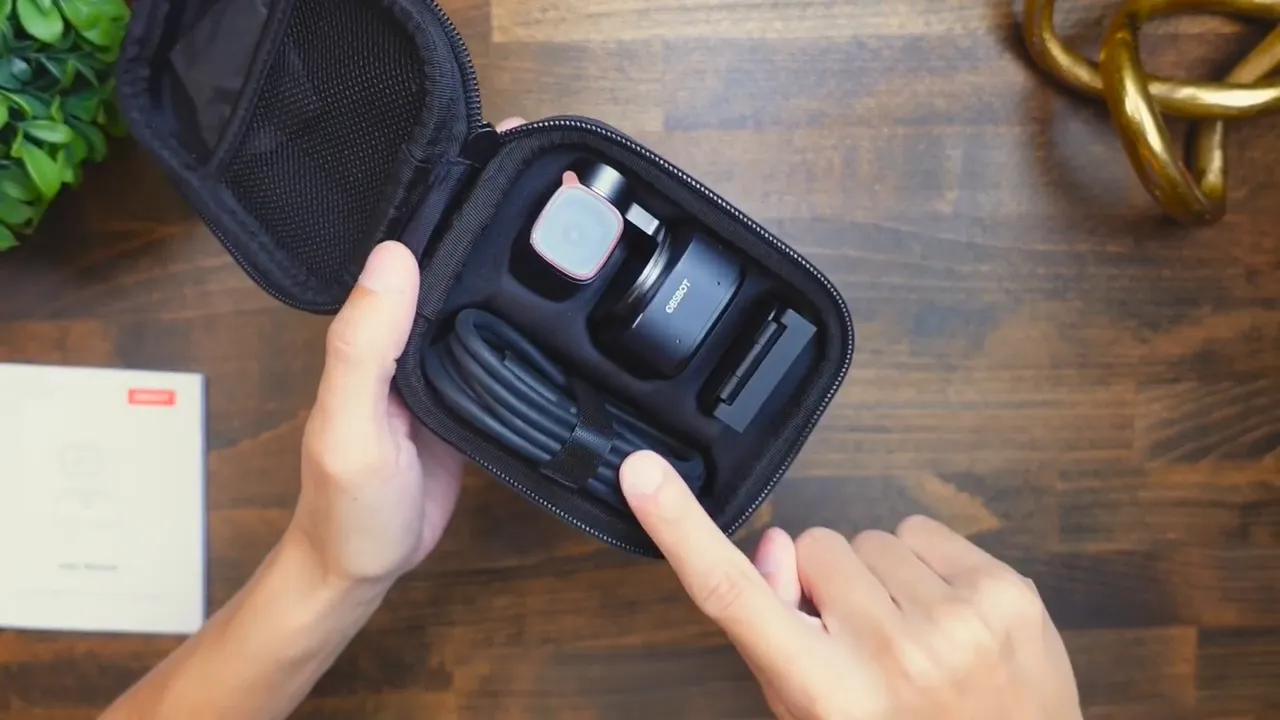
The Tiny 2 bundle ships in a zip-up case and includes:
- User manual
- OBSBOT Tiny 2 webcam (tiny but metal-built)
- Magnetic metal mount
- USB-C cable + USB-C to USB-A adapter
- Optional add-ons (sold separately): smart remote and UVC HDMI adapter
First impressions — build and design
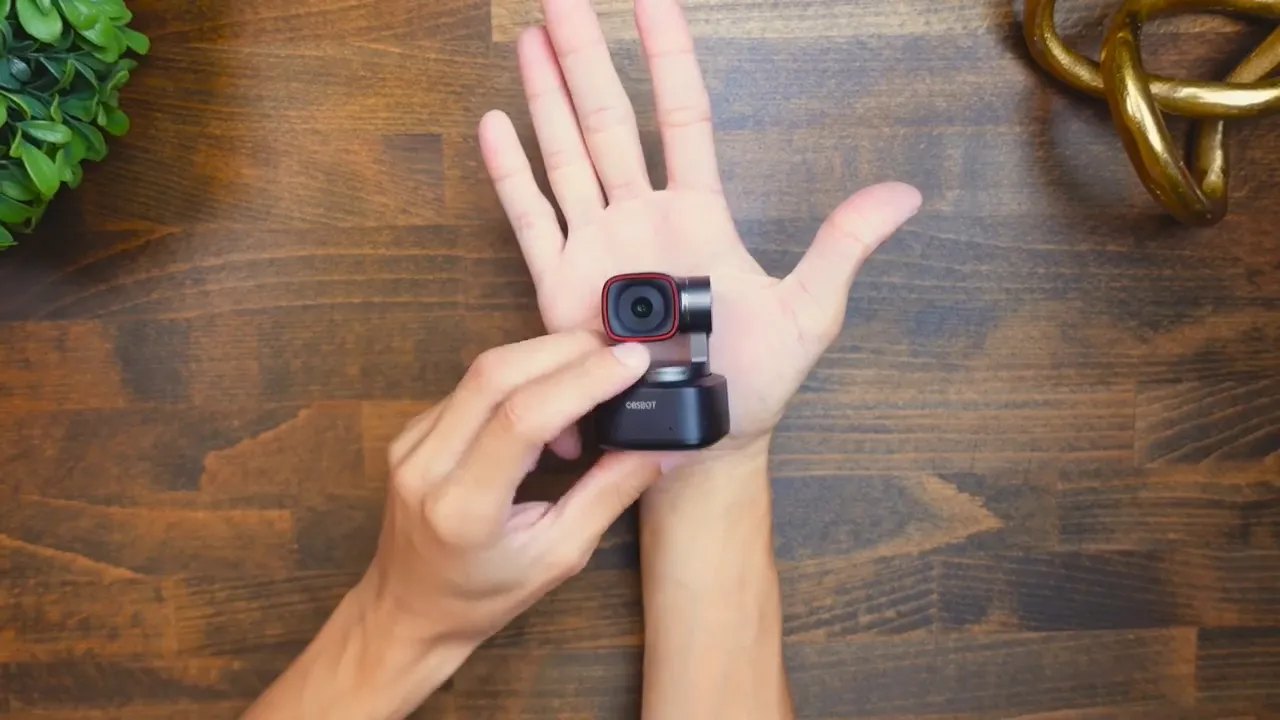
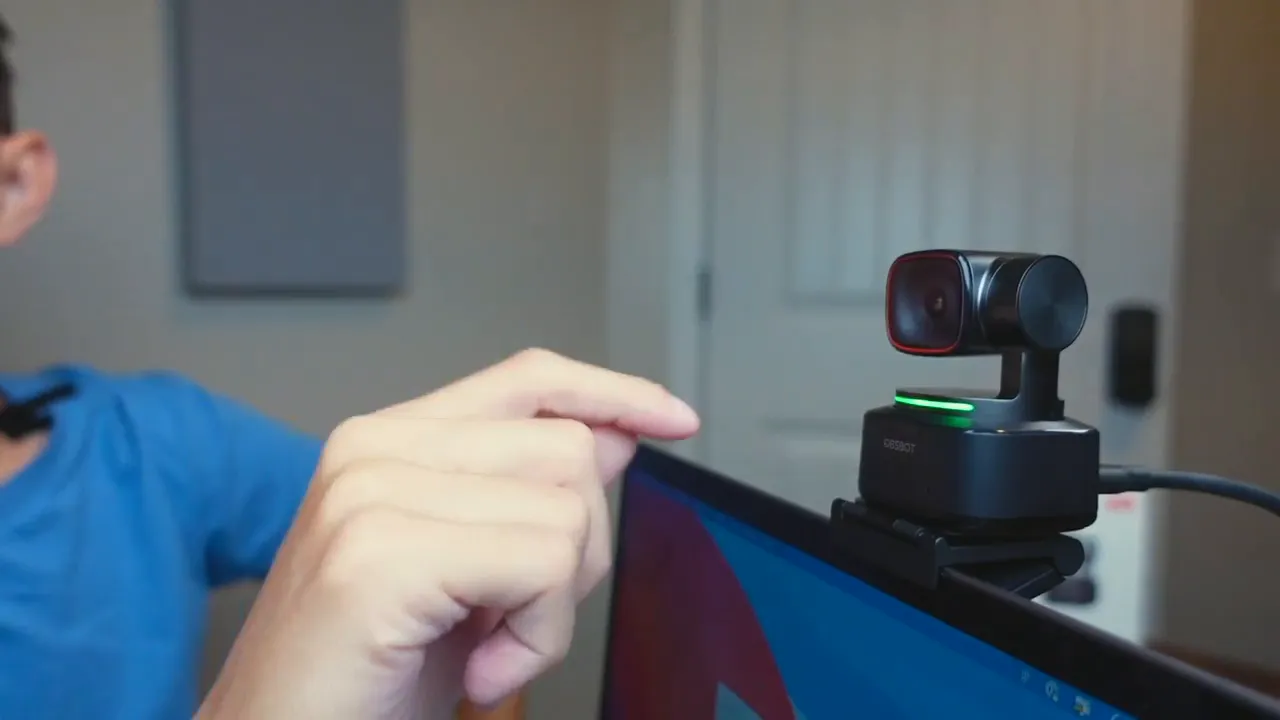
The Tiny 2 is aptly named: roughly half the size of my hand but with a full metal build that feels premium. The magnetic mount clips to the camera securely — I shook it and the magnet held firm — and the mount legs have rubberized pads that grip your monitor or laptop display.
Mounting and physical setup
Mounting on thin laptops is simple: angle the mount onto the top of the display, rotate/adjust the back legs to sit flat, and the webcam is ready. The Tiny 2 works well as a higher-quality replacement for a built-in laptop camera.
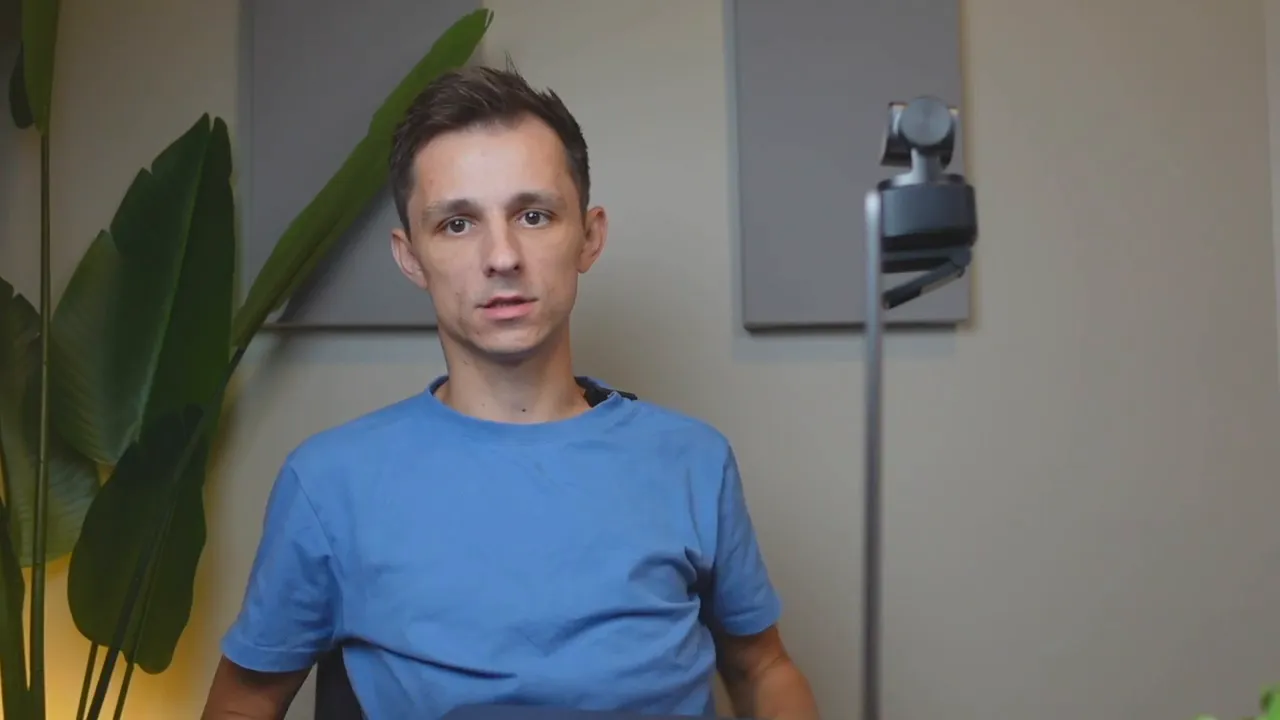
Plugging it in is plug-and-play via USB-C. If your machine lacks USB-C, use the included USB-A adapter. A small green LED indicates the camera is powered and ready.
Out-of-the-box audio/video performance
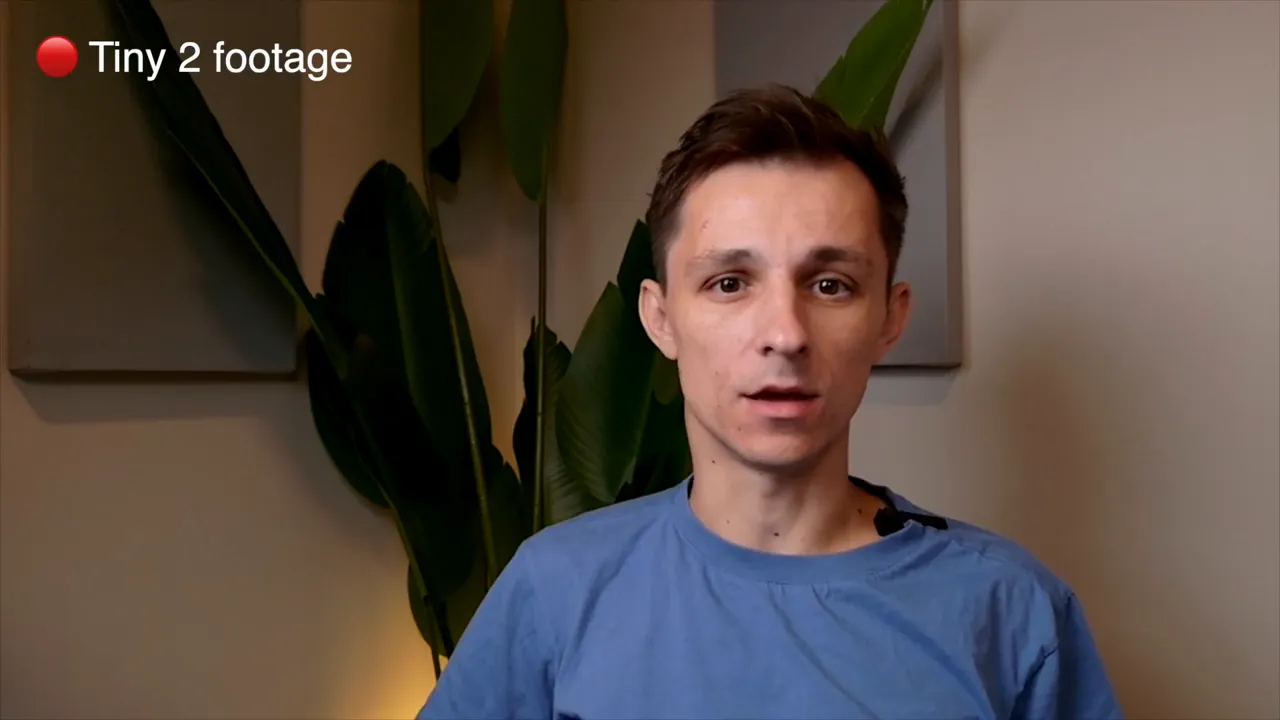
Without installing any software, the Tiny 2 gives a crisp image and smooth frame rate. I tested basic audio and video with no tweaks — audio pickup was usable for calls and the image looked "crispy" on my screen. In low light the Tiny 2 still performs respectably — it handled an almost-dark room far better than typical built-in laptop cameras.
Software walkthrough — download from OBSBOT
The Tiny 2's software unlocks most of the camera's advanced features. After installing, the UI presents a main camera view plus a left-side camera control panel where you can:
- Adjust resolution and frame rate (I tested 1080p at 13 FPS)
- Record video or capture photos from the app
Gimbal control and lens selection
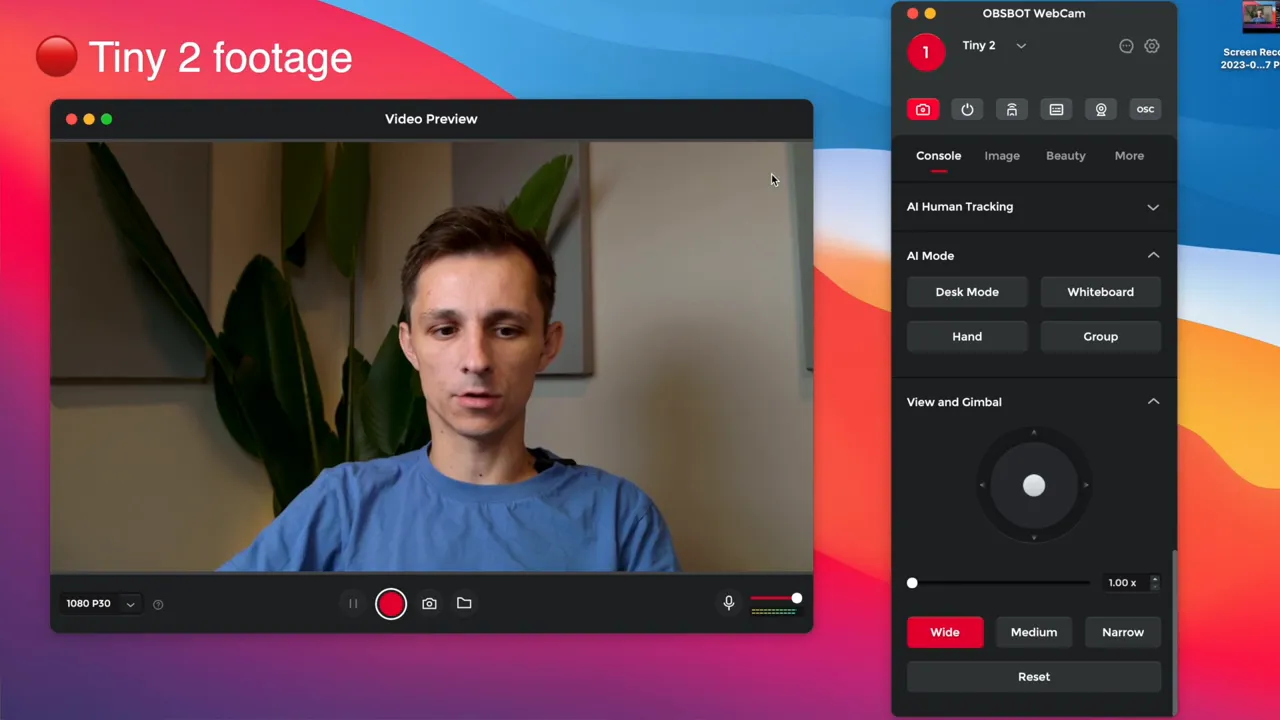
One of the Tiny 2's standout features is the gimbal. The software offers a View & Gimbal dial you can drag to pan left/right/up/down, and there's a reset button to re-center the camera instantly. Lens choices include Wide, Medium, and Narrow (more zoomed-in).
AI Modes — desk, whiteboard, hand, group
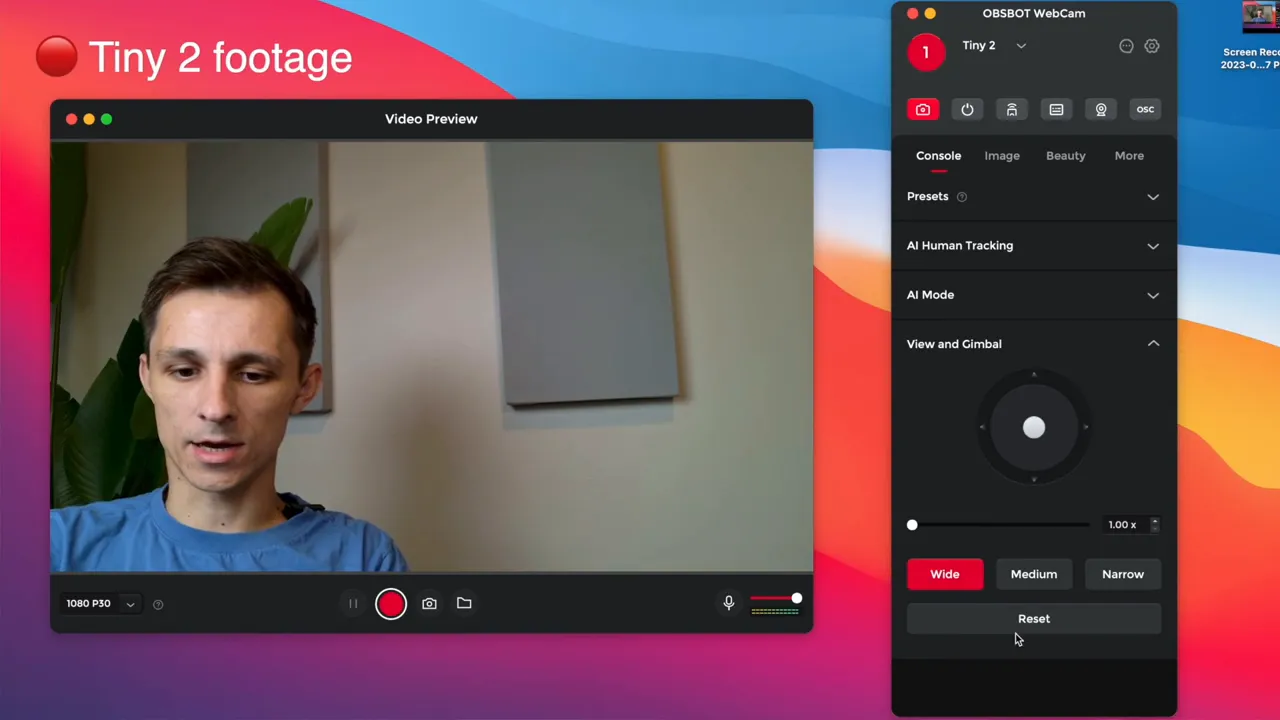
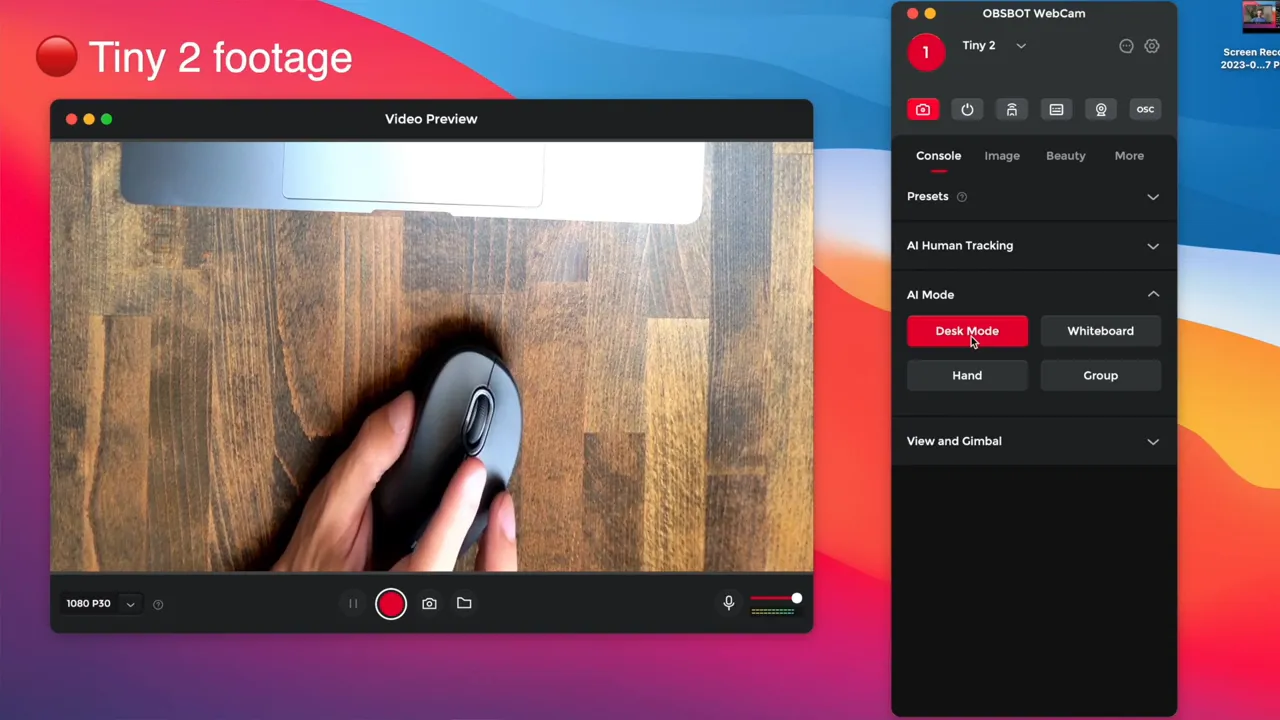
The AI Mode panel includes:
- Desk mode — perfect for showing paperwork, artwork, or demos on a desk (note: slight warping at angles)
- Whiteboard mode — isolates and fills the board area for teaching/explaining
- Hand mode — tracks your left or right hand for demonstrations
- Group mode — zooms/pans to keep multiple people in frame
Tracking options and presets
The camera's tracking can be tuned: motion tracking, standard, upper body, close-up, headless, lower body, etc. I preferred upper-body tracking for meetings and presentations — it keeps you framed naturally. You can save presets (Preset 1/2/3) to quickly switch between layouts such as “upper-body meeting,” “whiteboard,” or “desk demo.”
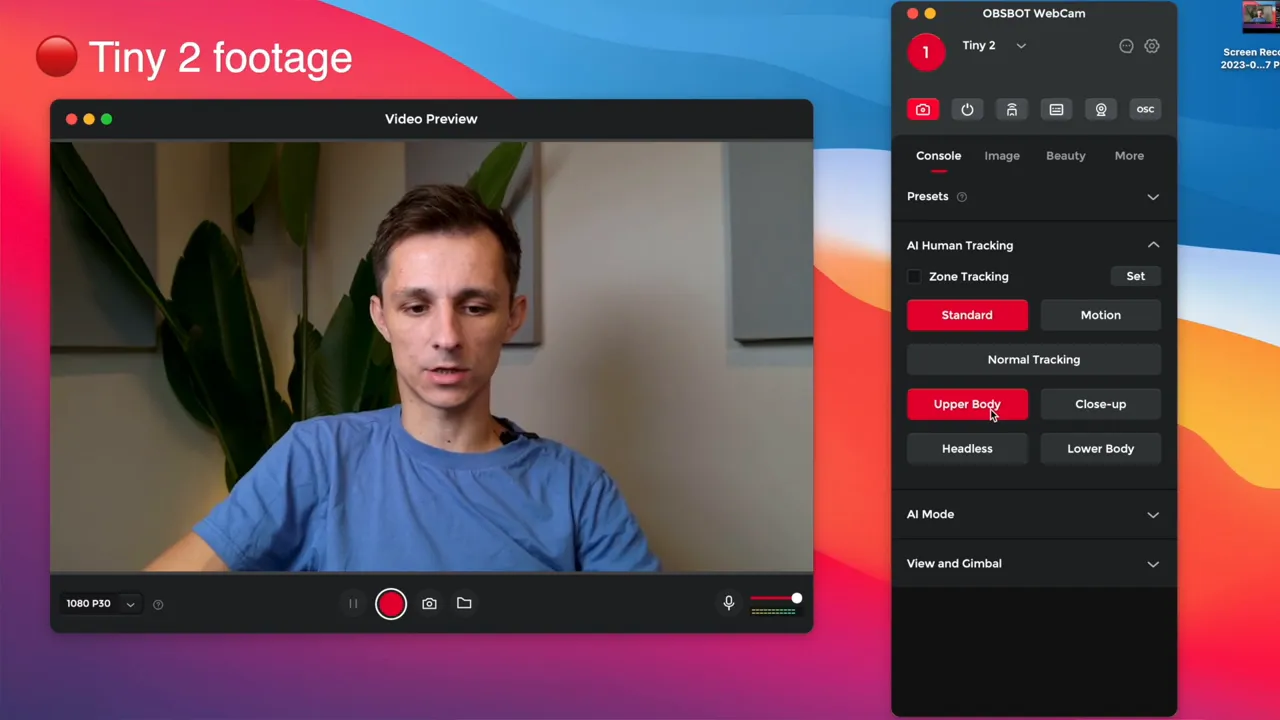
Image controls: HDR, focus, exposure, white balance
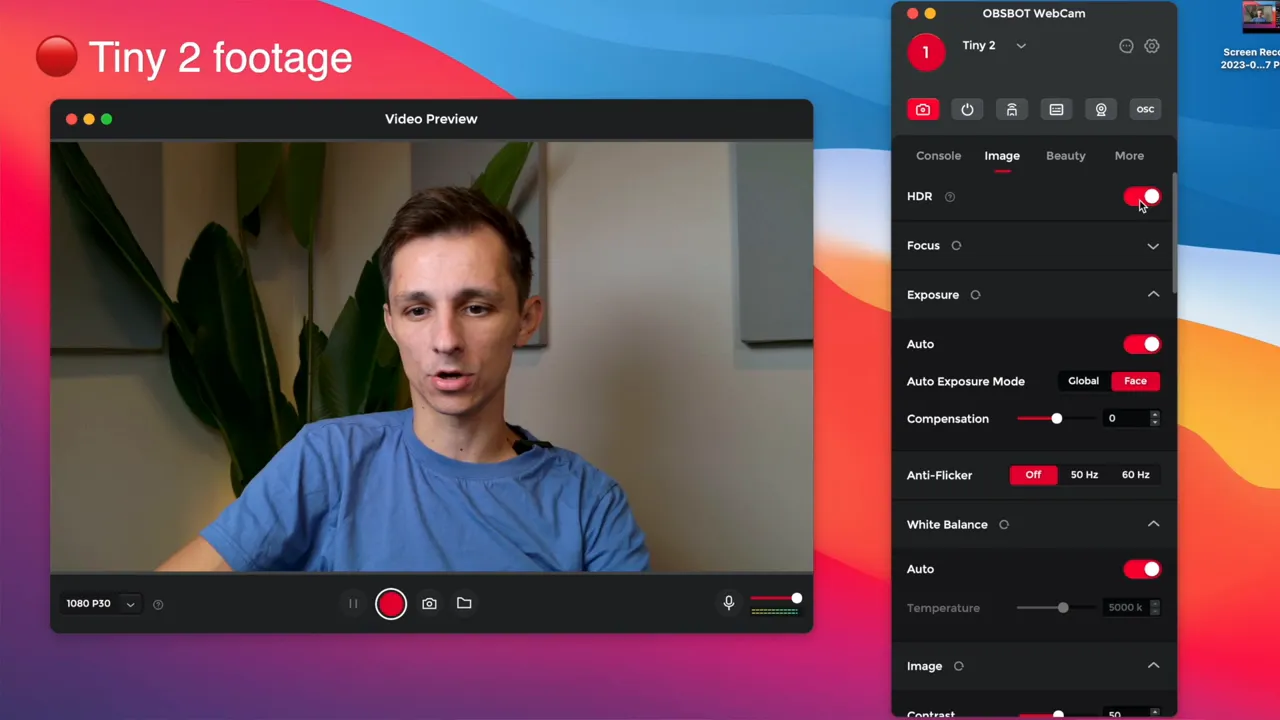
Image settings include:
- HDR toggle — makes the image crisper and changes color tone
- Focus mode — prioritize face or whole scene
- Exposure controls and anti-flicker — helpful under certain lights
- White balance — I recommend leaving this on Auto
- Manual image tweaks — color, sharpness, contrast
Beauty and body-shaping features
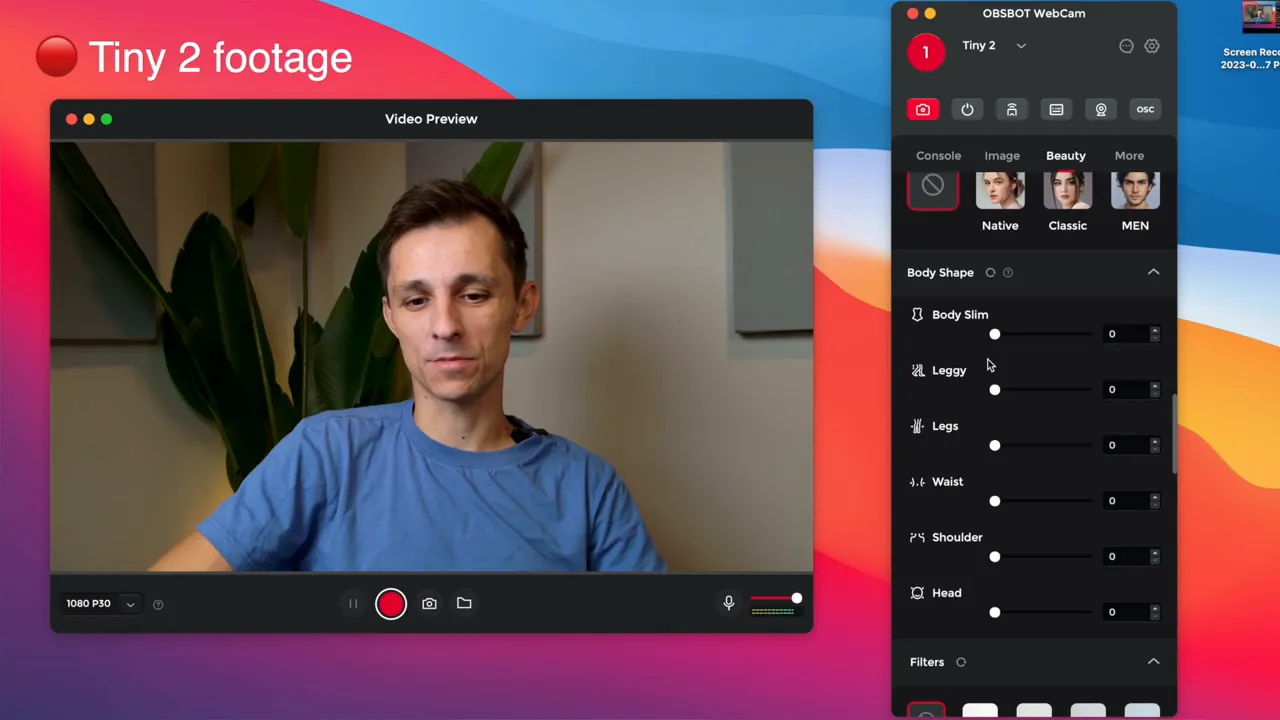
The app includes beauty filters such as Native, Classic, and Man, plus sliders that modify face/head/body shape (yes, you can dial your head shape smaller or larger). These are optional — hit Disable to keep a natural look. There are also color filters like Nature, Fresh, Clear, and more.
More settings: sleep background, lock target, zoom, hotkeys
Additional options let you set device sleep times (2–10 minutes) and a “sleep background” image for live streams when idle. Lock Target can fix the camera on a specific person; zoom factors and global hotkeys let you control the camera via keyboard shortcuts.
Voice control
One of the Tiny 2’s neat features is voice commands. In my testing I could say commands like “Sleep Tiny” to put the camera to sleep. Other voice actions include track/unlock, zoom in/zoom out, and more. Voice control is a fast way to change camera behavior without touching the mouse.
Remote control and connectivity options
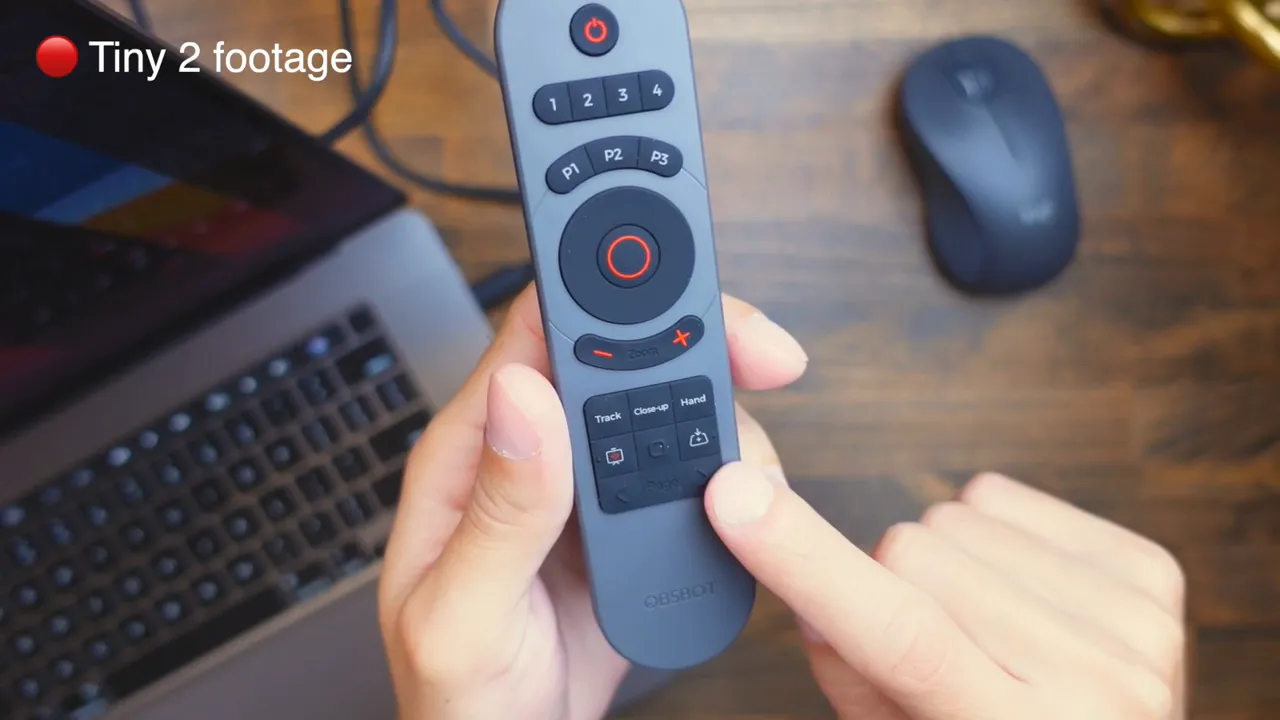
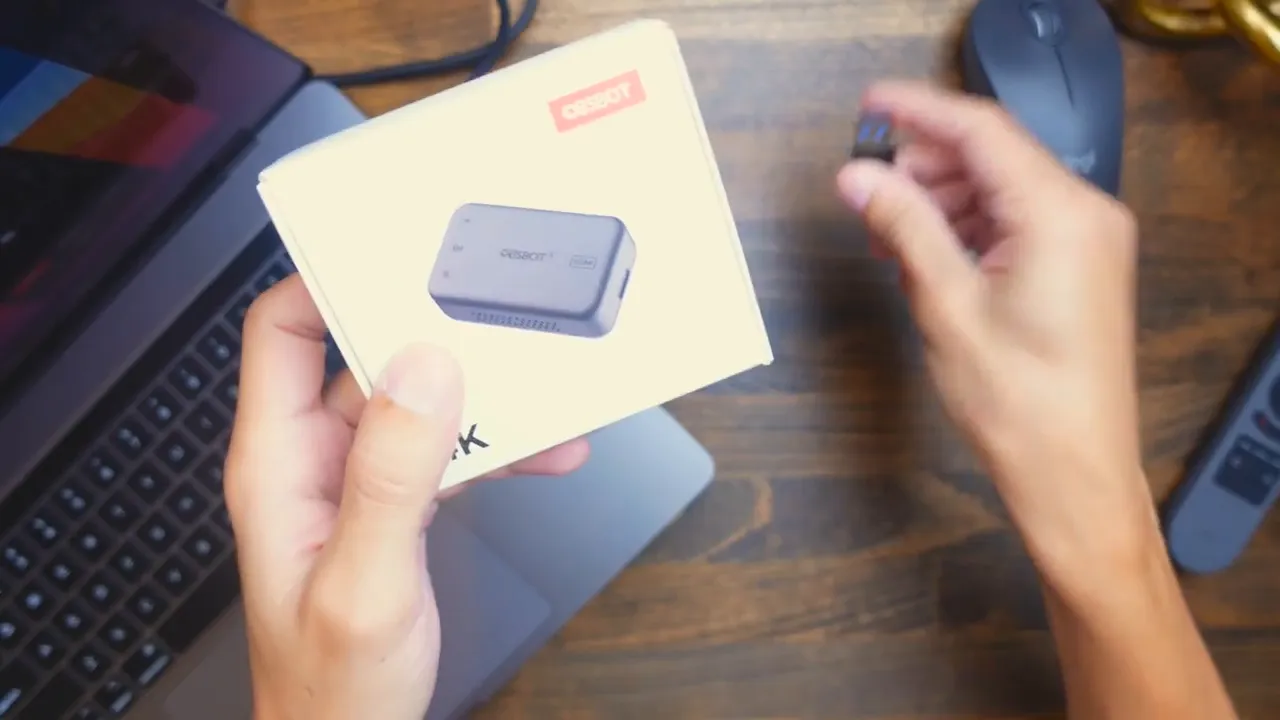
There’s an optional smart remote (sold separately) that connects via an included USB-A dongle. The remote can replicate most important software controls without opening the app. The Tiny 2 connects via USB-C or USB-A (adapter included). If you want HDMI output (for TV or certain capture setups) OBSBOT sells a UVC HDMI adapter separately.
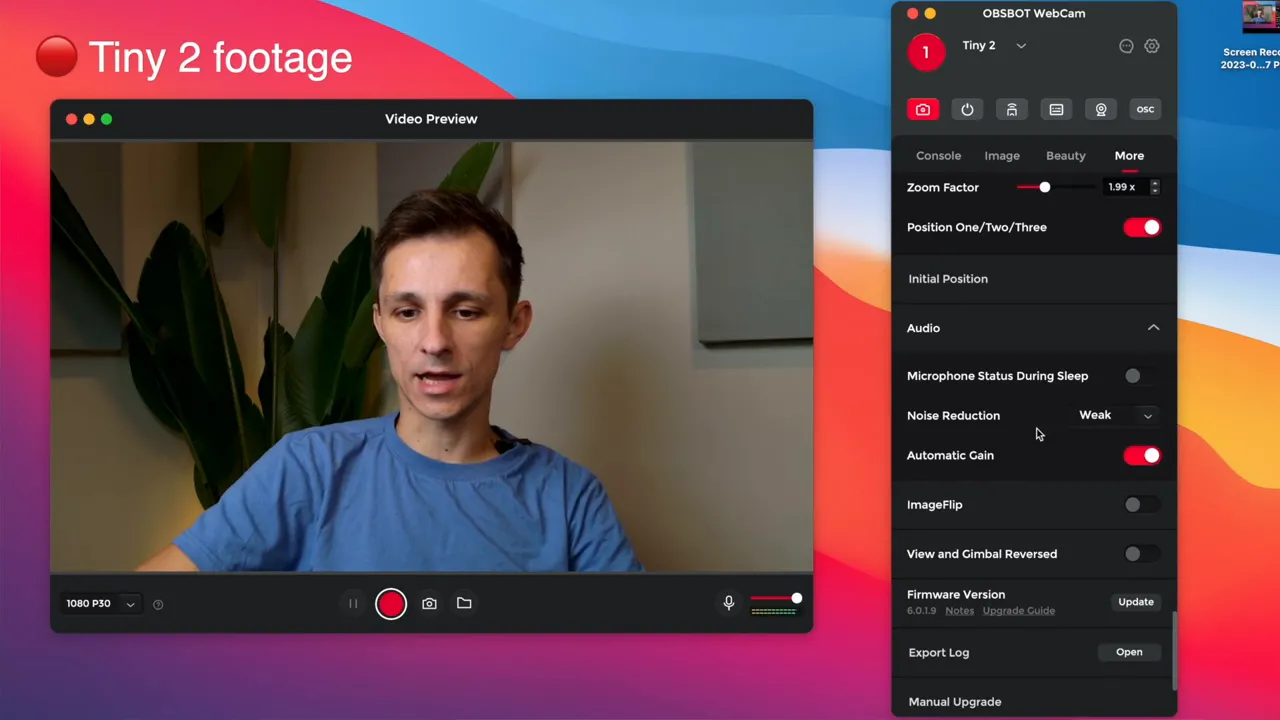
Audio settings
The software exposes audio controls such as noise reduction and gain. These allow you to dial in clearer audio if the onboard mic is too quiet or noisy for your environment.
Who should consider the OBSBOT Tiny 2?
- Content creators who want AI tracking and gimbal control without a large PTZ camera
- Teachers or presenters who need whiteboard/desk modes and presets
- Professionals who want better-than-laptop video and voice control features
- Streamers who might add the optional HDMI adapter or smart remote
Pros and cons — quick summary
- Pros: Compact metal build, strong magnetic mount, excellent tracking/gimbal control, rich software with AI modes, voice commands, decent low-light performance.
- Cons: Some “beauty/body” features may be gimmicky for pro users, remote and HDMI require separate purchases, advanced settings can be a lot to learn.
Final thoughts
The OBSBOT Tiny 2 is a solid, feature-rich webcam that punches above its size. If you want a compact webcam with gimbal movement, AI tracking, voice control, and lots of image controls, the Tiny 2 is worth a look. If you need HDMI output or a physical remote, plan to buy those add-ons separately.
If you want to pick one up, check the product link and promo code in the video description for the discount I mentioned. Thanks for reading — I’ll see you in the next one. Peace.


