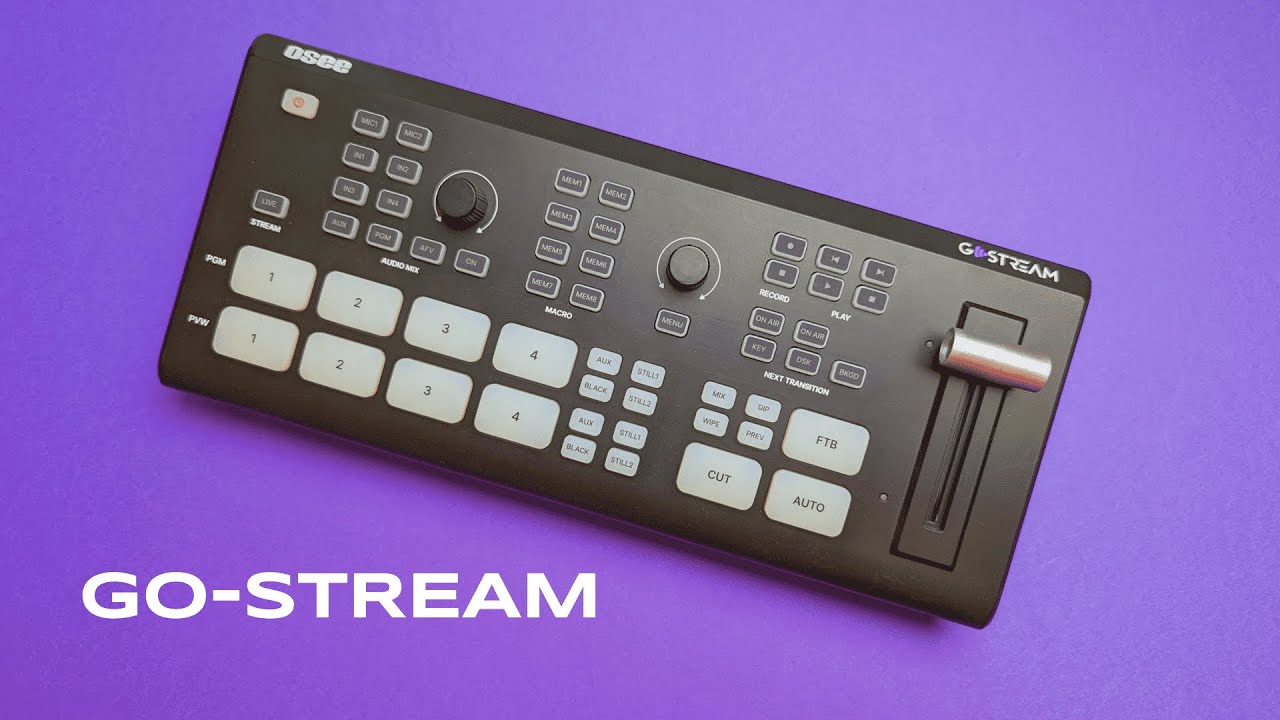
Multi-camera switching used to mean complicated setups, lots of editing, and bulky recorders. The OSEE GO-Stream Deck changes that by putting a compact, affordable multiformat mixer and recorder into a portable box you can actually reach across and use in real time. I set mine up with three cameras and a desktop source and used it to record an entire review session without fussing over b-roll. It saved time and kept the focus on content.
Table of Contents
- What the GO-Stream Deck does at a glance
- Why it feels like a studio-size shortcut
- Recording options: SD card versus USB-C drive
- Picture-in-picture and macros
- Streaming and UVC output
- Practical use cases I recommend
- Setup tips and recommended gear
- Comparing it to ISO-style recorders
- Frequently asked questions
- Final thoughts
What the GO-Stream Deck does at a glance
The GO-Stream Deck is a portable live switcher that supports multiple HDMI inputs, two outputs, and flexible recording options. It functions as a switcher for live broadcasts, but it shines when used offline as a fast, studio-friendly recorder. Key strengths include multi-cam switching, a built-in audio mixer, picture-in-picture presets, and the option to record to an SD card or an external USB hard drive depending on the model.
Why it feels like a studio-size shortcut
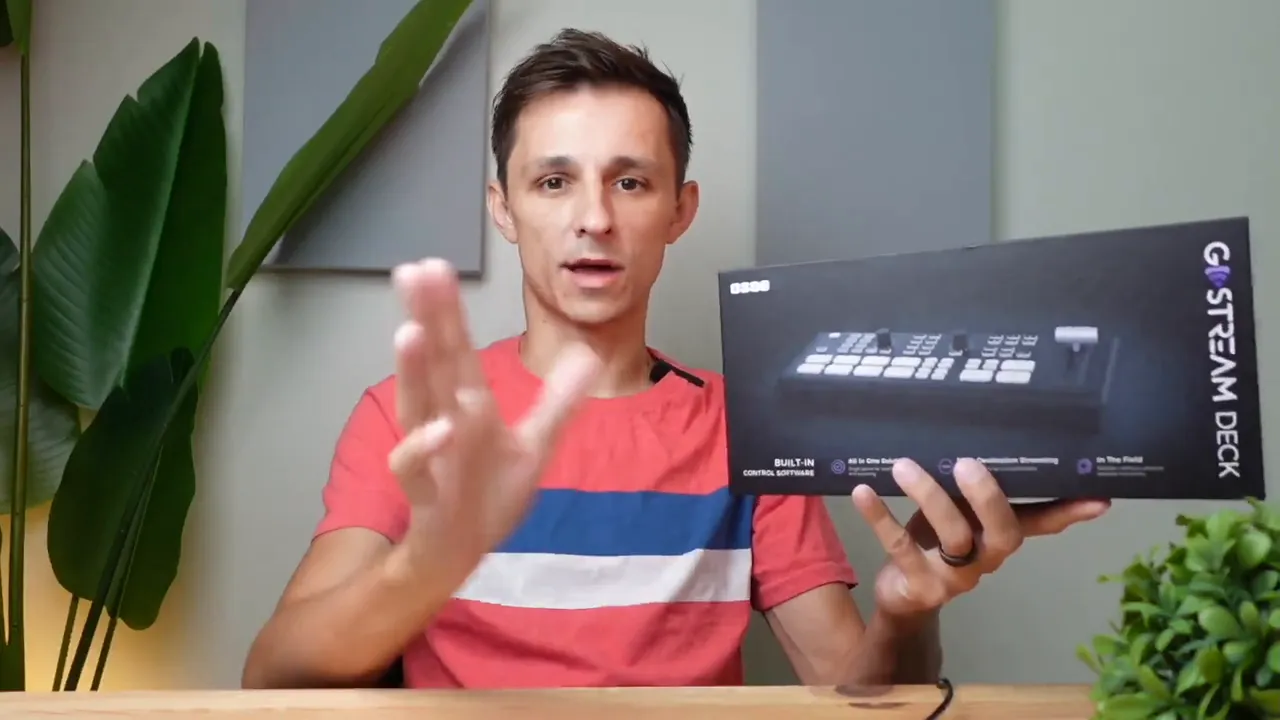
The most practical benefit is speed. Instead of filming a single angle, then setting up a second camera for b-roll and swapping lenses, you can place three cameras in fixed positions and switch between them live. That makes product reviews, tutorials, and talk-through demos much more efficient. I used a main camera, a side angle, and an overhead, plus a desktop input for screen sharing.
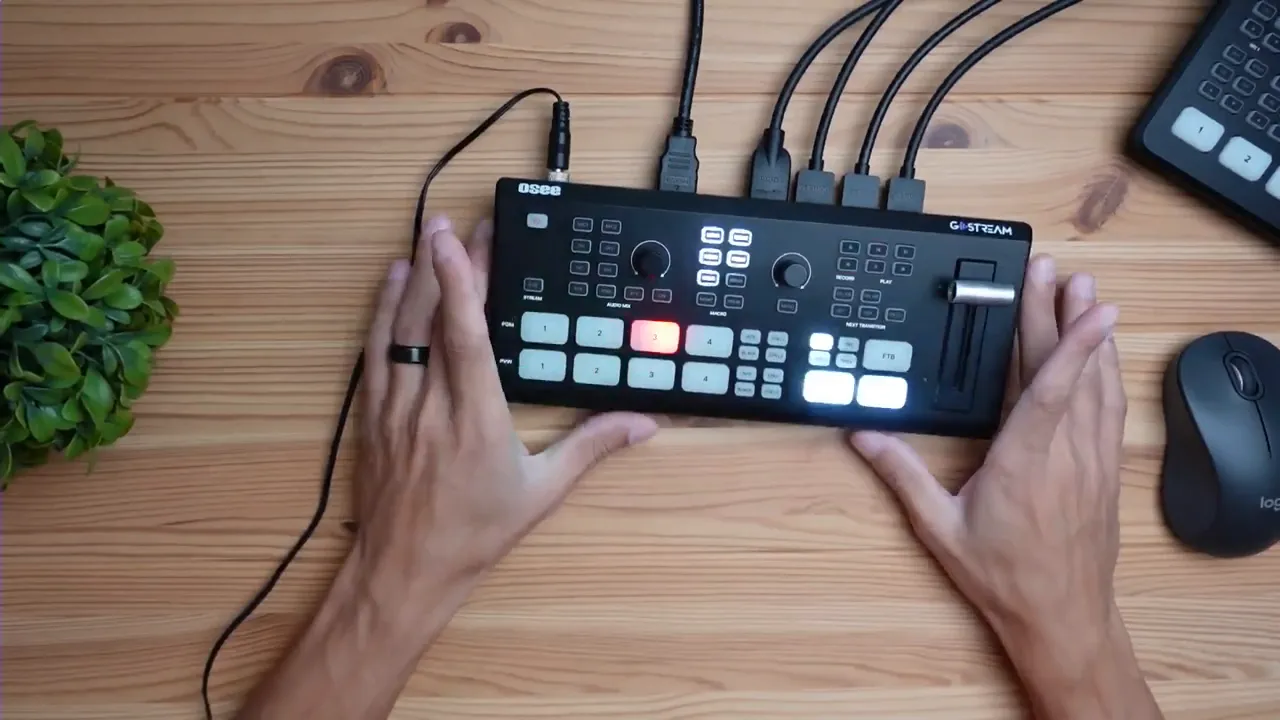
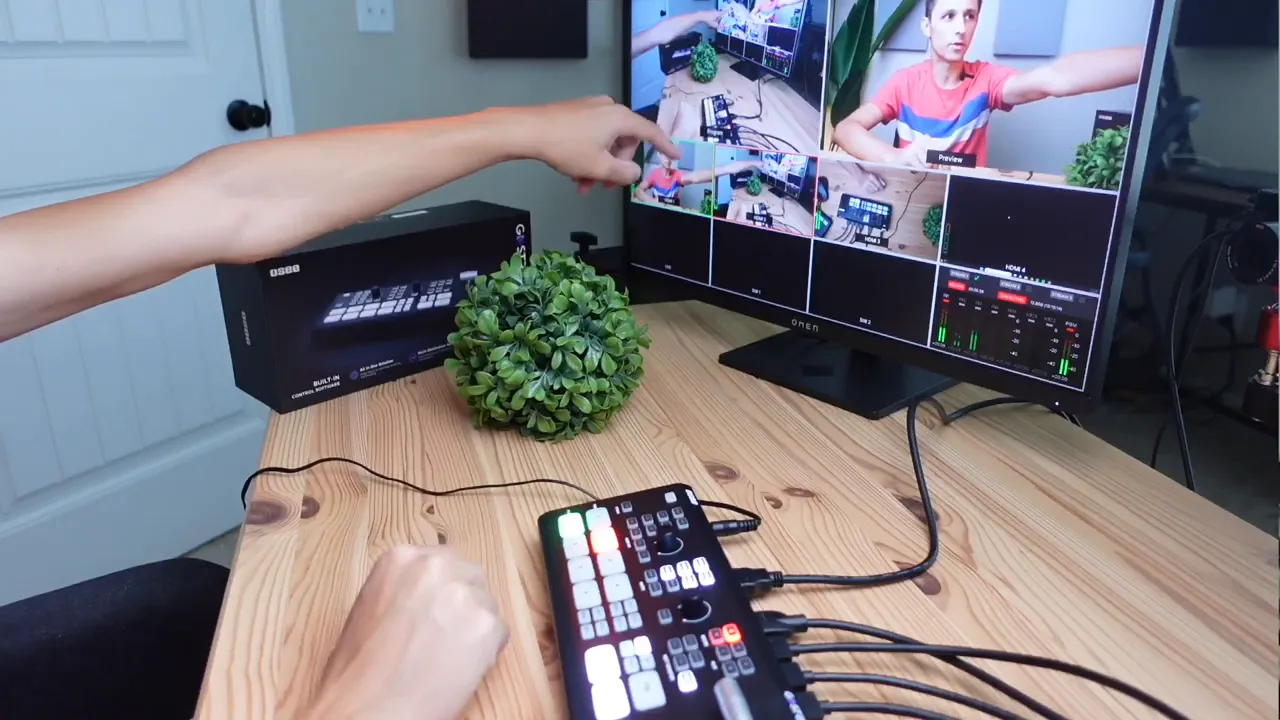
Physically, the unit is covered in buttons. Most of them are one-time setup macros you configure and leave alone, but four buttons become your primary live controls. Press 1, 2, or 3 to instantly call a different camera, and press 4 to switch to a desktop feed for quick screen tutorials.
Recording options: SD card versus USB-C drive
One model accepts an SD card and records directly to it. That makes setup simple and portable: insert a card and go. Another model requires a USB-C hard drive, which adds extra cost and bulk but gives higher storage capacity. Compared to higher-end units like the A10 mini pro ISO, the GO-Stream Deck is more budget friendly by about one hundred dollars while offering the same basic switching experience.
There is an important workflow difference to note. More expensive ISO recorders record every input independently, which gives maximum flexibility in post. The GO-Stream Deck records the output you control in the moment. That means you capture the exact program feed you want, not isolated camera tracks. For many creators who prioritize speed over frame-perfect multi-track editing, this is a trade worth making.
Picture-in-picture and macros
The unit includes picture-in-picture presets that are easy to swap on the fly. One button places a camera feed into a corner while showing the desktop full screen. Prebuilt macros let you change the PIP position from top-left to top-right, bottom-left, or bottom-right with a press. That makes screen tutorials look polished and dynamic without complicated editing.
Streaming and UVC output
When connected to the internet and authorized to a streaming account, the deck can stream directly to platforms such as YouTube, Twitch, Vimeo, Twitter, and others. There is also a UVC output for integrating with typical streaming software or video conferencing apps, so the unit acts as both a hardware switcher and a webcam source for a computer.
Practical use cases I recommend
- Product reviewers: Set up multiple cameras for different close-up angles. Play the product, swap angles, and keep the conversation flowing.
- Tutorial creators: Switch between camera and desktop to show step-by-step instructions with PIP support.
- Small live events and presentations: Use the audio mixer and outputs to feed a projector while recording to card or drive.
- Offline studio recording: Record program-ready footage and edit later without juggling dozens of files.
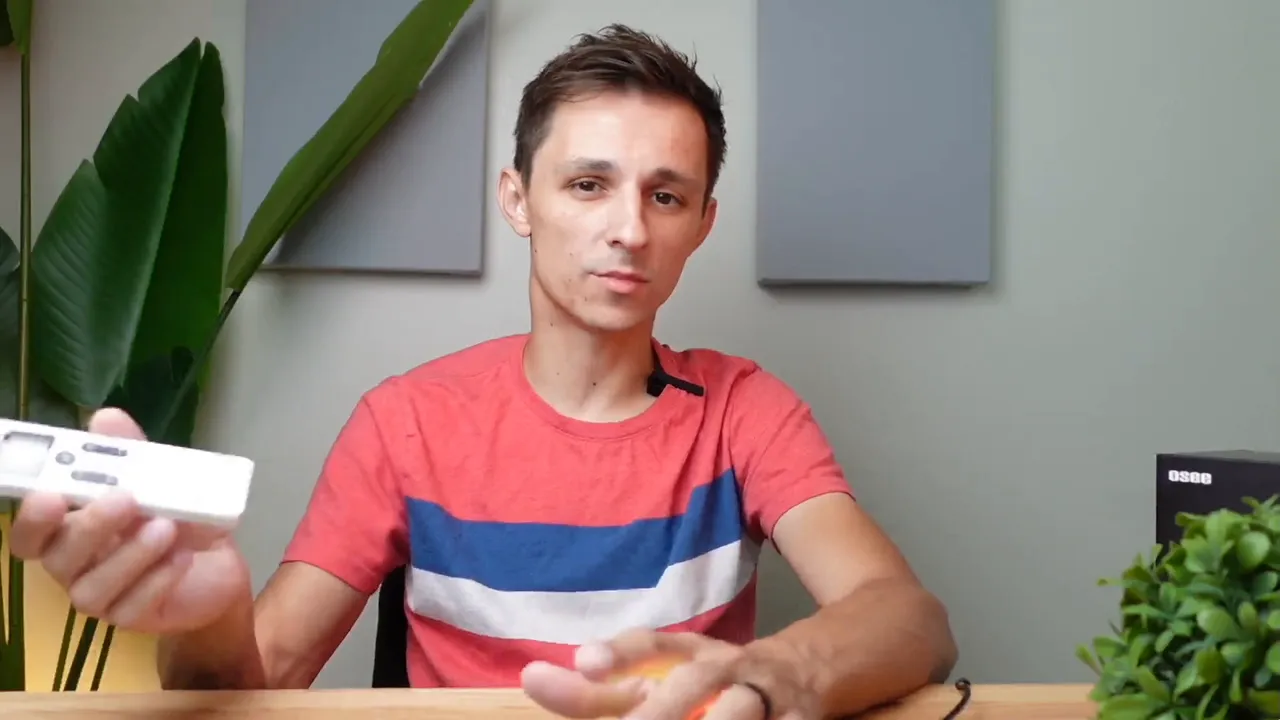
Setup tips and recommended gear
For a smooth experience, I recommend an external monitor to keep an eye on the program output, input previews, and audio meters. That way you can monitor levels and camera feeds without relying solely on the deck’s small screen. Also plan camera framing in advance so switching feels natural rather than reactive.
Use labeled HDMI cables and consistent camera exposure settings so the switches look seamless. If audio is critical, route a dedicated feed into the deck’s mixer and monitor with headphones through the headphone jack.
Comparing it to ISO-style recorders
If your workflow requires independent camera tracks for deep editing and flexible cut points, an ISO recorder like the A10 mini pro ISO is still the right choice. If you want to speed up production and publish polished content faster, the GO-Stream Deck is a practical, budget-friendly alternative that reduces post work by letting you control the program feed in real time.
Quick setup checklist
- Mount cameras: main, side, and overhead or desired angles.
- Connect desktop via HDMI for screen sharing.
- Insert SD card or connect USB-C drive depending on model.
- Configure macros and picture-in-picture presets.
- Hook up an external monitor for monitoring and audio headphones for level checks.
Frequently asked questions
Can the GO-Stream Deck record without an internet connection?
Yes. With an SD card installed or a USB-C drive attached (depending on the model), the unit records locally so you can operate completely offline and upload files later.
How many inputs does it support?
It supports multiple HDMI inputs—four on many versions—plus options for SD card or USB input for recording and two HDMI outputs for monitoring or feeding external displays.
How does it differ from ISO recorders like the A10 mini pro ISO?
ISO recorders capture each input as a separate track for detailed post production. The GO-Stream Deck records the program feed you switch live, which is faster for immediate publishing but offers less flexibility in post.
Do I need an external monitor?
An external monitor is highly recommended. It makes it easier to monitor audio levels, preview camera feeds, and verify what is currently recording or streaming.
Final thoughts
The GO-Stream Deck is a compact tool that streamlines multi-camera production. It is particularly useful for creators who want to reduce editing time while still delivering dynamic, multi-angle content. With picture-in-picture presets, direct recording to SD or drive, and easy live switching, it becomes a practical centerpiece for small studios, review channels, and tutorial workflows.
Quick reminder: setting up your scenes and macros ahead of time keeps switching smooth and keeps the focus on the story you want to tell.


